
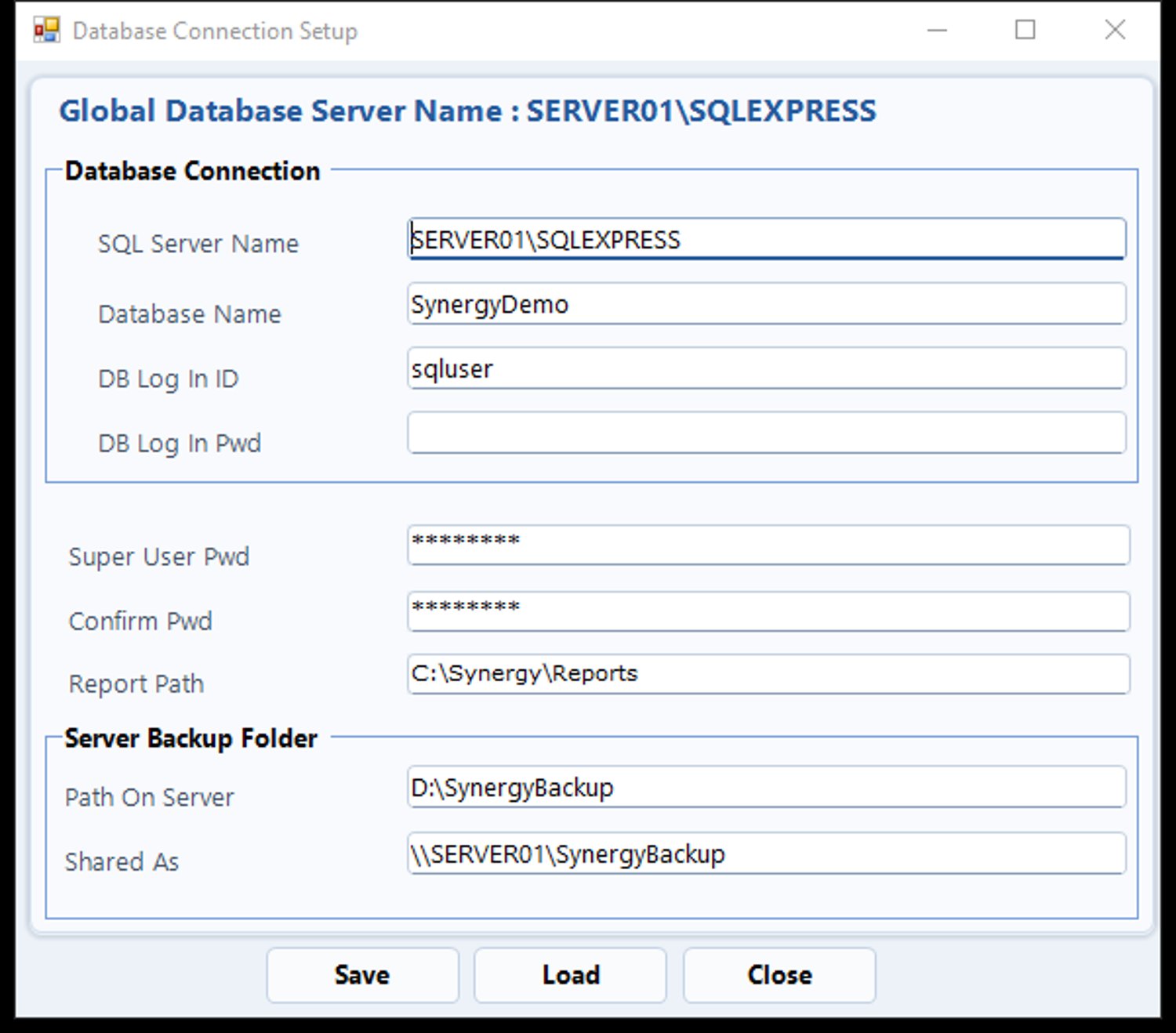
Database Connection Setup tells the program which database server and database to use, and where reports and server backups are kept. It is meant for the person who installs or administers the system. This guide also explains the two warning windows that appear when the program cannot reach the database or the main computer.
Before you start
- Have the SQL Server name, database name and log-in details ready.
- Have the Admin or Super-User password ready. A single-PC single-user licence does not need it.
Steps
1. Open the setup
Database Connection Setup is opened from the Log In screen. The current settings are filled in. On a multi-company installation, a Company database setup screen opens first, with the same connection settings.
2. Check the connection
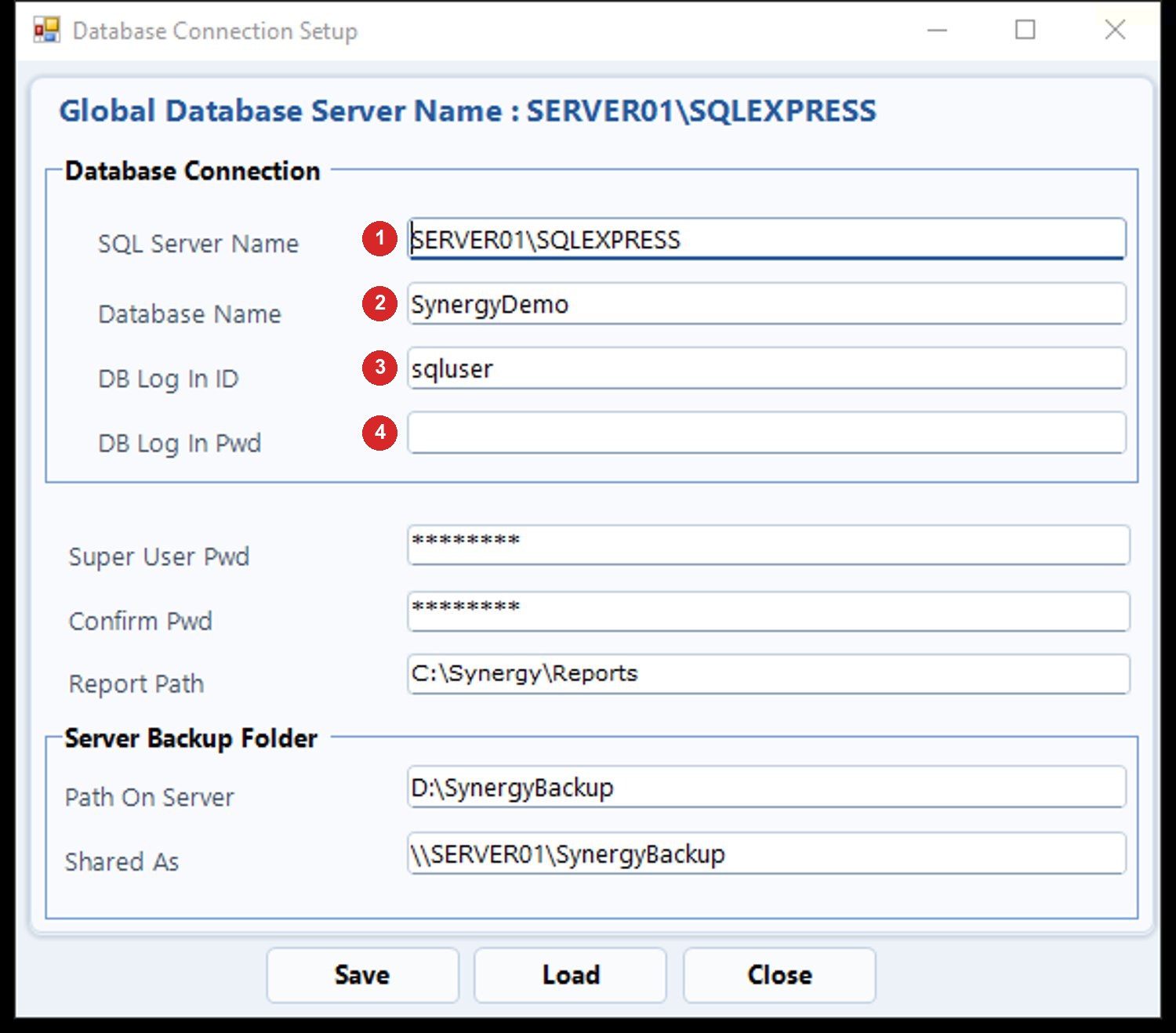
Under Database Connection, check the following.
| Step | What to do |
|---|---|
| 1 | Check SQL Server Name. |
| 2 | Check Database Name (no spaces). |
| 3 | Check DB Log In ID. |
| 4 | Check DB Log In Pwd. |
3. Set the super user password
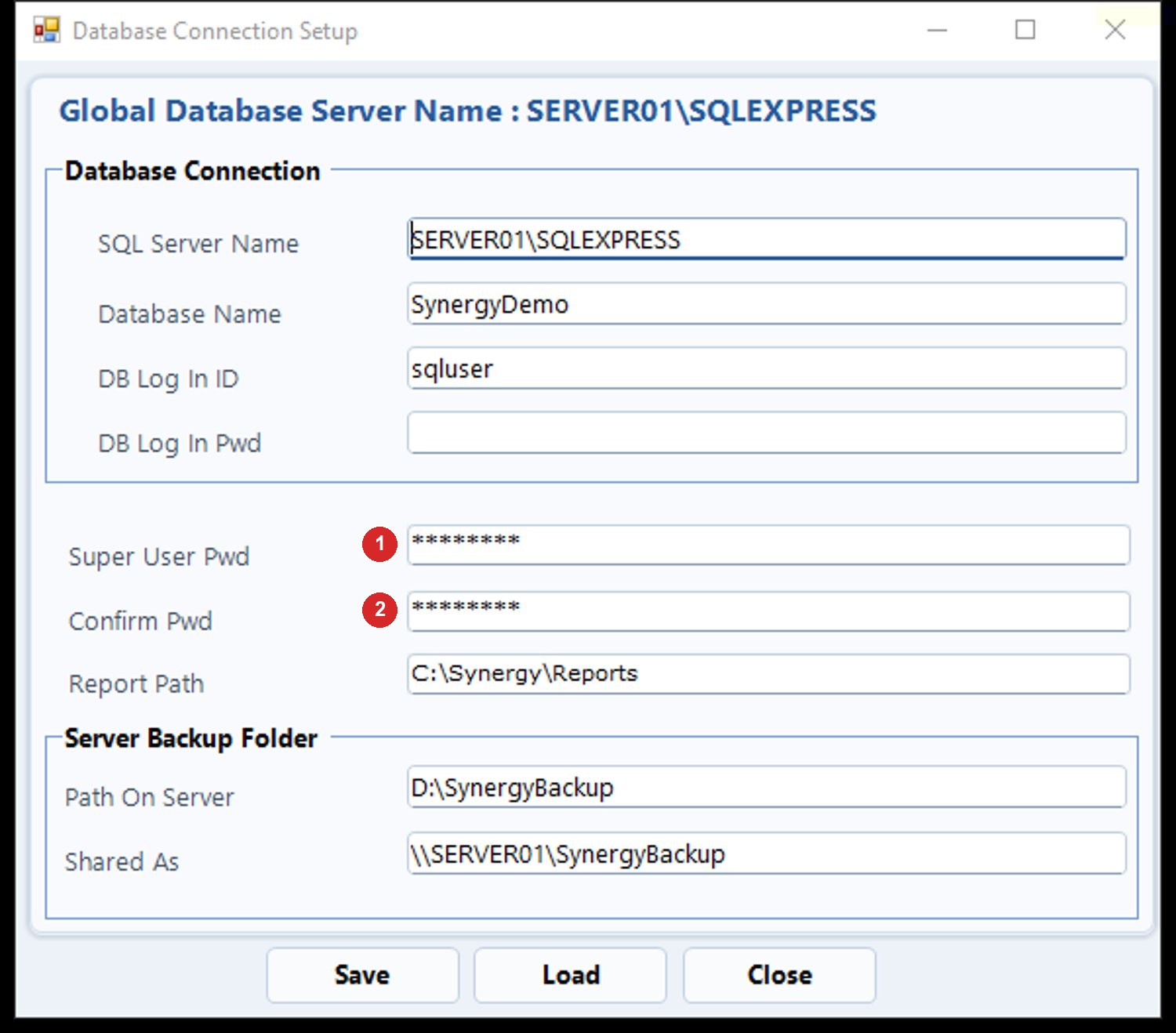
These boxes are hidden for a single-PC single-user licence.
| Step | What to do |
|---|---|
| 1 | Enter Super User Pwd. |
| 2 | Repeat it in Confirm Pwd. |
4. Set the report path
Set Report Path. The button next to it lets you browse for the folder.
5. Set the backup folder
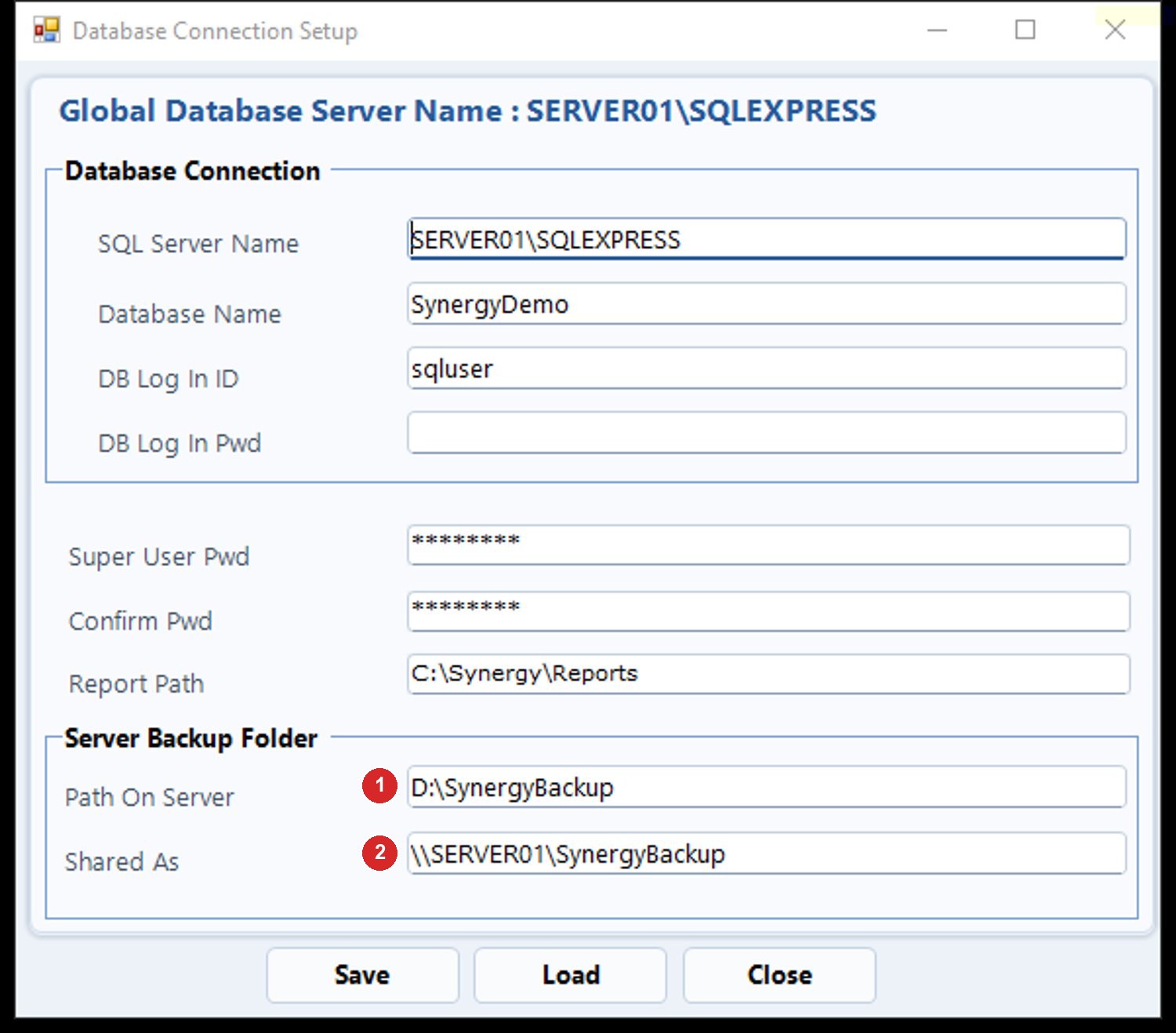
Under Server Backup Folder, set the two folders.
| Step | What to do |
|---|---|
| 1 | Set Path On Server (the folder as seen on the server itself). |
| 2 | Set Shared As (the same folder as other computers reach it). |
6. Save
Click Save. The program tests the connection first and saves only if the test passes. Configuration saved successfully. means it worked, and any backup folder warnings follow.
7. Close
Click Close to leave.
Tips
- Contact Synergy support if you are not sure about any of these settings.
- After saving, the settings are also copied to the clipboard.
Common problems
Test Connection Failed.
The server name, log-in ID or password is wrong, or the server cannot be reached. Nothing is saved. Check them and that the server is running.
Spaces not allowed in Database Name.
Remove the spaces from the database name.
Super User Pwd is not same as Confirm Pwd.
Retype both boxes.
Path On Server or Shared As folder warnings after saving.
Create the folder, share it properly and give the right user write permission.
Database Connection Problem box: Unable to connect to database.
The program retries by itself when the countdown reaches zero. Click Retry to try now, or Cancel to stop. Timeout (Seconds) sets how long it waits each time, and a longer timeout may help on a slow network. If it keeps coming back, check that the server computer is on and the network is working, and give the database name and server name shown on the box to your system administrator.
Network Connection Problem: Your computer is unable to connect to the main PC (Server).
Click Open Network Folder to open the shared folder, which often refreshes the connection, then Close and try again. Check that the main PC is on and that your cable or Wi-Fi works. If several users get the message at once, the problem is most likely on the main PC.