
This guide shows how to change the colours the program uses, how to rename certain fixed lists to words that suit your business, and how to replace the program’s standard wording with your own, for example a translation.
Steps
1. Open Color Settings
From the menu, go to Main > System > Color Settings. A list shows each colour type with its current colours.
2. Pick the colours
Click the text colour or background colour cell of a row. A colour picker opens. Pick a colour and confirm. The name in the first column shows your choice as a preview.
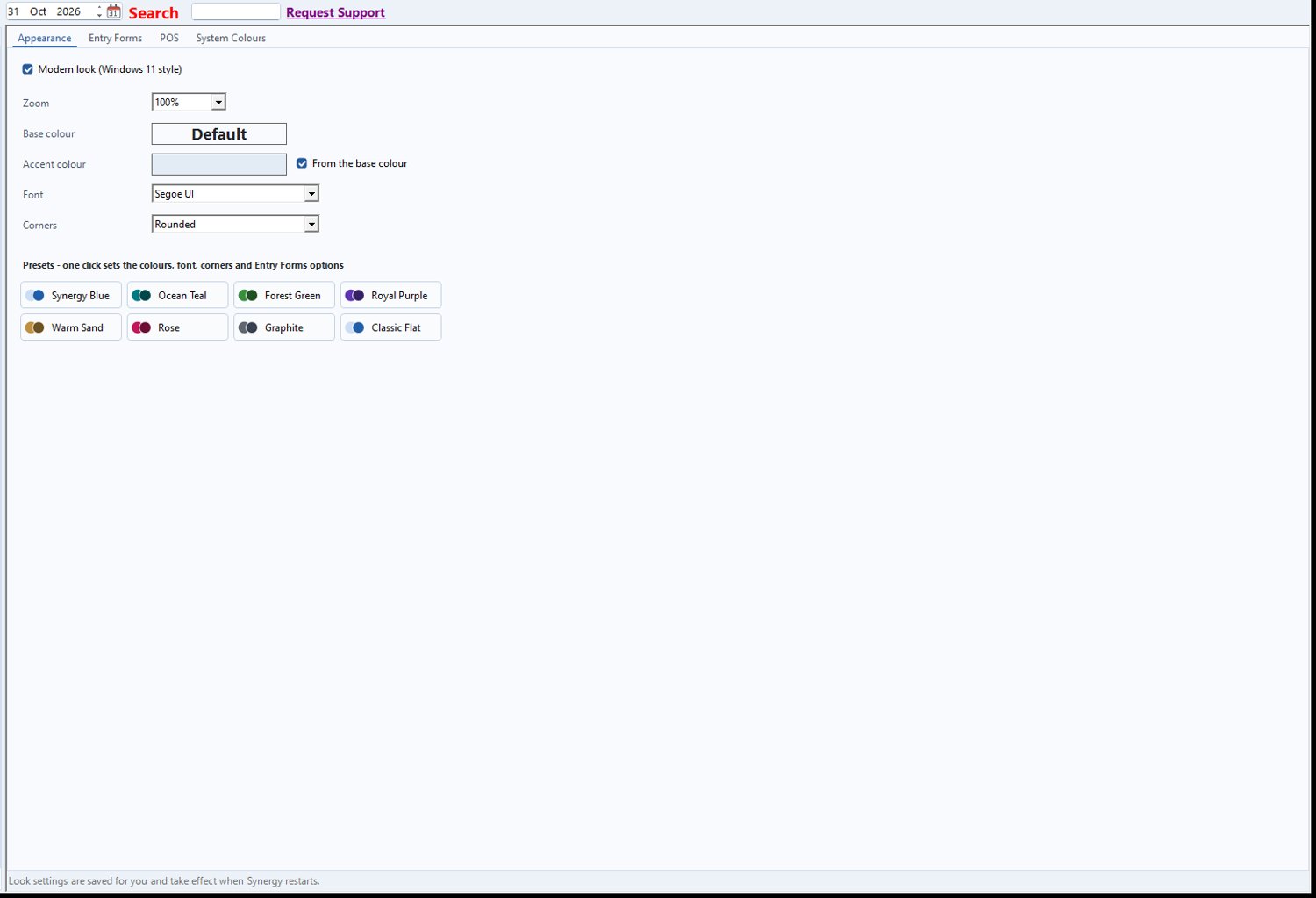
3. Save, load or reset
Click Save to keep your choices (Settings Saved. appears). Load brings back the last saved colours. Reset Default puts back the program’s standard colours, then click Save to store them. System Base Color sets a base colour for the whole system. Choosing white sets it back to Default.
4. Open Customize Description
Open it from the menu place that has your list, for example Inventory Management > Masterfile > Item Grouping > Customize Group Name, or Debtor Ledger > Masterfile > User-defined data > User-defined Price Group, or Sales and Purchases > Masterfile > User-defined Fields.
5. Rename the items
For some lists the code can also be changed.
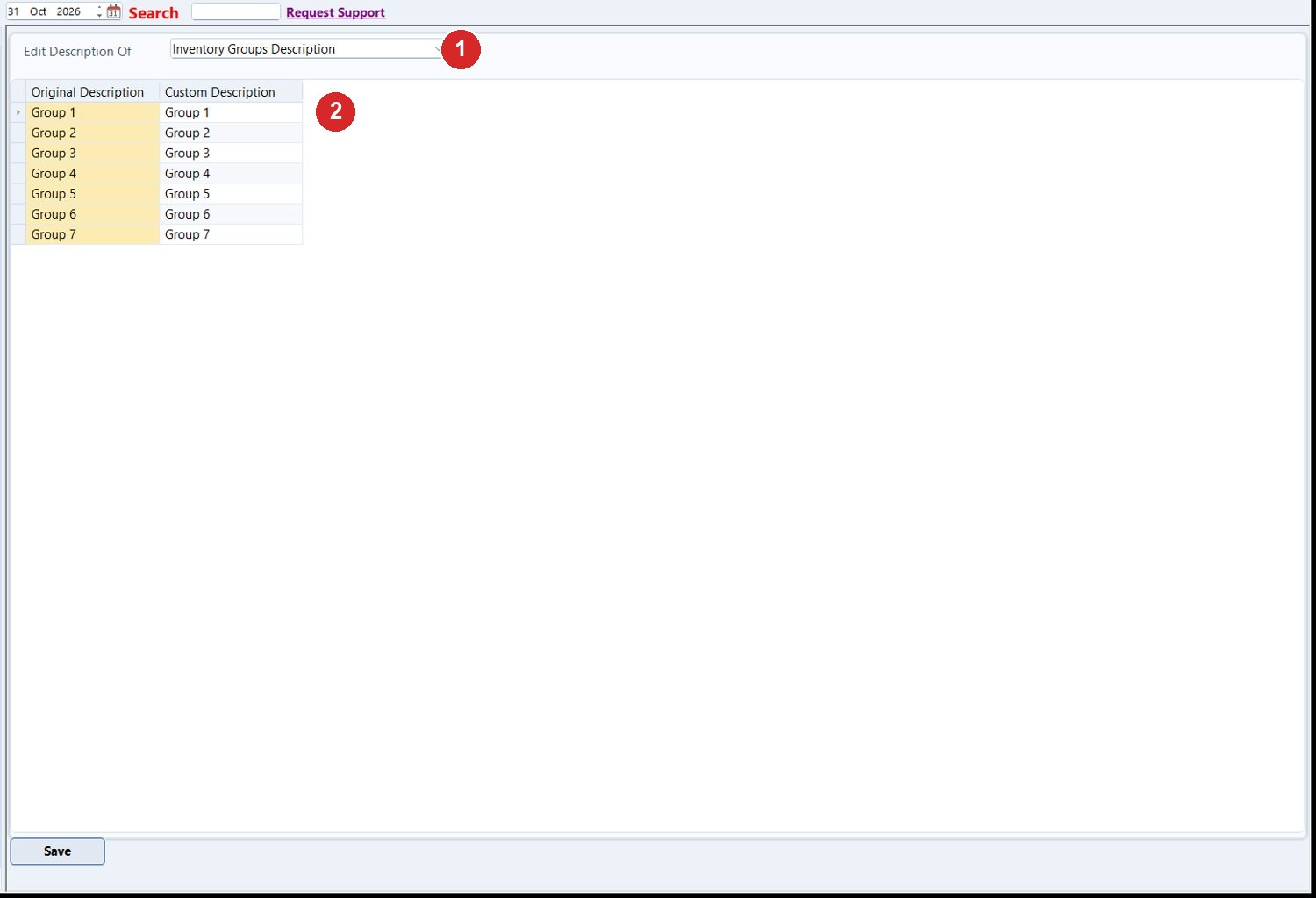
| Step | What to do |
|---|---|
| 1 | In Edit Description Of, choose the list. |
| 2 | Edit the descriptions in the grid. |
6. Save the descriptions
Click Save. You see Descriptions updated. and the new names appear straight away.
7. Open Language / Dictionary
From the menu, go to Main > System > Language / Dictionary.
8. Name your wording set
Only letters and numbers are allowed in the name.
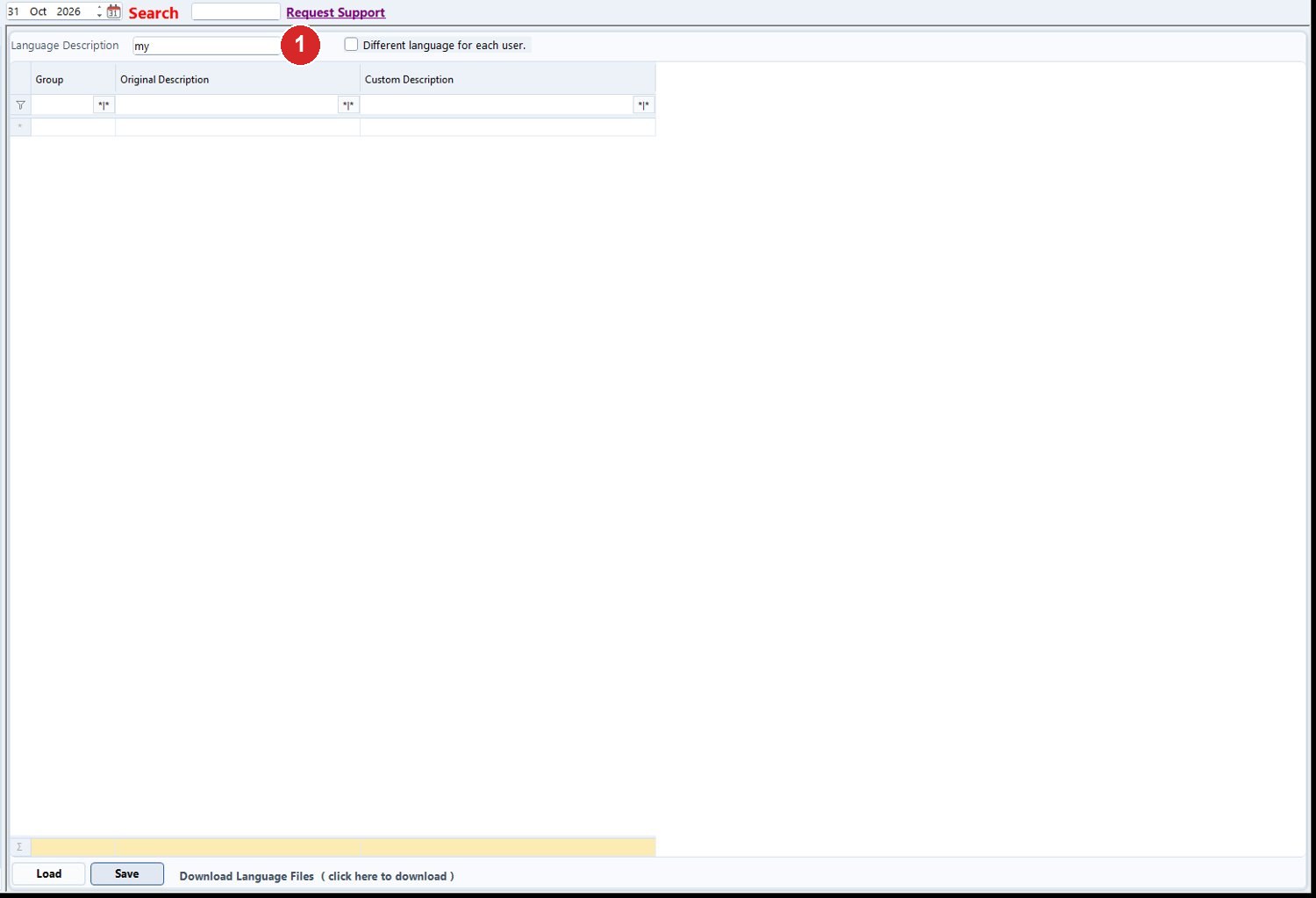
| Step | What to do |
|---|---|
| 1 | Type a name in Language Description. |
9. Type your wording
In the grid, type your own text next to each standard phrase you want to change. Leave a row empty to keep the standard phrase.
10. Save
Click Save. Saved. appears and the program uses the new wording. Use Load to edit an existing wording set.
Tips
- The colour list is a system-wide setting for everyone who uses this database. System Base Color is stored for the current user as soon as you pick it.
- Download Language Files ( click here to download ) downloads a ready-made language pack. Tick Different language for each user. if each user should keep their own language choice.
- If screens that are already open still show the old wording, reopen them or restart the program.
Common problems
My colours are gone after reopening.
You may not have clicked Save. Click Load to bring back the last saved set.
Everything looks odd after trying colours.
Click Reset Default, then Save.
I cannot find the list I want in Customize Description.
Only lists that can be customised appear, and a screen opened from a specific menu place may show only its own lists.
Invalid [Language Description]. Only Alphabets and Numbers allowed.
Remove spaces and symbols from the name.
Other users still see old names.
They may need to reopen the program or screen first.