
The Event Log shows the history the program recorded for a record, such as who changed what and when. Use it to find out what happened to a record.
Before you start
- Your user permissions must allow you to open the event viewer.
Steps
1. Open the event log
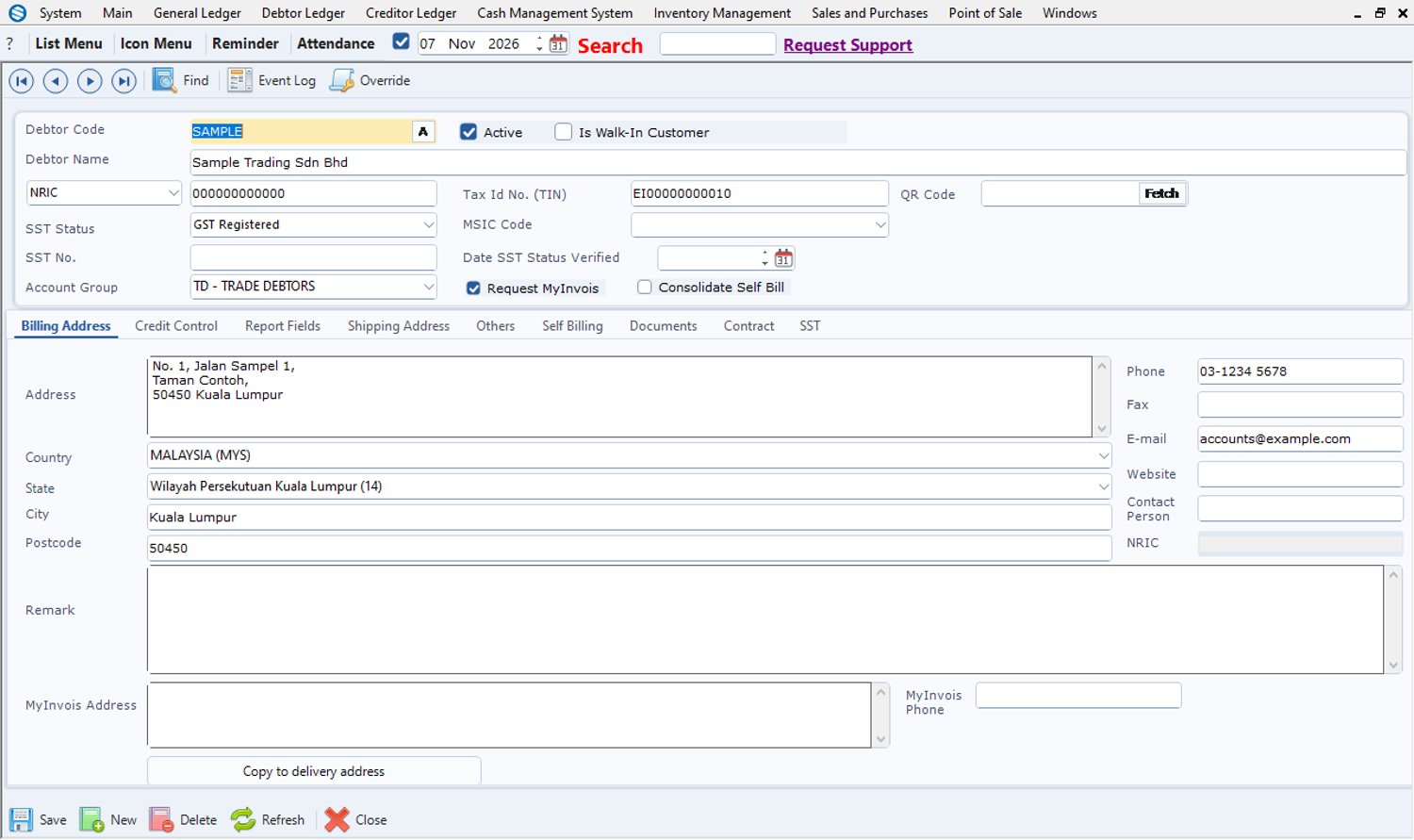
Open the record whose history you want to see, then click Event Log on the toolbar of the record screen. The list shows the events for that record, one per line.
2. Read an event
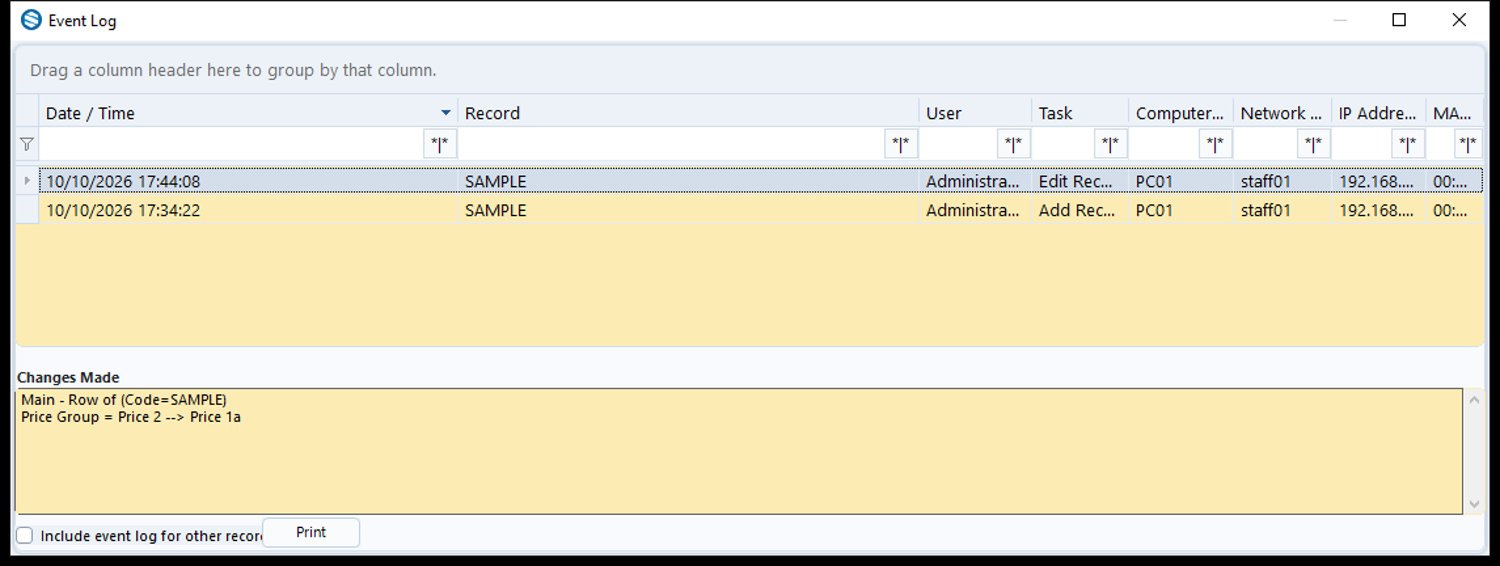
Click a line. The details of that event appear in the Changes Made box at the bottom.
3. Narrow the list
Use the filter row at the top of the list. Type in the column headings to narrow the lines.
4. See other records
Tick Include event log for other record to see the events of other records of the same kind as well. Untick it to go back to the single record.
5. Print
Click Print to print the event log. With the tick box off, the printout is limited to the current record. With it on, it covers all records of that kind.
Tips
- The list only holds events that the program recorded at the time. It cannot show changes that were never logged.
- How many events are kept is set in Main > System > System Settings (Main), on the System Options tab, in Number of records to keep in Events Log.
Common problems
The list is empty.
The record may have no recorded events, or logging was not active when it was changed. Try ticking Include event log for other record.
I cannot see the full change text.
Click the line in the list. The text appears in the Changes Made box.