
Personal Settings keeps options that belong to you or to the computer you are using, such as how Excel files are read and created on this PC.
Steps
1. Open Personal Settings
From the menu, go to Main > My Settings > Personal Settings (General). In the Cash Management System, you can also use Cash Management System > Masterfile > Personal Settings (CM). Each place shows its own list of options.
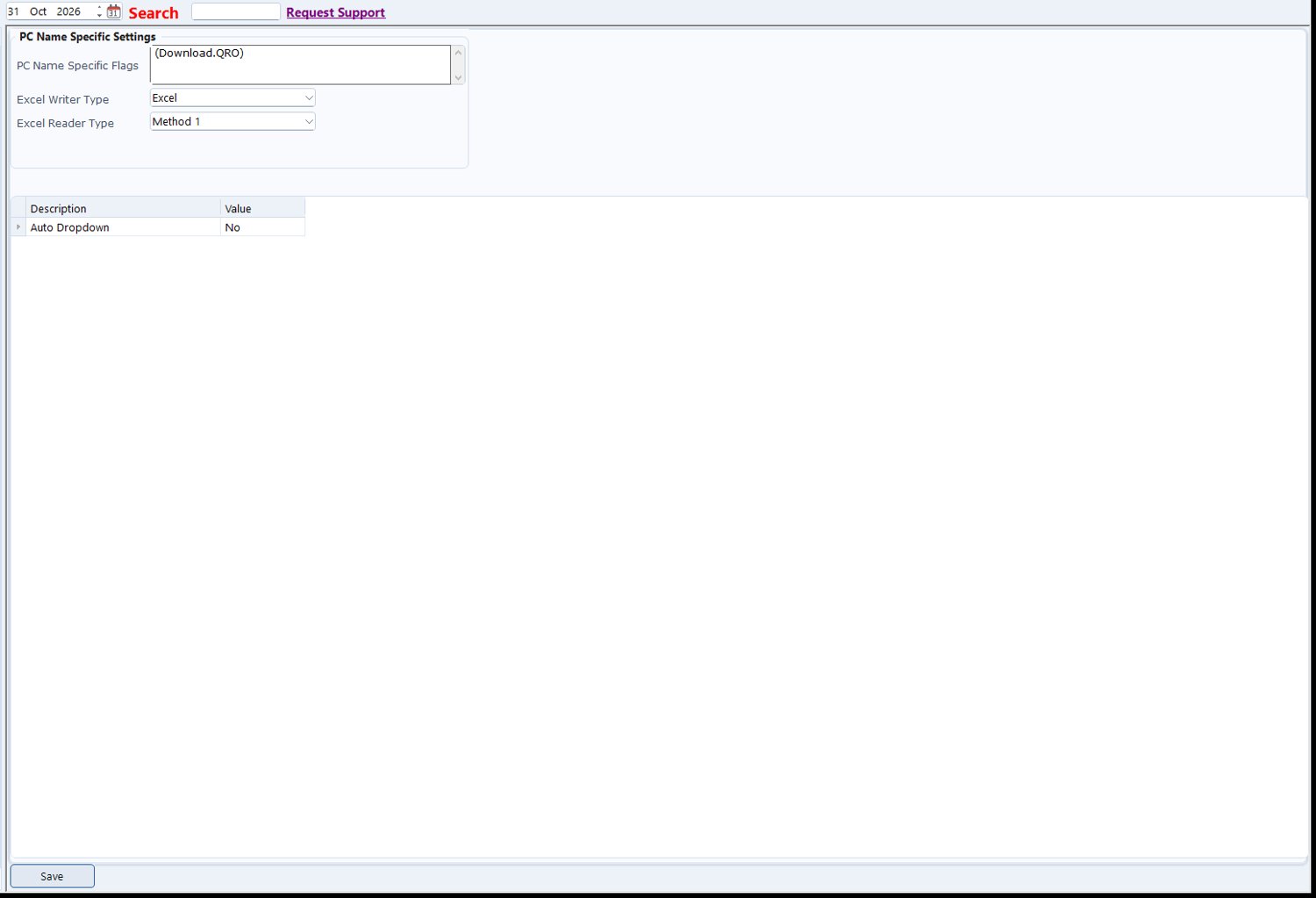
2. Change an option
In the grid, find the option you want. Click its value cell and choose from the drop-down list.
3. Set the Excel methods
Under PC Name Specific Settings, choose the Excel Reader Type (Method 1 or Method 2) and the Excel Writer Type (Excel, No Excel #1 or No Excel #2).
4. Leave PC Name Specific Flags alone
Fill in PC Name Specific Flags only if Synergy support told you what to type.
5. Save
Click Save. The message Personal settings saved. appears briefly.
Tips
- The No Excel writer choices are meant for computers that do not have Microsoft Excel installed.
- The default is Method 1 for the reader and Excel for the writer.
Common problems
Excel export or import fails.
Try the other Reader or Writer type and save again. Use a No Excel writer if Excel is not installed.
My options went back to the old values.
Make sure you clicked Save before leaving the screen.