
Database Restore replaces the current data of a company with the contents of a backup file. Current data is overwritten, so use it with great care.
Before you start
- Make a backup of the current database first (see the guide Back Up the Database).
- Have the Admin or Super-User password ready. A single-PC single-user licence does not need it.
- Make sure the Synergy License Service has been stopped, as the note on the screen asks. On a network licence, every client PC must have exited Synergy Accounting and POS.
Steps
1. Open Database Restore
The Database Restore screen is opened from the Log In screen, and asks for the Admin or Super-User password.
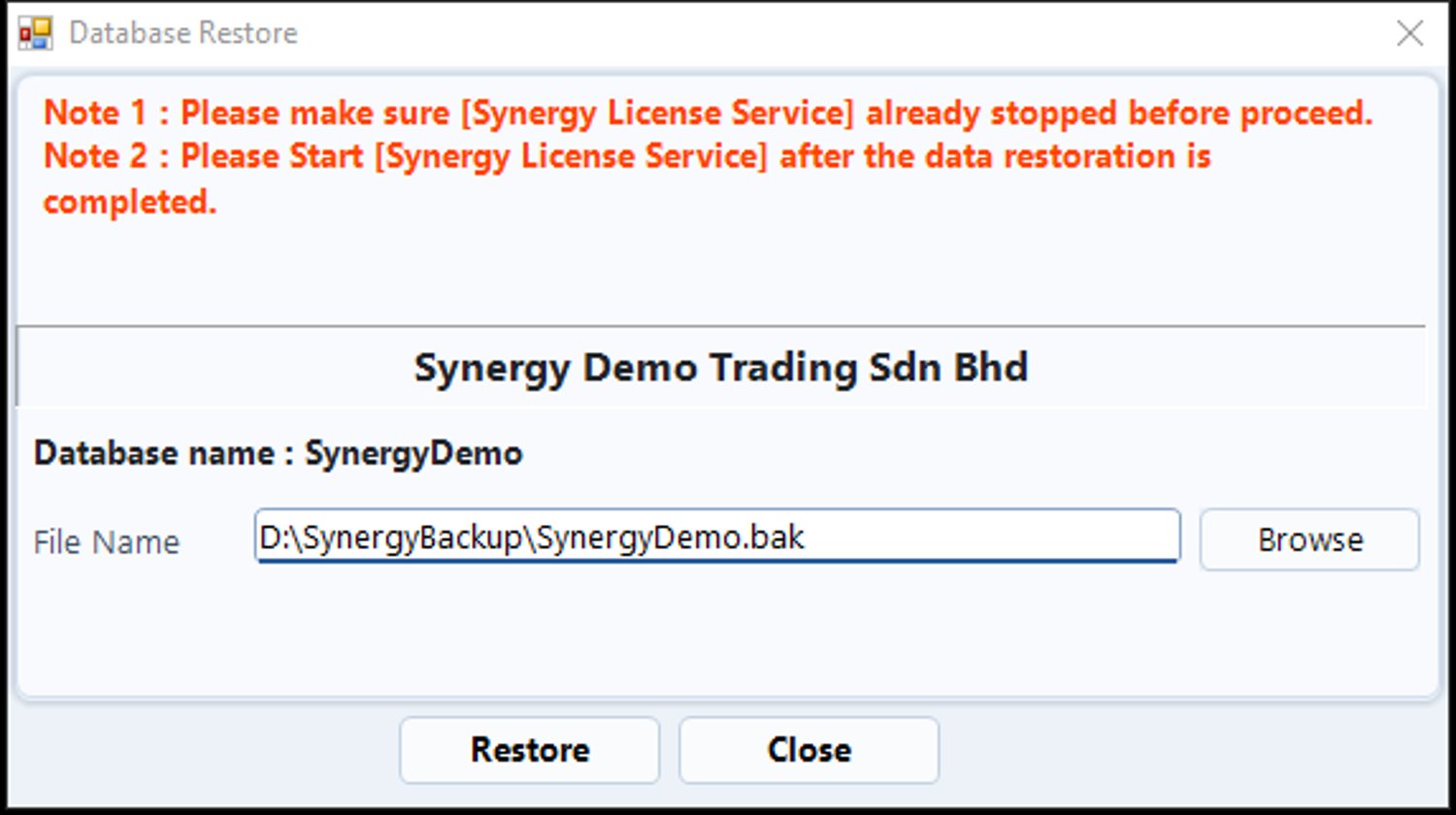
2. Check the company
Check the Company and Database Name shown, to be sure you are restoring into the right one.
3. Choose the backup file
Click Browse and choose the backup file. Only backup files ending in .bak are offered.
4. Click Restore
Click Restore.
5. Answer the questions
Answer the question Do you want to restore the Database?. Then confirm the second question, Do you confirm to restore database to Company Level.
6. Wait
A status line shows progress as a percentage. Do not close the program.
7. Check the result
At the end you see Database restored successfully.
Tips
- Other users still connected to the database are disconnected first.
- The backup file is copied into the backup folder under a temporary name and restored from there. The temporary copy is removed afterwards.
Common problems
You don’t have access to Database Backup Folder. Please check in [Connection Setup]
The shared backup folder cannot be reached. Check the backup folder in the connection setup.
Please provide the filename of the backup to restore from
The File Name box is empty. Click Browse and choose the file.
File … does not exist
The file path is wrong. Choose the file again.
The restore stops at once.
Check the backup folder and ask everyone to exit the program before you try again.