
System Settings (Main) gathers the company-wide settings in one window, with a tab for each group. This guide shows how to open it and what the everyday tabs are for.
Before you start
- Your user rights must allow you to open the main system settings.
Steps
1. Open System Settings
From the menu, go to Main > System > System Settings (Main). The tabs are listed on the left. Click the tab you want.
2. System Options tab
Set how many records a Record Listing shows, how many records to keep in the Events Log, and Default Search Field. Tick Use UPPERCASE for all Codes and Ref No. fields. if codes should be capital letters, and Warn if changes made before closing forms. if you want a warning for unsaved changes. Background Darkening Level % sets how dark the background becomes behind pop-up windows.
3. Report Printing Options tab
Set the paper size, font sizes and file formats for reports.
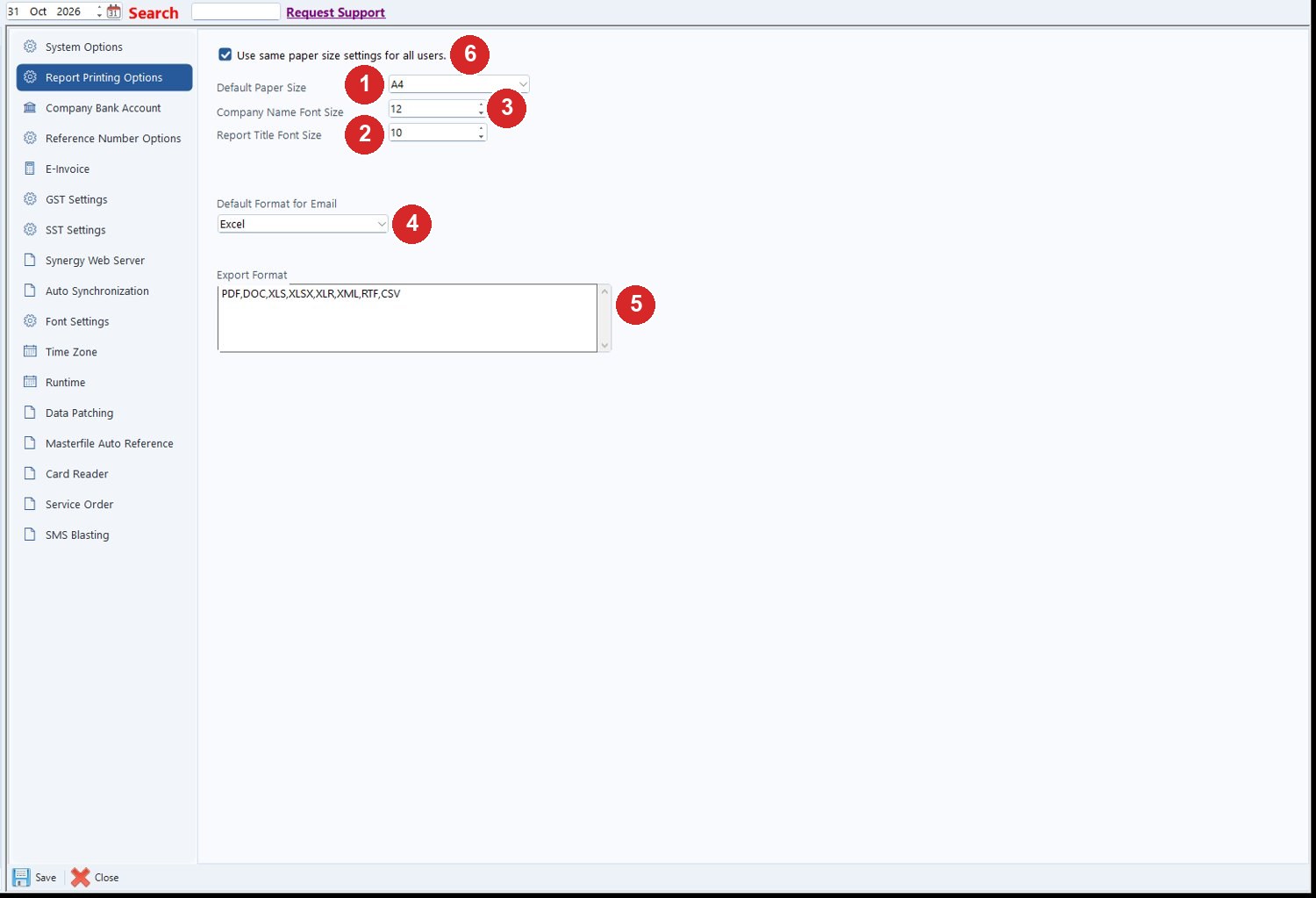
| Step | What to do |
|---|---|
| 1 | Choose the Default Paper Size. |
| 2 | Choose the Report Title Font Size. |
| 3 | Choose the Company Name Font Size. |
| 4 | Choose the Default Format for Email. |
| 5 | Choose the Export Format. |
| 6 | Tick Use same paper size settings for all users. if everyone should share one paper size. |
4. Time Zone tab
Check that Time Zone Offset Hours shows the offset you expect.
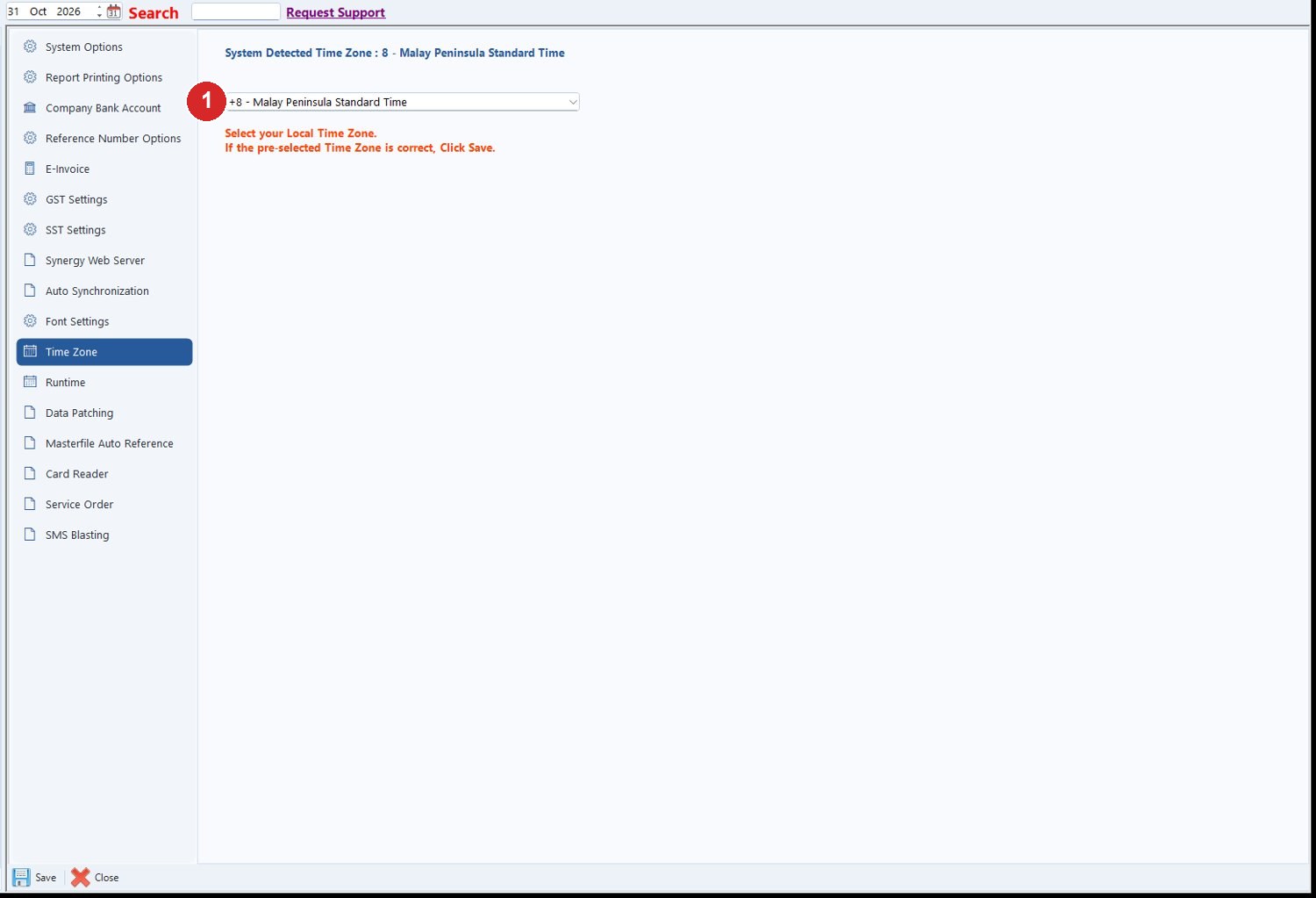
| Step | What to do |
|---|---|
| 1 | Under Select your Local Time Zone., pick your time zone. |
5. Font Settings tab
Leave a font box blank to use the system default font.
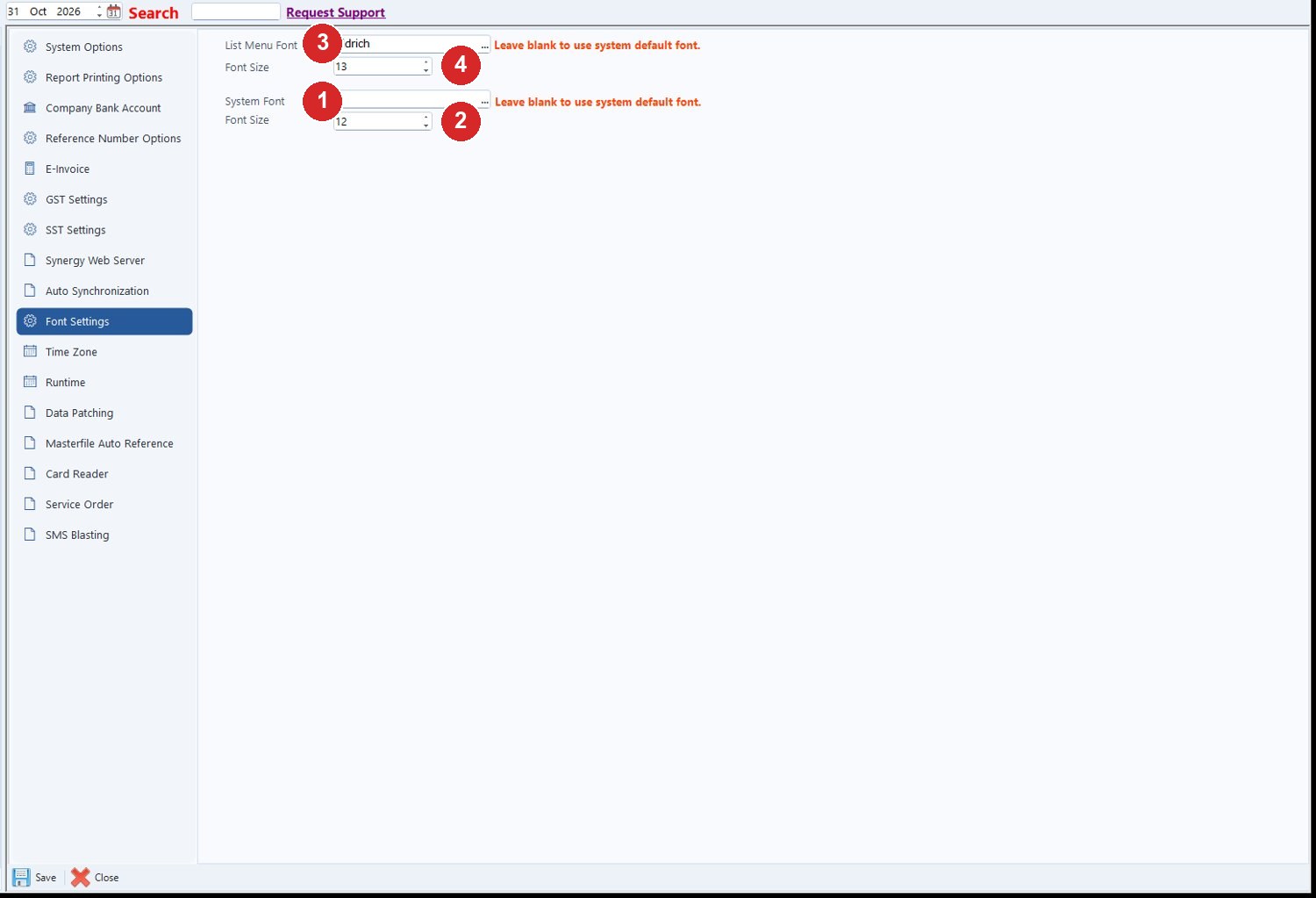
| Step | What to do |
|---|---|
| 1 | Choose the System Font. |
| 2 | Choose its Font Size. |
| 3 | Choose the List Menu Font. |
| 4 | Choose its Font Size. |
6. Company Bank Account tab
Fill in the company bank details.
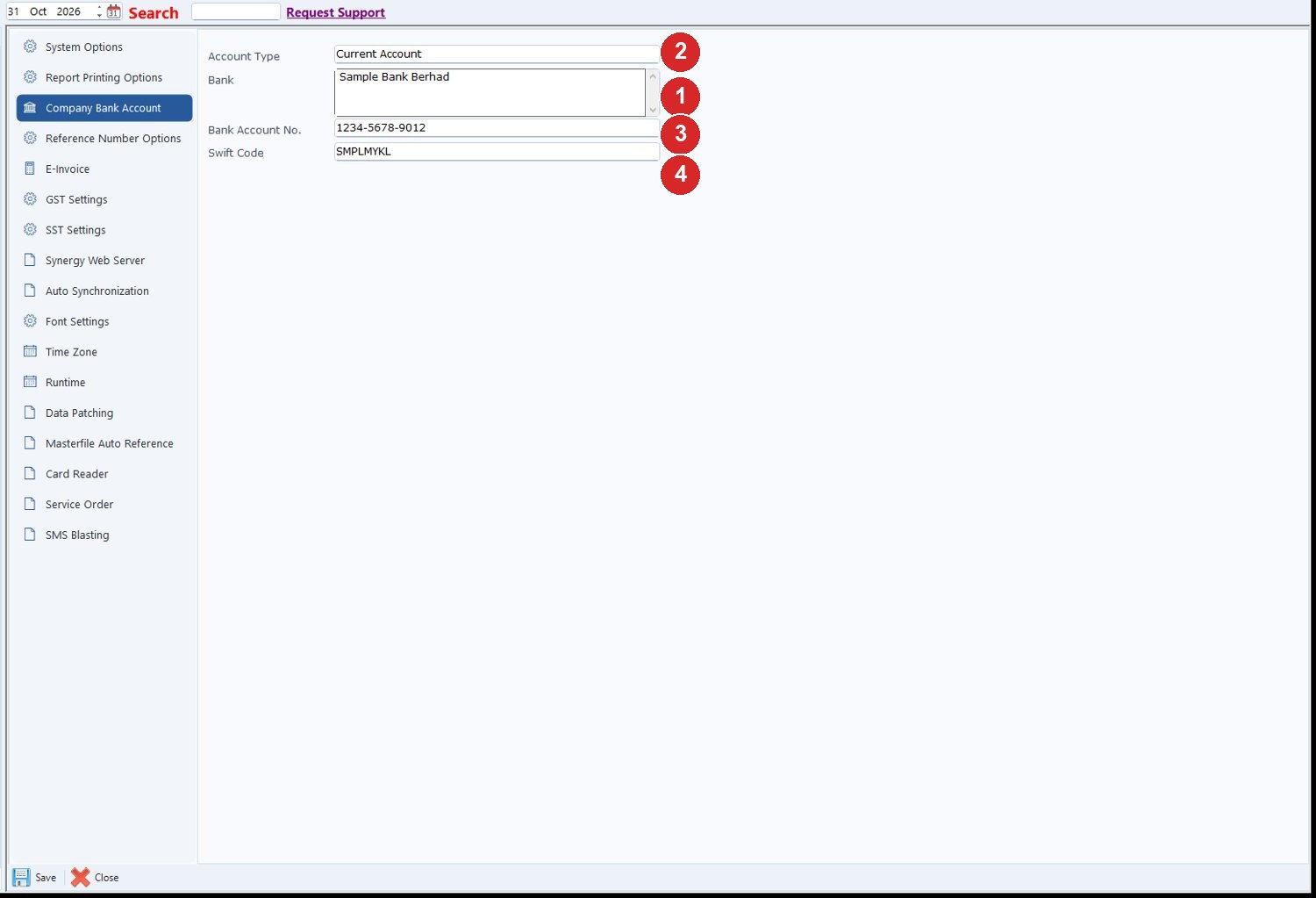
| Step | What to do |
|---|---|
| 1 | Fill in the Bank name. |
| 2 | Fill in the Account Type. |
| 3 | Fill in the Bank Account No. |
| 4 | For overseas payments, fill in the Swift Code. |
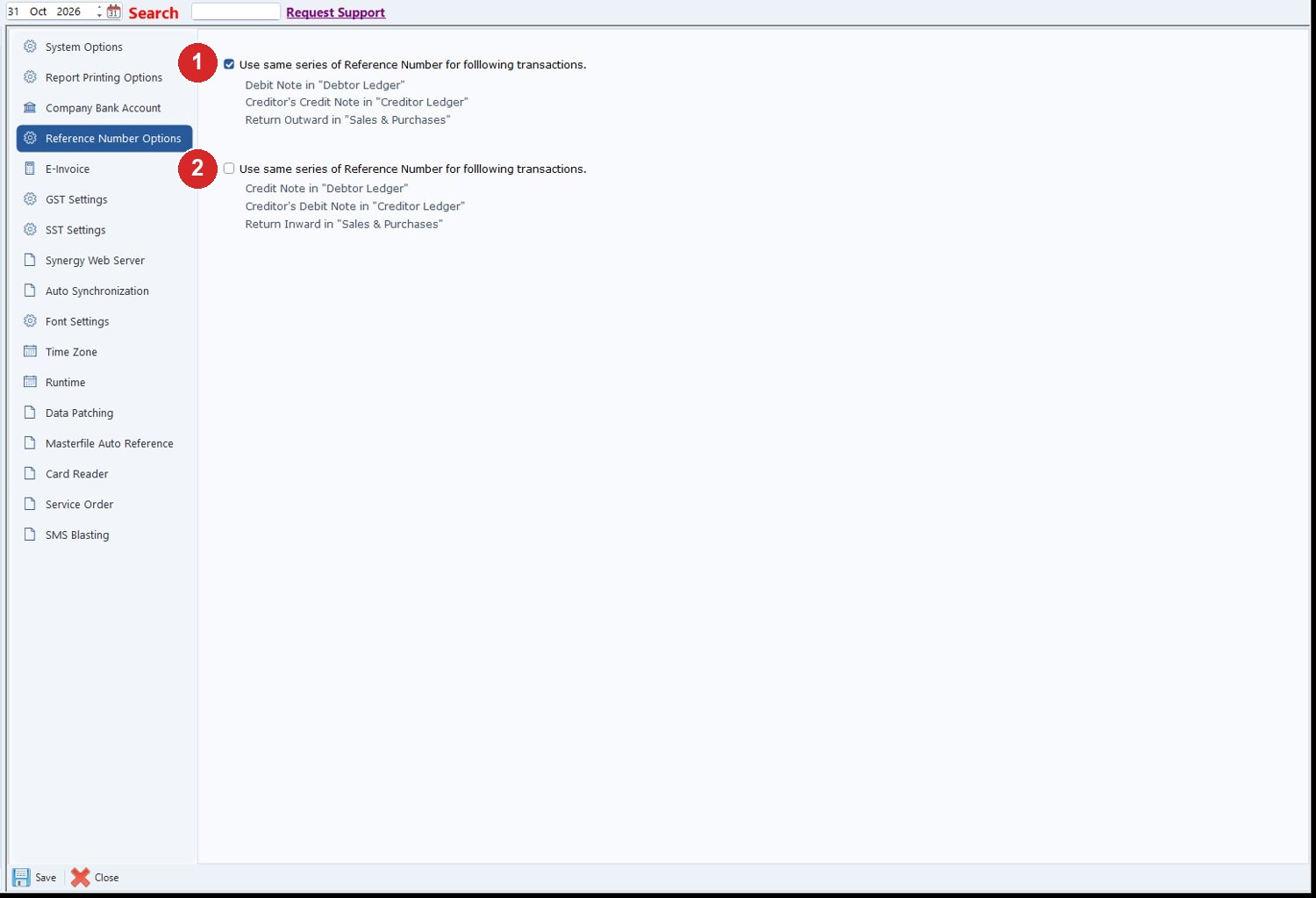
7. Reference Number Options tab
The groups are Return Inward and Return Outward in Sales & Purchases, and Debit Note and Credit Note in Debtor Ledger and Creditor Ledger.
| Step | What to do |
|---|---|
| 1 | Tick Use same series of Reference Number for folllowing transactions. (spelled this way on the screen) in a group if those transactions should share one number series. |
| 2 | Leave it unticked to keep separate series. |
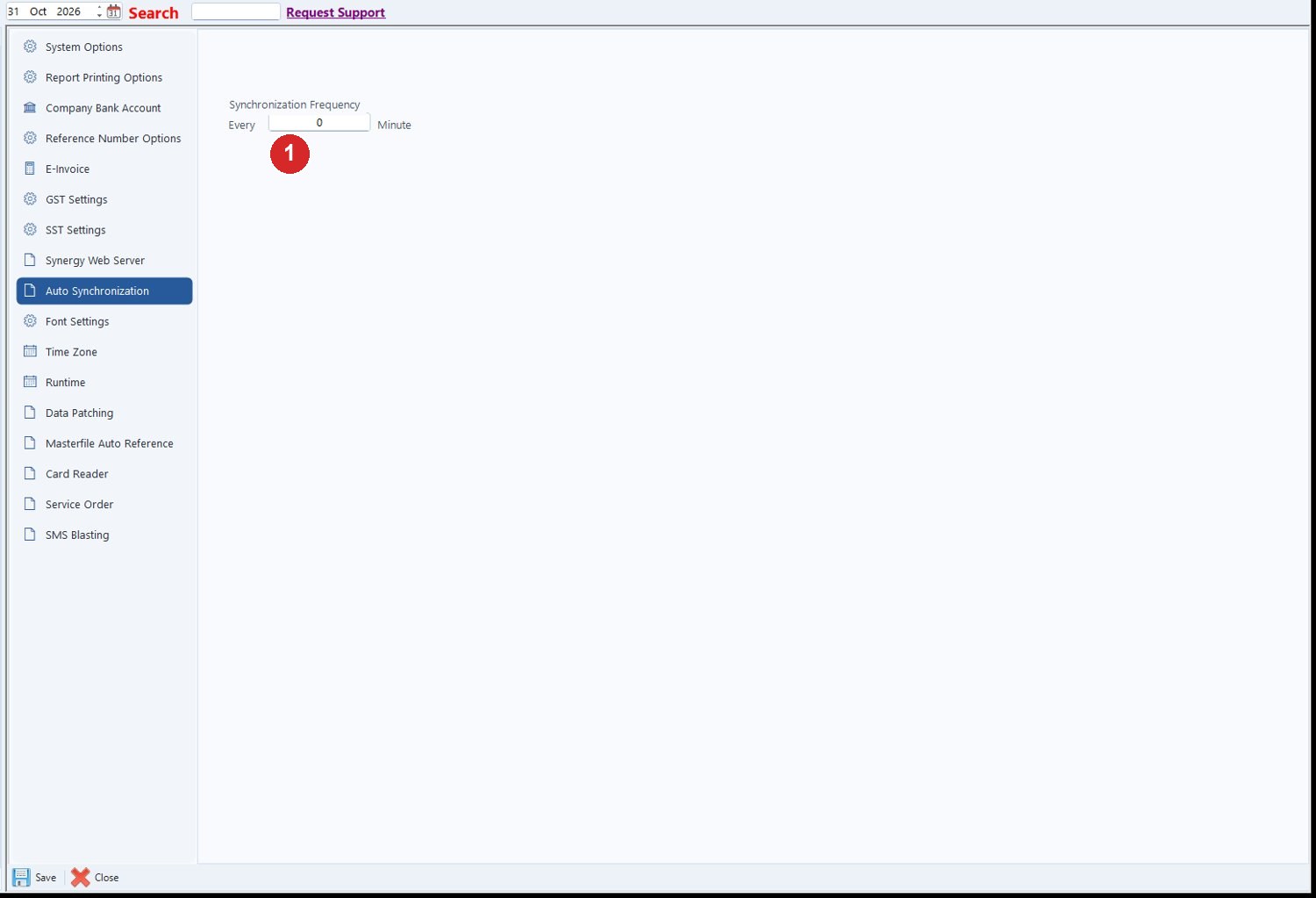
8. Auto Synchronization tab
Set how often the program synchronizes by itself.
| Step | What to do |
|---|---|
| 1 | Under Synchronization Frequency, type in the Every box the number of minutes between automatic synchronizations. |
9. SMS Blasting tab
Choose your SMS Vendor, type the SMS Blasting Key from that vendor, and decide whether to tick Add Company Name in SMS.
10. Save
Click Save. For options that say they need a fresh login, log out and log in again.
Tips
- The E-Invoice and SST Settings tabs are explained in the guides on starting e-invoice and on SST.
- Keep the SMS Blasting Key private. The company name must be whitelisted with the SMS vendor, and you need an active account and credit with the vendor.
- Changing the reference number option only affects numbers given from then on.
- Finding a setting: an administrator can use the settings search in the main window to find a setting and open the right window directly. If the list is missing, click Download List.
- Misc Flags and PC Name Specific Settings are for settings that Synergy support gives you. Do not change them otherwise.
Common problems
A change seems ignored.
Log out and log in again.
Codes keep turning into capital letters.
This is caused by the UPPERCASE option on the System Options tab.
The program keeps asking about unsaved changes.
This is the Warn if changes made before closing forms. option.
Times on documents are off by some hours.
Check the Time Zone tab and the Windows time zone of the computer.
Text is too small or strange characters appear after a font change.
Increase the Font Size a little at a time, or choose another font or leave it blank. Restart the program.
You don’t have permission to this setting.
Your user rights do not allow that settings window. Ask your administrator.