
This guide shows you how to run the debtor aging report for a chosen date, look at one debtor’s aging, list due invoices, understand open credit, and set up a credit warning for a customer.
Before you start
- Know the date you want the aging as at, for example the end of May 2026.
- Take a backup before you apply any open credit to invoices.
Steps
1. Open the aging report options
Go to Debtor Ledger > Reports > Debtor Report > Debtor Aging (4 Months), or Debtor Aging (12 Months).
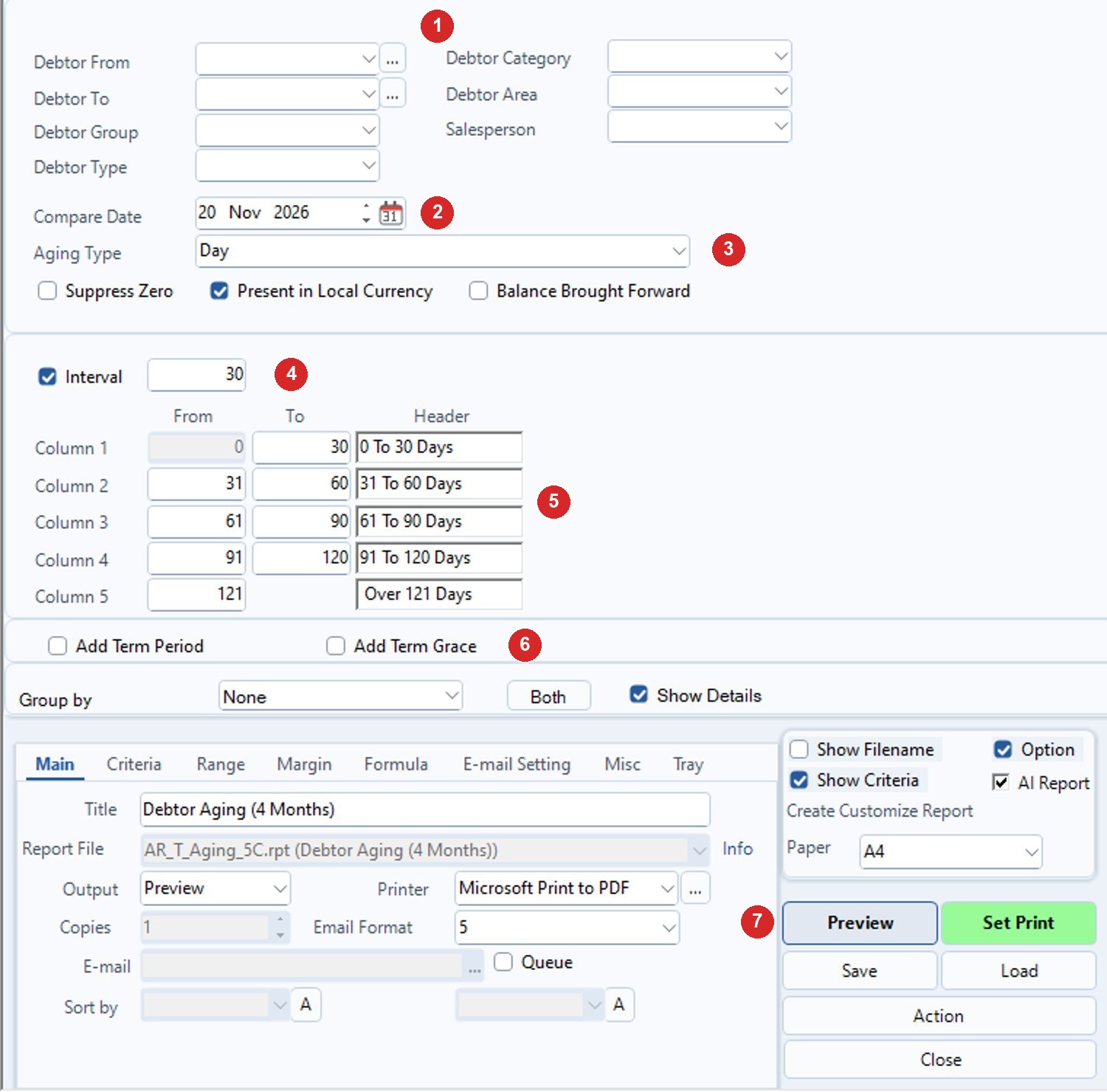
| Step | What to do |
|---|---|
| 1 | Debtor From and To (the … button picks a debtor; From must not be after To). Debtor Group, Type, Category, Area or Salesperson narrow the list. |
| 2 | Compare Date: the date the aging is measured against, for example a past month end. |
| 3 | Aging Type: Day or Month. The day columns work only with Day. |
| 4 | Interval (here 30): the columns become 0-30, 31-60, 61-90, 91-120 and Over 121 Days. Untick it to type your own ranges. |
| 5 | Column 1 to 5: From, To and Header of each age column. |
| 6 | Add Term Period / Add Term Grace, Suppress Zero, Present in Local Currency and Balance Brought Forward as needed. |
| 7 | Click Preview. |
2. Look at one debtor’s aging
Go to Debtor Ledger > Query > Debtor Ageing. Click the Debtor box and choose the debtor. Then click Refresh to load the figures.
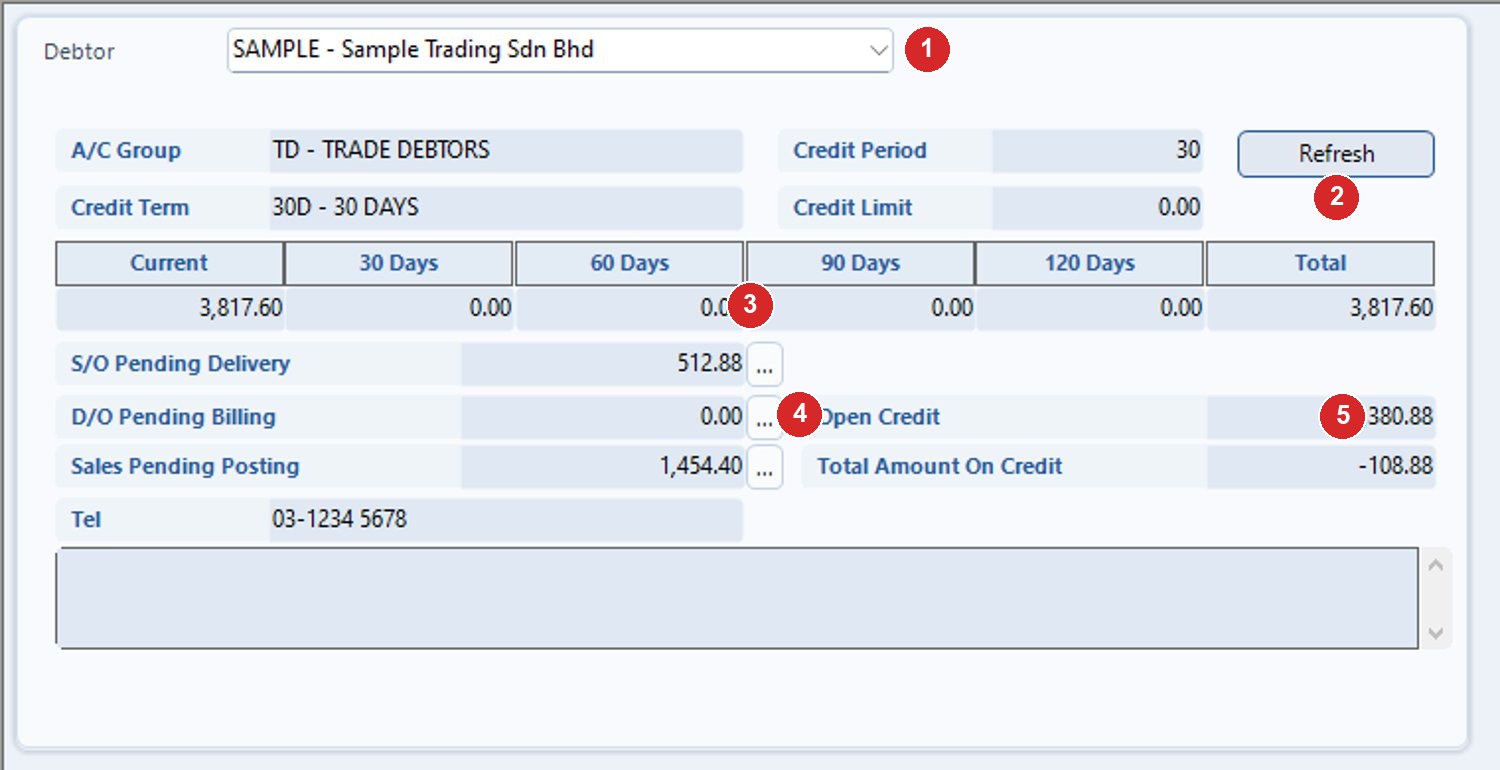
| Step | What to do |
|---|---|
| 1 | Debtor (here SAMPLE – Sample Trading Sdn Bhd). |
| 2 | Click Refresh. |
| 3 | Current, 30, 60, 90 and 120 Days and Total (here 3,817.60 current). |
| 4 | S/O Pending Delivery, D/O Pending Billing and Sales Pending Posting; the … buttons list them. |
| 5 | Open Credit and Total Amount On Credit, with the Credit Period and Credit Limit from the debtor. |
3. List invoices that are due
Go to Debtor Ledger > Query > Due Invoice Query.
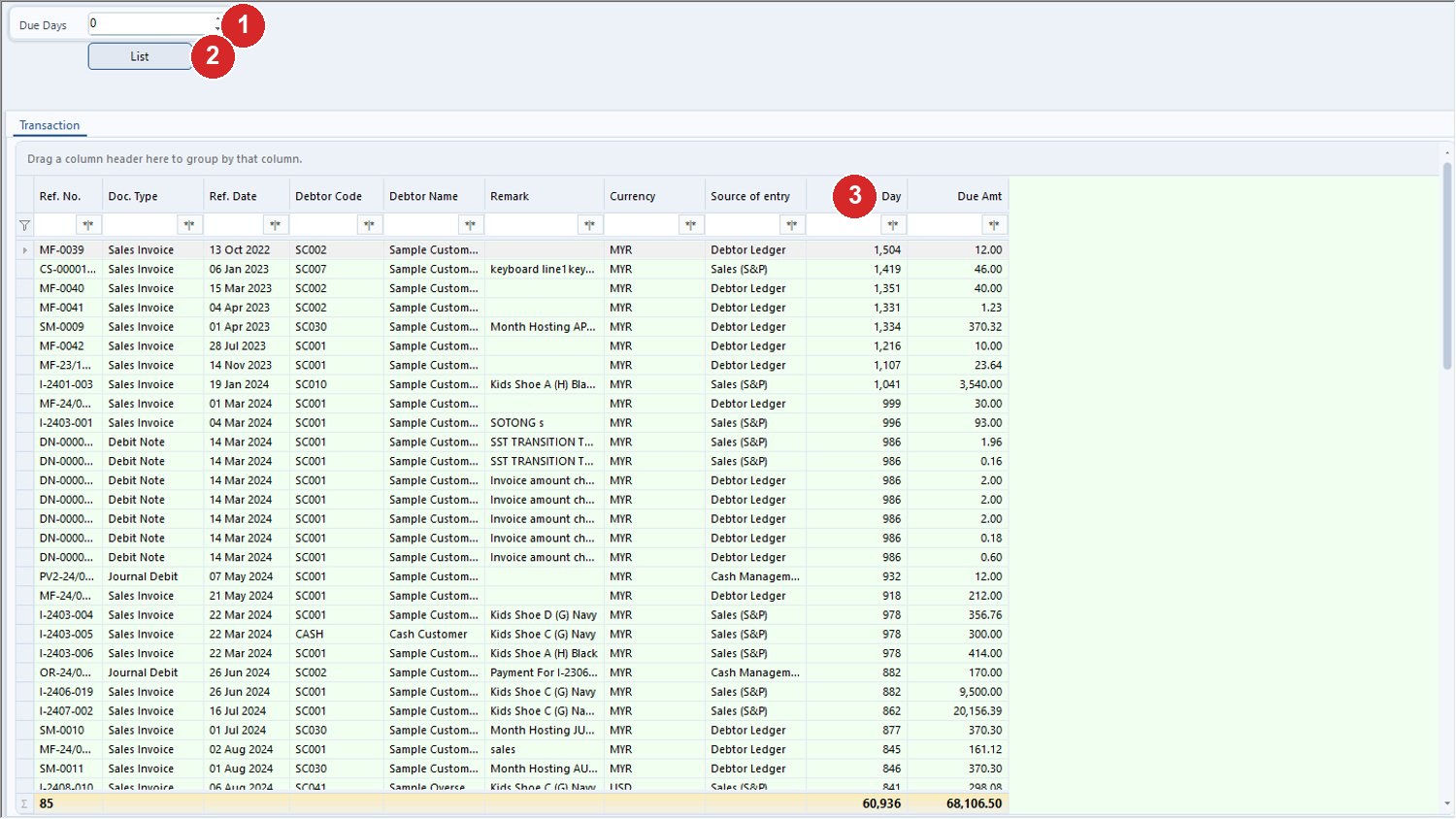
| Step | What to do |
|---|---|
| 1 | Due Days: list invoices at least this many days past due (0 lists everything due). |
| 2 | Click List. |
| 3 | Due Day: days past the due date; Due Amt: what is still owed. |
4. Check open credit
If the aging total shows open credit, run the report over a longer date range so older entries are included. Open credit is usually an overpayment from a posted bank payment that has not been knocked off. It can also come from a credit journal or an advance receipt.
5. Warn on late-paying customers
There is no block based on days without payment. On the debtor, set Credit Term > Credit Period and also set the Credit Limit. When the limit is exceeded, a warning pops up.
Tips
- If the aging differs from the balance sheet, remember the aging is based on invoices and knock-offs. If the aging is right, adjust the balance sheet by journal. If the balance sheet is right, check the invoices one by one.
- Before applying open credit to any invoice, open the open-credit line and check where it came from. Only knock it off against invoices the customer or supplier really meant to pay.
- Applying open credit changes the outstanding balances of invoices. Do not do it for a month whose bank reconciliation is already posted unless your accountant agrees.
- The credit warning can be overridden, so it is not a hard block.
- On the Due Invoice screen, use List, not Preview. Preview does nothing there.
- Project P&L is a separate report, where each issue or expense picks a project.
Common problems
The column boxes are greyed out.
The Aging Type is not Day. Change Aging Type to Day if you want to enter day columns.
I can only choose Month as the Aging Type.
On the 5-month-column aging report with agent access switched on, the type is forced to Month and the field is hidden.
The column numbers keep changing.
Interval is ticked and recalculates all columns. Untick it to enter your own ranges.
The debtor range looks wrong.
Debtor From and Debtor To are not adjusted for you. Check that From is not after To.
The aging shows nothing after I pick a debtor.
Click Refresh to load the figures.
I see Creditor when I wanted Debtor, or the other way round.
Close the screen and open it from the correct area.
The Due Invoice grid is empty after clicking List.
Check the Due Days value and the two ticks. It may simply mean no items match.
Double-clicking a row does nothing.
You may not have permission for that document type. Check your user permissions.
Open credit or the aging figures still look wrong.
Contact Synergy support. Have ready a screenshot of the aging report and the open credit line, the date used, and the two differing figures if it is a balance sheet difference.