
This guide shows how to revalue foreign-currency transactions at an exchange rate, how to reverse a revaluation, and how to purge old debtor or creditor transactions.
Before you start
- Revaluation: Debtor Ledger > Utilities > Currency Revaluation, or Creditor Ledger > Utilities > Currency Revaluation.
- Reverse a revaluation: Debtor Ledger > Utilities > Currency Revaluation (Reverse), or the Creditor Ledger equivalent.
- Purging: Debtor Ledger > Utilities > Transaction Purging, or Creditor Ledger > Utilities > Transaction Purging.
- Financial periods must be set up in the General Ledger for the dates you use.
- Before purging, make sure you have a backup of your data.
Steps
1. Choose the exchange rate date
Go to Debtor Ledger > Utilities > Currency Revaluation (for suppliers: Creditor Ledger > Utilities > Currency Revaluation). Set Exchange Rate As At to the date whose rates you want. It starts as today’s date. If you change it, click Refresh to reload the list of currencies and rates.
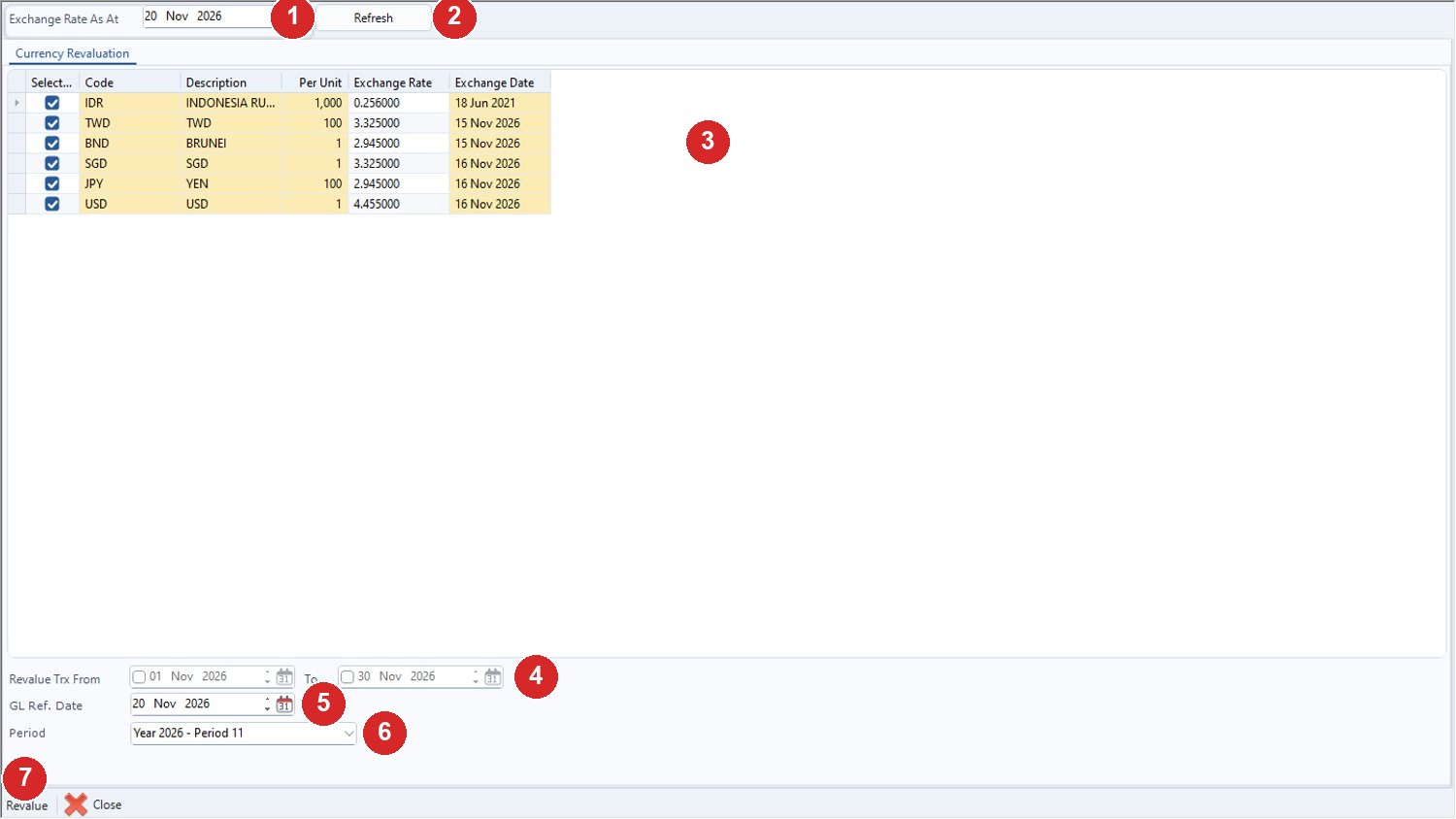
| Step | What to do |
|---|---|
| 1 | Exchange Rate As At. |
| 2 | Refresh. |
| 3 | Currencies with their rates; all start ticked. |
| 4 | Revalue Trx From and To (tick a box to use that date). |
| 5 | GL Ref. Date. |
| 6 | Period (fills in from the GL Ref. Date). |
| 7 | Revalue. |
2. Tick the currencies to revalue
All currencies start ticked. Untick the ones you do not want, or right-click the list and choose Check All or Uncheck ALL. Only ticked rows are revalued.
3. Set the transaction dates and GL date
Set Revalue Trx From and To. Both tick boxes start unticked; tick a box to apply that date. Set the GL Ref. Date and check that the Period fills in automatically.
4. Revalue
Click Revalue on the toolbar and answer Yes to Do you want to revalue selected currency? The message Revaluation completed shows how many transactions were revalued. If there is nothing to revalue, the message says No Transaction affected.
5. Reverse a revaluation
Go to Debtor Ledger > Utilities > Currency Revaluation (Reverse). Set the Ref Date From and To (the current month by default) and click List. Tick the records to reverse, click Reverse and answer Yes. Read the result message; the list then refreshes by itself.
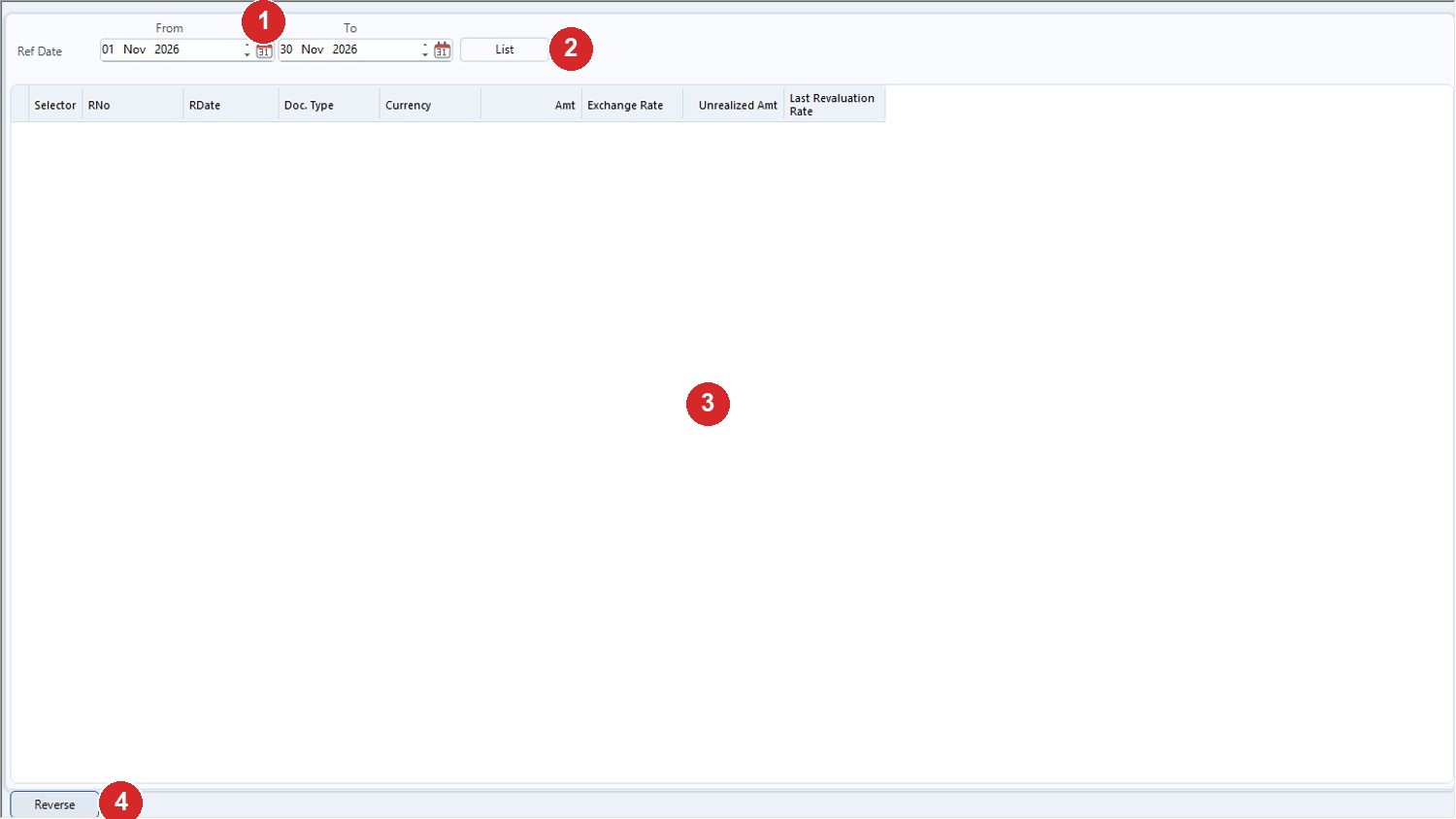
| Step | What to do |
|---|---|
| 1 | Ref Date From and To. |
| 2 | List. |
| 3 | The posted revaluations; tick the ones to reverse. |
| 4 | Reverse. |
6. Revalue or reverse a single transaction
On an AR transaction, use the revaluation button. On the Revaluation tab, check the date and Period, type the Exchange Rate and click Revalue. The Previous Posted Revaluation tab lists earlier postings, and Reverse All Revaluation undoes all revaluations for that transaction.
7. Purge old transactions
Go to Debtor Ledger > Utilities > Transaction Purging (or Creditor Ledger > Utilities > Transaction Purging). From and To start as the first and last day of the current month; change them if needed and click List. Every listed transaction starts ticked: untick the ones to keep. Click Purge, and answer Yes to Proceed with Purging. Are you sure? The message Done. means it finished.
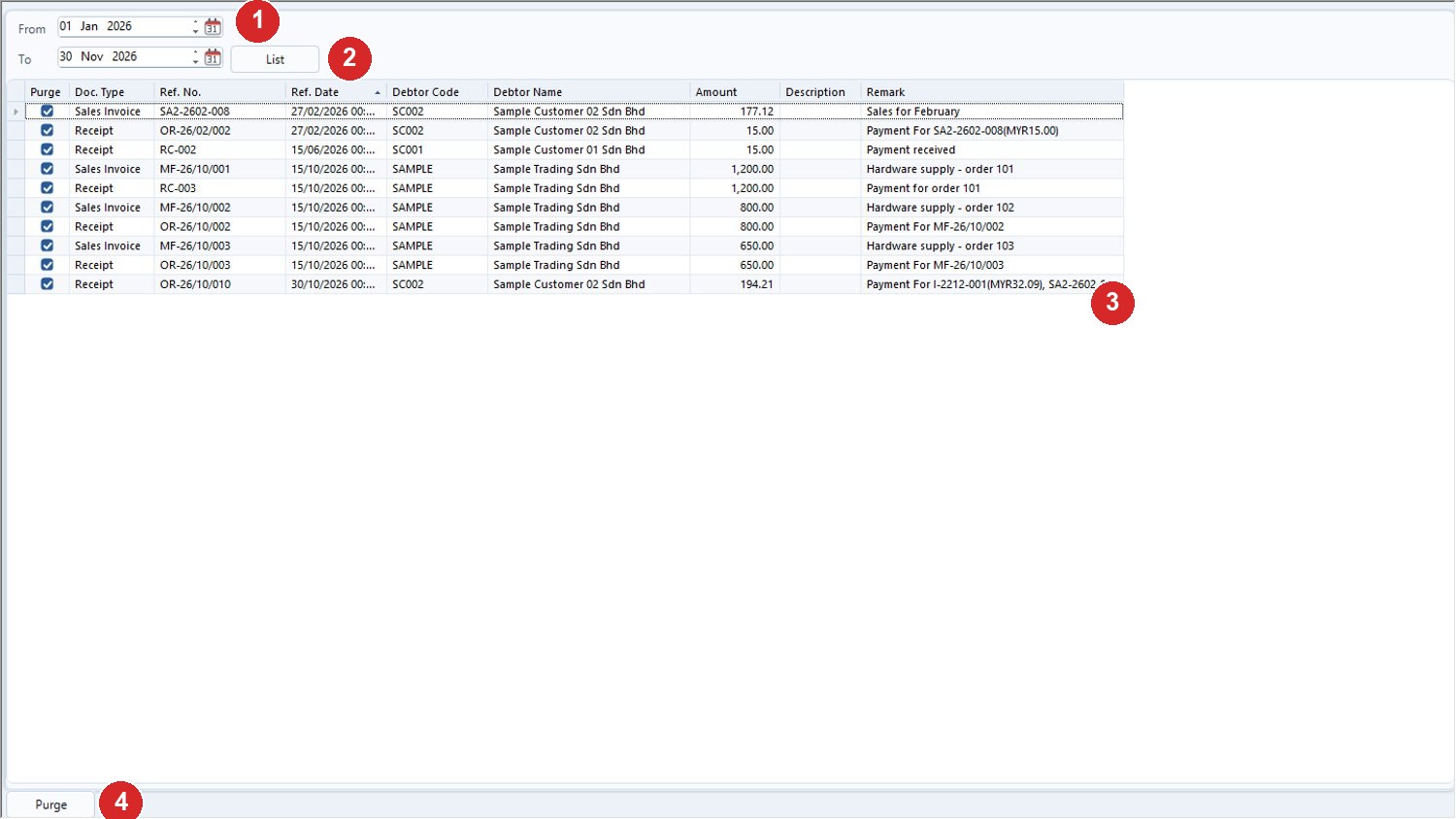
| Step | What to do |
|---|---|
| 1 | From and To. |
| 2 | List. |
| 3 | The transactions found; all start ticked. |
| 4 | Purge. |
Tips
- The list of currencies is not reloaded automatically when you change Exchange Rate As At. Click Refresh.
- Period follows GL Ref. Date. If no period matches the date, it is left blank.
- Purge stays disabled until List finds at least one record, and it is disabled again after each purge. Click List again to reload.
- The purge screen shows debtors or creditors depending on the menu you opened it from.
- Purging removes data after only one confirmation question, so check your backup first.
Common problems
The message No Transaction affected. Make sure the date range has valid transactions. appears.
Widen the Revalue Trx From / To dates, or tick other currencies. If no currency is ticked, nothing is revalued.
Period is blank.
The GL Ref. Date does not fall in any defined financial period. Pick a date inside a defined period.
The message Date with Invalid Financial Period specified. appears on a single revaluation.
Change the date to one inside a defined financial period and try again.
The reversal grid is empty after clicking List.
The default range is the current month only. Widen From and To, then click List again.
Some records reversed and some failed.
Both messages appear. The records that succeeded are done. Read the failure text to see why the others failed.
Purge is greyed out.
Click List first. The list is empty if the date range returned nothing, so try a wider range.