
This guide shows how to look up a debtor’s or creditor’s sales and transaction history, how to choose one account in a report, and how to set the options before printing documents and project profit and loss reports. It also shows how to find applied documents by the remark on the invoice.
Before you start
- The creditor screens work the same way as the debtor screens. Where the debtor version says Debtor, the creditor version says Creditor.
- The grid stays empty until you click List.
Steps
1. Open the Sales Query
Go to Debtor Ledger > Query > Sales Query. From starts on the first day of the year. Here the invoices, receipts and credit notes of Sample Trading Sdn Bhd since 1 Oct 2026.
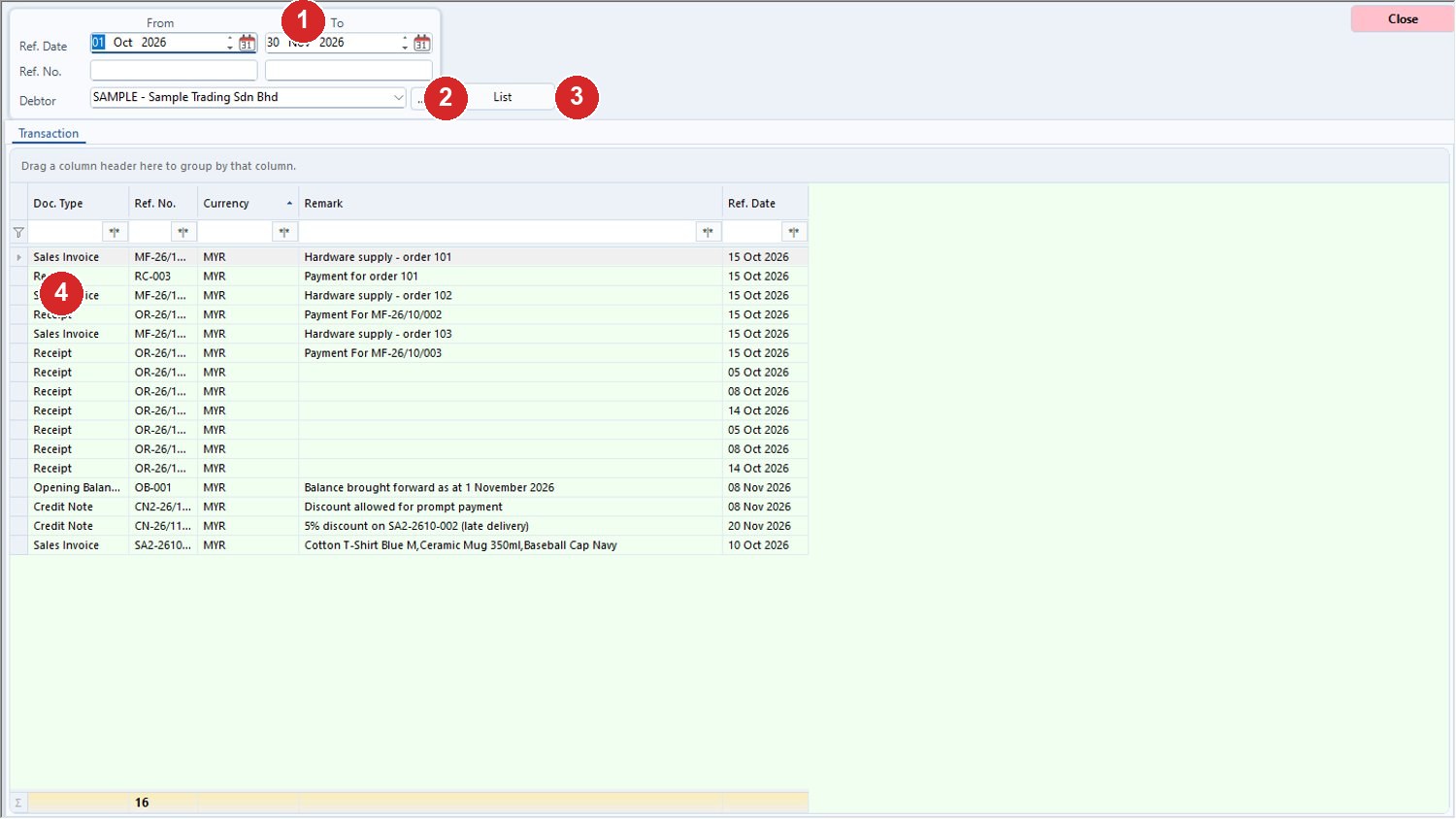
| Step | What to do |
|---|---|
| 1 | Ref. Date From and To (and Ref. No. if needed). |
| 2 | Debtor (or -ALL-). |
| 3 | Click List. |
| 4 | Double-click a row to open the document. |
2. Open the Transaction History
Go to Debtor Ledger > Query > Transaction History (or Creditor Ledger > Query > Transaction History). Choose the Debtor or Creditor, the Ref. Date From and To, and if you wish the Ref. No. range, Doc. Type and Source.
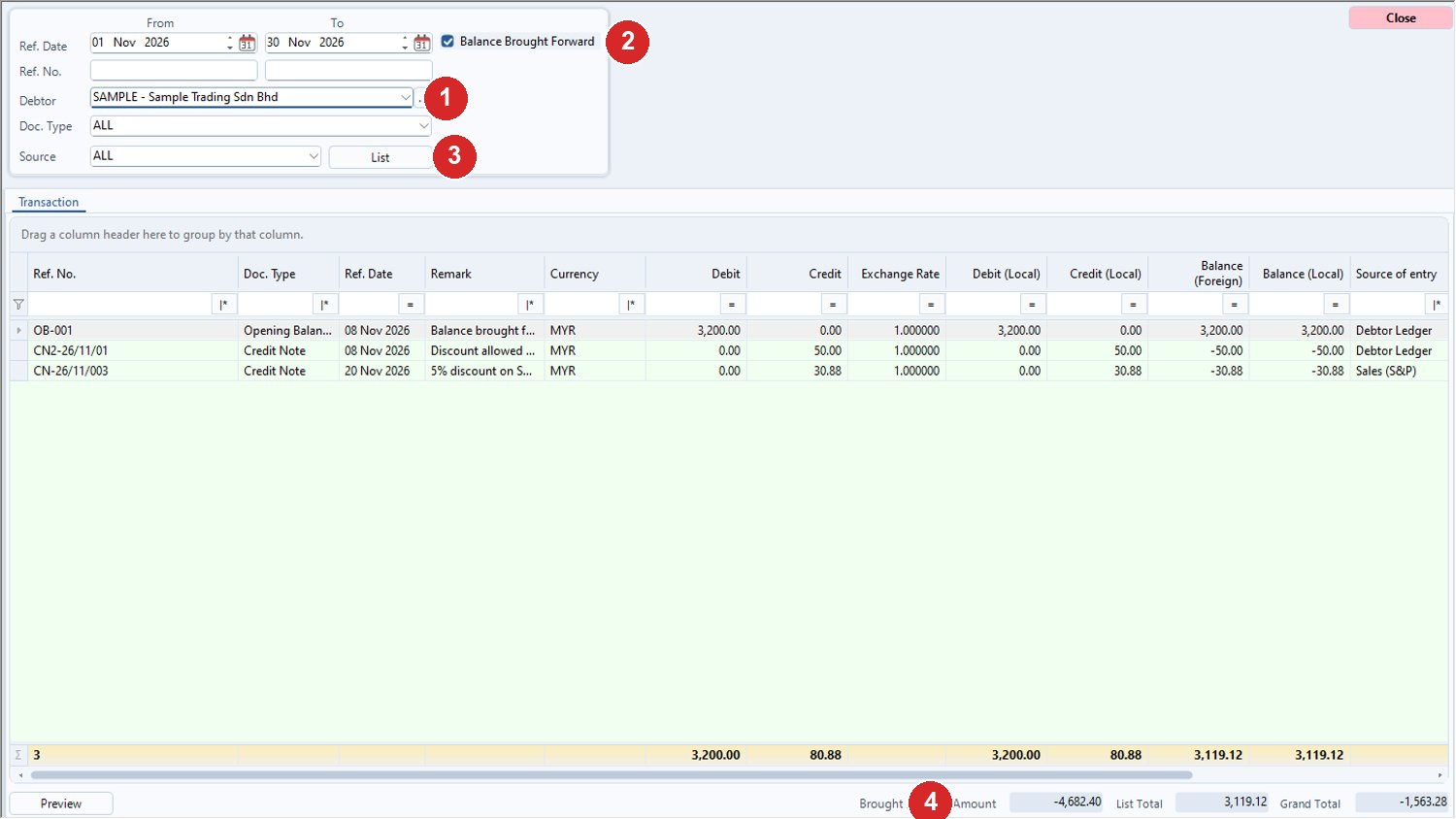
| Step | What to do |
|---|---|
| 1 | Debtor (or Creditor), Doc. Type and Source. |
| 2 | Balance Brought Forward: include the balance before the start date. |
| 3 | Click List. |
| 4 | Brought Forward Amount, List Total and Grand Total. |
3. Choose one debtor in a report
In a report’s options, pick a debtor from the Debtor box (Creditor on payables reports), or use the browse button next to it. Leave the box empty to report on everyone. Then run the report as usual.
4. Set the options before printing documents
Use the Filter box to limit what prints. Leave Ref. No. empty to print without a reference number limit. Then run the print or preview.
5. Print a MyInvois QR on the document
For sales invoices and debit notes, tick MyInvois QR if you want the QR code printed on the document. If you do not see the tick box, see the tips below.
6. Run a project profit and loss report
Go to Sales and Purchases > Reports > Project > Project Profit & Loss. In the Project group, pick the projects from the list or with the button next to each box. Run the report using the screen’s usual run control.
7. Find applied documents by invoice remark
Go to Debtor Ledger > Reports > Debtor Report > Applied Listing > Applied Sales Listing (or Applied Receipt Listing). For suppliers use Creditor Ledger > Reports > Purchases > Applied Listing > Applied Purchase Listing or Applied Payment Listing. Invoice Remark is the Remark on the invoice header.
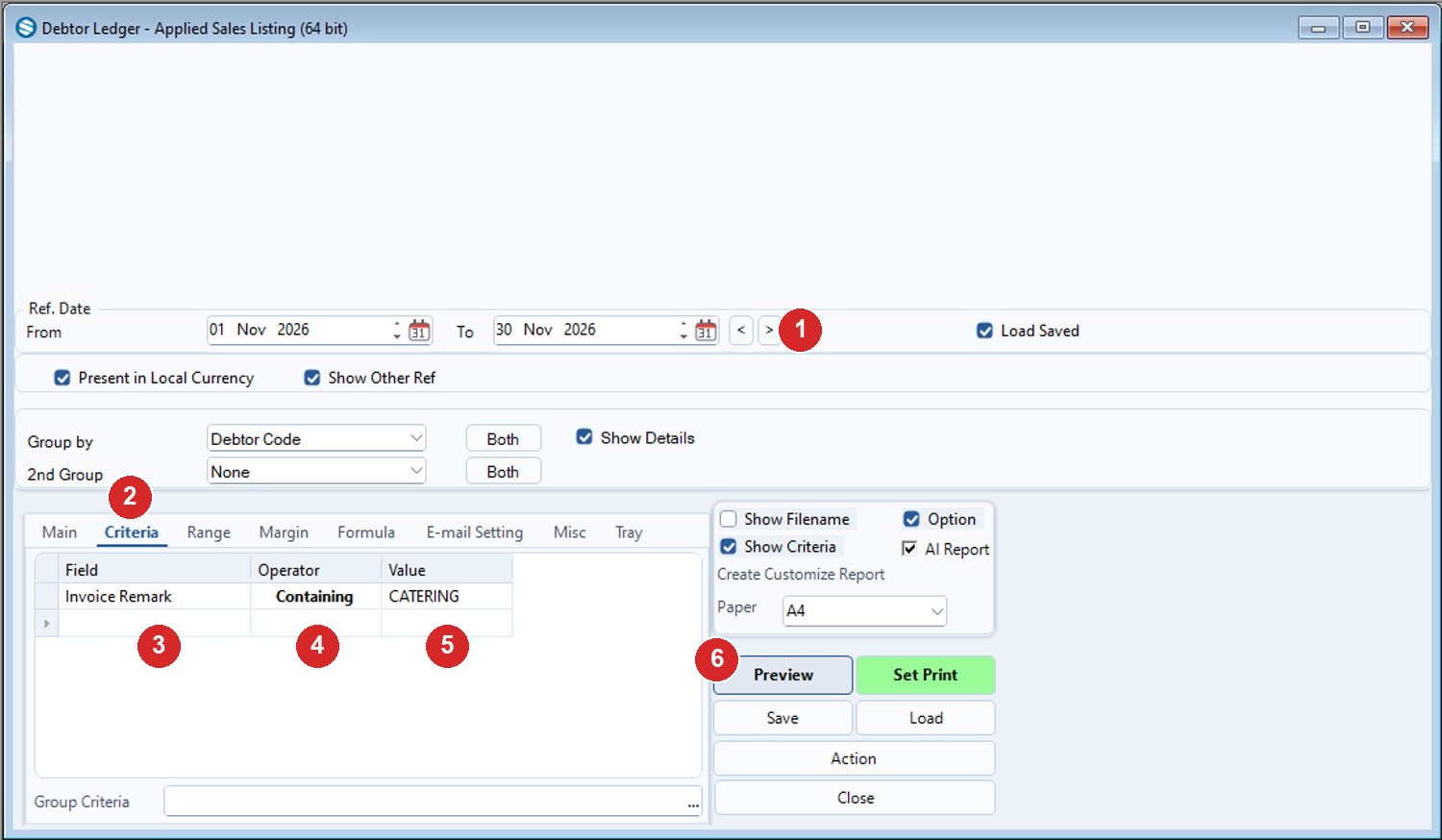
| Step | What to do |
|---|---|
| 1 | Ref. Date From and To. |
| 2 | Open the Criteria tab. |
| 3 | Field: choose Invoice Remark. |
| 4 | Operator: Containing finds the word anywhere in the remark. = needs the whole remark. |
| 5 | Value: the word to look for (here CATERING). |
| 6 | Click Preview. |
Tips
- Double-click a row in either query to open the transaction behind it. If you lack permission for that document type, it may not open.
- When one debtor is selected, the code and name columns are hidden. Choose -ALL- to show them.
- Grand Total is Brought Forward Amount plus List Total. For debtors, List Total is total debits minus total credits. For creditors, it is credits minus debits.
- You can export the grid to XML.
- The report option for a debtor takes one debtor only, not a range or several debtors. Run the report once for each debtor, or leave the box empty to include everyone.
- The MyInvois QR tick box appears only for sales invoices and debit notes, and only when MyInvois is enabled and the MyInvois self-service address is set up.
- The footer, terms and signature wording on printed documents comes from the system settings for that document type, not from the print option screen.
- The print option screen remembers your last Ref. No. and date entries.
- A project that is missing from the From and To lists has probably not been created as a project yet.
- In the applied listings, Invoice Remark (the invoice’s own Remark) and Posting Remark are two different filters.
Common problems
The grid is empty after I open the query.
Click List. Nothing is listed until you do, unless the screen was opened from another screen with a debtor already chosen.
Nothing happens when I click List.
The licence check may have failed. Contact Synergy and tell them which screen you are on.
Brought Forward Amount shows 0.00.
Tick Balance Brought Forward before you click List.
Preview on the Sales Query does nothing.
This is expected in this version. Use the grid and its export instead.
The report shows everyone, not just one debtor.
The Debtor box was empty. Choose a debtor and run the report again.
The wrong documents print, or nothing prints.
Check the Ref. No. range and check whether the date range is ticked. A ticked date range limits the result.
Failed to generate QR Image appears.
The QR image could not be prepared, so the printout may have no working QR code. Check the message details and try again.
A project report returns nothing for a range.
Check that From comes before To in project code order.