
This guide shows how to set up the small lists that debtor and creditor records depend on (countries, states, corporates, terms and transaction types) and how to set the ledger defaults and printed wording.
Before you start
- Country and State: Debtor Ledger or Creditor Ledger > Masterfile > Sub-Masterfile > Country / State (also under Main > Shared Masterfile).
- Corporate: Debtor Ledger > Masterfile > Sub-Masterfile > Corporate.
- Terms and Transaction Type: Debtor Ledger or Creditor Ledger > Masterfile > Sub-Masterfile > Terms / Transaction Type.
- System settings: Debtor Ledger > Settings > Debtor Ledger System Settings, or Creditor Ledger > Settings > Creditor Ledger System Settings.
Steps
1. Add a country
Open Country and start a new record. Type the Code and the Name. Leave Active ticked if the country should be in use, then save. The Code is the only field that must be filled in.
2. Add a state
Go to Debtor Ledger > Masterfile > Sub-Masterfile > State (also under Main > Shared Masterfile) and start a new record. Save.

| Step | What to do |
|---|---|
| 1 | Code (here 10). Leave Active ticked. |
| 2 | Description (here Selangor). |
| 3 | Country (here MYS). |
3. Add a corporate
Open Corporate. Type a Code and a Description (both required). Fill in the contact and address details you need: ATTN, Address, City, Postcode, Phone, Fax, E-mail and Website. Choose the Country first, then the State, and save.
4. Add a payment term
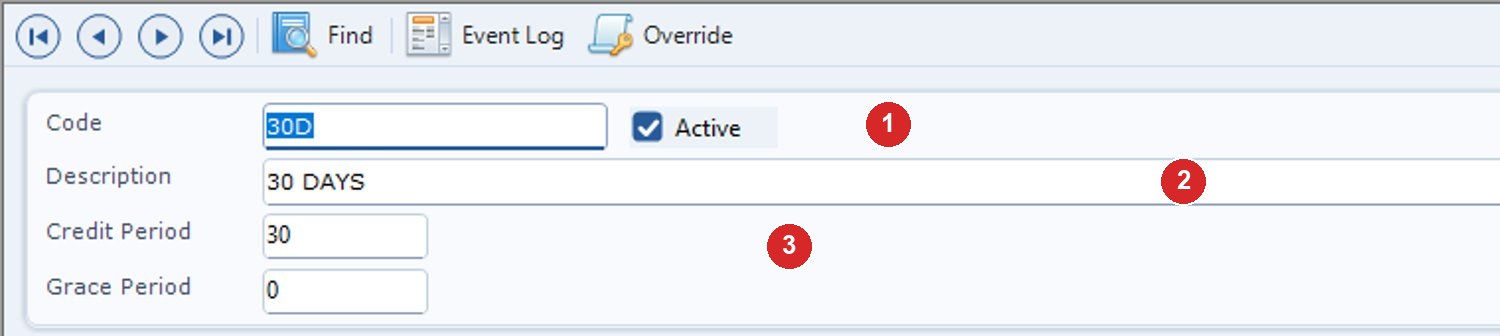
Go to Debtor Ledger > Masterfile > Sub-Masterfile > Terms. Save.
| Step | What to do |
|---|---|
| 1 | Code (here 30D). Leave Active ticked. |
| 2 | Description (here 30 DAYS). |
| 3 | Credit Period (here 30) and Grace Period. |
5. Add a transaction type
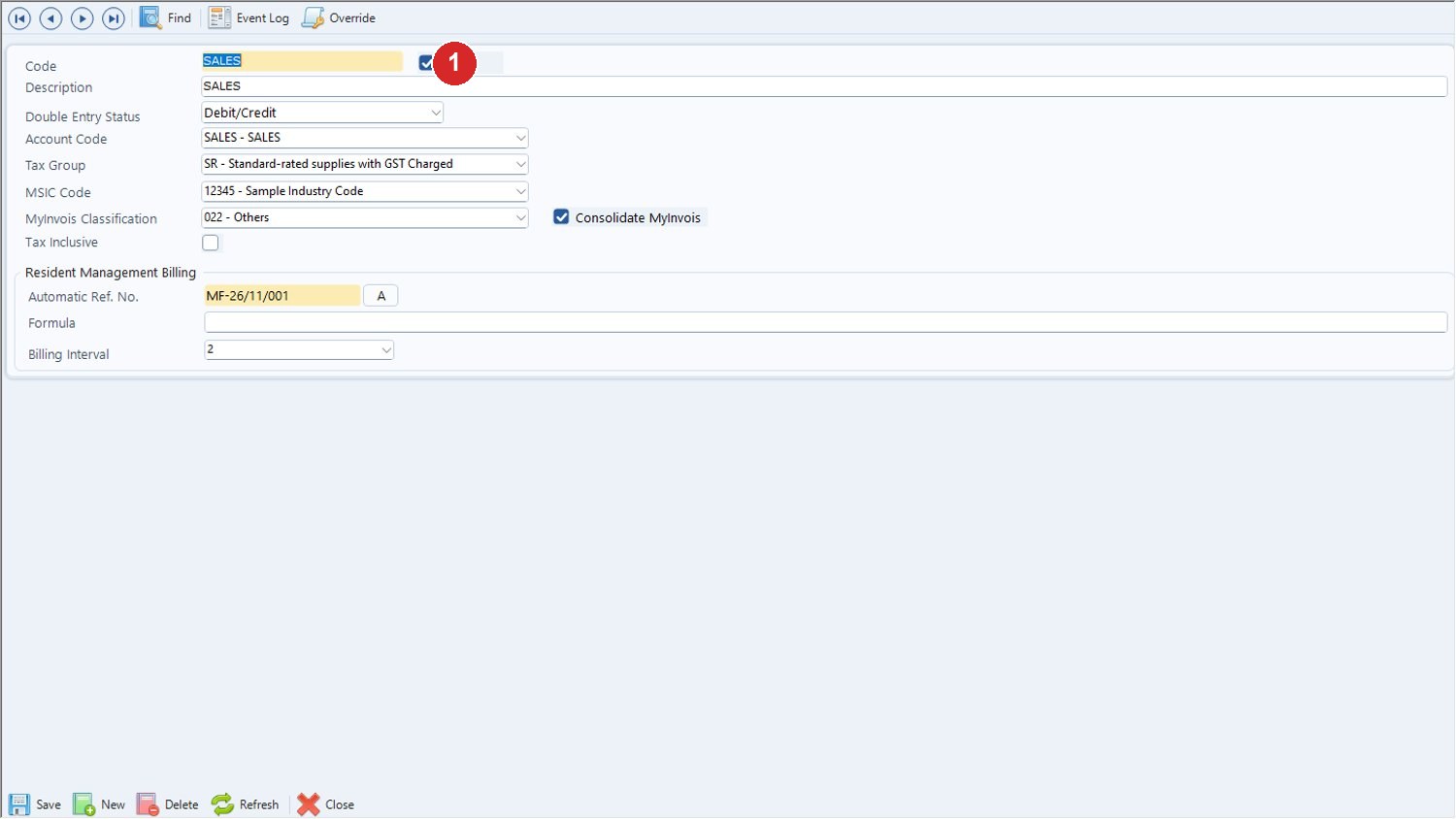
Go to Debtor Ledger > Masterfile > Sub-Masterfile > Transaction Type. Save.
| Step | What to do |
|---|---|
| 1 | Code and Description, Double Entry Status, Account Code, MSIC Code, MyInvois item class and Consolidate MyInvois (here SALES). |
6. Open the ledger system settings
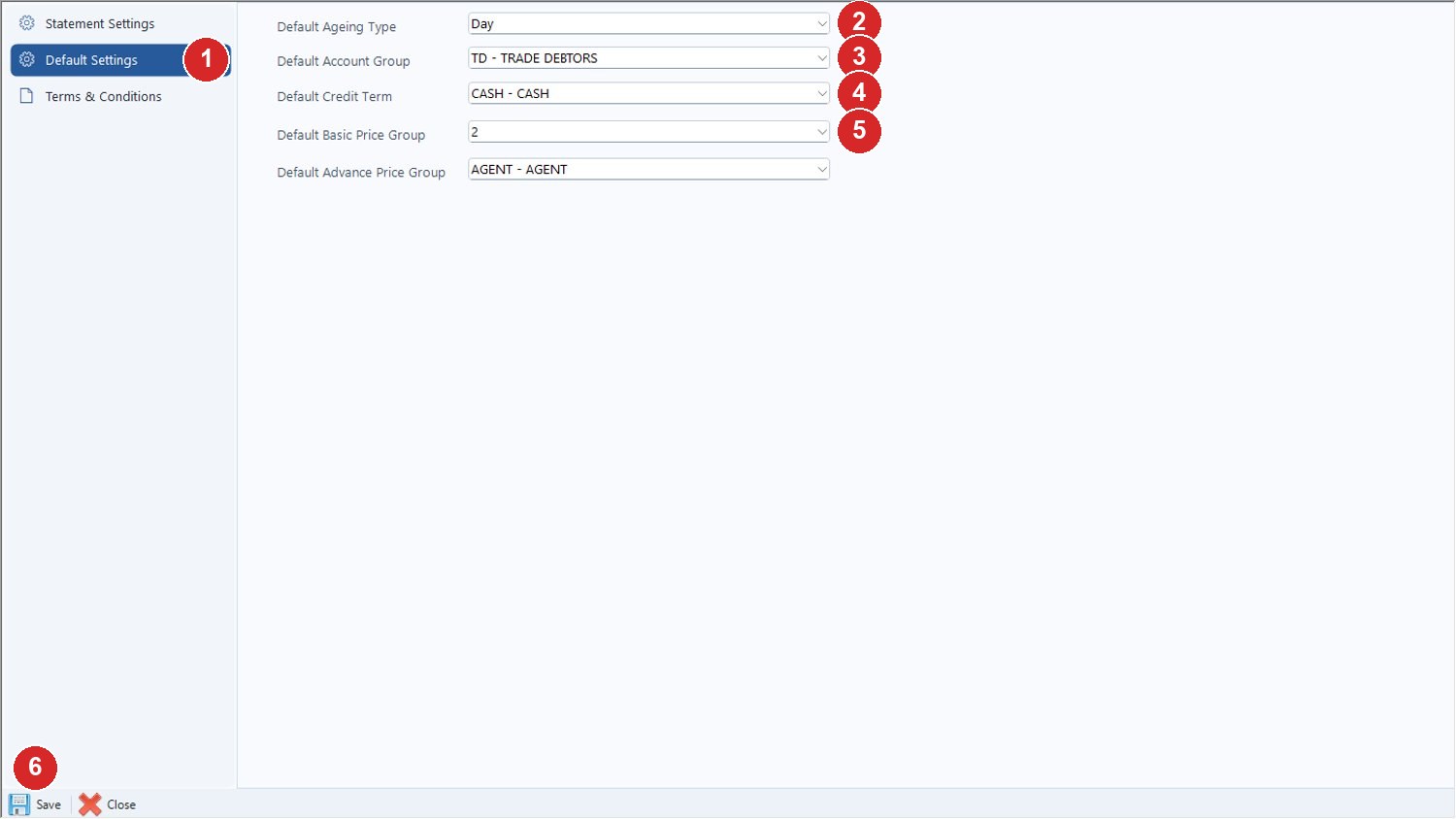
Go to Debtor Ledger > Settings > Debtor Ledger System Settings (or the Creditor Ledger one).
| Step | What to do |
|---|---|
| 1 | Default Settings tab (Statement Settings and Terms & Conditions are the other tabs). |
| 2 | Default Ageing Type. |
| 3 | Default Account Group. |
| 4 | Default Credit Term. |
| 5 | Default Basic Price Group and Default Advance Price Group (debtor mode). |
| 6 | Click Save once for all tabs and wait for Setting Saved. |
7. Set the printed wording
Under Terms and Conditions, use the Sales Invoice, Debit Note and Credit Note tabs to type the terms text and the four corner texts (Top / Left, Top / Right, Bottom / Left, Bottom / Right). For debtors, the Statement Settings tab holds the Statement Terms and Conditions.
Tips
- The Country and State labels on these screens are links to their own setup screens, so you can add a missing one without leaving the record.
- The State list on a record follows the Country you pick. Only active countries and states are offered.
- In Resident Management Billing on Transaction Type (shown only if your licence includes it), the Billing Interval can be Monthly, Bi-Monthly or Quarterly.
- Bottom / Right starts as Authorised Signature if nothing has been saved yet.
Common problems
The message [Country] is required appears when I save a country.
The Code box is empty, even though the message says Country. Type a code and save again.
I cannot save a state.
Code, Description and Country must all be filled in. The checks run in that order, so you see one message at a time.
The country I need is not in the State list.
The list only shows countries already set up. Add the country first.
I cannot find my state in the drop-down on a record.
Check that the right Country is selected, and that the state exists, is active and belongs to that country.
A term or transaction type will not save.
Code and Description must both be filled in.
The Resident Management Billing box is missing.
Your licence does not include that option. Nothing is wrong with the screen.
The message Default Ageing Type is invalid appears and nothing saves.
Pick a valid ageing type from the list and click Save again.
I cannot find the Statement Settings tab.
You are probably in creditor mode, where that tab is not shown.