
If clock-in times are kept in an Excel or CSV file, you can load them into the attendance records. Every import gets a batch number, so a wrong import can be reversed. This guide covers both.
Before you start
- Prepare the file with the columns Code (user code or ID), Date (the duty date), Clock Time (the punch time) and Remark.
- Optional: an activity type of WS (work start), WE (work end), B1S/B1E (1st break start/end) or B2S/B2E (2nd break start/end).
- Importing is not allowed on a demo or trial licence.
Steps
1. Open the screen
Go to Main > Attendance Management > Attendance Clock Time Import. The screen has two tabs.
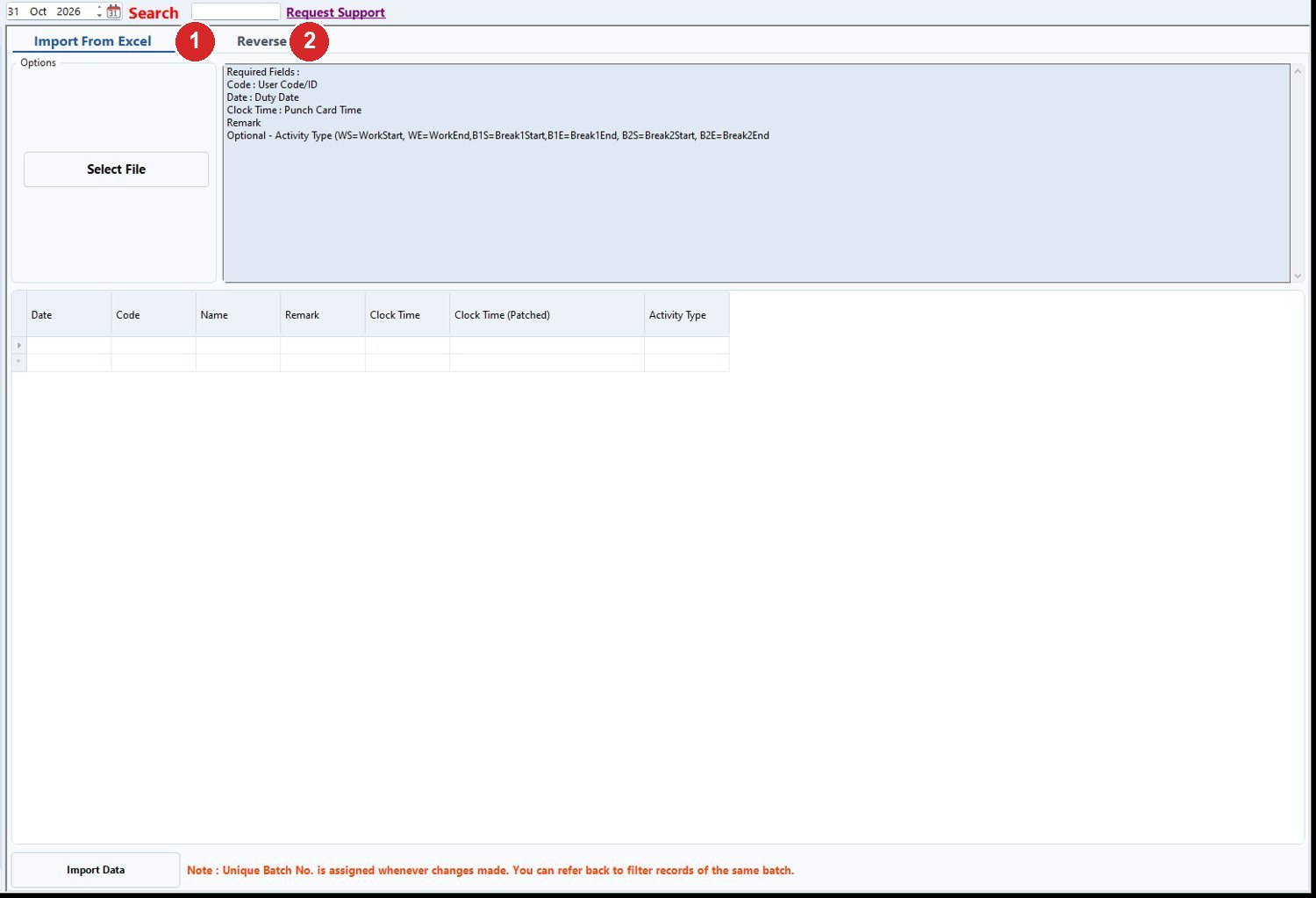
| Step | What to do |
|---|---|
| 1 | Import From Excel tab: use it to import the clock times. |
| 2 | Reverse tab: use it to undo an import. |
2. Select the file
On the Import From Excel tab, click Select File under Options and choose the Excel (xlsx or xls) or CSV file. The rows appear in the grid so you can check them.
3. Import the data
Click Import Data and answer Yes to ‘Do you want to import the data?’. When you see ‘Data import completed.’, the new batch number is filled into the Reverse tab.
4. To undo, open the Reverse tab
Enter Batch No. From and Batch No. To. Leave one at 0 to keep that side open.
5. List the records
Click List. The grid shows the imported records with date, clock time, code, name, remark and batch number.
6. Reverse
Check the grid carefully, then click Reverse and answer Yes to ‘Do you want to delete records show in the grid?’. The program tells you how many records were deleted.
Tips
- Reverse deletes every row shown in the grid, so narrow the batch range and click List first.
- Only imported records (those with a batch number) appear on the Reverse tab. Normal clock-ins are not listed.
Common problems
‘[Clock Time] column is required.’ (or [Code] or [Date])
The file is missing that column. Add it and select the file again.
The list of errors shows Missing Date, Invalid User Code or Invalid Time.
Correct those rows in the file and import again.
Nothing happens after choosing the file.
The file may be empty or could not be read. Check it and try again.