
The Tardiness screen works out who was late, left early or missed a clock-in, using the raw clock records. You can then record the reason for each case. This guide shows how.
Before you start
- Staff need clock records for the dates you want to check.
- Your user needs the Calculate task permission to run the calculation.
- Reasons you can pick come from the Tardiness Reason list (Main > Attendance Management > Tardiness Reason).
Steps
1. Open Tardiness Process/Query
Go to Main > Attendance Management > Tardiness Process/Query.
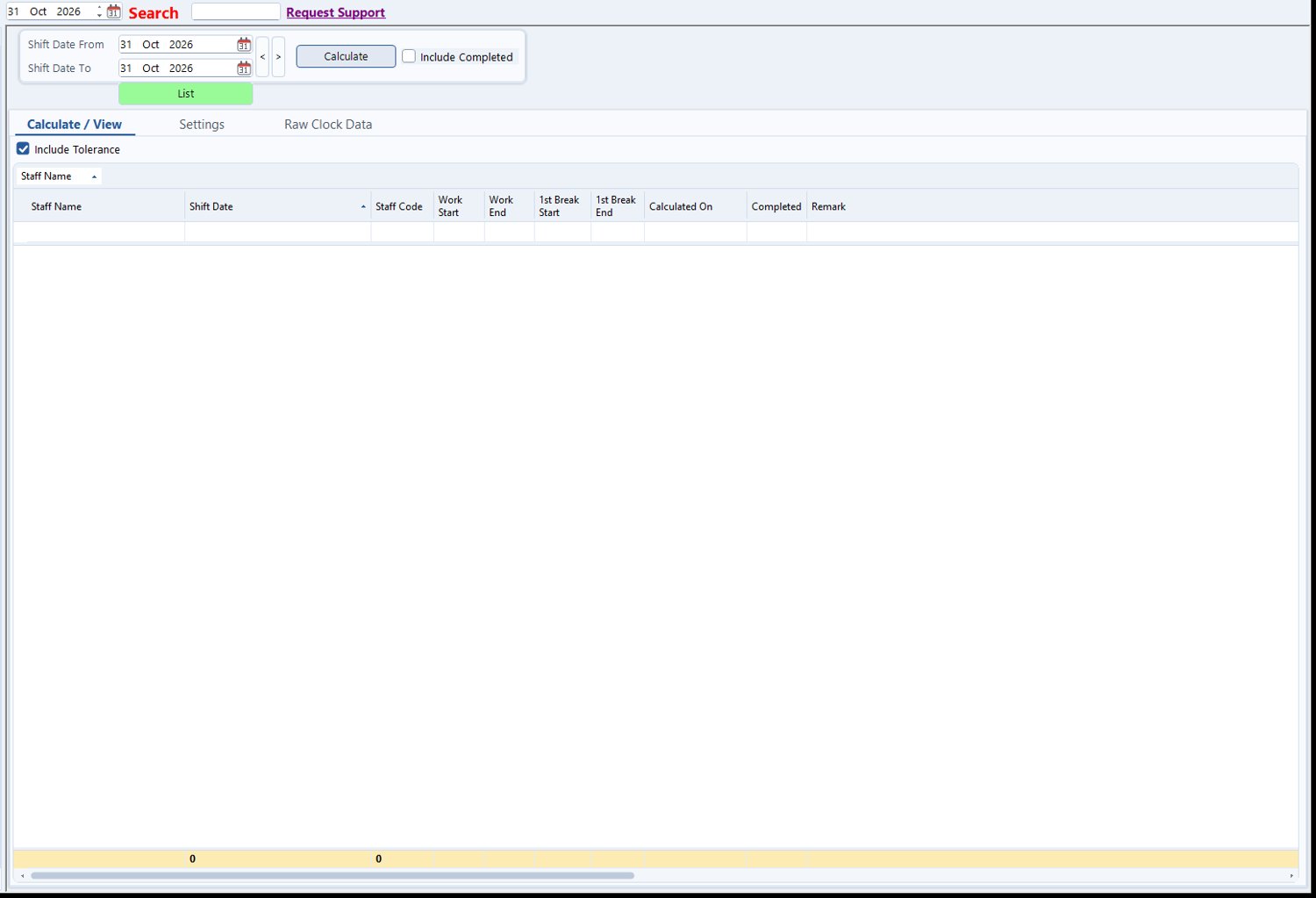
2. Choose the dates
On the Calculate / View tab, set Shift Date From and Shift Date To. The < and > buttons move the range by a whole month, but never past today.
3. Check the Settings tab first time
Check the Settings tab the first time you use the screen.
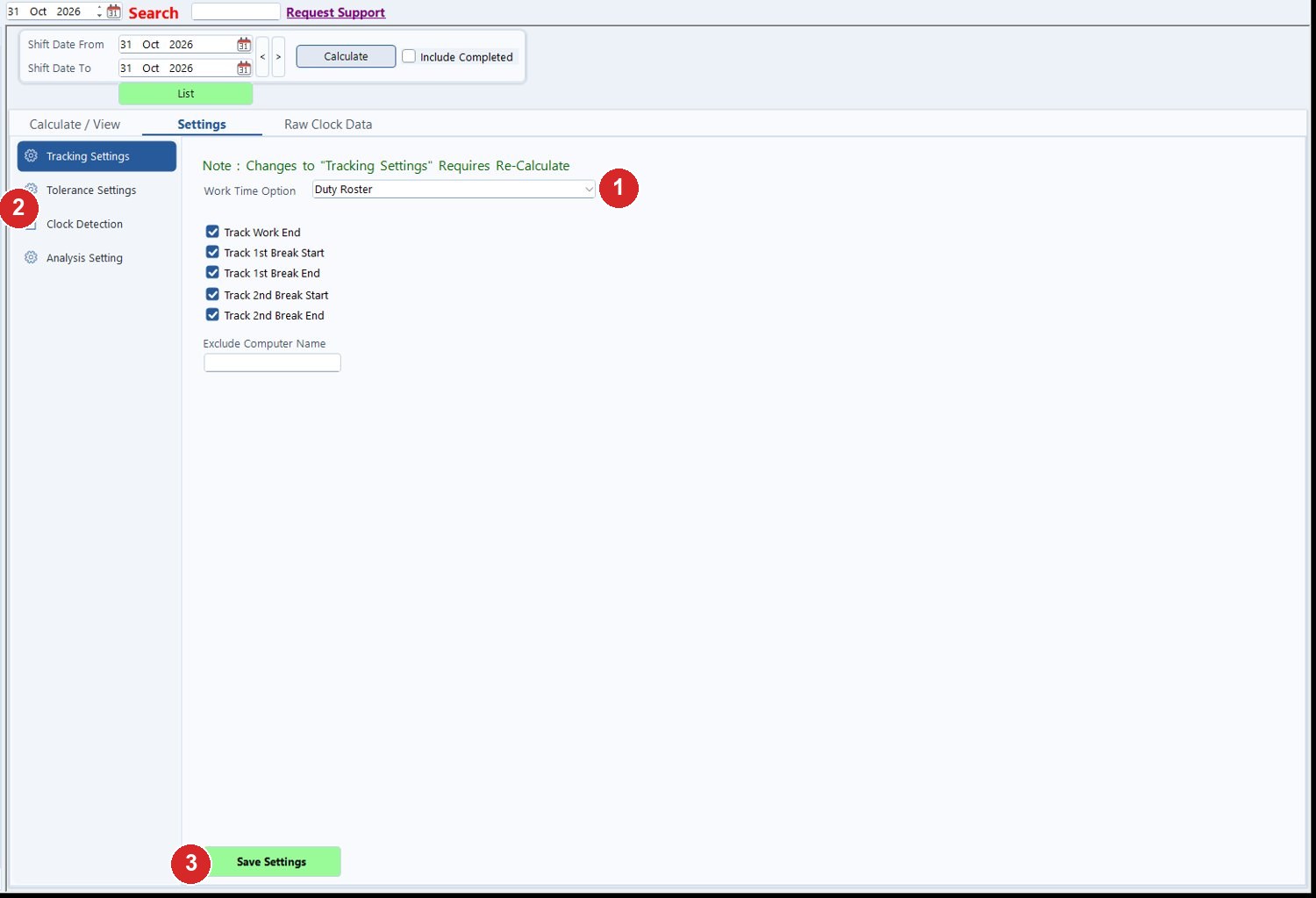
| Step | What to do |
|---|---|
| 1 | Set Work Time Option to Standard Time or Duty Roster. |
| 2 | Review Tracking Settings, Clock Detection (the early and late range in minutes for each event), Tolerance Settings and Analysis Settings. |
| 3 | Click Save Settings. |
4. Calculate
Tick Include Completed or Include Tolerance if you need them, then click Calculate. If the range is over 30 days you must tick the confirmation, because it may take a long time.
5. View the result
View the result of the calculation.
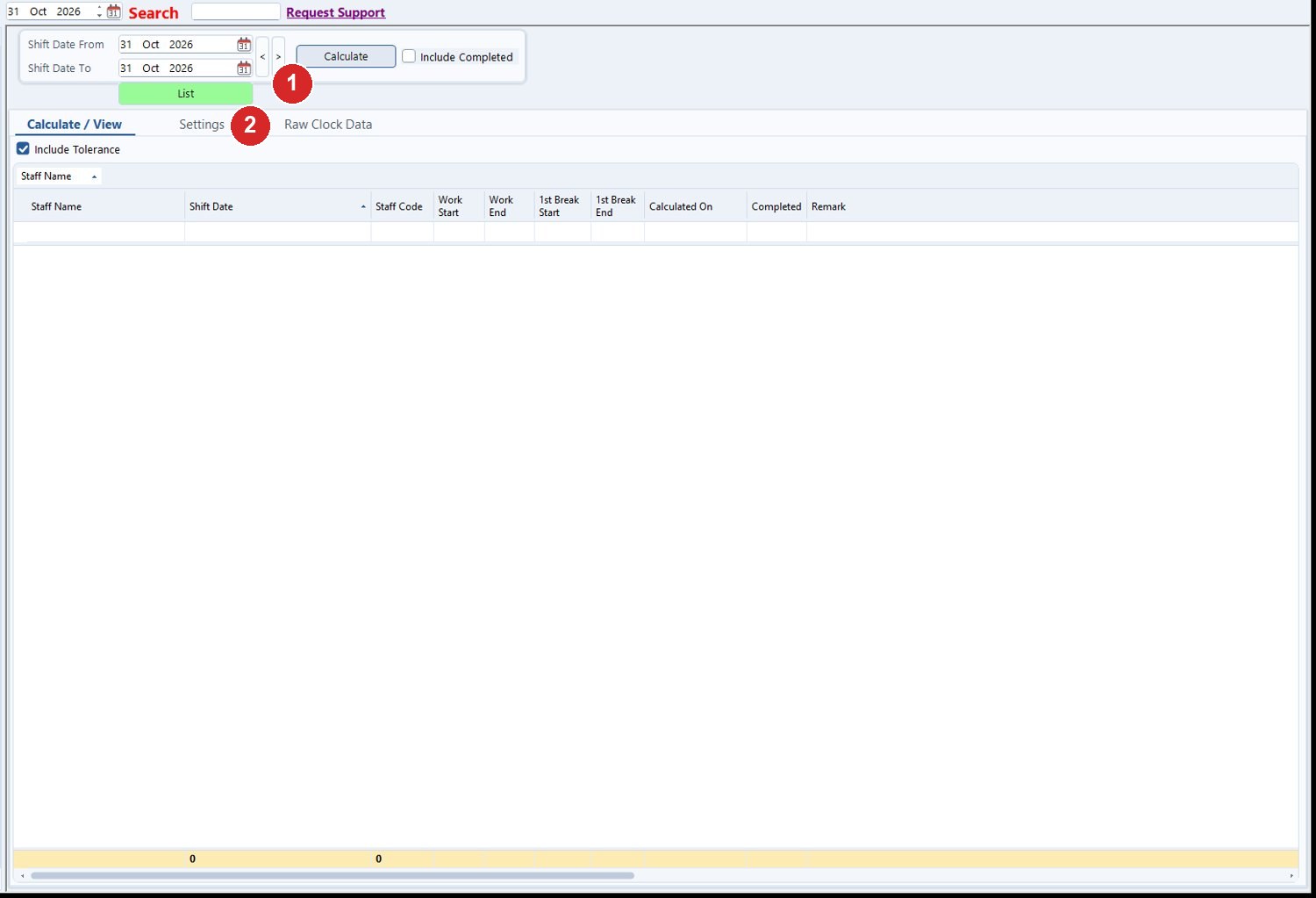
| Step | What to do |
|---|---|
| 1 | Click List to see the result. |
| 2 | The Raw Clock Data tab shows the original clock records. |
6. Record a reason
In the result grid, use the reason button on a row to open the Attendance Reason Record for that staff and date. You can also open it from Main > Attendance Management > Reason Transaction Entry.
7. Fill in the reason record
Fill in the attendance reason record.
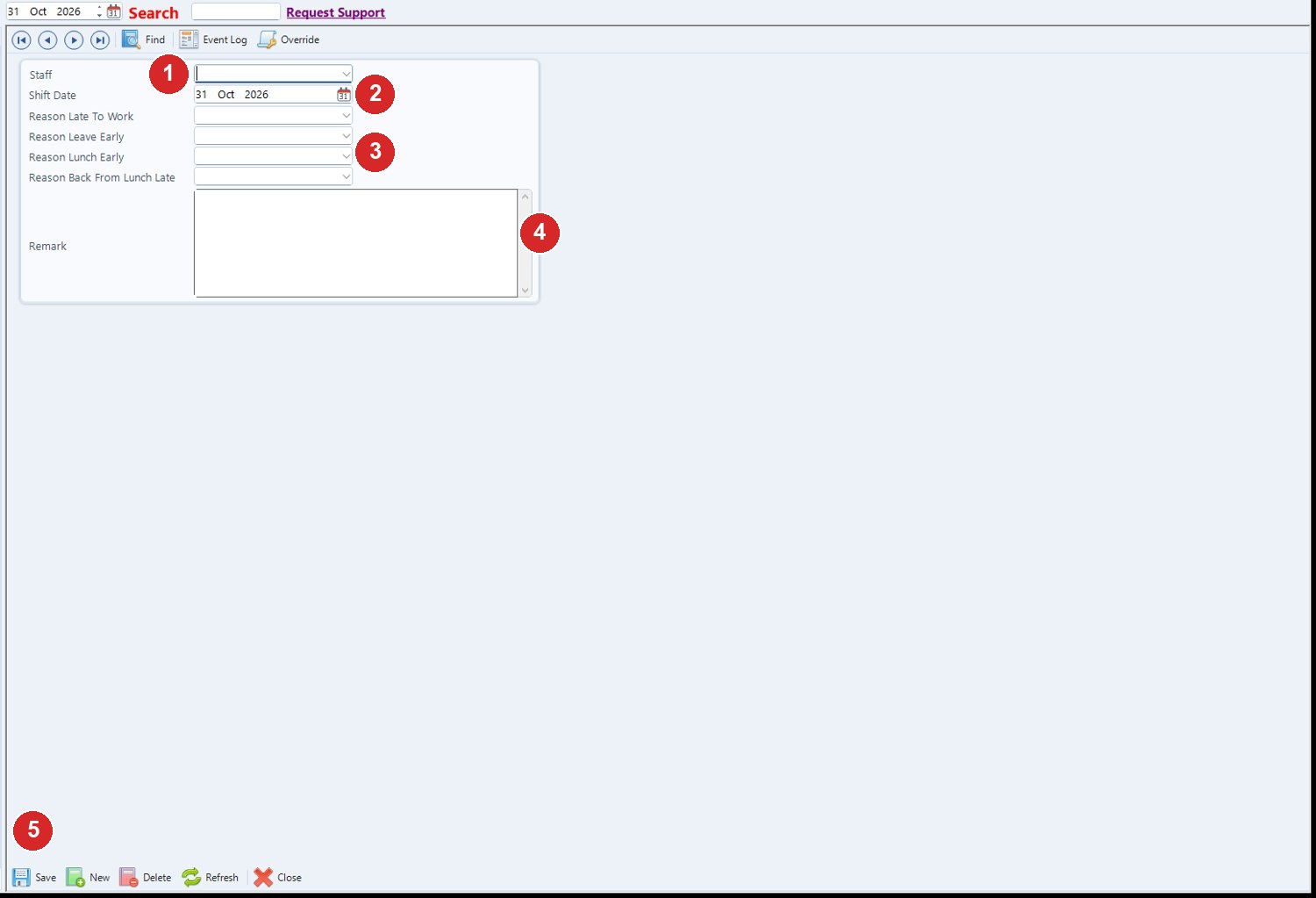
| Step | What to do |
|---|---|
| 1 | Choose the Staff (required). |
| 2 | Choose the Shift Date (required). |
| 3 | Pick a reason for Reason Late To Work, Reason Lunch Early, Reason Back From Lunch Late or Reason Leave Early. |
| 4 | Add a Remark if needed. |
| 5 | Click Save. |
Tips
- Changes to Tracking Settings, Tolerance Settings and Clock Detection need Calculate again. Changes to Analysis Settings do not.
- Clock Detection: a clock outside the early or late range is not matched to that event.
- Exclude Computer Name ignores clock records from that computer.
Common problems
‘You don’t have permission to calculate.’
Your user does not have the Calculate task. Ask the administrator to give it.
Results look unchanged after changing a setting.
Click Calculate again.
‘[Staff] is required.’ or ‘[Shift Date] is required.’ on the reason record.
Choose the staff and the shift date before saving.
A reason is not in the list.
Add it to the Tardiness Reason list first, then come back.