
This guide helps you understand your automatic backups, keep your disk from filling up, and keep a safe copy on a pendrive or external disk.
Before you start
- A pendrive or external harddisk plugged into the PC
- Know which drive is full and how much space is left
- Know how many companies or databases need backing up
Steps
1. Find your automatic backups
Open the SynSoft folder, then open the Autobackup folder. The backup files are named by date.
2. Check the latest backup date
Look at the dates in the Autobackup folder. If the newest file is not recent, the automatic backup may not have run. A full disk is a common reason.
3. Delete old automatic backups
If the disk is full, delete old auto-backup files in the Autobackup folder to make more space.
4. Keep recent backups
Keep the most recent week (or several recent days) of backups on the main PC.
5. Keep a copy on a pendrive or external disk
Also keep a copy on a pendrive or external harddisk. Then you can restore your data if the main PC fails.
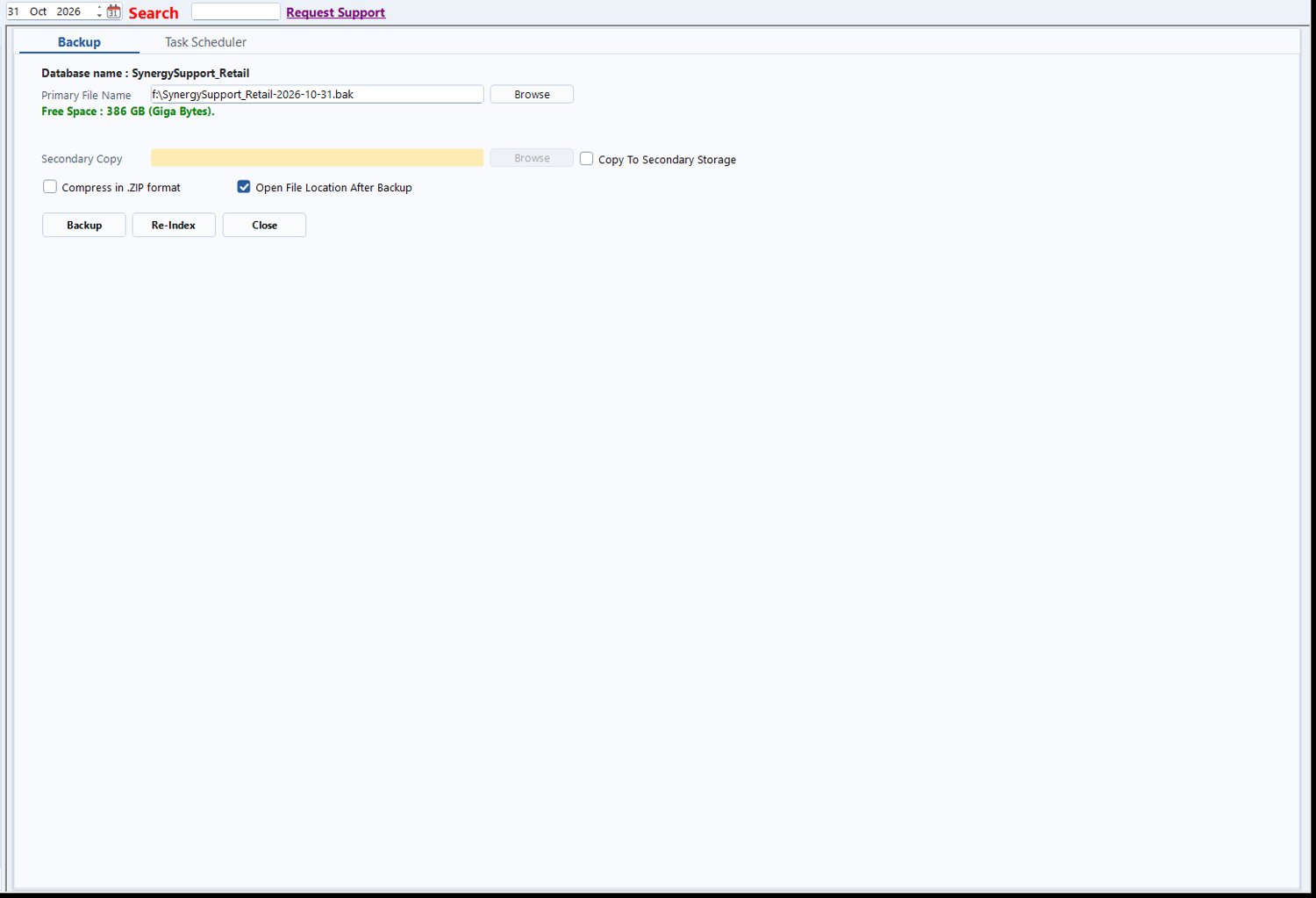
6. Do a manual backup
Follow the Manual Backup guide (PDF). A pendrive or an external harddisk are both fine.
7. Back up before a PC upgrade
If your PC is going to be upgraded, back up the database first.
8. Make more space on the C drive
Move Excel and Word files from the desktop and Downloads to another drive, then empty the recycle bin.
Tips
- Only two backup locations can be used at the same time, and they share the same schedule (for example, daily to the C drive and to another drive).
- If you save a secondary-copy backup, create a folder first. It cannot be saved directly to the desktop.
- Do not leave old daily backups to pile up on the C drive.
Common problems
I keep seeing a backup reminder or warning.
The automatic backup may not have run, often because the disk is full. Delete old files in the Autobackup folder and check that a new dated file appears.
The C drive is full.
Delete old auto-backup files, move Excel and Word files from the desktop and Downloads to another drive, and empty the recycle bin.
Automatic backup was never set up, or I need it for several databases or an external drive.
Contact Synergy support. Have your pendrive or external drive plugged in, and which drive is full, the date of the last backup file and the number of databases ready.