
This guide shows how to reconcile a bank account against your bank statement and post it. It also explains what to do when the program blocks you from posting, editing or deleting transactions.
Before you start
- Have your bank statement ready, with its statement balance and date.
- Know which bank account and which months you are reconciling.
- If you are blocked, note the exact message on screen.
Steps
1. Open Bank Reconciliation
From the menu, go to Cash Management System > Transactions > Bank Reconciliation > Bank Reconciliation.
2. Choose the bank account
Choose the bank account and the statement details.
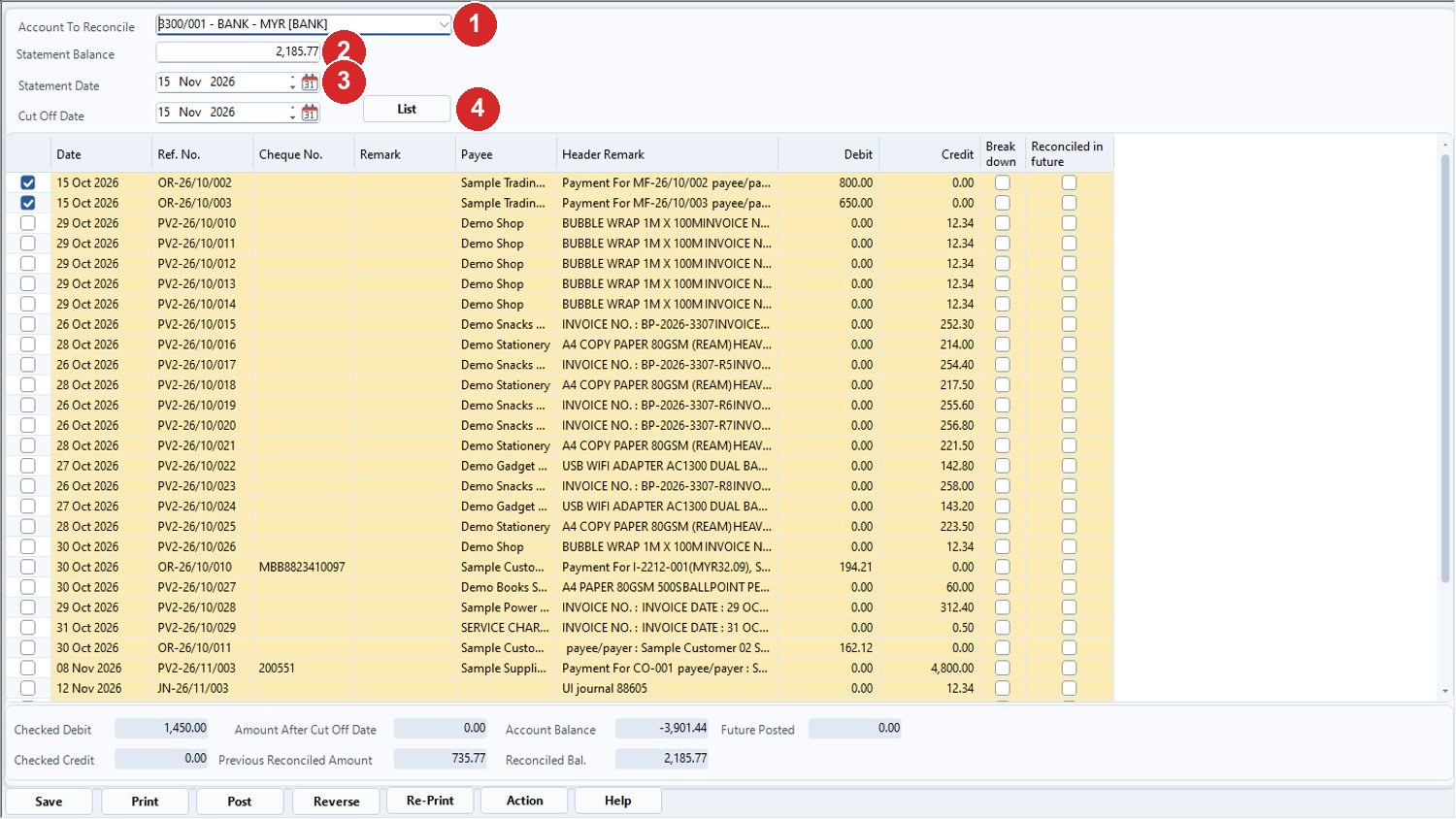
| Step | What to do |
|---|---|
| 1 | Account To Reconcile (here 3300/001 BANK – MYR). |
| 2 | Statement Balance: the balance on your bank statement (here 2,185.77). |
| 3 | Statement Date and Cut Off Date. |
| 4 | Click List: the account’s transactions are shown. |
3. Tick the transactions on your statement
Tick each transaction that appears on the statement. Right-click the grid to use Check All, Uncheck ALL or Copy Text. Reconciled Bal. changes as you tick.
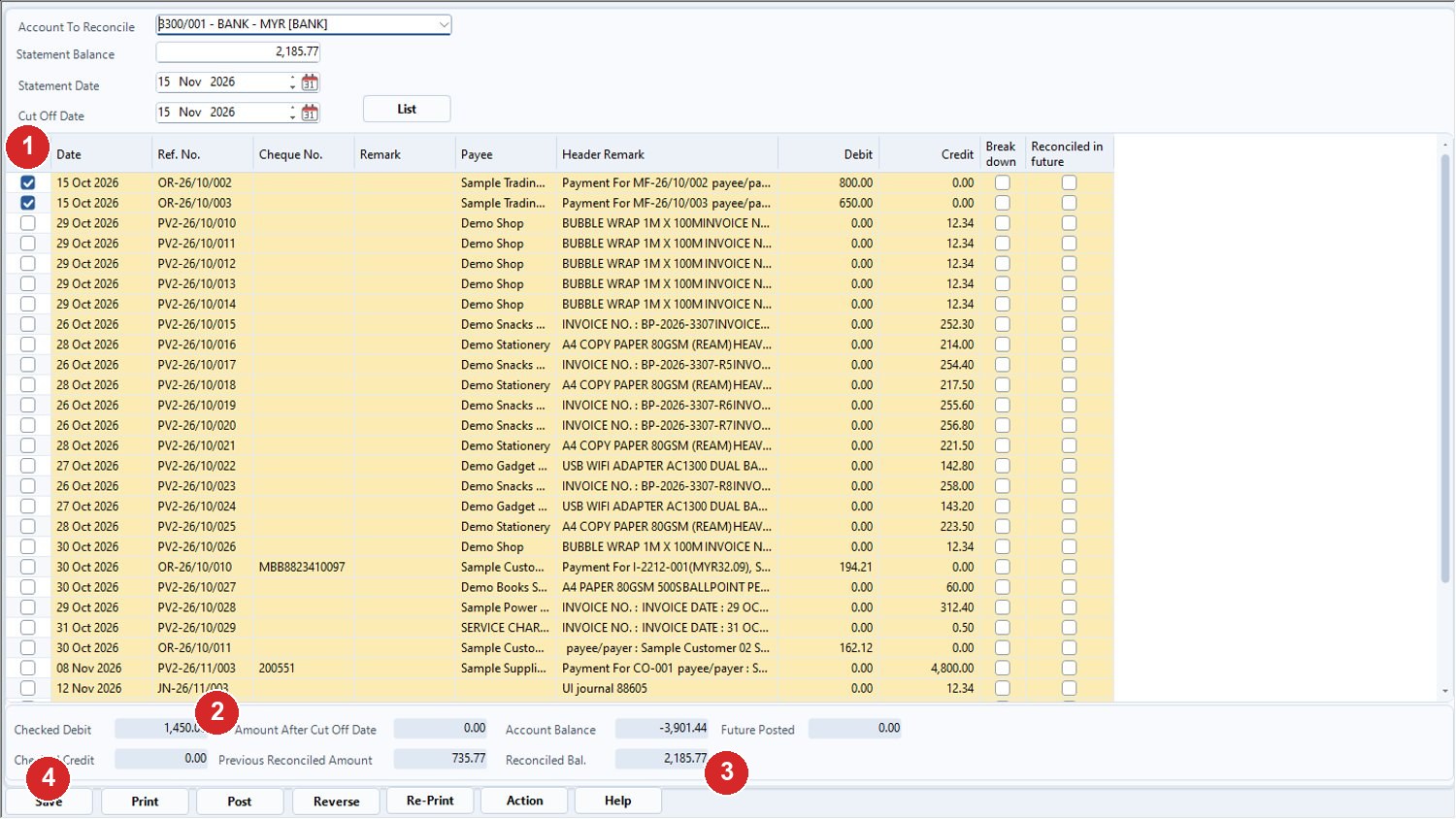
| Step | What to do |
|---|---|
| 1 | Tick each transaction that is on the statement (right-click for Check All, Uncheck ALL or Copy Text). |
| 2 | Checked Debit and Checked Credit add up the ticks (here 1,450.00). |
| 3 | Reconciled Bal. must equal the Statement Balance (here 2,185.77) before you can post. |
| 4 | Save to stop and come back later; Post when it balances. |
4. Save
Click Save. If you are not finished, you can stop here and come back later. A partly finished reconciliation cannot be posted. The list reloads after Save, which is normal.
5. Post
When Reconciled Bal. equals Statement Balance, click Post. Confirm with Yes when asked: Do you want to post the Bank Reconciliation?
6. Choose whether to lock
The program asks if you want to lock the GL Transaction Entry Date. Choose Do not lock unless you are sure that month is closed. A lock stops anyone adding or changing transactions on or before that date.
7. Repeat for the next month
Post each month before you reconcile the next month.
Tips
- Posting works only when Reconciled Bal. equals Statement Balance, and only after you click Save first.
- Instead of ticking by hand, you can click Action, then Load, then Select File to load an exported reconciliation file.
- Excel or CSV statement lines loaded through Load Excel need the column headings Row, Debit, Credit and Cancel. Rows marked Y in Cancel, and rows where Row is not a number, are skipped. Nothing is used until you click Load Data.
- Reverse undoes an earlier reconciliation. You choose it from a list and confirm. You are asked if you want to export the bank reconciliation data first.
- To see the ledger of one debtor or creditor, go to Accounts > General Ledger > Transaction Query. Select the Trade Debtor or Trade Creditor account, set Doc Type to ALL and filter by Payee. You can also check Debtor Ledger > Transaction History.
- If you need a financial year created, confirm the actual financial year dates with your company secretary.
Common problems
Post is refused, or you see: The Reconcilled amount must be same as Statement Balance.
Keep ticking transactions or correct the Statement Balance until Reconciled Bal. matches it. Also make sure you clicked Save first.
Message: Please click [Save] button first.
Click Save, then click Post.
Items cannot be ticked, or marked as Reconciled in future.
A later month was already reconciled. Reverse the bank reconciliation for all later months of that bank account, then redo it month by month.
A bank receipt cannot be deleted and says to reverse bank recon first, but its month is not in the reverse list.
Find which month’s bank reconciliation contains the transaction (it may be the next month). Reverse that reconciliation, then edit or delete the receipt.
Message says transactions are locked.
Go to General Ledger > Settings > System Settings > Integration tab. In the Lock Transaction group, check the lock date. It blocks transactions on or before that date. Untick it or change it.
Message says there is no financial year, for example for 2026.
Create the fiscal year as shown in the manual, using the company’s actual financial year dates.
The grid is empty after choosing an import file.
The file may have no rows with a numeric Row value, or all rows may be marked cancelled.
Still blocked after these checks.
Contact Synergy support. Have ready the exact message text, the bank account and months reconciled, the lock date in Integration, the financial years that exist, and the exact dates needed.