
This guide shows you how to print a barcode label for a single item, what to check if a barcode does not print or scan, and what to try when your label printer gives poor results.
Before you start
- The item code and the quantity of labels you want to print
- For label printer problems: your printer model, whether it uses a ribbon or thermal paper only, your label size (for example 30 x 40 mm), and the colour and pattern of the printer light
- The label printer must support the TSPL printer language. Confirm the model with the seller before buying.
Steps
1. Enter the labels to print
Go to Inventory Management > Transactions > Barcode Printing Entry and click Add New Record. Here 20 labels for TS-BLU-M and 15 for TS-WHT-M.
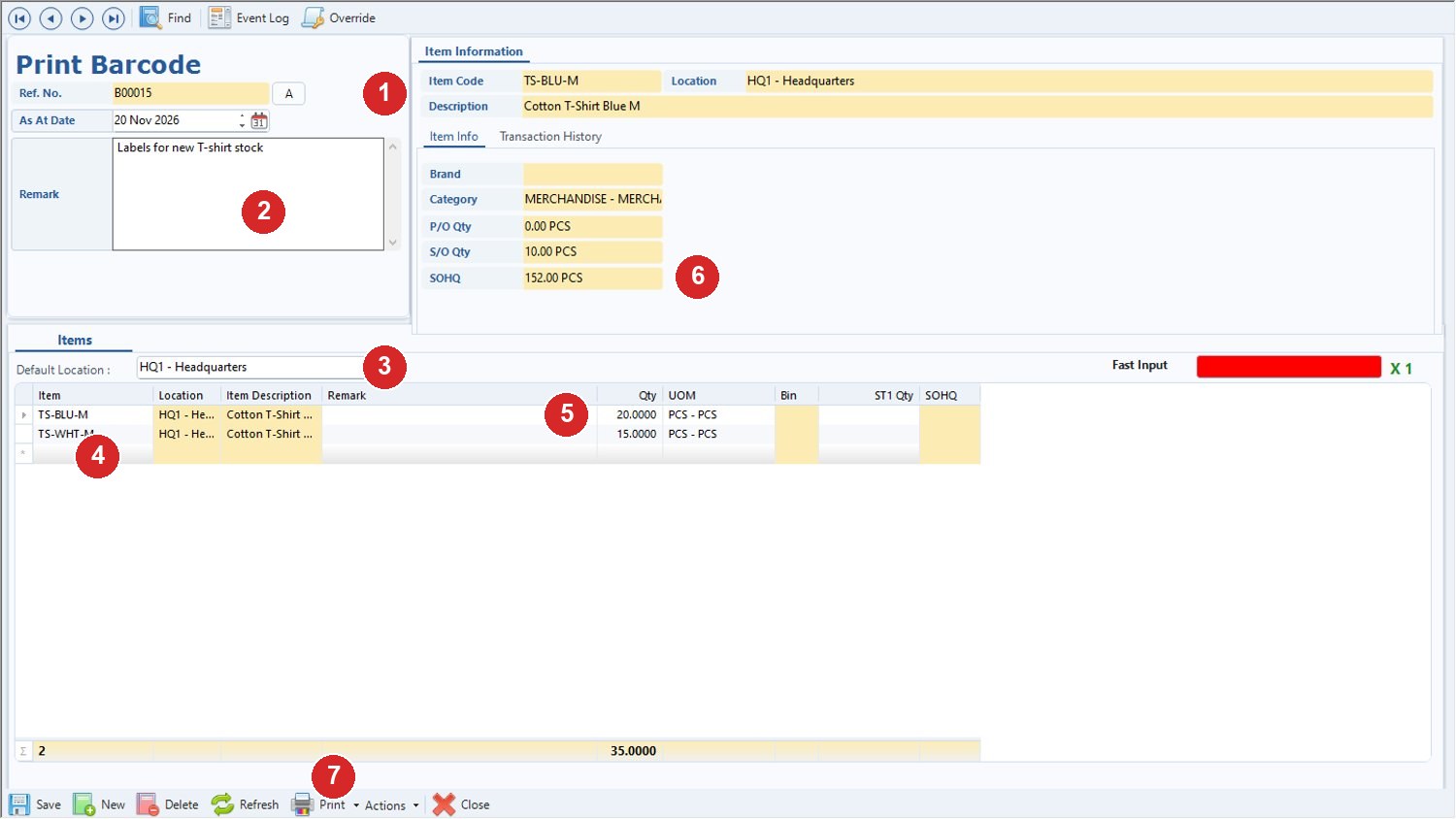
| Step | What to do |
|---|---|
| 1 | Ref. No. (A = automatic) and As At Date. |
| 2 | Remark, for example why the labels are printed. |
| 3 | Default Location. |
| 4 | Item code of each item to label (Fast Input also scans). |
| 5 | Qty: how many labels. |
| 6 | Click a row to see the item’s details and SOHQ. |
| 7 | Save the record, then use Print to print the barcodes. |
2. If the barcode is missing or will not scan: reprint the receipt
Reprint the receipt using the Character Based format.
3. Check the Item masterfile
Open the Item masterfile and check that the Barcode field is filled and ticked. If it is not, HQ must update it first. That screen is on the HQ PC.
4. Check the UOM barcode
Check that the barcode on the item UOM was keyed correctly, with no space before or after.
5. Test the scan again
Scan the item again in POS entry.
Tips
- Labels that are misaligned, light, blank or feeding non-stop are mostly a printer calibration or setup matter.
- Wrong paper can give poor labels. Check whether your printer uses a ribbon or thermal paper only, and that your label paper matches.
- Shelf price labels (name, size, price) are set up once by Synergy support, and then read item data automatically.
- Choosing the wrong reprint format at the cashier can make a receipt print in the wrong layout.
Common problems
Labels are misaligned or too light
Calibrate the label sensor using the FEED button self-test. Ask Synergy support for the exact steps for your printer model. If still misaligned, set manual calibration (for example 1.50) and print again.
Printer prints nothing or the light is blinking red
Check for paper out and paper jams, check the connection, and then switch the printer off and on again.
Label roll keeps feeding non-stop
Check the calibration first. The label format may also need changing, so contact Synergy support.
Barcode or labels come out on the wrong printer (for example the receipt printer)
Contact Synergy support to correct the printer port. Then test print the receipt and the barcode.
Barcode does not show for some items, or scanning does not find the item
Check the Barcode field in the Item masterfile is filled and ticked, and that the UOM barcode has no spaces or typing errors.
Still not working
Contact Synergy support. For label printing, have photos of the sensor, the label roll and the printout ready. For barcode scanning, have the item code, the barcode and the printer model ready. For single-item printing, send a screenshot of the screen.