
A bin is the physical spot inside a stock location where goods are kept. Items can also be tracked by batch. This guide shows how to set up a bin, move stock between bins, and enter bins and batches on your documents and at the point of sale.
Before you start
- The location the bin belongs to must already exist and be active.
- The batch and bin entry screens have no menu entry of their own. They open from a document line (or the point-of-sale sale line) of an item that is tracked by bin or batch.
- For batch entry, the item must be set to track by batch.
Steps
1. Create a bin
Go to Inventory Management > Masterfile > Sub-Masterfile > Bin and start a new record. Type the Code and a Description, and choose the Location the bin belongs to. Leave Active ticked if the bin is in use, then save.

| Step | What to do |
|---|---|
| 1 | Code (here B2); Active. |
| 2 | Description (here Shelf B2). |
| 3 | Location the bin belongs to. |
2. Open Bin Transfer
To move stock from one bin to another, go to Inventory Management > Transactions > Stocks > Bin Transfer. Enter or accept the Ref. No., set the Transfer Date, and type a Remark if needed.
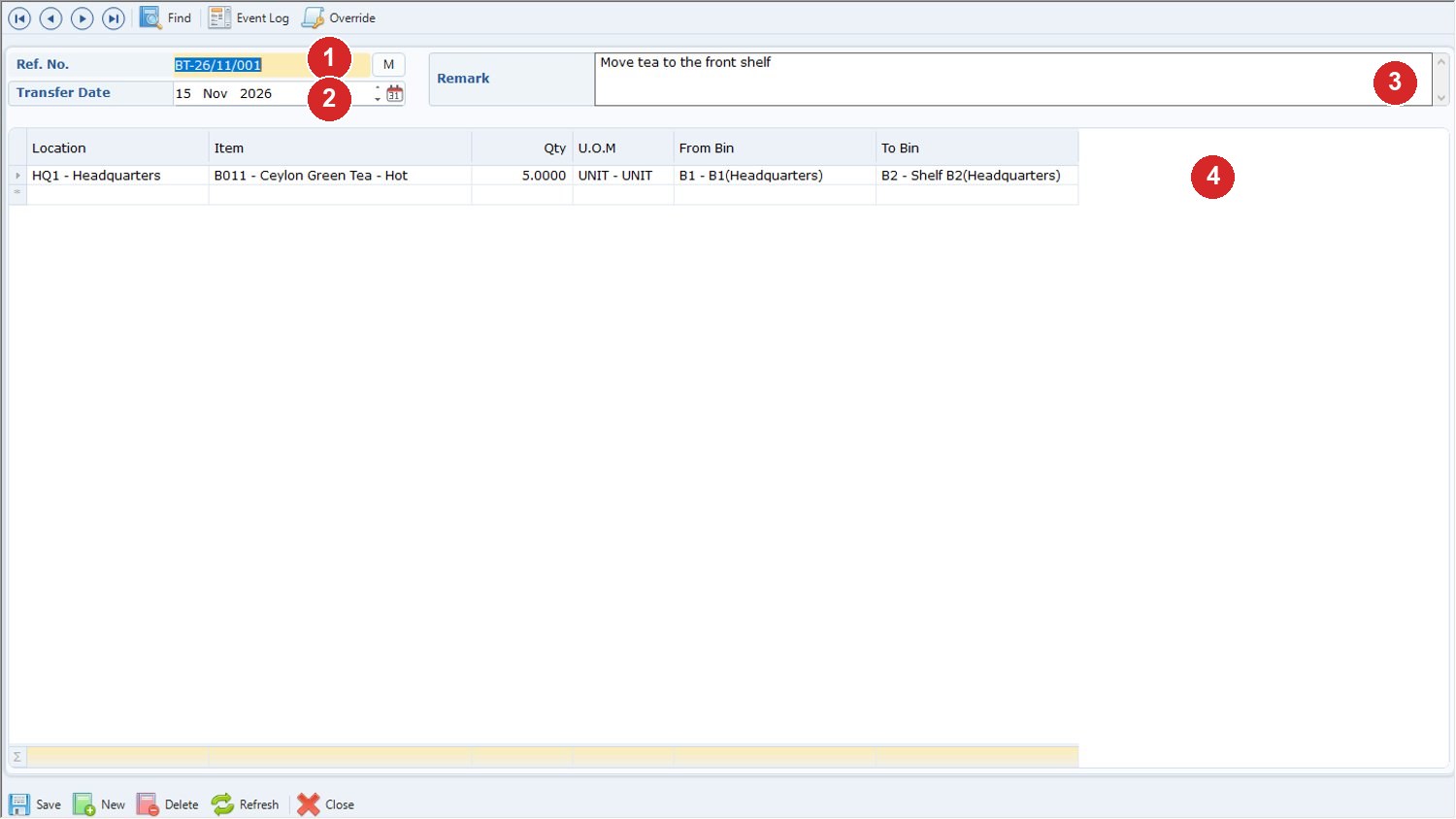
| Step | What to do |
|---|---|
| 1 | Ref. No. |
| 2 | Transfer Date. |
| 3 | Remark. |
| 4 | Lines: Location, Item, Qty, U.O.M, From Bin and To Bin (here 5 units from B1 to B2). |
3. Fill in the lines
On each line, choose the location first, then the item, quantity, From Bin and To Bin. Changing the location clears the item, unit of measure, quantity and both bins. Right-click a line to insert a row, delete a row or copy the cell text. Save when done.
4. Enter bins or batches on a document line
On a document line for an item tracked by bin or batch (for example Stock Adjustment, Delivery Order, Invoice Received or Sales Invoice), the Batch No Entry window opens. Check Quantity Required at the top. Add rows, choose the bin or batch in each row (F2 on the cell opens the list) and enter the quantity. Press OK, or Cancel to close without changes.
5. Include more batches in the list
Tick Include Zero Balance Qty or Include Expired Batches if you need to pick from those batches. On lines that bring stock in, Include Zero Balance Qty is not shown.
6. Enter bins and batches on a stock transfer
On a Stock Transfer line, a window shows Quantity Required. In the bin list add a row for each bin and choose the from bin and the to bin. In the batch list add a row for each batch and enter its quantity. Click OK to keep your entries.
7. Enter a batch at the point of sale
On the POS sale screen, select the line of the batch-tracked item and use the same button that is used for serial numbers. Check Quantity Required, choose the batch for each row and enter its quantity. The make date and expiry date fill in automatically. Click OK to confirm.
8. See expired or zero-stock batches at the point of sale
Tick Include Expired or Include Zero Stock, then click Refresh. Click Change UOM to switch the unit of measure.
Tips
- Each bin or batch can appear only once in the entry window.
- The entry window remembers your last Include Zero Balance Qty and Include Expired Batches choices, so a batch may be missing from the list because the box was unticked earlier.
- Inactive batches, and batches that belong to a different item, are not offered in the batch list.
- On the stock transfer window, a new row is pre-filled with the quantity still missing. When any bin rows exist, the total is taken from the bins; otherwise it is taken from the batches. The bins offered depend on the from and to locations.
- In Bin Transfer, the item and bin lists depend on the line’s location, and only active stock items available at that location can be chosen.
- At the point of sale, a company option can make batch entry compulsory, and a display option can show each batch’s balance. When the shop does not show batch balances, batches with no stock are always listed.
- The add and minus buttons on a point-of-sale row change its quantity by 1. The first click on add, while nothing is allocated yet, fills in the whole Quantity Required.
Common problems
Cannot save a Bin record.
Fill in the Code, Description and Location. All three are required.
The Location is missing in the Bin screen.
It may be inactive or not created yet. Use the Location link on the Bin screen to create or reactivate it.
Cannot save a Bin Transfer.
Check that each line has an item, both bins and a unit of measure. The From Bin and To Bin must be different, and at least one line is needed.
An item is not accepted in Bin Transfer.
The code must be picked from the item list.
A batch is missing from the list.
Tick Include Expired Batches and Include Zero Balance Qty. The batch must also be active and belong to this item.
System found blank Batch on row.
Delete the row or choose a valid batch.
Entered quantity doesn’t match the Required Quantity.
Answer Yes to keep your entry anyway, or No to go back and correct the quantities.
Invalid Batch No. entered.
The batch is not in the list offered. Check the two Include boxes and that the batch is active and belongs to this item.
At the point of sale I cannot close the batch screen.
Batch entry is compulsory in your shop. Choose a batch and click OK.