
Opening a new branch or outlet, or adding a second cashier counter? This guide explains what happens during setup, what you need to do yourself, and how to send branch sales to HQ. The main setup is done by Synergy support in a remote session.
Before you start
- Decide which location code and POS code the new PC will use.
- Know whether the new PC is a main PC or a client PC (second counter).
- Note the model of your receipt printer, label printer and customer display.
- If you will import items, check whether the item group is already created.
- Check whether you have an e-invoice or QR service for this branch.
- Make sure remote access to the HQ PC and the new branch PC is working.
Steps
1. Contact Synergy support
Ask Synergy support to set up your new branch or counter. They will connect remotely to the HQ PC and the new branch PC.
2. Support creates the codes
Support creates the location code and name, the POS code and the salesperson at HQ. Then they install the POS on the new PC.
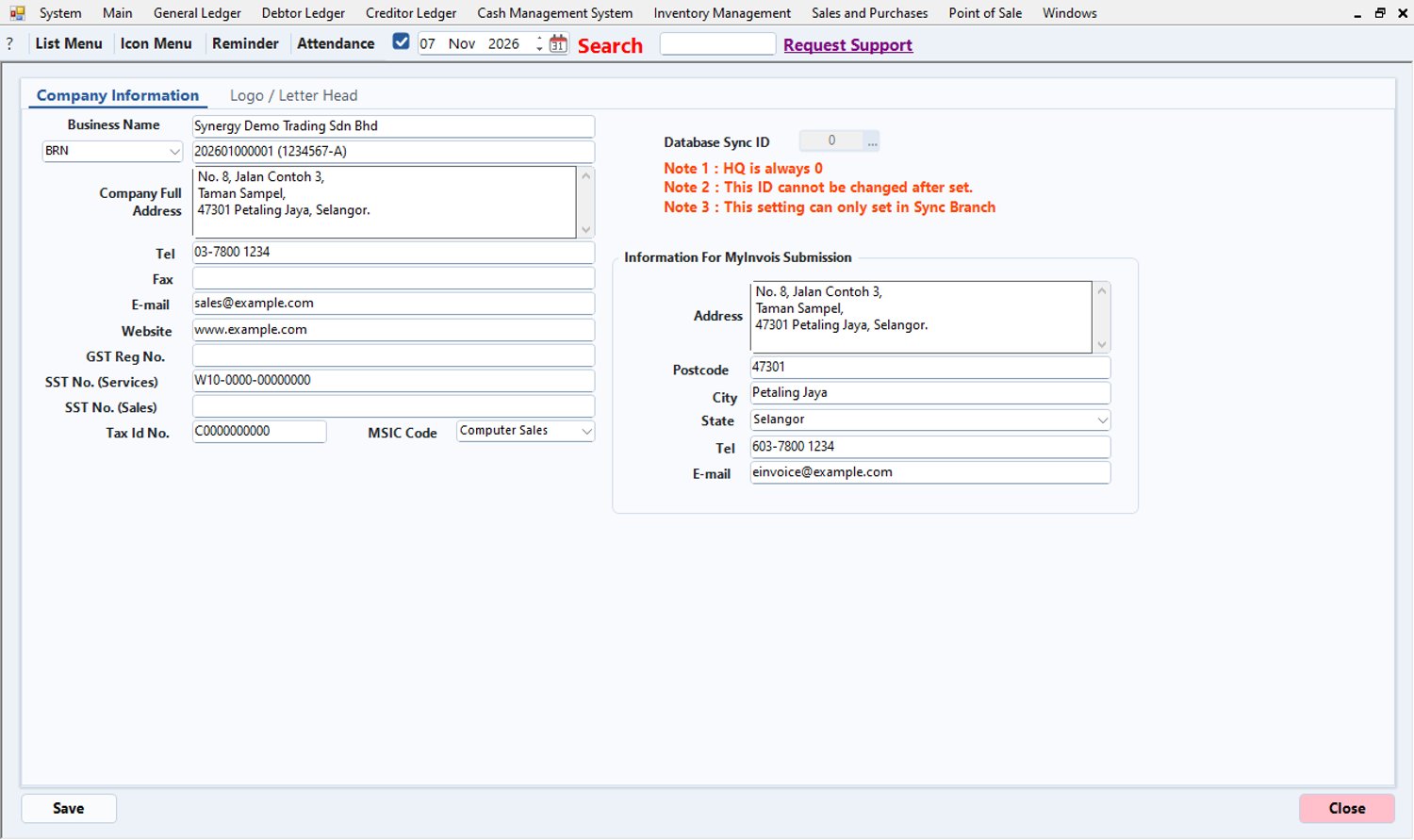
3. Update your company information
Items are set to follow the chosen branch. Please update your company information. Support will add the company name on the receipt.
4. Receive your default login
Support gives you the default login after the install.
5. Second counter: open and close separately
If you add a second counter (client PC), do opening and closing separately for each counter.
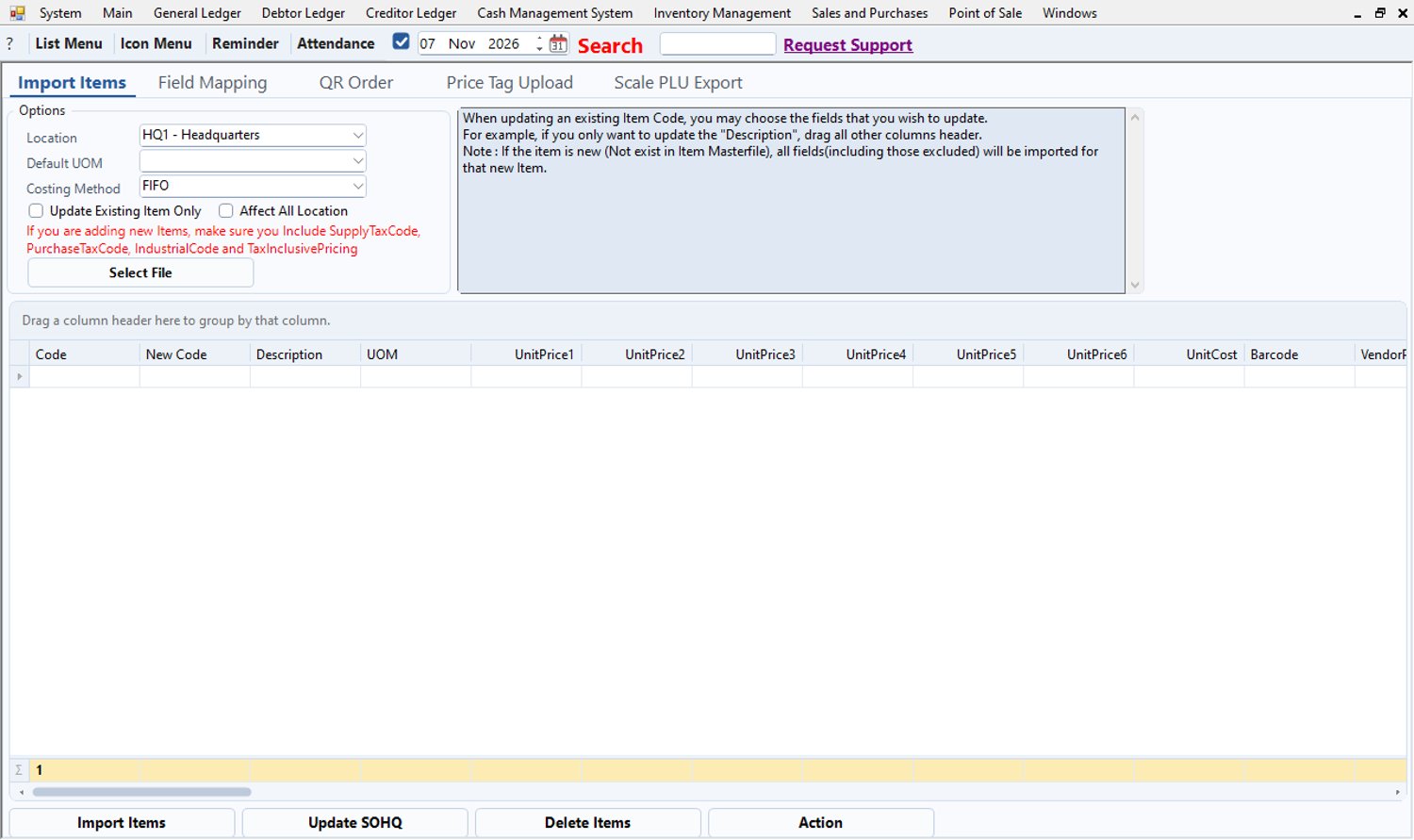
6. Importing items
Create the item group first, then import. The group code and description can be the same.
7. Moving credit sales recorded at the wrong location
Void the sale at the original location. Then redo it at the correct branch with the date changed.
8. Send branch sales to HQ
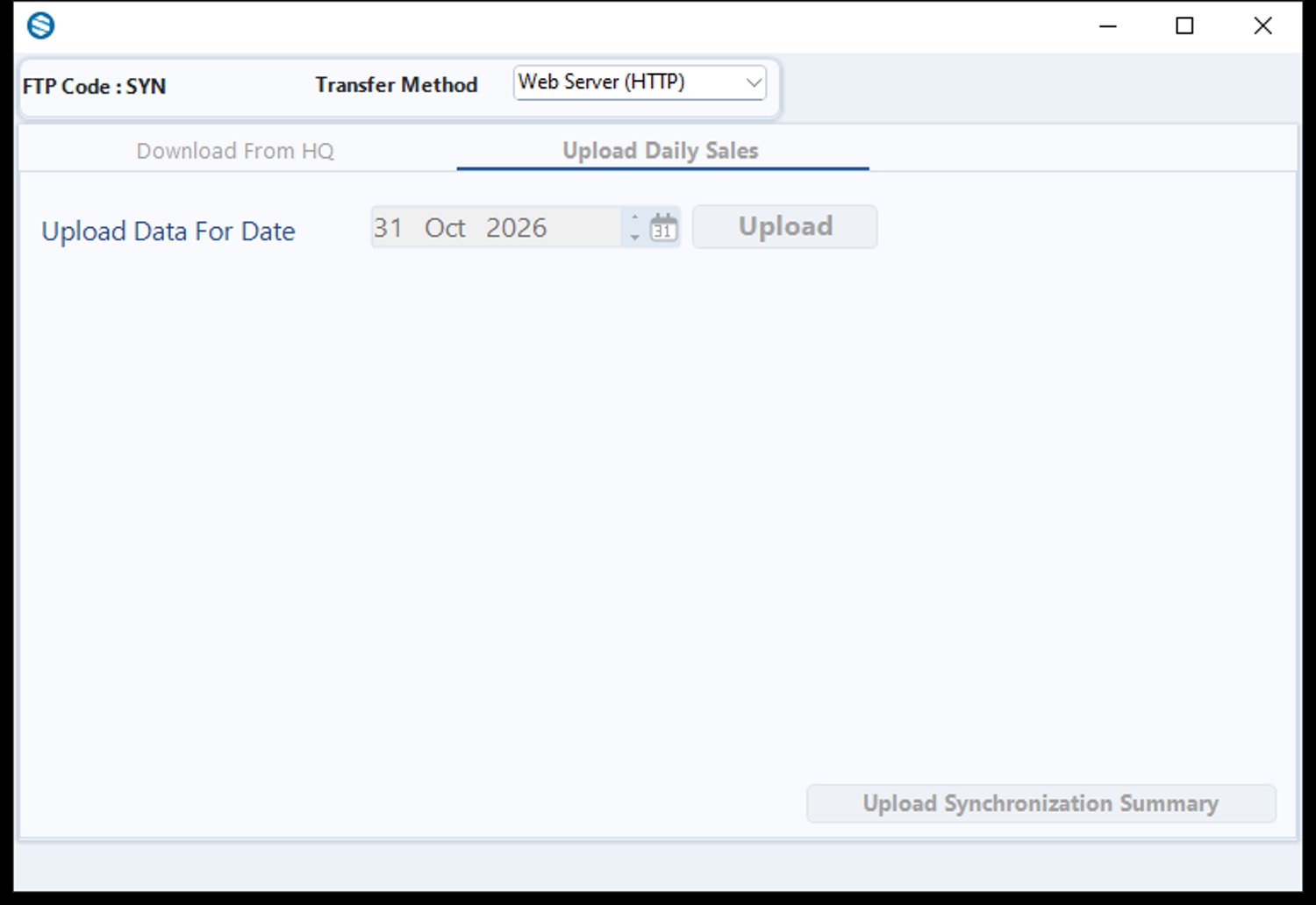
At the branch, go to Data Synchronization (POS) > Upload Daily Sales, day by day. HQ then downloads to see branch sales and members.
Tips
- If the settings window opens on the wrong screen, look at the second screen. The larger screen is the main screen.
- Do not change a location code to a new one after sales exist. Old sales stay mixed in under the new code.
- Clearing stock or sales of a location needs a letter from Synergy admin.
- Your installer may first install a demo version and apply the licence on the training day.
- Moving office needs no software setting. Set up the PCs and use them.
Common problems
Sales were recorded at HQ instead of the branch.
Void the sale at the original location, then redo it at the correct branch with the date changed.
Item pictures or text do not show fully on the POS.
This cannot be adjusted by you alone. Contact Synergy support.
The cashier 2 client PC will not open.
Contact Synergy support. Have remote access working, the printer model and the exact error text ready.
The settings window cannot be seen.
It opens on the second screen. Check there.
Branch upload fails or says the server is offline.
The branch licence or maintenance may have expired. Contact Synergy support and have the branch licence number and a photo of License Information ready.