
This guide shows how to move stock between your head office (HQ) and a branch using Stock Transfer. The transfer is done at HQ, then shared with the branch by Upload and Download.
Before you start
- Your company must have HQ and branch set up. A company with HQ only cannot use stock transfer between HQ and branch.
- Do the transfer at HQ. Branches only do POS transactions, and HQ does all inventory adjustments and transfers. This also applies to a transfer from a branch to HQ.
Steps
1. Open Stock Transfer at HQ
Go to Inventory Management > Transactions > Stocks > Stock Transfer.
2. Fill in the transfer
Here 20 T-shirts, 12 mugs and 10 caps go from HQ1 to the SHOP outlet as TR-26-11/001.
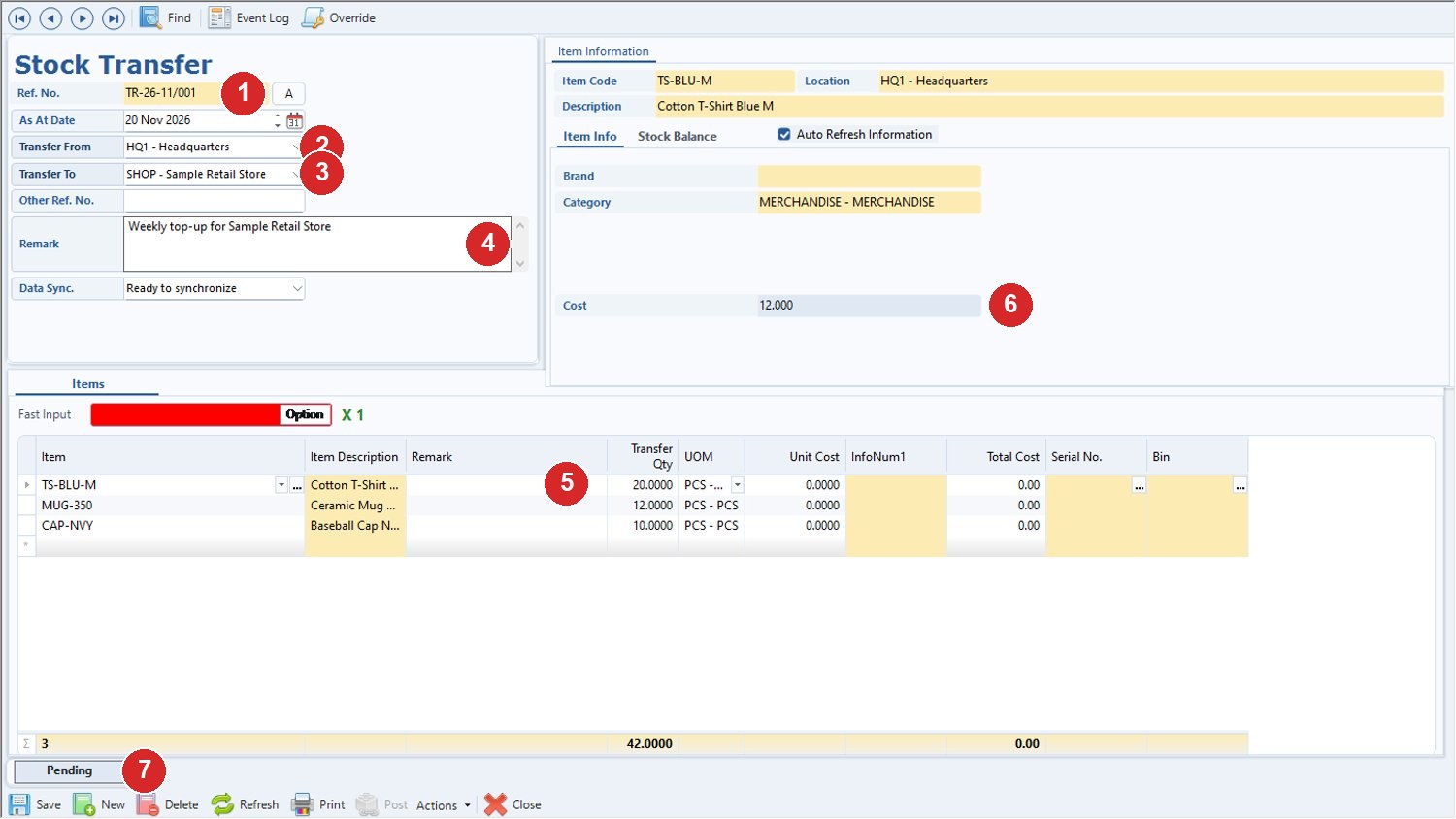
| Step | What to do |
|---|---|
| 1 | Ref. No. and As At Date. |
| 2 | Transfer From (required). |
| 3 | Transfer To (required). |
| 4 | Remark, and Other Ref. No. if you need it. |
| 5 | Items: each item and its Transfer Qty. Fast Input scans or types a code; items can also be loaded from a stock request or an Excel file. |
| 6 | Click a row to see the item’s details; the Stock Balance tab shows its stock. |
| 7 | The status shows Pending until the transfer is posted. |
3. Save and post
Click Save, then click Post. Click Yes when asked: Do you want to post this Stock Transfer?
4. Upload at HQ
At HQ, do the Upload so the transfer is sent to the branch.
5. Download at the branch
At the branch, do the Download. The branch gets the stock without a separate receive.
Tips
- A posted transfer cannot be edited. Click Unpost first if you need to change it.
- Data Sync. on the transfer should be Ready to synchronize if the changes are final. Otherwise choose Do not synchronize.
- If you see Insufficient Stock, check the Available Qty against the Transfer Qty.
- Stock adjustments for a branch are also done at HQ: change the location to the branch, enter the item and quantity, refresh, then upload and download.
- To repack bulk into small units, use Stock Adjustment with a negative quantity on the bulk item and a positive quantity on the small item.
- Reports can show all locations or one location. Choose this in the report options.
- The location does not show on the invoice print. It is only used for stock quantity.
Common problems
Branch stock did not update after the transfer.
Check that the transfer was done at HQ, that Upload was done at HQ and that Download was done at the branch. Also check that your company has HQ and branch set up.
I cannot edit the transfer.
The transfer is posted. Click Unpost first.
The message says: This transaction was already synchronized with outlet/branch.
Set Data Sync. to Ready to synchronize if the changes are final. Otherwise choose Do not synchronize.
I cannot delete a synchronized transfer.
Delete all the rows and save instead.
Branch stock is different from HQ, for example after a fresh reinstall.
At HQ, create a Stock Take for the branch location, tick Re-calculate adjustment quantity at branch, post it, then sync to the branch.
A closed branch still shows in the list.
At HQ, open Inventory > Location and select the branch location. Remove the branch code and untick Active. Close the tab and restart the software. A location cannot be deleted once items have been added. If it still shows, update to the latest version.
HQ invoice with a branch location did not deduct branch stock after sync.
Contact Synergy support and have the invoice showing the location ready.