
Use this guide when many branches or counters cannot upload sales or download data at the same time, and the error points to the sync (web) server. It can happen when the main web server has a known fault or is being repaired. The fix is to switch head office and every branch to the alternative server until the main server is back.
Before you start
- Know whether it is all branches or only one
- Note the exact error text
- Be at the head office main PC and have access to each branch main PC
Steps
1. Is it all branches, or only one?
If only one branch fails, the cause is usually its own internet: read the guide “Synergy Acc2026 – Branch Cannot Upload or Download: Internet, DNS and Router Checks”. Carry on here when all branches fail together.
2. Ask Synergy whether the main web server has a fault
Contact Synergy support and ask if the main web server has a known fault or is being repaired. Only switch servers if that is the case.
3. Switch to the alternative server on every main PC
Follow the guide “Change to alternative server (HQ & Branch)”. Do it on the head office main PC and on every branch main PC, and choose the second option.
4. Upload in the right order
After switching, head office uploads first. Then each branch uploads and downloads. Anything that was uploaded before the switch must be uploaded again.
5. Do the download on the branch main PC
Windows 7 sub client PCs cannot download. Do the download on the branch main PC.
6. Check that head office and branch stock agree
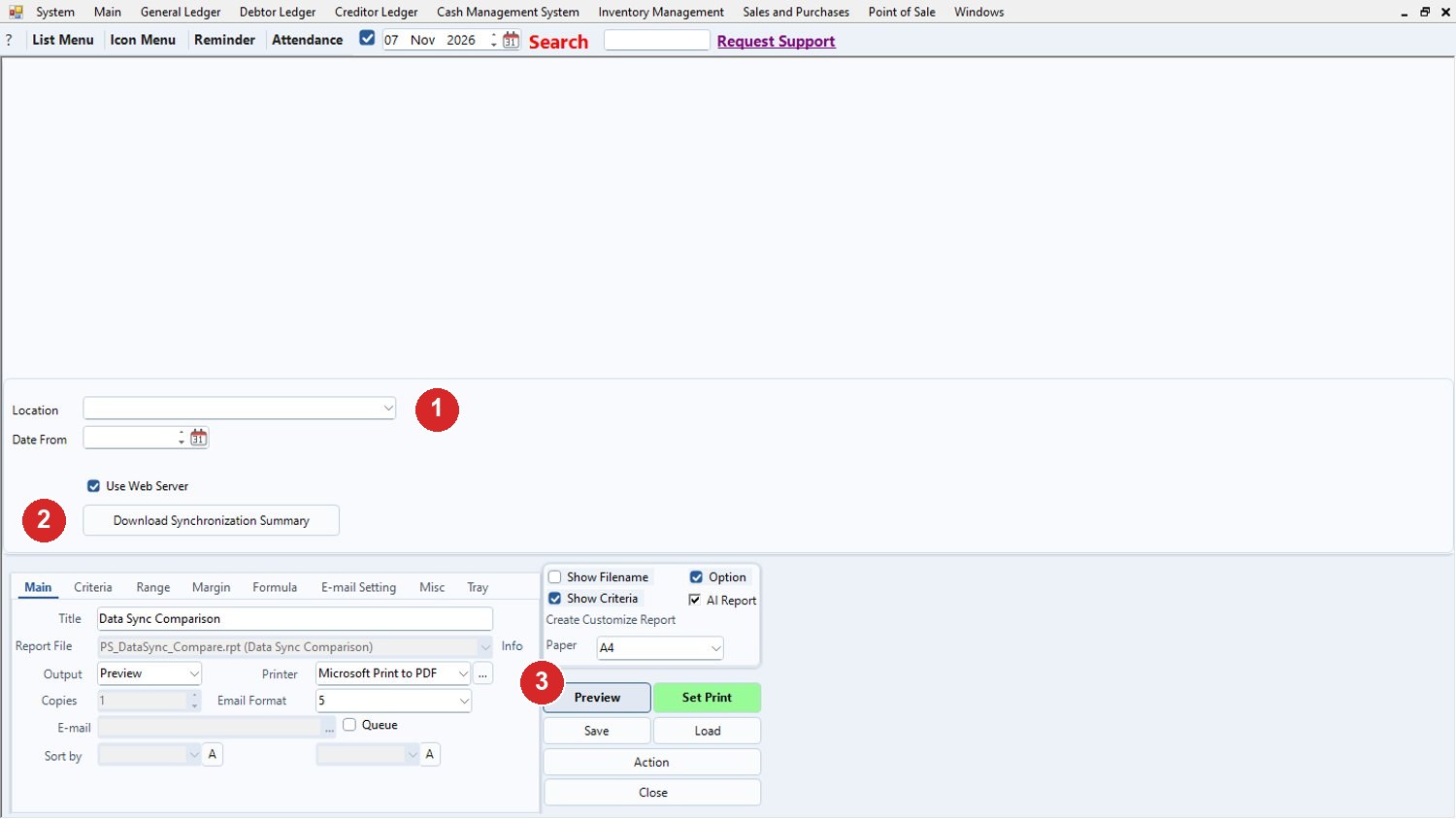
If stock differs between head office and a branch afterwards (for example the branch shows negative stock and head office positive), the branch should use Data Sync Comparison when uploading sales. At head office the missed sales show up as follows.
| Step | What to do |
|---|---|
| 1 | At head office go to Data Sync Comparison and select the location |
| 2 | Press Download Synchronization Summary |
| 3 | Press Preview to see the sales that were missed |
7. Switch back when the main server is back
When the main server works again, use the matching guide to switch back to the main server. Synergy will tell you when that is.
Tips
- There is no automatic switch to the alternative server. It is changed by hand on the main PC of head office and of every branch.
- Have the remote access details of the head office main PC and of each branch main PC ready if Synergy offers to do the switch for you.
- If a branch still cannot download after the switch, a phone hotspot test or a check by Synergy has solved some cases.
- Other branch checks: “Head Office and Branch: Sales Do Not Tally or Upload Fails”.
Common problems
One branch still does not work after the switch.
Its software may be older than head office. Update the head office software to a newer version, as one branch needed this before it worked.