
Use this guide when a branch shows an error when it connects to or downloads from head office, or when auto upload is switched on but never uploads. The cause is often a branch left on an older software version, or a licence that does not have auto upload enabled. Work down the checks in order.
Before you start
- The software version at head office and at the branch
- The Windows version of the branch PC
- Whether the branch was reinstalled recently
- Whether ZeroTier is connected to head office, if your branches sync through it
Steps
1. Compare the software version at head office and the branch
Update the branch so its version matches head office. For how to update, read the guide “Synergy Acc2026 – Updating the Program”.
2. Is the branch PC on Windows 7?
On a Windows 7 PC, run Windows Update first, then update the software.
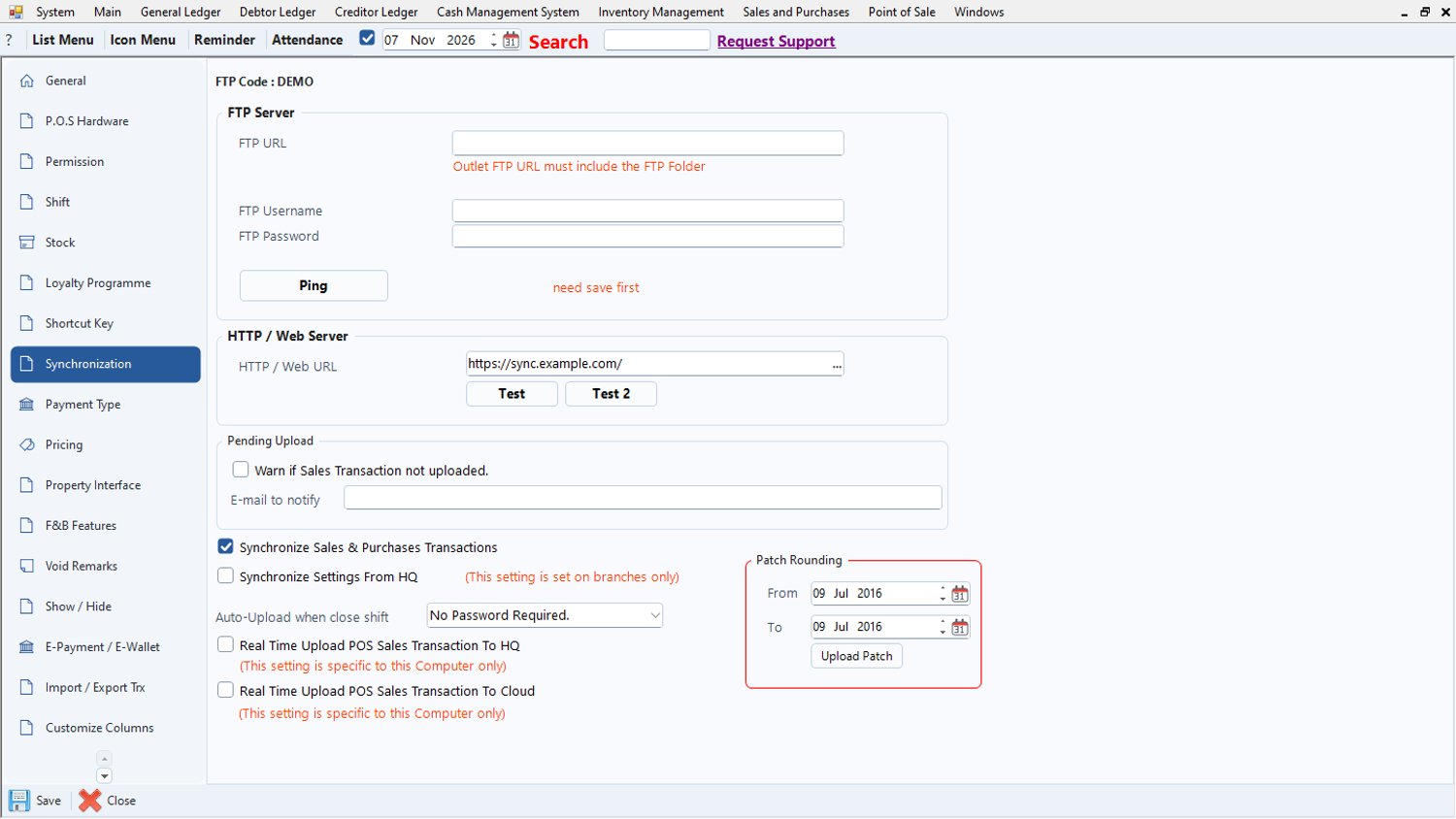
3. Check that auto upload is on and the licence allows it
The auto upload setting must be switched on, and the licence must have auto upload enabled. Synergy uploads the licence with auto upload enabled: contact Synergy support and give the head office PC name and the database name.
4. Was the branch reinstalled recently?
A reinstall can make the branch lose its auto upload. The licence has to be uploaded again by Synergy: contact Synergy support and give the head office PC name and the database name.
5. Does your branch sync through ZeroTier?
Where branches sync through ZeroTier, install ZeroTier on the branch PC and join the head office network.
6. Set the DNS and retry
Set DNS to 8.8.8.8 and try again. If it still fails, read the guide “Synergy Acc2026 – Branch Cannot Upload or Download: Internet, DNS and Router Checks”.
Tips
- If a reminder pop-up keeps appearing on a PC, tick Do not show this again on each PC.
- Common causes: the branch left on an old version, a licence that never had auto upload enabled, ZeroTier not connected, or a reinstall that lost the auto upload setting.
- For the Auto Sync Upload window itself, read “Synergy Acc2026 – Branch: Auto Sync Upload by Internet”.
Common problems
It still does not work after all the checks.
Contact Synergy support and have the head office PC name and the database name ready.