
This guide shows how to post many Cash Book transactions in one go, how to turn post-dated cheques (PDC) into official receipts, and how to see which documents a posted cash book transaction was applied to.
Before you start
- Batch posting: Cash Management System > Transactions > Transaction Posting > Transaction Batch Posting (use Transaction Batch Reverse to undo).
- Post-dated cheques: Cash Management System > Transactions > Bank > Post Dated Cheque Submission.
- For post-dated cheques, the Official Receipt No. must use an Auto Reference Number.
Steps
1. Open Transaction Batch Posting and set the filters
Go to Cash Management System > Transactions > Transaction Posting > Transaction Batch Posting. Here 12 on-hold receipts and payments from 1 Oct to 20 Nov 2026.
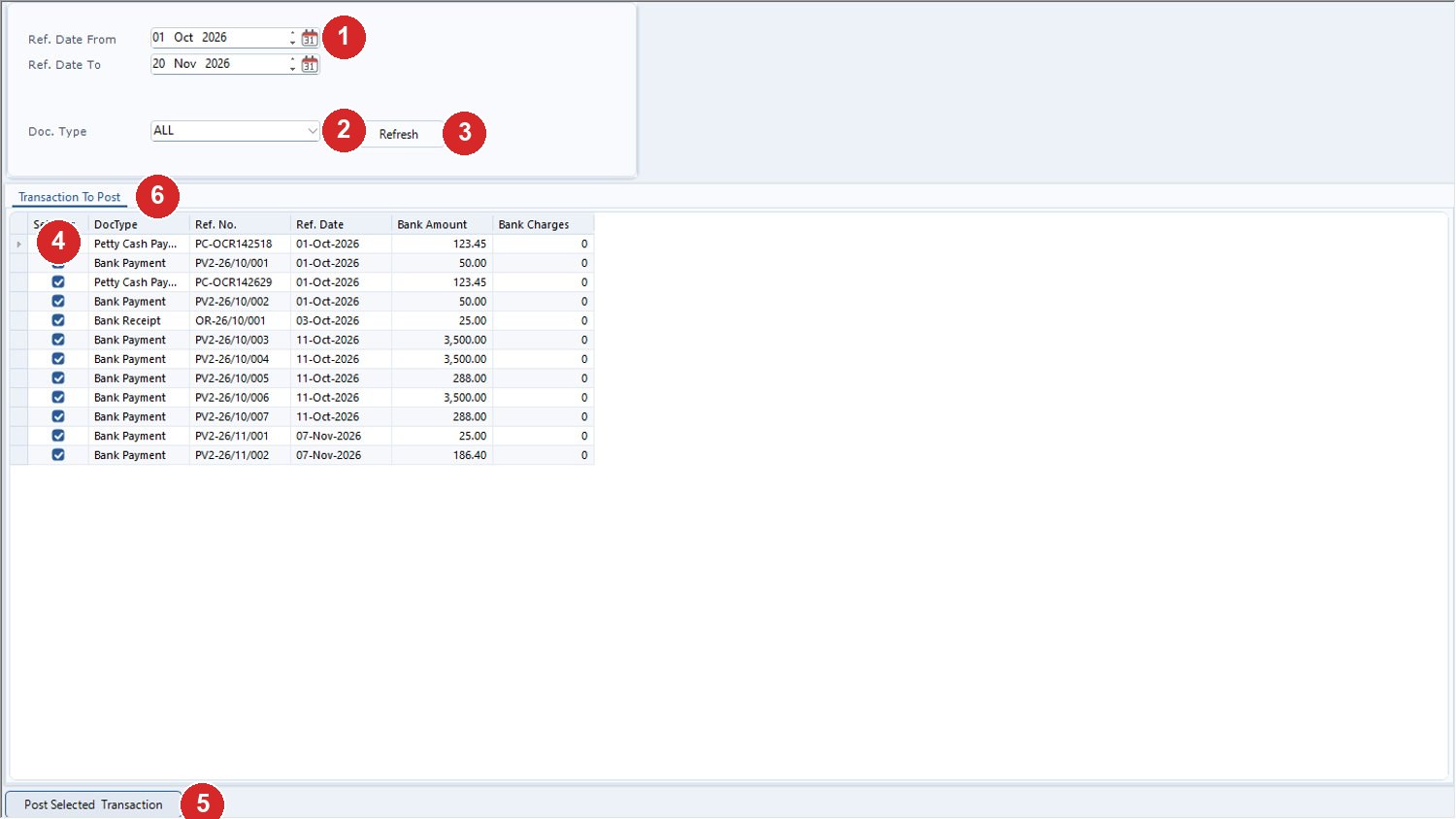
| Step | What to do |
|---|---|
| 1 | Ref. Date From and To. |
| 2 | Doc. Type (ALL, or one type). |
| 3 | Click Refresh. |
| 4 | Every listed transaction comes ticked; untick what you do not want (right-click for Check All / Uncheck ALL). |
| 5 | Click Post Selected Transaction and answer Yes. |
| 6 | Result tab: Posted and Failed to post, with the reason for each failure. |
2. Reverse posted transactions (if needed)
Open Transaction Batch Reverse. It works the same way, but the main button reads Reverse Selected Transaction. Tick the transactions, click the button and answer Yes.
3. Open Post Dated Cheque Submission
Go to Cash Management System > Transactions > Bank > Post Dated Cheque Submission. The list of post-dated cheques loads by itself (empty here: no post-dated cheques are waiting).
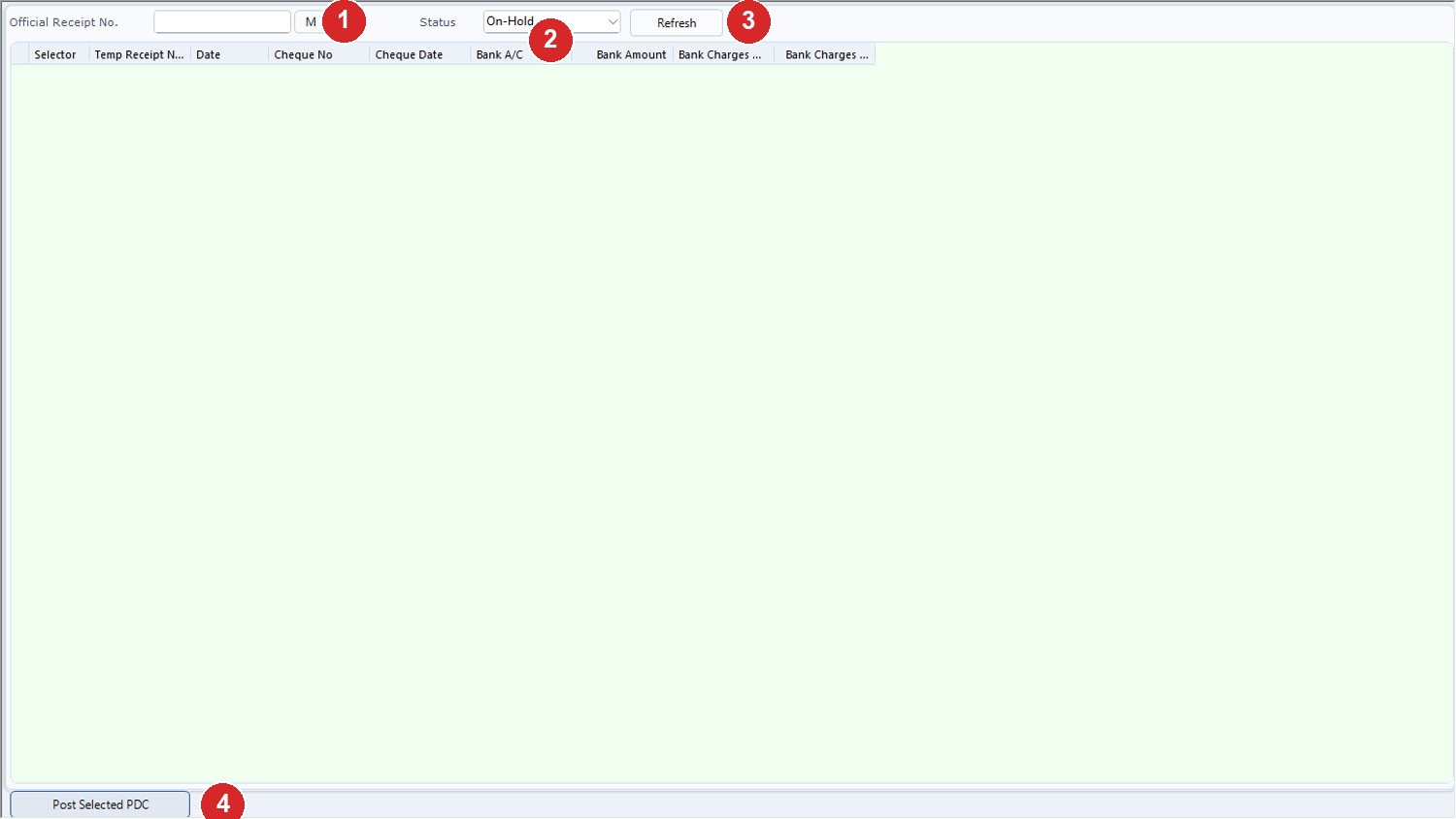
| Step | What to do |
|---|---|
| 1 | Official Receipt No. (M = type your own; A = automatic) for the receipts that will be created. |
| 2 | Status for the submitted cheques. |
| 3 | Refresh reloads the list of post-dated cheques. |
| 4 | Tick the cheques and click Post Selected PDC. |
4. See what a posted transaction was applied to
Open a posted cash book transaction and click Apply on the toolbar. The Applied screen lists each applied document with its Ref. No., Ref. Date, Other Ref., Exchange Rate, Amt and Applied amount, grouped by debtor. Click the button in the Ref. No. column to open the original document.
Tips
- Only transactions that match your Ref. Date range and Doc. Type are listed, so a missing transaction usually means a filter needs changing.
- On a transaction that has not been posted, Apply is the offset (knock-off) function and does not open the Applied list.
- In the Applied screen, a sales document may open in the Cash Sales or Credit Sales screen when the Separate cash / credit sales setting is on. If no matching inventory document exists, the Accounts Receivable transaction opens instead.
Common problems
A transaction is missing from the batch posting list.
Check the Ref. Date range and Doc. Type, then click Refresh.
The success count is lower than the number I ticked.
Open the Result tab and read the Failed to post list. The count is also lower if you clicked Stop Posting; refresh and run again.
The message No transaction selected for posting appears.
Tick at least one row and click the button again.
The message Please select Auto Reference Number for Offical Receipt appears.
Change the Official Receipt No. control from manual to an Auto Reference Number and click Post Selected PDC again. Nothing was submitted.
Fewer post-dated cheques were submitted than I ticked.
Each cheque is processed one at a time. If one fails, an error is shown and the others continue. Check which ones are still in the list after it refreshes.
Nothing happens when I click a row in the Applied screen.
Click the button in the Ref. No. column specifically.