
This guide shows how to load a day’s collection figures from POS into a cash-in receipt, and how to use the Bank Balance Query to check bank balances and look at the transactions behind them.
Before you start
- Load from POS is on the cash-in receipt screens of the Cash Management System, under Actions > Load from POS Transaction.
- Bank Balance Query: Cash Management System > Query > Bank Balance Query.
- Know the location and the date whose collections you want.
Steps
1. Open Load from POS Transaction
On a cash-in receipt screen, choose Actions > Load from POS Transaction. The Load POS window opens.
2. Choose the Location and Date
Pick a Location from the drop-down list. The Date starts as today’s date; change it if you need another day.
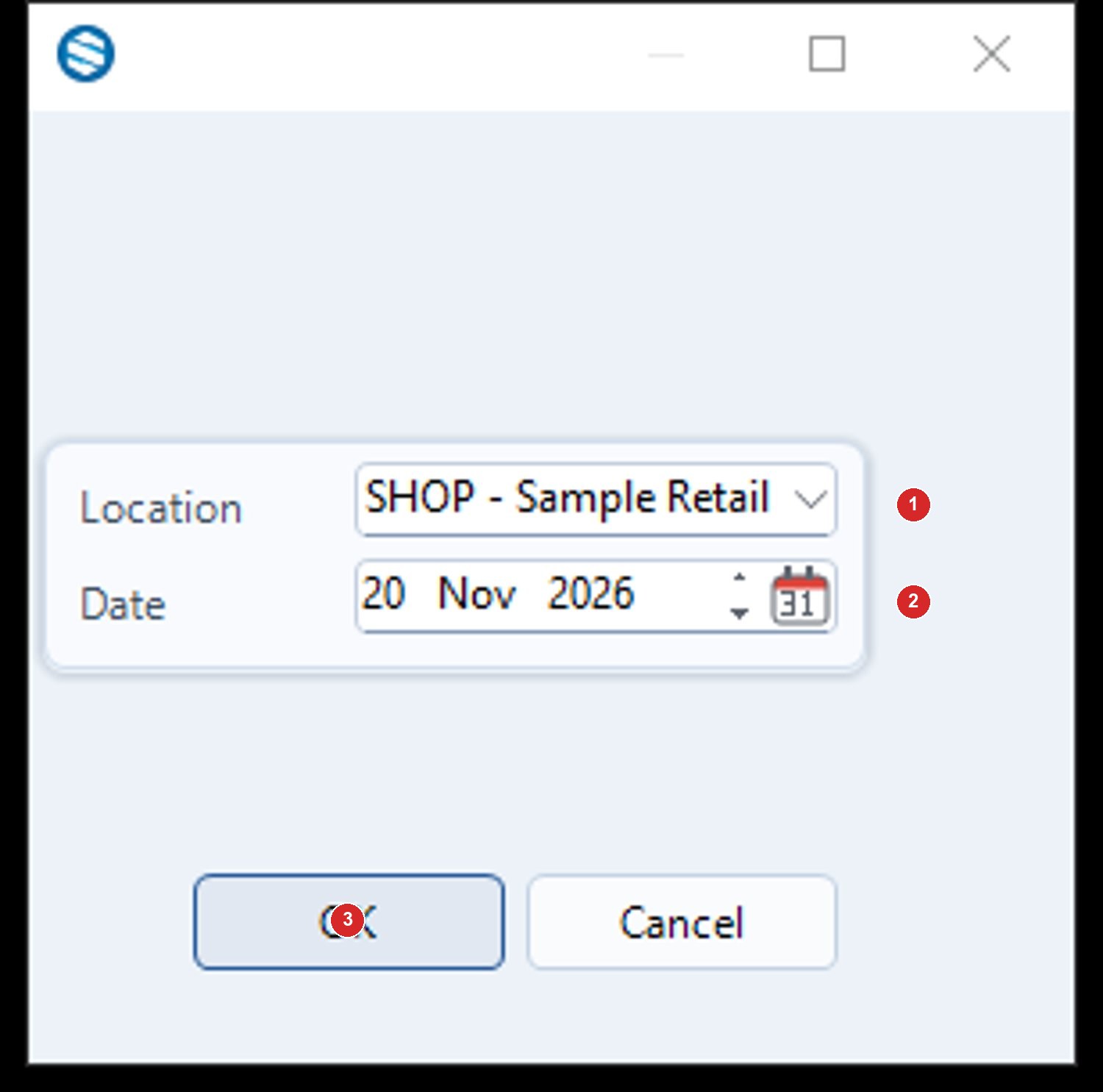
| Step | What to do |
|---|---|
| 1 | Location (here SHOP). |
| 2 | Date (starts as today). |
| 3 | Click OK. If POS has collections for that location and date, the receipt’s Bank Amount (LCY) becomes the collection total. |
3. Open Bank Balance Query
Go to Cash Management System > Query > Bank Balance Query. The screen loads and refreshes by itself.
4. Set Filter Date From and click Refresh
Filter Date From starts on the first day of the current year. Change it if needed, then click Refresh to rebuild the summary.
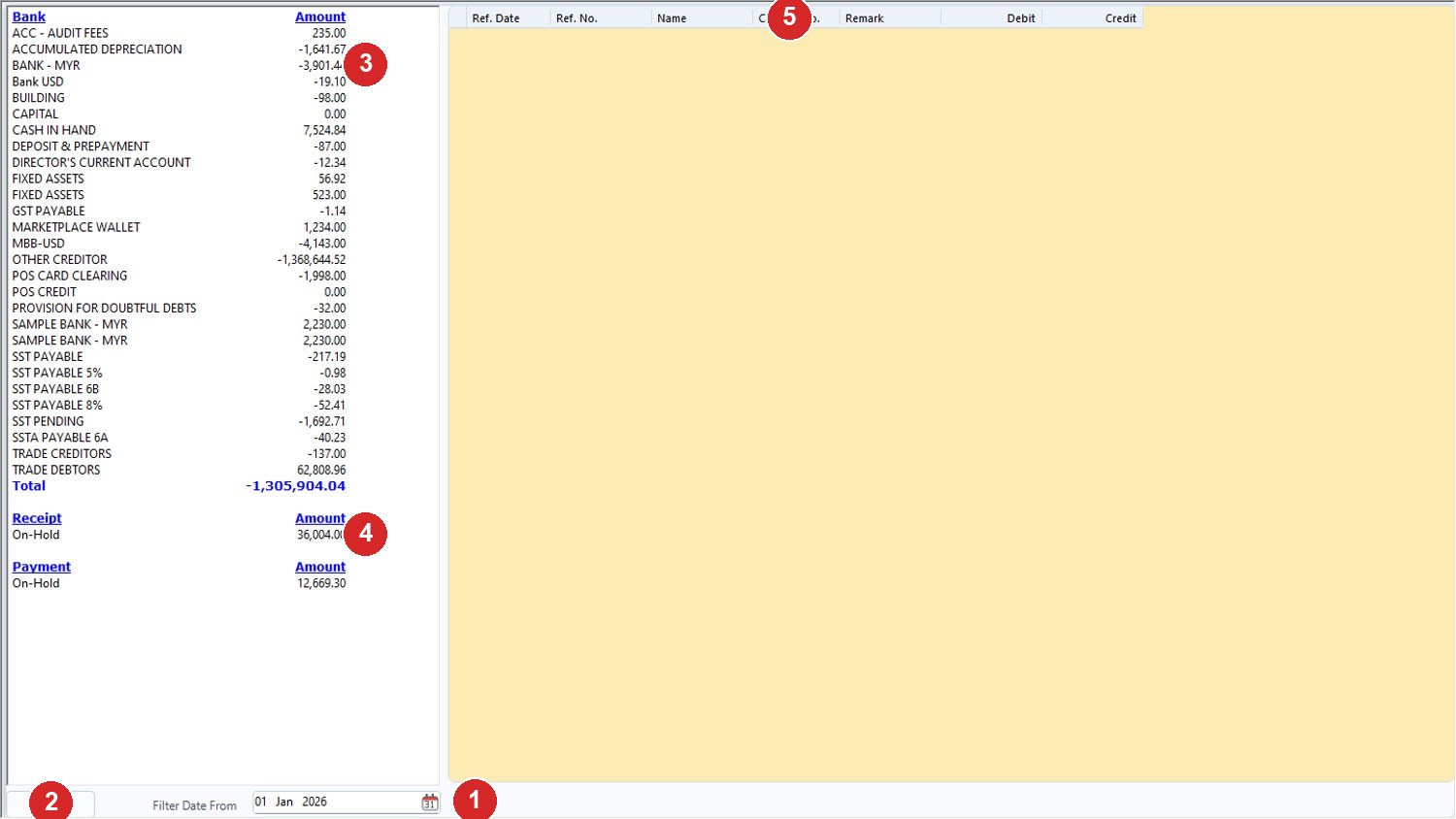
| Step | What to do |
|---|---|
| 1 | Filter Date From (starts on 1 January). |
| 2 | Click Refresh to rebuild the summary. |
| 3 | Bank: one line per bank account with its amount, then Total. |
| 4 | Receipt and Payment: amounts grouped by status (here On-Hold). |
| 5 | Click a line to see its detail here. |
5. Click a line to see the detail
A bank line shows the general ledger entries for that account, limited by Filter Date From. A receipt or payment status line shows the matching cash book transactions. Double-click a cash book row to open the transaction.
Tips
- Load POS only returns two figures: the collected amount and the interest.
- After changing Filter Date From, click the bank line again so the detail reloads.
- Bank Balance Query is for checking and drilling down, not for entering data.
- If the bank list looks incomplete, check your personal setting for filtering cash book accounts, then click Refresh.
Common problems
The message [Location] is required appears in Load POS.
Pick a Location and click OK again.
I click OK in Load POS and nothing happens.
POS may have no collection record for that location and date. The window stays open with no message. Try a different date or location.
The wrong figures were loaded.
Check the Date. It always starts as today’s date.
The Bank Balance Query list is empty or has no bank lines.
Check the cash book account filter in your personal settings and click Refresh.
Clicking a line shows nothing.
Blank spacer lines and header lines have nothing behind them. Click an actual bank, receipt or payment status line.
The message You don’t have permission to this function appears when I double-click a row.
Your user is not allowed to open that type of document. Ask your administrator to check your user rights.