
This guide shows how to set the Cash Book defaults, add analysis types and bank accounts, and run the GL Bank A/C Analysis By Analysis Type report.
Before you start
- Cash Book System Settings: Cash Management System > Settings > System Settings.
- Analysis Type: Cash Management System > Masterfile > Analysis Type.
- Bank Accounts: Sales and Purchases > Masterfile > Bank Accounts.
- Bank analysis report: Cash Management System > Reports > Analysis > GL Bank A/C Analysis By Analysis Type.
Steps
1. Open Cash Book System Settings
Go to Cash Management System > Settings > System Settings. The tabs are Receipt, Payment, Terms and Conditions, Show / Hide fields and Default Settings.
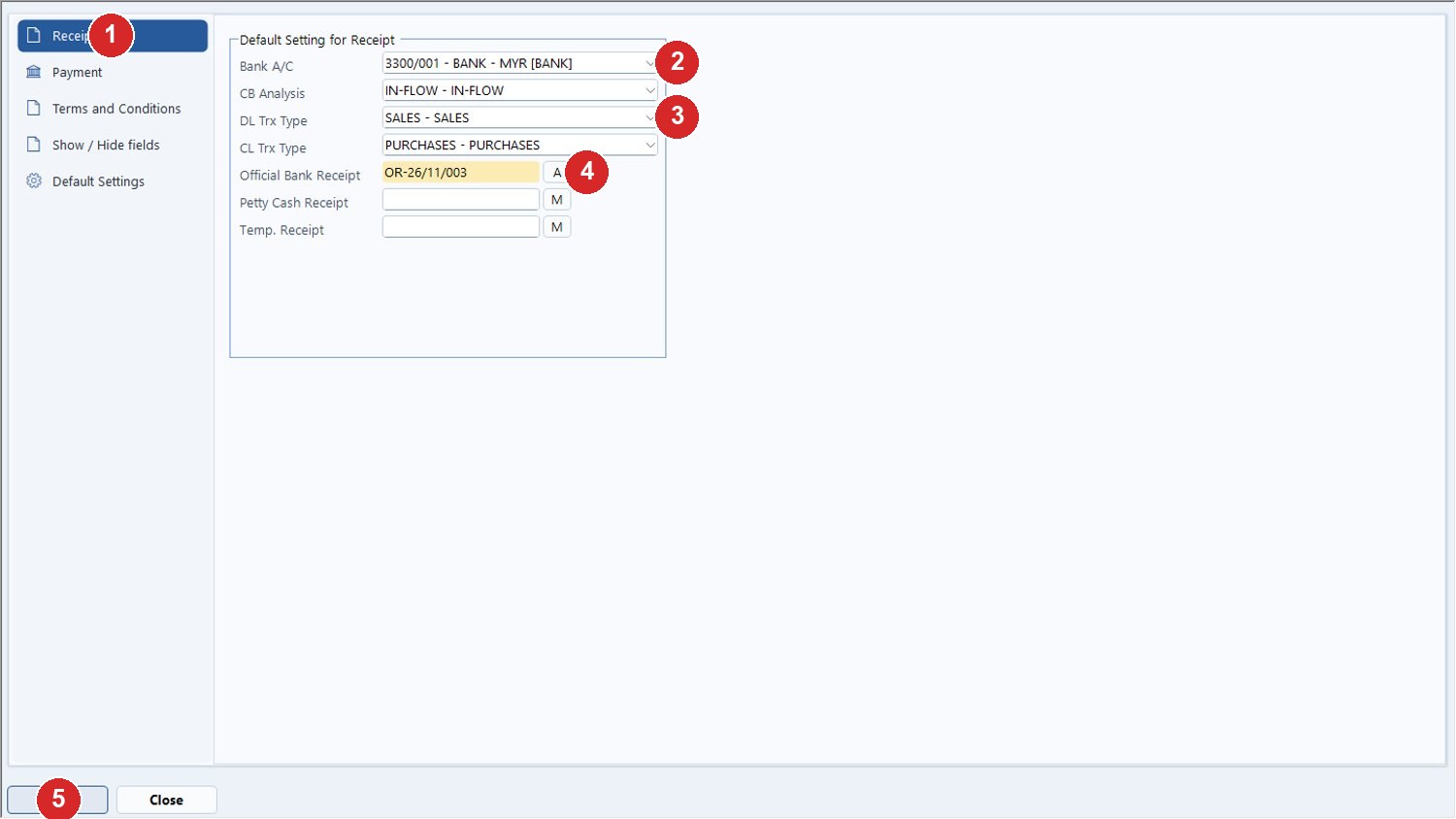
| Step | What to do |
|---|---|
| 1 | Receipt tab (Payment works the same way). |
| 2 | Default Bank A/C and CB Analysis for new receipts. |
| 3 | DL Trx Type and CL Trx Type. |
| 4 | Reference numbers: Official Bank Receipt (A = automatic), Petty Cash Receipt and Temp. Receipt. |
| 5 | Click Save. Setting Saved. appears for about two seconds. |
2. Set the printed wording and show / hide options
On Terms and Conditions, fill the four corner boxes (Top Left, Top Right, Bottom Left, Bottom Right) and the terms text for Receipt and Payment Voucher. On Show / Hide fields, turn Cash Flow Analysis, Salesperson/Purchaser and Transaction Type (DL/CL) on or off.
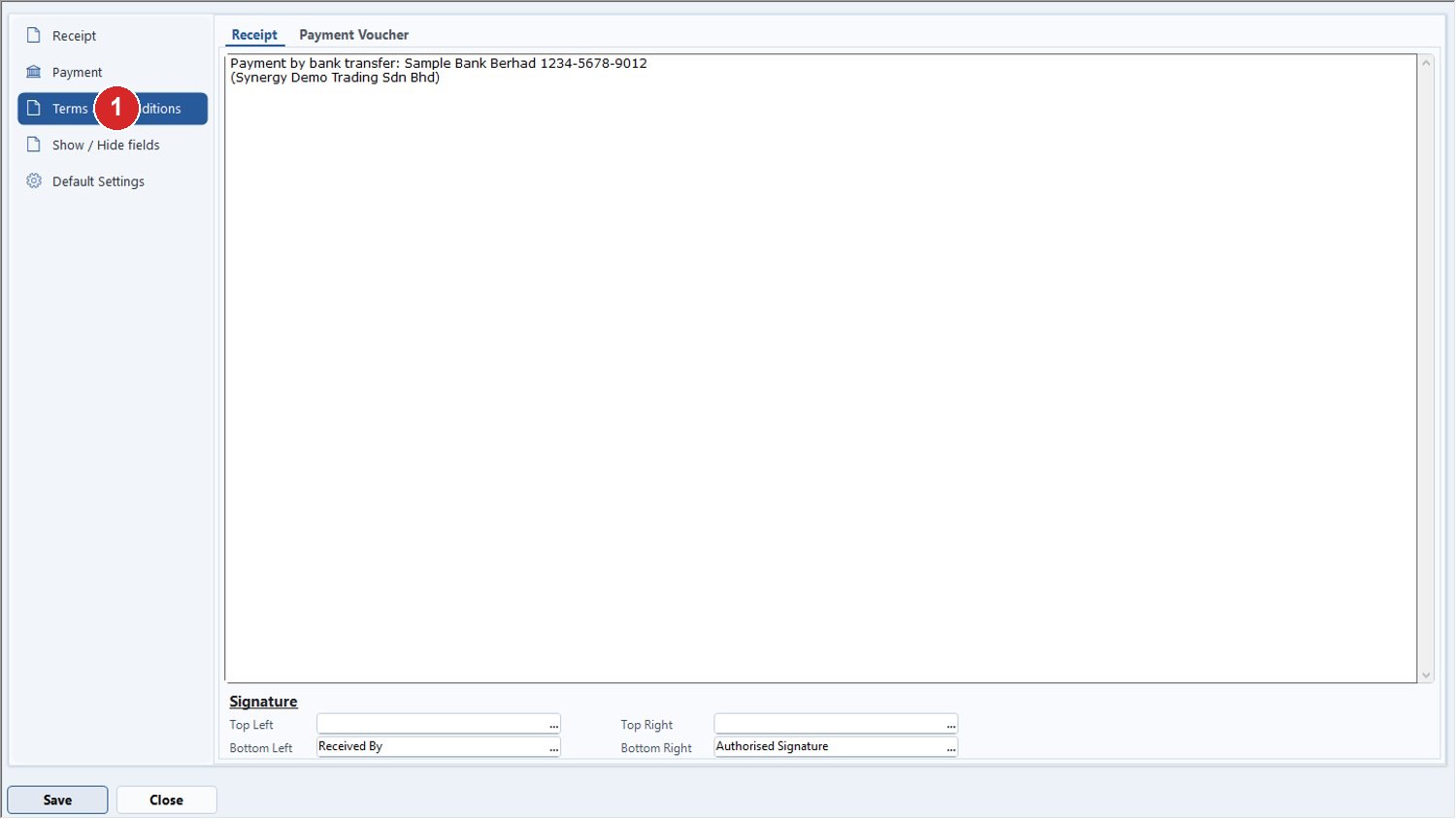
| Step | What to do |
|---|---|
| 1 | Terms and Conditions tab: the four corner boxes and the terms text for receipts and payment vouchers. |
3. Save the settings
Click Save. The message Setting Saved. appears for about two seconds. Click Close to leave the screen. Nothing is stored until you click Save.
4. Add an analysis type
Go to Cash Management System > Masterfile > Analysis Type, then save.

| Step | What to do |
|---|---|
| 1 | Code and Description; leave Active ticked. |
| 2 | Flow Type (In-Flow or Out-Flow). |
5. Add a bank account
Go to Sales and Purchases > Masterfile > Bank Accounts and start a new record, then save. The bank can then be chosen on sales documents.
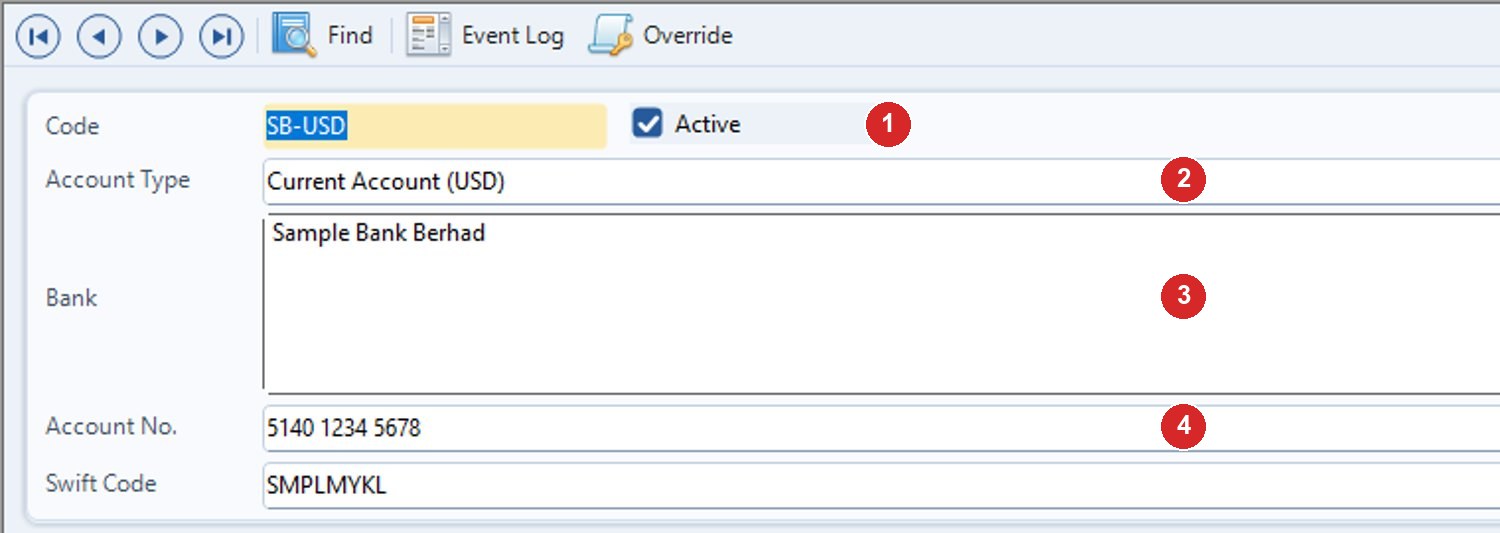
| Step | What to do |
|---|---|
| 1 | Code (here SB-USD); leave Active ticked. |
| 2 | Account Type. |
| 3 | Bank. |
| 4 | Account No. and Swift Code. |
6. Run the bank analysis report
Open GL Bank A/C Analysis By Analysis Type. Set From and To, pick the bank in Account (from the drop-down or the lookup button), and choose a Movement Type or leave it on ALL. Then run the report.
Tips
- Close does not save. Always click Save first.
- The report options screen remembers your date range and account. If nothing is saved, the dates are the current month and Movement Type is ALL.
- Only active bank accounts appear in the Account list of the report.
- In report options with Column To Print, changing the number of columns refills the dates and headers with one month per column. Set the number first, then edit the dates and headers.
- In report options, a date is only applied when its check box is ticked.
Common problems
I cannot save an analysis type.
Code, Description and Flow Type must all be filled in. The screen reports the first missing one each time.
The Flow Type drop-down is empty.
The list is loaded when the screen opens. If it stays empty you cannot complete the record; contact Synergy and tell them which screen it is.
I cannot save a bank account.
Type a Code. It is the only field that must be filled in.
A saved bank account or type does not show when I reopen Cash Book System Settings.
If the saved item no longer exists or is inactive, the box may come back empty. Choose it again.
A setting link does nothing or is refused.
Your user probably lacks permission for that list screen. Ask your administrator.
The bank analysis report is empty, or a bank account is missing from the list.
Check the date range first, as it defaults to the current month. A missing account is probably inactive in the General Ledger.