
Your company has a new name, a new address or a new registration number (for example the new 12-digit SSM number). This guide shows which part you can change yourself in Company Information, which part needs a new licence from Synergy, and what to update after the new licence is installed.
Before you start
- Your licence number (System > License Information).
- The old company name and the new company name.
- The new registration number and the SSM documents, with the director page.
- A letter on your letterhead with the company stamp and director signature, carrying your licence number.
- The new address, if it also changes.
- Which PCs, counters and branches use this licence.
Steps
1. Know what needs a new licence
The company name comes from your Synergy licence. If you type a new name in Company Information, it goes back to the licence name when you click Save. So a new company name needs a new licence from Synergy. The address, phone, e-mail, tax numbers and logo you can change yourself in Company Information.
2. Send the request to Synergy support
Send Synergy support the details listed under Before you start: licence number, old and new name, new registration number with the SSM documents and the signed letter, the new address if it changes, and which PCs and branches use the licence. The approval and the new licence are explained in the guide “Synergy Acc2026 – Licence: Changes and Problems”.
3. Wait for the new licence before sending e-invoices
Until the new licence is installed, the program still uses the old name. Finish the name change first, then submit e-invoices, so MyInvois gets the new name.
4. Open Company Information
After the new licence is installed, go to Main > Shared Masterfile > Company Information. Check that Business Name now shows the new name.
5. Update the company details
On the Company Information tab, update every detail that changed. If e-invoice is already set up for you, ask Synergy support before you change the MyInvois details.
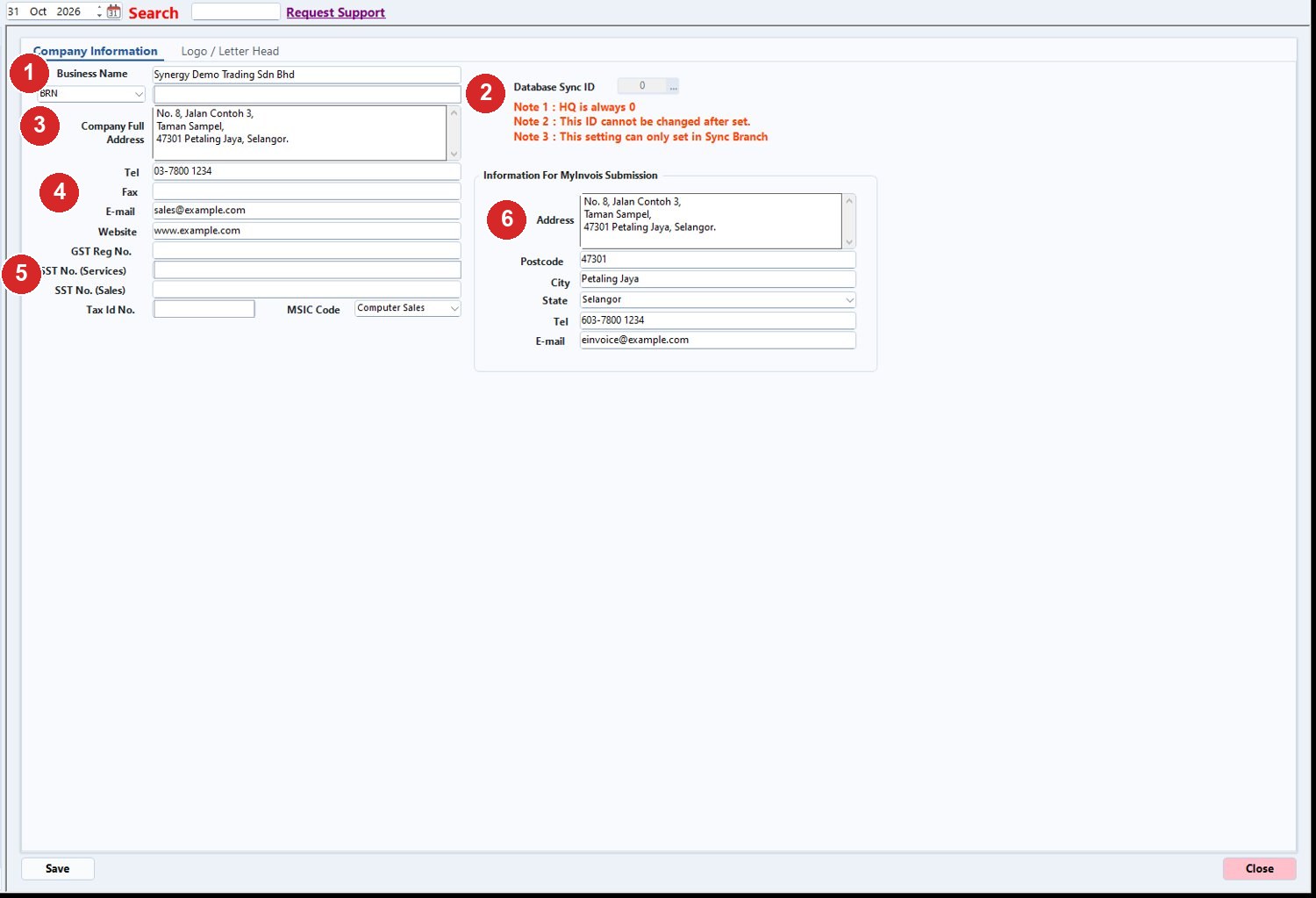
| Step | What to do |
|---|---|
| 1 | Check that Business Name shows the new name from the licence. A name typed here is not kept. |
| 2 | Type the new registration number in the box beside the registration type list (BRN). |
| 3 | Type the new Company Full Address. |
| 4 | Update Tel, Fax, E-mail and Website. |
| 5 | Update Tax Id No., SST No. (Sales) and SST No. (Services). |
| 6 | In Information For MyInvois Submission, update Address, Postcode, City, State, Tel and E-mail, and the MSIC Code. Pick State and MSIC Code from the lists. |
6. If the program asks for a Hash Key
On some licences, changing the registration number needs a hash key from Synergy. When you click Save, the message Hash Key Is Required for changing BRN. Do you want to request Hash Key from Synergy Support Team? appears. Click Yes to send the request, then contact Synergy support for the key. Type it in the Please Enter the Hash Key box. The key fits only the number you sent, so type the registration number exactly the same.
7. Update the logo or letter head
If your old name or address is printed in your letter head picture, change the picture too. Open the Logo / Letter Head tab.
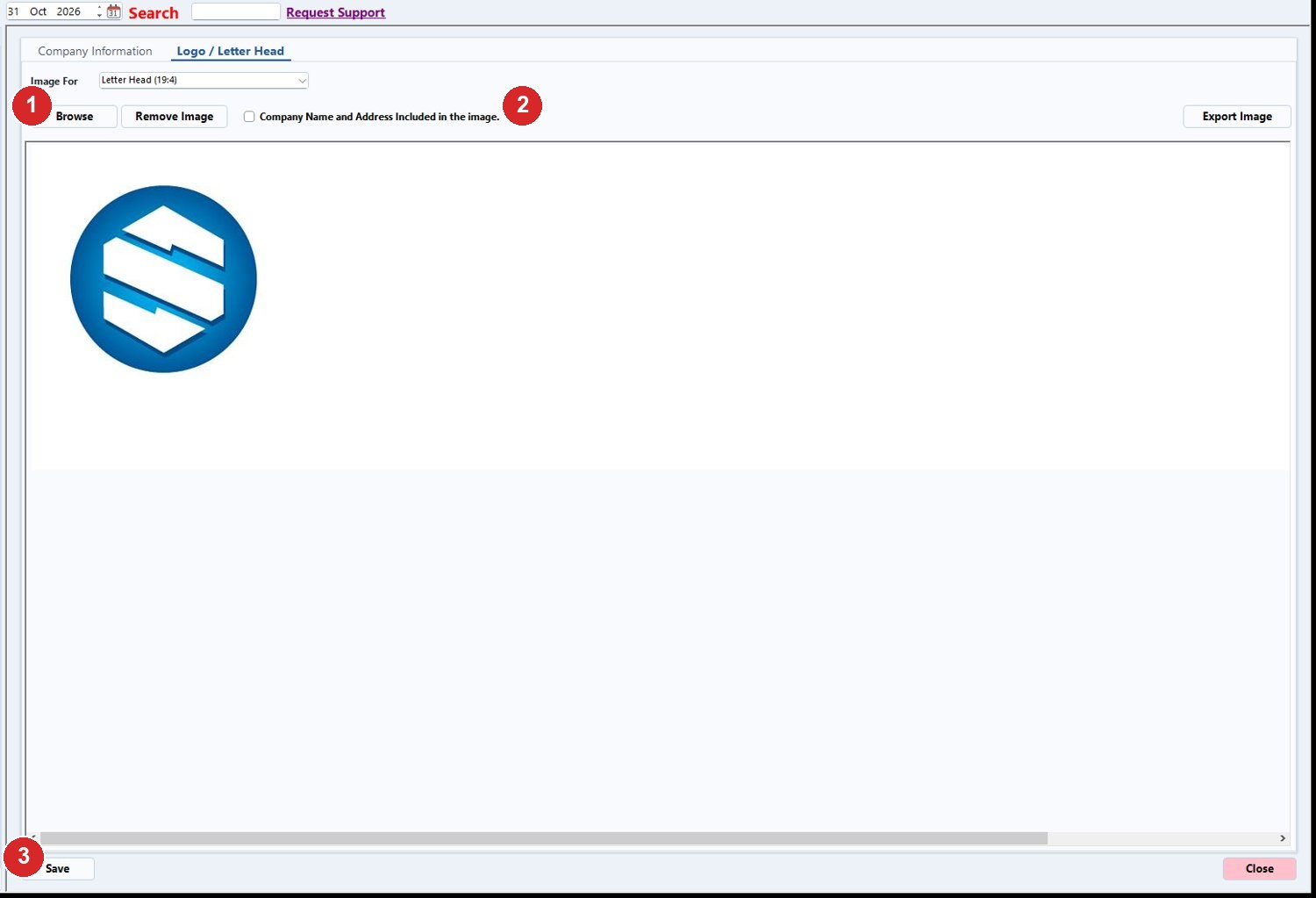
| Step | What to do |
|---|---|
| 1 | Click Browse and choose the new picture (with the new name and address). |
| 2 | Tick Company Name and Address Included in the image. when the picture already shows the name and address, so they are not printed twice. |
| 3 | Click Save. The notice Company Information saved. appears. |
8. Check your documents and receipts
Print or preview an invoice and a POS receipt and check the new name, address and registration number. If your POS receipts show the shop name from the licence, the new licence also changes that name.
Tips
- Only the company name needs a new licence. A new address, phone or e-mail alone you can change yourself: see the guide “Synergy Acc2026 – Company Information”.
- With a USB dongle licence, the Business Name can be typed in Company Information directly.
- If you use e-invoice, finish the name change before you submit, so MyInvois does not get the old name.
- Branches and other counters use the same licence, so tell Synergy support which PCs and branches must get the new licence.
- Bank details and terms printed on documents are kept in other places: see the guide “Synergy Acc2026 – Company Details, Logo and Titles on Your Documents”.
Common problems
I typed the new name in Company Information, but after Save the old name came back.
This is normal: the name comes from the licence. Ask Synergy support for a new licence with the new name.
E-invoice submission says Company Name in License and Database is different.
Open Company Information and click Save. If the licence still has the old name, the new licence is not installed yet: contact Synergy support and do not submit until it is, or the submission uses the wrong name.
Invalid Hash Key. Not allowed to update BRN.
The key is missing or does not match, so the registration number goes back to the old one. Check that the number is typed exactly as in your request, then enter the key from Synergy support again.
Invalid [State] selected. or Invalid [MSIC] selected.
The text typed is not in the list. Pick an item from the list, then click Save.
The new licence is installed but I still see the old name.
Close and reopen the software. If the name is still old, see the guide “Synergy Acc2026 – Licence: Changes and Problems” or contact Synergy support with your licence number.