
Use this when the SST rate changes (for example from 6% to 8%) or when you want a different service charge (for example from 5% to 6%). For SST you do not edit the rate of the code you use now: you give that code an end date and add a new code with the new rate in the same tax group, so old documents keep the old rate and new documents get the new one. The service charge has a single rate that you simply change. To set up SST for the first time, read Synergy Acc2026 – SST: Setting Up and Showing Tax on Documents.
Before you start
- Know the date the new rate starts.
- If you have branches, make the tax code change at head office.
- Tax codes are in Main > SST/GST > Masterfile > Tax Code. The service charge is in Point of Sale > Point of Sale Setup > Point of Sale Settings.
Steps
1. Open the tax code you use now
Go to Main > SST/GST > Masterfile > Tax Code and open the code you charge today. Note its Tax Group, Tax GL Account, For Transaction and Tax Type. The new code needs the same ones.
2. Give the old code an end date
Set Effective Until to the day before the new rate starts and click Save. Do not change Tax (%) on this code: if you do, the new rate is also picked for documents dated before the change.
3. Add a new code with the new rate
Click New. Fill in the other fields (Tax Code, Tax GL Account, For Transaction, Tax Type, Is Service Tax, SST Tariff Code, E-Invoice Tax Code) the same as on the old code.
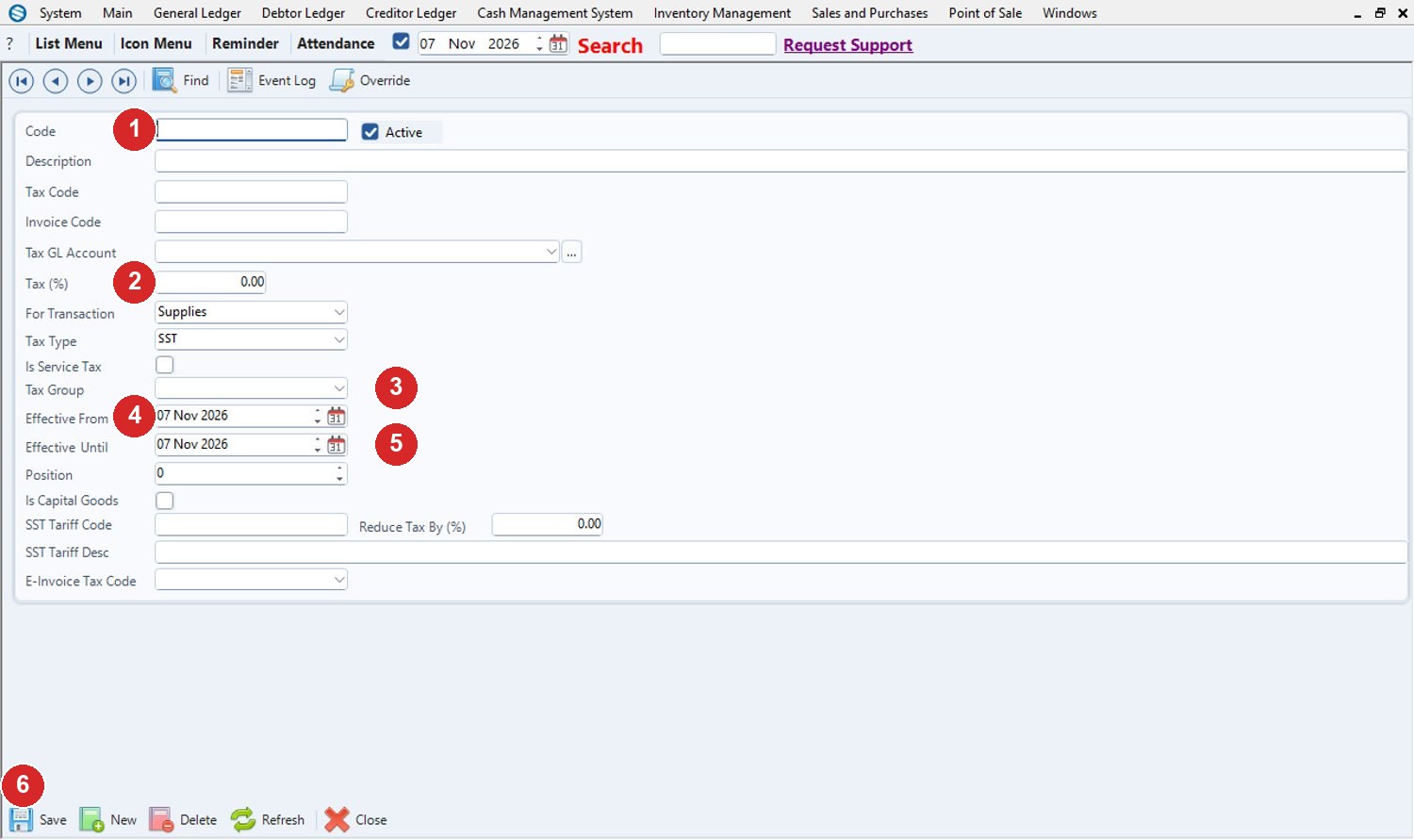
| Step | What to do |
|---|---|
| 1 | Type a new Code and a Description for the new rate. |
| 2 | Type the new rate in Tax (%). |
| 3 | Choose the same Tax Group as the old code. |
| 4 | Set Effective From to the date the new rate starts. |
| 5 | Leave Effective Until empty: it is only for a tax that ends. |
| 6 | Click Save. |
4. Leave your items as they are
Items point to a tax group, not to a tax code. Synergy picks the code of that group whose Effective From and Effective Until cover the document date. Documents dated before the new date keep the old rate, and documents on or after it get the new rate, also when you key them in later.
5. Reopen the POS and open screens
The point of sale reads the tax codes when the POS screen opens, so close it and open it again on every counter. The POS picks the rate by the shift date: a shift started before the new date keeps the old rate, so end it and start a new shift on or after the new date. Close any open sales or purchase screens and open them again too.
6. Send the new code to your branches
Each branch must download the new tax codes from head office. Do not use the Update New Tax Codes button at a branch that synchronises with head office. See Synergy Acc2026 – Branch: Upload Daily Sales and Download from Head Office.
7. Change the service charge rate
Open Point of Sale > Point of Sale Setup > Point of Sale Settings. The service charge has one rate with no dates, so the new rate is used straight away. Other counters use it after they sign in again.
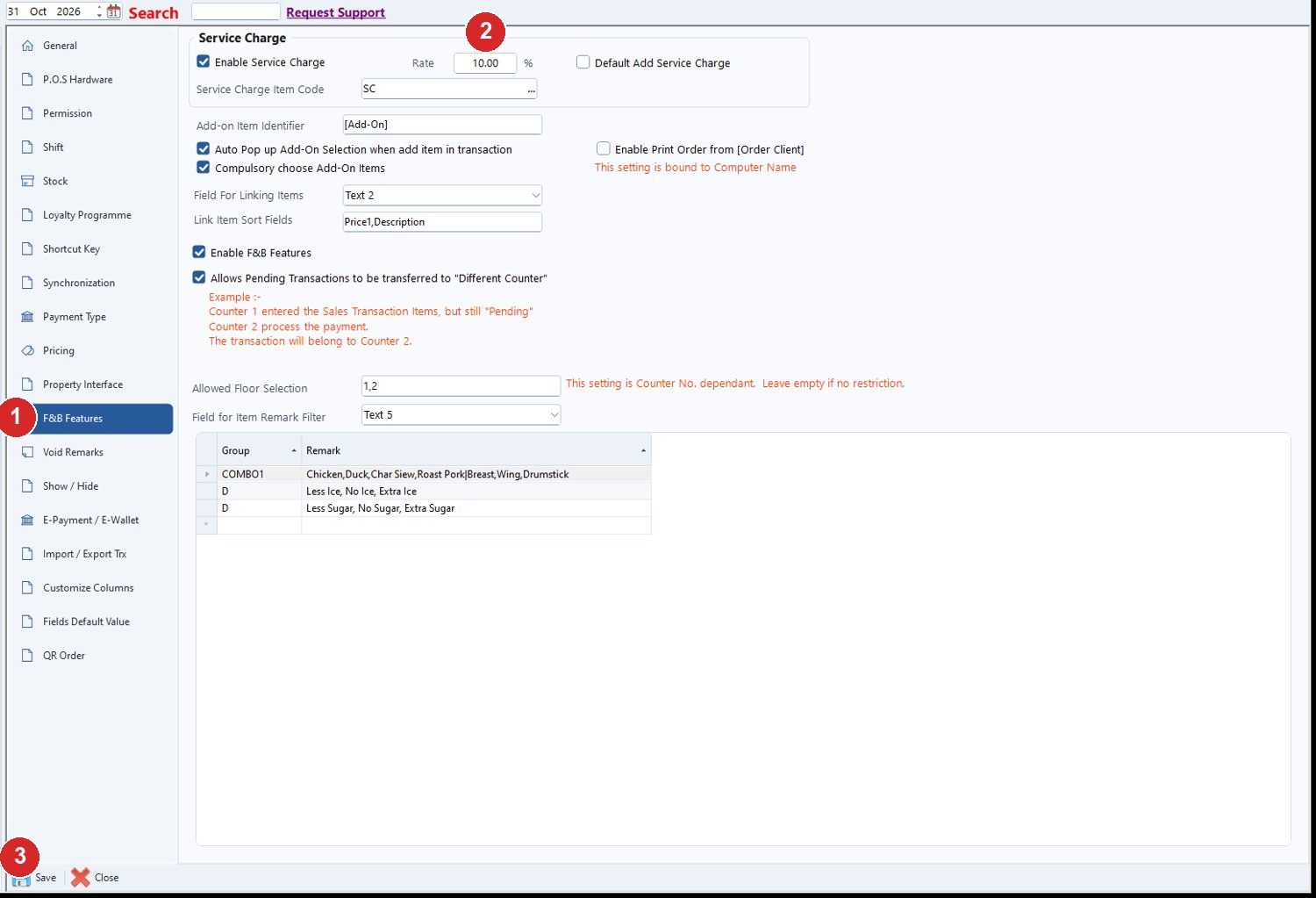
| Step | What to do |
|---|---|
| 1 | Click the F&B Features tab. |
| 2 | In the Service Charge box, type the new rate in Rate (%). |
| 3 | Click Save. |
8. If SST is not charged at all, check the SST start date
Go to Main > System > System Settings (Main). Documents dated before the SST Start Date are not charged SST.
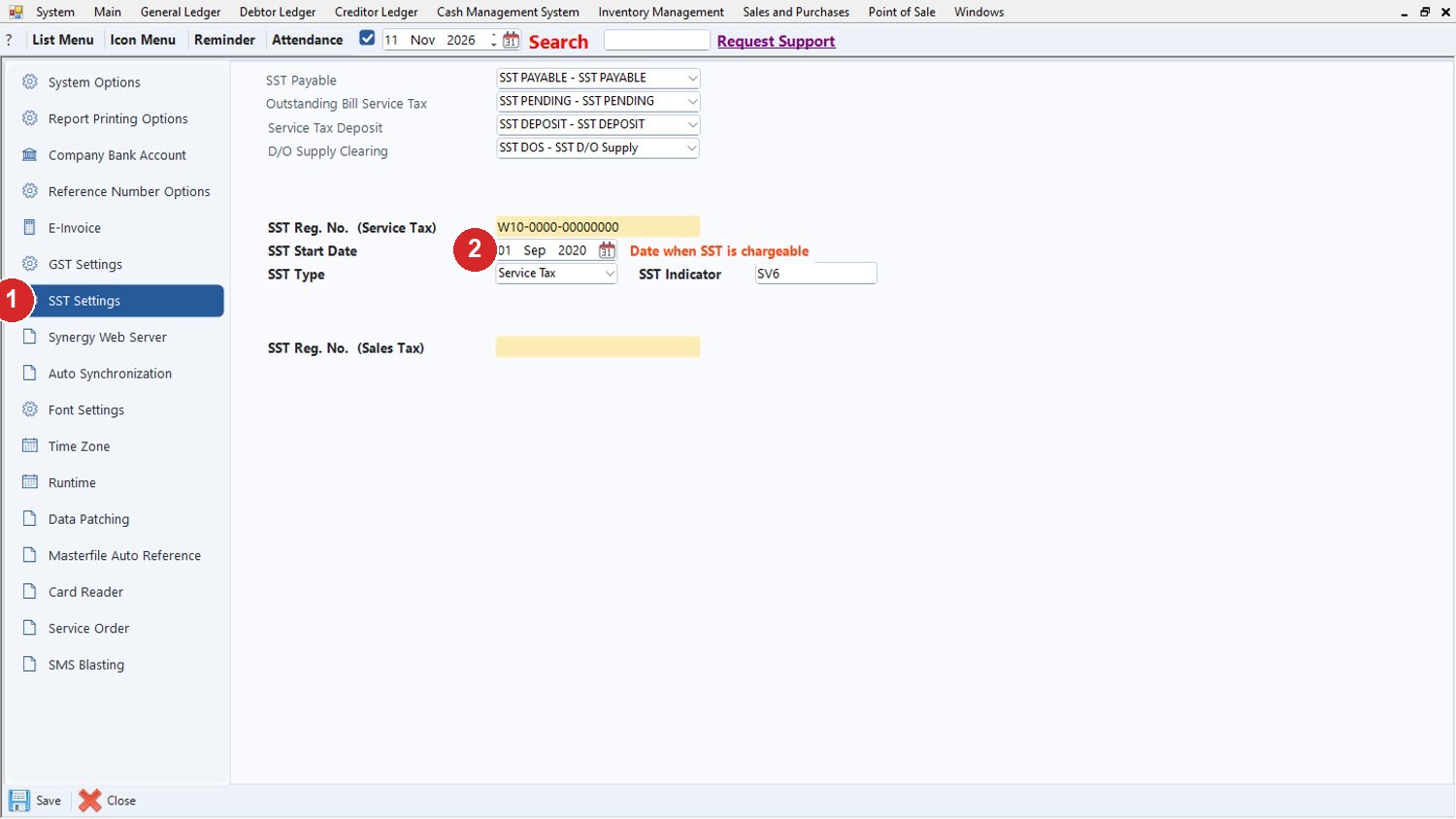
| Step | What to do |
|---|---|
| 1 | Click the SST Settings tab. |
| 2 | Check the SST Start Date (Date when SST is chargeable). |
Tips
- Effective Until must be at least 60 days after Effective From.
- A back-dated document keyed after the change still gets the old rate, because the rate follows the document date.
- Change the service charge rate when the last bill at the old rate is done, because the change has no start date.
- New tax groups, for example 6% rental or 8% repair, must be requested from Synergy support.
- If SST still looks wrong after the change, read Synergy Acc2026 – What To Do When SST or Tax Is Wrong.
Common problems
The message [Effective Until] must be at least 60 days from [Effective From] appears when I save.
Choose a later Effective Until date.
New invoices still show the old SST rate.
Check that the new code is Active, is in the same Tax Group as the old code, and that its Effective From is not later than the document date. Check that the old code has an Effective Until. Then close the document screen and open it again.
The POS still charges the old SST rate.
Close the POS screen and open it again. If the shift was started before the new date, end it and start a new shift. At a branch, download from head office first.
Old invoices now show the new rate.
The rate was changed on the old code. Put the old rate back on that code, give it an Effective Until date, and add a new code for the new rate as in the steps above.
Another counter still adds the old service charge.
Sign out and sign in again on that counter.