
When a supplier owes you money and you also owe them for an invoice, you can offset one against the other. Synergy Acc2026 has no separate contra feature or contra note. You do it with a payment and a knock-off, then print the official receipt.
Before you start
- Check that the same party is both a debtor and a creditor.
- Decide which invoices are to be offset.
- Have both account codes and the amounts ready.
Steps
1. Get the Contra AR-AP guide
Ask Synergy support for the Contra AR-AP guide. Have both account codes and the amounts ready when you ask.
2. Make the payment
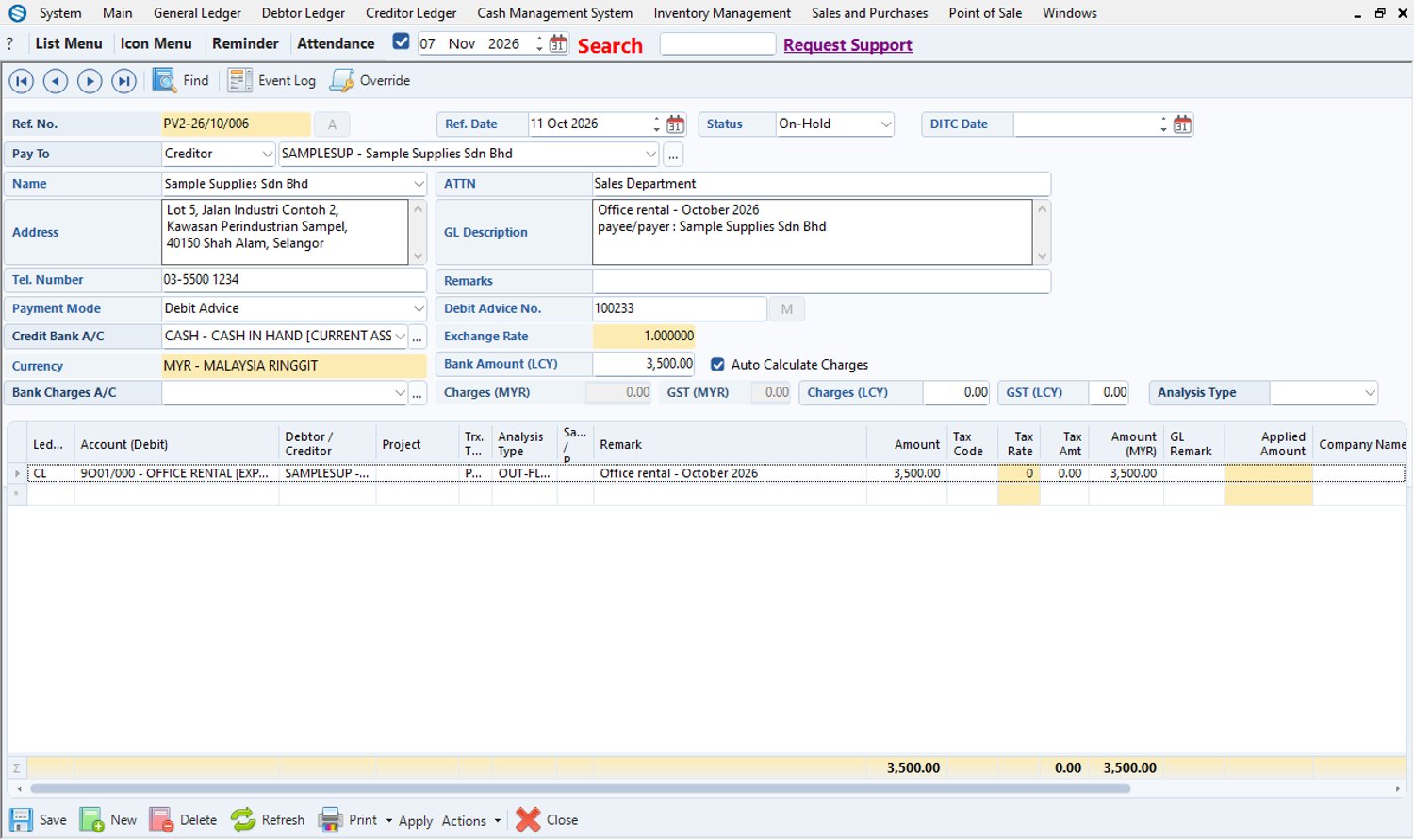
Make a payment where the bank amount equals the supplier invoice minus the amount the supplier owes you.
3. Add the receivable line
Add the receivable as an extra line. Enter its amount as a negative.
4. Knock off both documents
Apply (knock off) both the DL and CL documents.
5. Print the official receipt
Print the official receipt. It shows the applied invoices and serves as your record, because there is no separate contra note.
6. Edit the reference number if needed
Click the Override button to edit the reference number if you need to.
Tips
- Contra is done with a payment or receipt and a knock-off, not a separate feature.
- If you need to undo a match, use Debtor Ledger > Transactions > Reverse Apply or Creditor Ledger > Transactions > Reverse Apply.
Common problems
You cannot find a contra note.
There is no separate contra note. Print the official receipt, which shows the applied invoices.
You are unsure how to set up the amounts.
Contact Synergy support and have both account codes and the amounts ready.