
This guide shows how to work with the record lists used for masterfiles and lookups: add, edit and refresh records, pick a record from a list, and use the Search window to find one.
Before you start
- Your user permissions decide whether you can open, add or edit records.
- These list windows open from other screens, so they have no menu entry of their own.
Steps
1. Edit a record
In a record list you can also right-click the row and choose Edit.
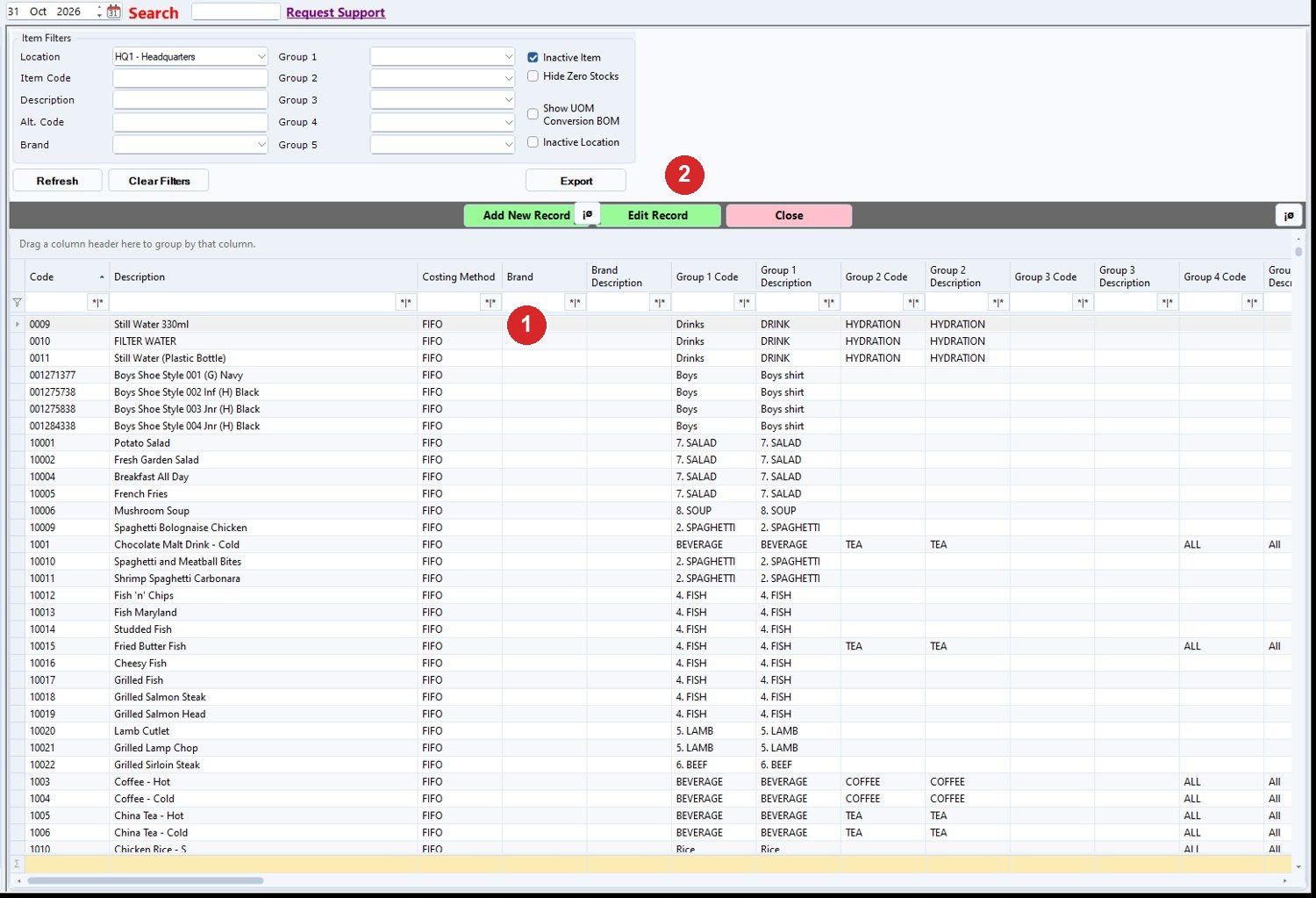
| Step | What to do |
|---|---|
| 1 | Select the row. |
| 2 | Click Edit Record. |
2. Add a record
Click Add New Record, or right-click and choose Add.
3. Reload the list
Right-click and choose Refresh to reload the data. Click Close when you have finished.
4. Pick a record from a list
When a list is used as a pick list, there are no Add or Edit buttons. Double-click the row, or select it and press Enter, to return it to the screen that asked for it. In a pick list where you tick several rows, tick the rows and click OK.
5. Use the Search window
In a Search window, choose a Field to search on, choose an Operator, and enter the Value. Click Search.
6. Choose the result
Double-click the wanted row. The window closes and your choice is passed back to the screen that opened it. Click Cancel to leave without choosing.
Tips
- Operators: ALL means no filter on that field. = means equals. >=, <= and <> mean greater or equal, less or equal and not equal. Begin with and Containing are for text fields. Within Days is for date fields.
- You can filter the results further by typing in the filter row of the grid.
- Your column layout is saved when you close a list and loaded again next time. Layouts are saved for each user.
- Reset Grid Setting in the right-click menu puts the columns back to the standard layout. Only an administrator, or a user allowed to edit the grid, can do this.
- In some lists, if you are not an administrator and the list holds documents owned by each user, you only see your own documents unless you are allowed to view others.
Common problems
No rows are shown in the Search window.
Try the operator ALL, or use Containing instead of =.
The operator I want is missing.
It is not available for that type of field.
A column went missing in a list.
Use Reset Grid Setting if you are allowed. Otherwise ask an administrator.
No permission to reset grid.
You are not allowed to reset the grid. Ask an administrator.
No field return-field found. or Browser Code […] is invalid.
The list is not set up correctly, so a row cannot be picked from it. Contact Synergy and tell them which screen you were on.
The columns look different for another user.
This is normal. Column layouts are saved for each user.