
This guide shows how to use the main Synergy Accounting window: log in, open a screen from the tabs, find a screen with the Search box, set a screen to open at startup, ask for help and leave the program.
Before you start
- Most functions will not work until you log in.
- The tabs and entries you see depend on your login permissions and your licence. Some may not appear on your installation.
Steps
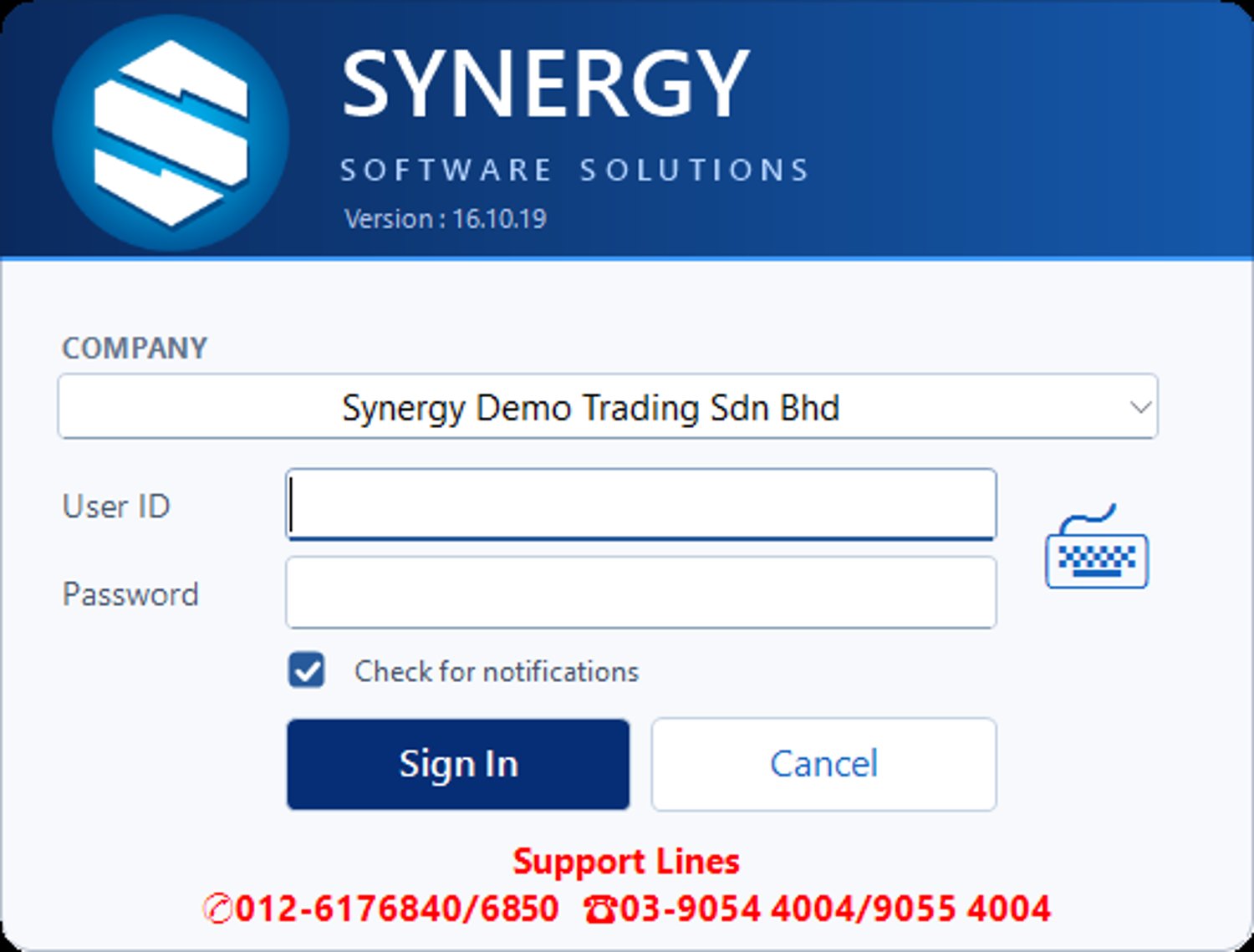
1. Log in
The program asks you to log in when it starts. If you need to log in again, go to System > Log In. After you log in, this changes to Log Out.
2. Pick a tab
At the top, pick a tab: Main, Accounts, Inventory, S & P or POS. Each tab has a button bar with groups.
3. Open a screen
Choose a group to show its list of screens, then select an entry in the list to open that screen.
4. Find a screen by name
Type in the Search box at the top. Matching entries are shown. Select one to open it.
5. Remember which groups are open
In the List Menu panel, use Expand All or Collapse All, then click Save to remember which menu groups are expanded or collapsed for your user.
6. Open a screen at startup
Right-click an entry in the list and choose Set as Startup. You see Startup configured. when it is saved.
7. Ask for help
Under System, Help opens the online help. The Request Support link asks a question: Yes gives instant answers from our guides, No starts a chat with Synergy staff, and Cancel closes the question.
8. Leave the program
Go to System > Exit, or close the window. Answer Yes to Do you want to quit the system?
Tips
- System also has License Information, Software License Agreement, Credits and About Synergy Accounting. License Information needs you to be logged in.
- Active Users List shows which modules are in use. It only appears on network multi-user licences.
- Instant answers from our guides need you to be logged in and an internet connection. They are refused if your support contract has ended.
- The module panel’s width, position and visibility are remembered for each user when the program closes.
Common problems
Nothing opens, or Please log in first. appears.
Log in using System > Log In.
An entry is missing from the list.
Your user may not have permission, or the feature is hidden or not included in your licence. Ask your administrator.
The support links do not work.
Check the internet connection. Instant answers also need you to be logged in and a support contract that has not ended.
Admin rights is required.
Only an administrator can use the small ? button in the module bar.
The program asks before closing.
This is normal. It can be switched off for certain users.