
This guide shows how to choose or download an icon-style navigation menu, set the page the program starts with, use the tiles, and remove a menu you no longer want.
Before you start
- An internet connection is needed to download menus and to watch the tutorial video.
Steps
1. Open the Navigation Menu
Go to Main > Main > Menu. If no menu has been chosen yet, the screen shows a picture explaining how to download a menu, with two buttons: View Tutorial On How To Set Up Navigation Menu and Download/Select Menu.
2. Open the menu chooser
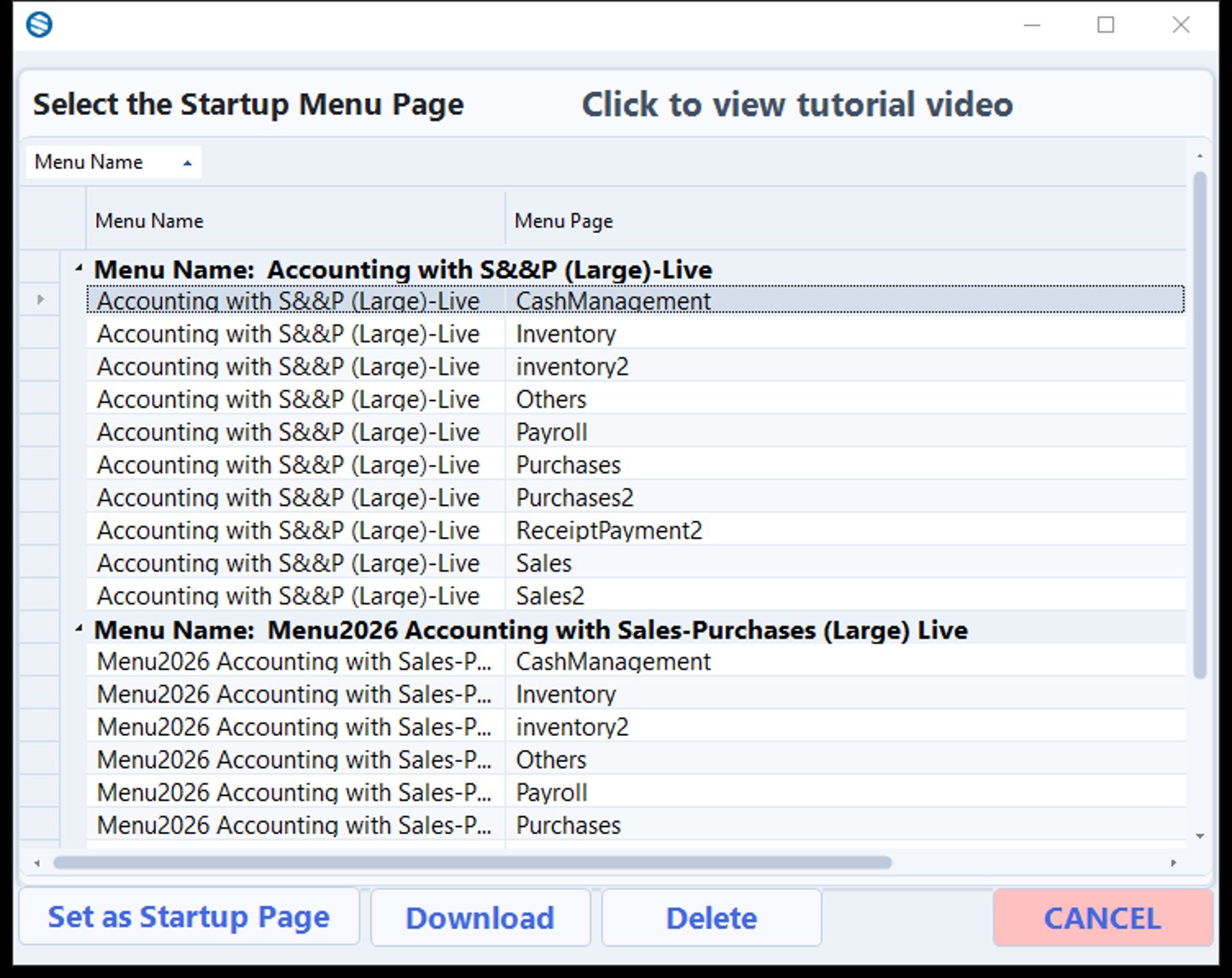
Click Download/Select Menu. A list shows the menu pages installed on this computer, each by name.
3. Download more menus if needed
Click Download. The program gets the list of available menu sets. Choose one. A progress window shows the download and then Unpacking… When it finishes you see Navigation Menu downloaded and the list refreshes. You can press Cancel in the progress window to stop.
4. Choose the start page
Select a menu page in the list and click Set as Startup Page. The screen closes and that menu becomes your Icon Menu. Double-clicking a row does the same.
5. Use the tiles
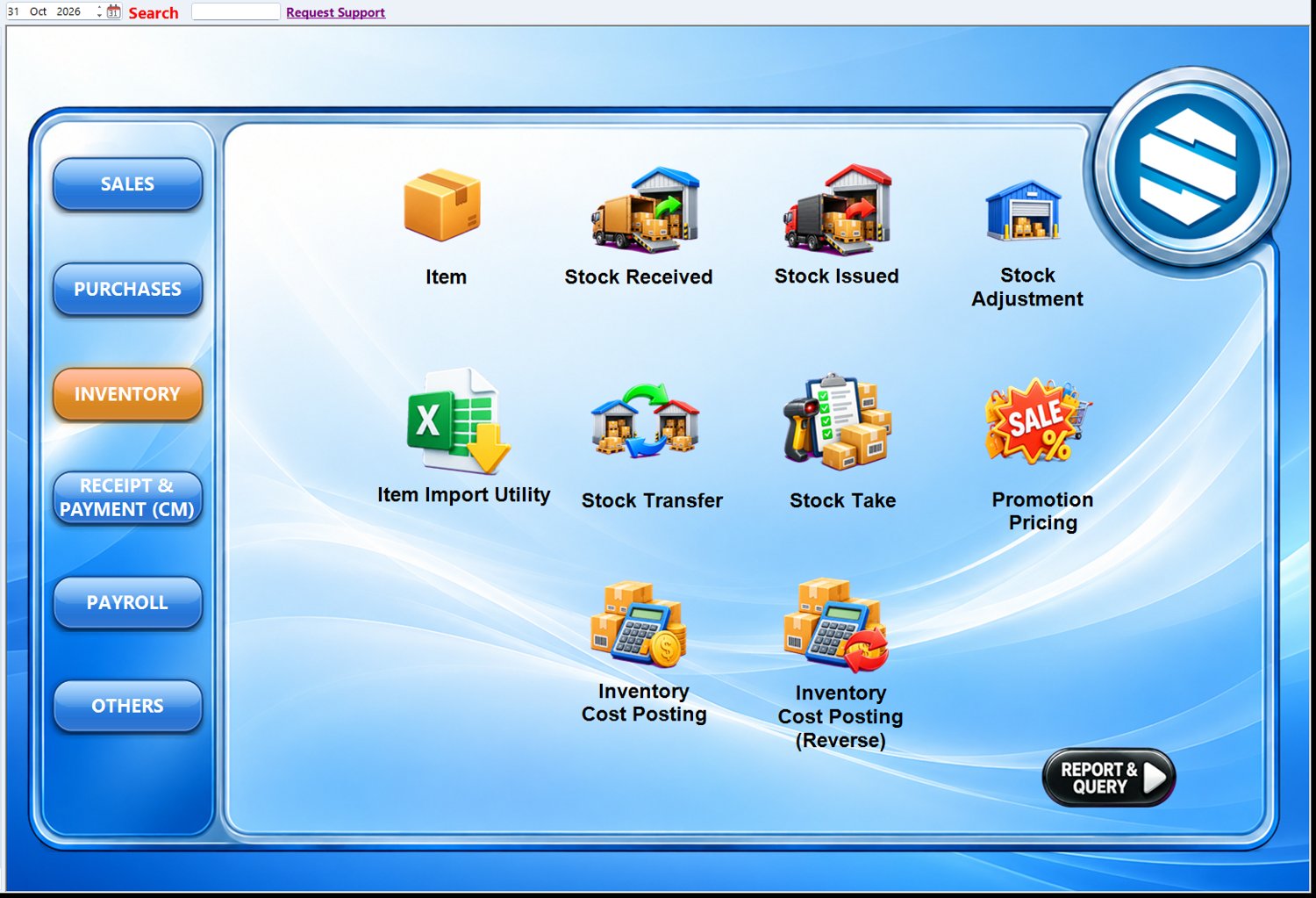
Click a tile to open a module or another menu page. Back, forward and home requests move through the pages you have visited.
6. Delete a menu you do not want
In the chooser, select the menu and click Delete. Tick the confirmation box in the window that appears and click OK, or click CANCEL to keep the menu. Delete removes the whole menu set that the selected page belongs to, not just that one page.
Tips
- Each user can choose their own button look or theme for the menu buttons. It is kept in the user’s own settings.
- Click View Tutorial On How To Set Up Navigation Menu (or Click to view tutorial video in the chooser) to watch the tutorial. It needs an internet connection.
- Your chosen menu is remembered for you. If the saved menu folder no longer exists, the screen starts empty and shows the download help again.
- Only the 2026 menu sets are offered for download.
Common problems
Please select your [Navigation Menu] first.
No menu has been chosen. Click Download/Select Menu and choose one.
The list is empty in the chooser.
No menu sets have been installed yet. Click Download.
The web server address is not set, cannot download menus.
The program has no web server address to download from. Contact Synergy and have your company name ready.
Failed to get the menu list from the server., or Download failed.
Check the internet connection and try again.
No menu available for download.
The server has no menu sets to offer at the moment.
Menu File for […] cannot be found.
The linked menu page is missing. Download the menu again or choose another menu.
No menu selected.
Select a row in the list before clicking Set as Startup Page.