
This guide covers the screens that deal with item cost: changing the total value of an item and undoing it, posting stock transactions to cost tracking (or reversing the posting), and sharing supplier bill costs over the items on a purchase invoice. It also mentions the repair tool for transactions posted with a wrong account.
Before you start
- Cost changes affect your stock value, so check the item and the date before you confirm.
- Stock value reports depend on costs being posted, so run Inventory Cost Posting before you rely on them.
Steps
1. Adjust the cost of an item
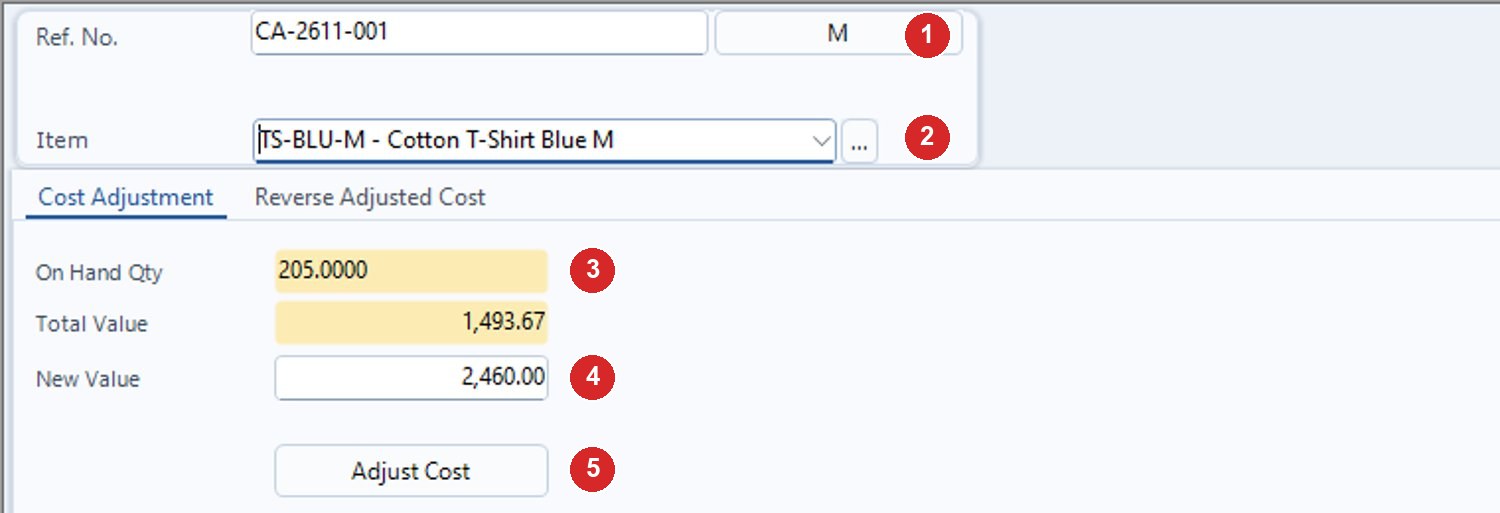
Go to Inventory Management > Transactions > Stocks > Inventory Cost Adjustment, Cost Adjustment tab. The adjustment amount is the new value minus the total value (here TS-BLU-M: 205 on hand worth 1,493.67, raised to 2,460.00, which is 12.00 each).
| Step | What to do |
|---|---|
| 1 | Ref. No. (M = type your own; it must be filled in). |
| 2 | Item. |
| 3 | On Hand Qty and Total Value show the current figures. |
| 4 | New Value: starts equal to the Total Value; type the value it should be. |
| 5 | Click Adjust Cost. |
2. Reverse a cost adjustment
Open the Reverse Adjusted Cost tab. Set From and To dates and click List. The adjustments in that period are listed for the chosen item. Tick the adjustments to undo (right-click offers Check All and Uncheck ALL), click Reverse Adjustment and answer Yes. You see Transaction reversed.
3. Post inventory costs
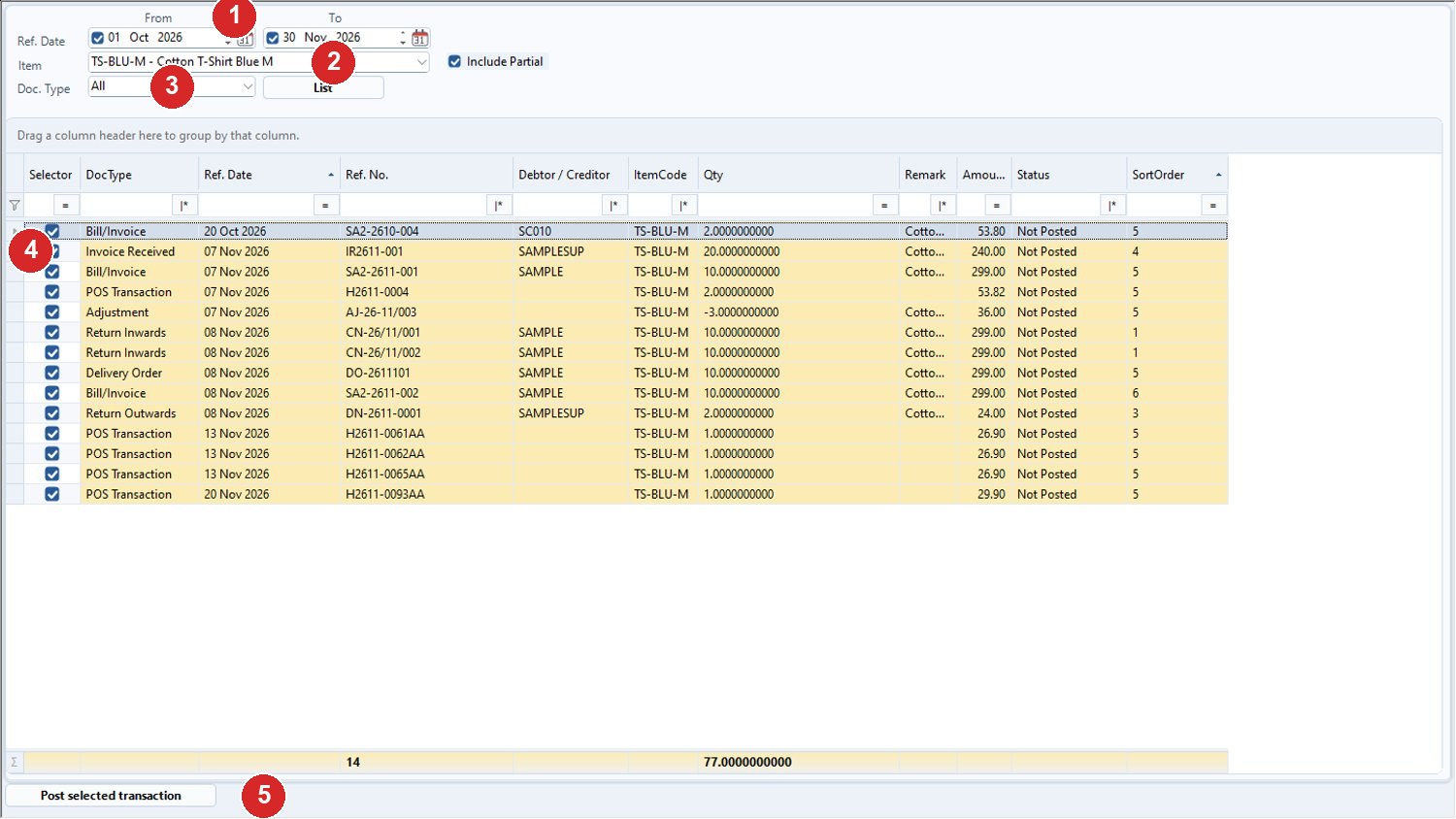
Go to Inventory Management > Transactions > Stocks > Inventory Cost Posting. To reverse a posting instead, use Inventory Cost Posting (Reverse), where the button reads Reverse selected transaction.
| Step | What to do |
|---|---|
| 1 | Ref. Date From/To (tick From to use it). |
| 2 | Item: leave empty for all (here TS-BLU-M). |
| 3 | Doc. Type (All, Delivery Order, Sales Invoice, Goods Received, Invoice Received, Adjustment …). Tick Include Partial to include partly posted documents, then click List. |
| 4 | Every listed transaction comes ticked; untick what you do not want (right-click offers Check All, Uncheck ALL and Copy Text). |
| 5 | Click Post selected transaction and answer Yes. |
4. Refresh the list
The list is not refreshed automatically after posting. Click List again to see the current state.
5. Share bill costs over a purchase invoice
In the cost distribution function of the Invoice Received screen, a window opens to pick supplier bills. Choose the Creditor (or ALL), tick From and/or To under Ref. Date if you want to limit by date, and click List. Tick the lines you want and click Add Selected Item to bring them back, or Cancel to leave without adding.
Tips
- In Inventory Cost Adjustment, On Hand Qty and Total Value are for information only. The As At Date box looks white for items costed by average cost and ivory for other costing methods.
- Nothing happens on Adjust Cost if no valid item is chosen. The screen stops silently.
- Posting is processed by document-type order, then by date. Reversing goes in the opposite order, newest date first.
- If a reverse fails for some rows, read the failure list and reverse the related documents first.
- In the cost distribution window, the Creditor is not filled in for you, because the supplier is usually different from the invoice’s own supplier. Auto Check Items in same Invoice ticks the other lines of the same invoice when you tick one. The invoice you are working on is left out of the list.
- Repost tool: Sales and Purchases > Transactions > Transaction Posting > Re-post GL Entries corrects inventory transactions posted with a wrong item account or control account. It is a repair tool, not part of daily work. Correct the item and control account set-up first, or the same wrong account may be posted again. Before you click Patch Account, back up the database and check every affected transaction, because the program warns that there is no guarantee the outcome will be what you intended.
Common problems
The message [Auto Reference Number] is required appears.
The Ref. No. is empty. Fill it in and try again.
Nothing is listed on the Reverse Adjusted Cost tab.
Widen the From and To dates or check the item.
The message No transaction selected appears in Inventory Cost Posting.
Tick at least one row first.
The list looks unchanged after posting.
Click List again.
The cost distribution list is empty.
Untick the date boxes or widen the date range, or choose ALL creditors. The invoice you are working on is not listed.
No item selected appears in the cost distribution window.
Tick at least one line after you click List, then click Add Selected Item.
A transaction shows Failed in the Re-post GL Entries tool.
Read the reason in the result lines and fix the cause before trying again. If you are unsure, contact Synergy with the reference number and the reason shown.