
Posting a credit note or debit note does not clear an invoice by itself. You need a second step called Apply Open Credit. This guide shows how to give a customer a discount credit note, how to issue a debit note when a supplier raises the price, and how to knock the invoice off.
Before you start
- Know which customer (debtor) or supplier (creditor) the document is for.
- Know which invoice the discount or price increase is for.
Steps
1. Open the credit note screen
Go to Sales and Purchases > Transactions > Sales Process > Credit Note / Return Inwards and click Add New Record.
2. Choose the customer and the discount option
Choose the Debtor (here SAMPLE – Sample Trading Sdn Bhd) and the Default Location the goods were sold from. Then click Actions at the bottom and choose Select Invoice For Discount.
3. Find and tick the invoice
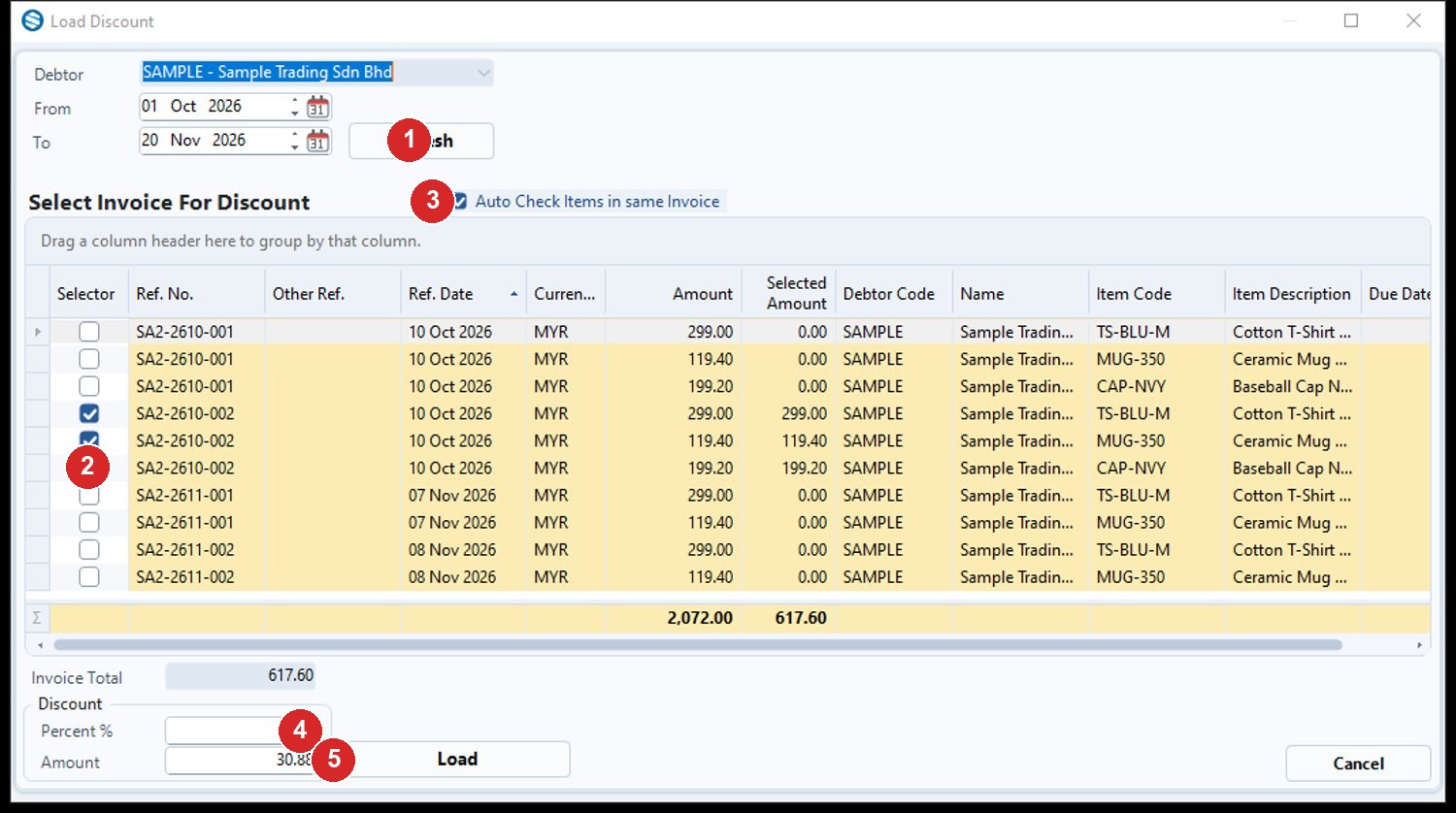
The Load Discount window lists the invoices of this debtor. Invoice Total shows the total of the ticked lines.
| Step | What to do |
|---|---|
| 1 | Set From and To, then click Refresh. The debtor’s invoice lines are listed. |
| 2 | Tick the invoice the discount is for (here SA2-2610-002). |
| 3 | With Auto Check Items in same Invoice ticked, one tick ticks every line of that invoice. |
| 4 | Percent %: 100 knocks off the whole invoice; here 5 for a 5% discount. |
| 5 | Or type the discount Amount (here 30.88). Then click Load. |
4. Save and post the credit note
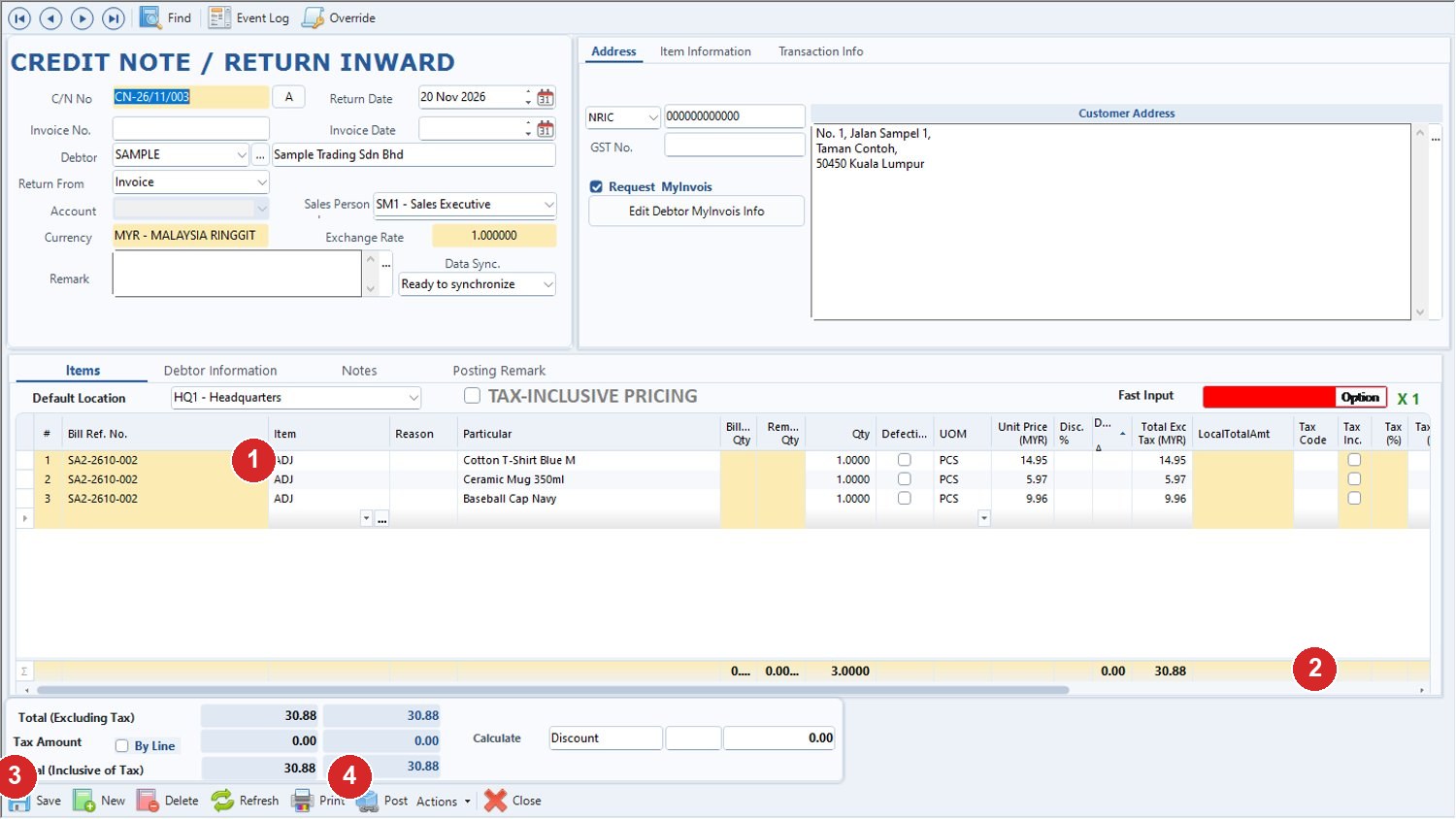
Add a Remark such as the reason for the discount, then save and post the credit note.
| Step | What to do |
|---|---|
| 1 | The discount comes in as one line per invoice item with the item ADJ (here 14.95 + 5.97 + 9.96). |
| 2 | The credit note total (here 30.88). |
| 3 | Click Save. If “No Cost value provided for Returned Item. Do you still want to continue?” appears, answer Yes: a discount has no goods coming back. |
| 4 | Click Post and answer Yes. |
5. Open Apply Open Credit for the customer
Go to Debtor Ledger > Transactions > Apply Open Credit.
| Step | What to do |
|---|---|
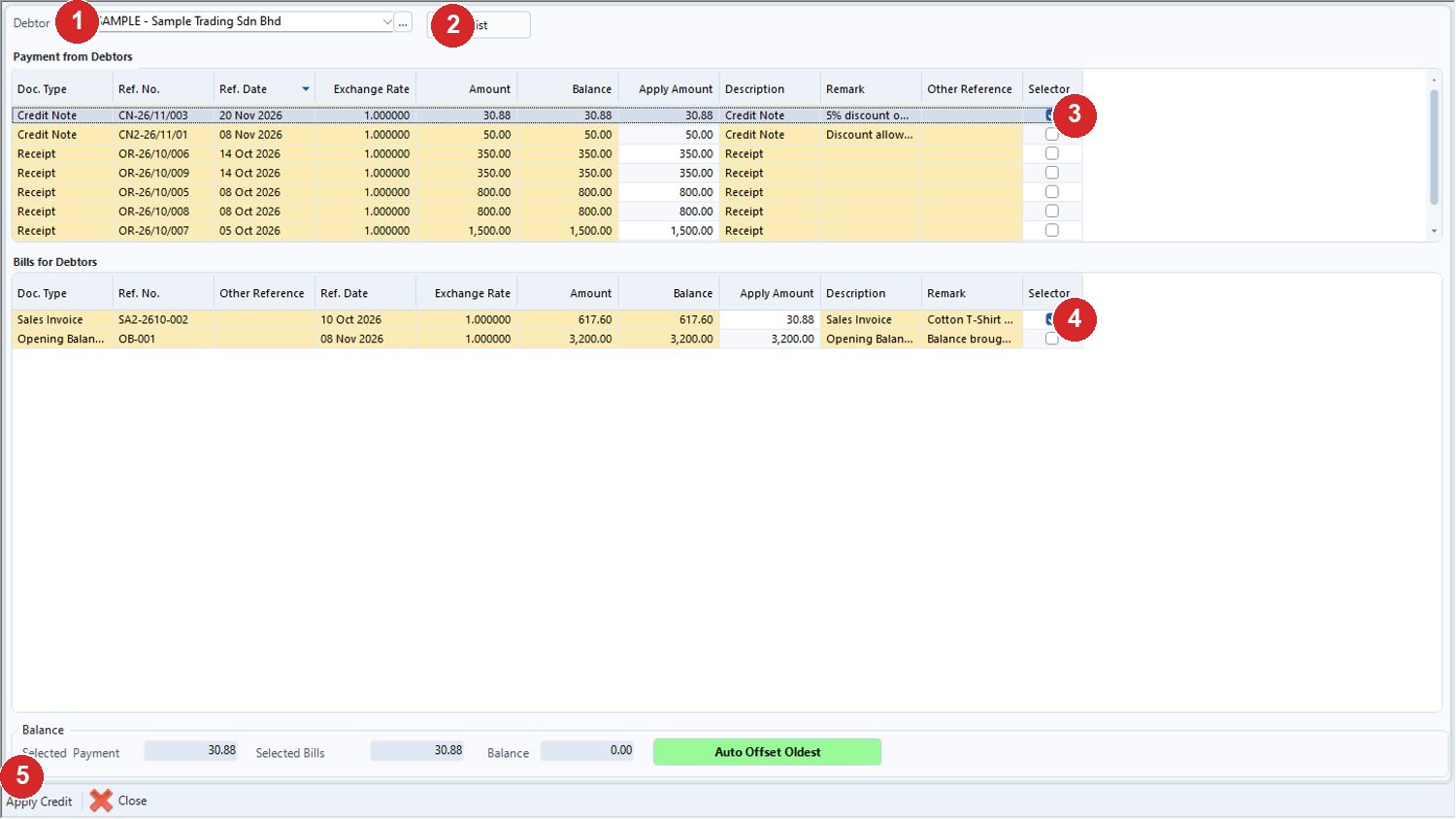
| 1 | Debtor. |
| 2 | Click List. Payments and credit notes are listed on top, bills below. |
| 3 | Tick the credit note under Payment from Debtors (here CN-26/11/003, 30.88). |
| 4 | Tick the invoice under Bills for Debtors and check its Apply Amount (here SA2-2610-002, 30.88). |
| 5 | Click Apply Credit and confirm. Selected Payment and Selected Bills must match. |
6. Apply the credit
Click Apply Credit and confirm. The invoice is now knocked off. If the invoice list is empty, close the screen, open it again and click List again.
7. Start a debit note for a supplier price increase
If the supplier raised the price and the quantity did not change, go to Sales and Purchases > Transactions > Purchase Process > Supplier’s Debit Note and click Add New Record.
8. Choose the supplier and the invoice
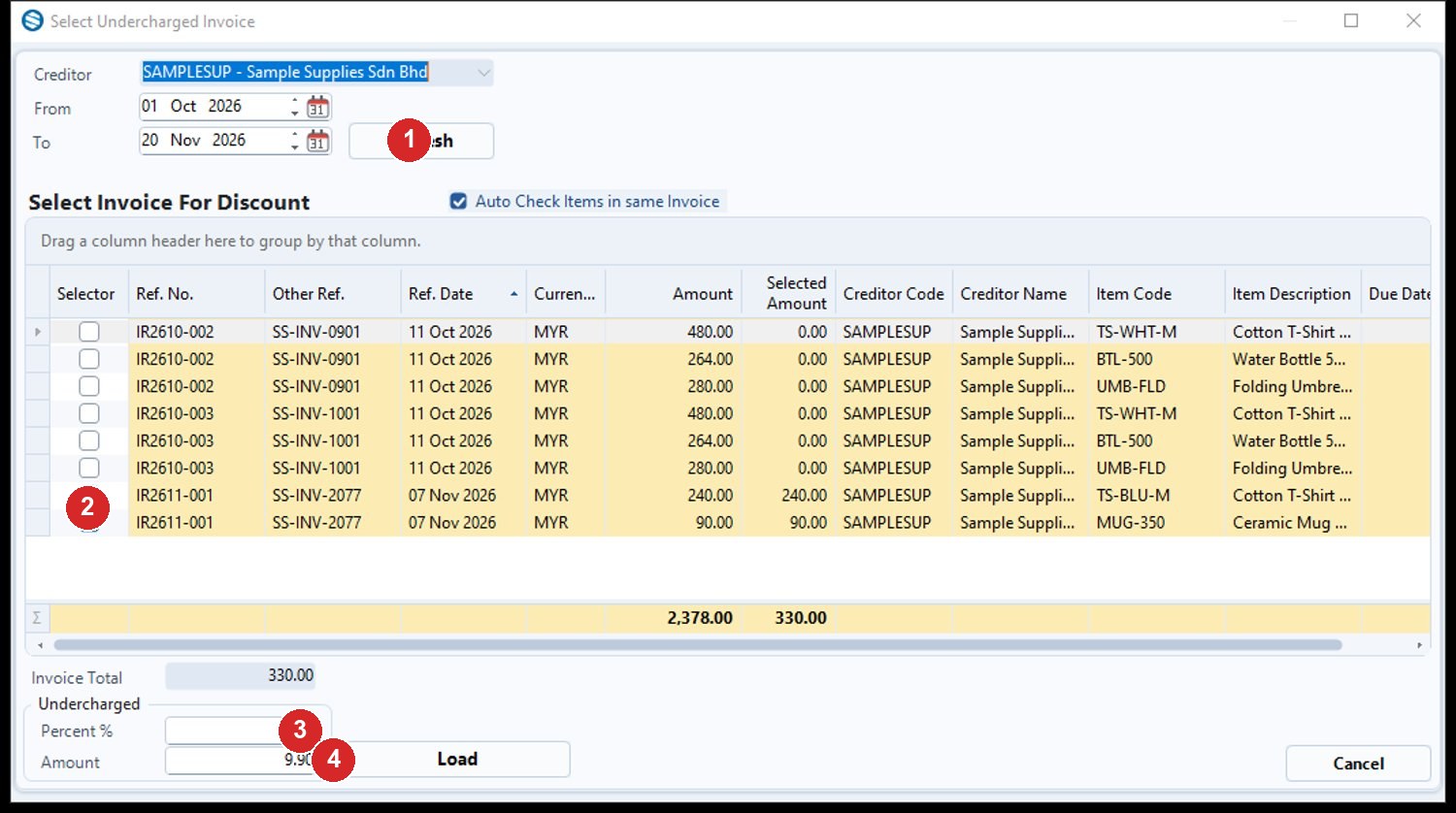
Choose the Creditor and the Default Location, then use Actions > Select Undercharged Invoice. Untick Self-Billed E-Invoice if it does not apply.
| Step | What to do |
|---|---|
| 1 | Set From and To and click Refresh. The supplier’s invoices are listed. |
| 2 | Tick the invoice (here IR2611-001). |
| 3 | Percent % of the extra charge (here 3), or |
| 4 | the extra Amount (here 9.90). Then click Load. |
9. Save, post and apply the debit note
Save and post the debit note. Then apply it in Creditor Ledger > Transactions > Apply Open Credit, the same way as the customer steps above. The original invoice is not changed.
10. Check what knocked off an invoice
To find which receipt or document knocked off an invoice, check the Statement of Account (offset).
Tips
- Open Credit, often shown in yellow in the ledger, is an amount not yet applied, such as an advance bank receipt or a credit note.
- For payments, use the apply option on the Bank Payment or Bank Receipt. If you missed it, do it later from the ledger with Apply Open Credit.
- If you put a payment On-Hold and edited it, the apply is undone. Set the status back to Post and apply again, or use Apply Open Credit in the ledger.
- One invoice can have two credit notes.
- A debit note can be issued to selected debtors only. Legal fees charged are treated as sales income, so use a sales income account.
- The item search on a Credit Note does not list UOM Conversion items (or package items) unless the Bill of Material feature is switched on. Use the original item with its conversion table.
- In Apply Open Credit you cannot apply more than a row’s balance. A larger amount is cut back to the balance.
- If you use e-invoice, submit the original invoice first, then the credit note. A credit note for an invoice that was never submitted should not be submitted either.
Common problems
The invoice still shows outstanding after posting a credit note or payment.
Check the document was posted, then do Apply Open Credit in the ledger (Debtor Ledger for customers, Creditor Ledger for suppliers). Also check the Statement of Account (offset) in case another receipt already applied it.
The invoice list is empty after clicking List.
Make sure a Debtor or Creditor is chosen and that the account really has open payments and bills. Close the screen, open it again and click List again. The account may also be in use by another user.
Apply Credit does nothing.
Click List first so the payments and bills are loaded, then tick the rows and click Apply Credit.
A credit note cannot be saved when e-invoice is on.
The credit note must be loaded from an invoice, and the invoice date must not be later than the credit note date.
The credit note or return note fails to submit as e-invoice.
Submit the original invoice or bill first, including any missing bills from earlier months. On a return, choose the original receipt or invoice number, not the same bill. List again in e-invoice (the row turns white), then click Post & Submit. Afterwards check that Submitted Documents > List Submitted Documents shows all Valid.
Still not working.
Contact Synergy support. Have the document numbers, the error text and a screenshot ready. If amounts do not tally with your supplier’s statement, also have your software version number ready.