
This guide shows how to turn an Excel or CSV contact list into a phone-contact (VCF) file, read a VCF file back into the grid, and send one text message to many numbers with SMS Blast.
Before you start
- For the Contact Converter, your Excel or CSV list needs a name, a phone number and a company for each contact.
- For SMS Blast, your Excel or CSV file needs column headings Company Name (or Company) and Phone. Sales Person is also recognised.
Steps
1. Open the Contact Converter
Go to Main > CRM > Contact Converter.
2. Load your Excel or CSV list
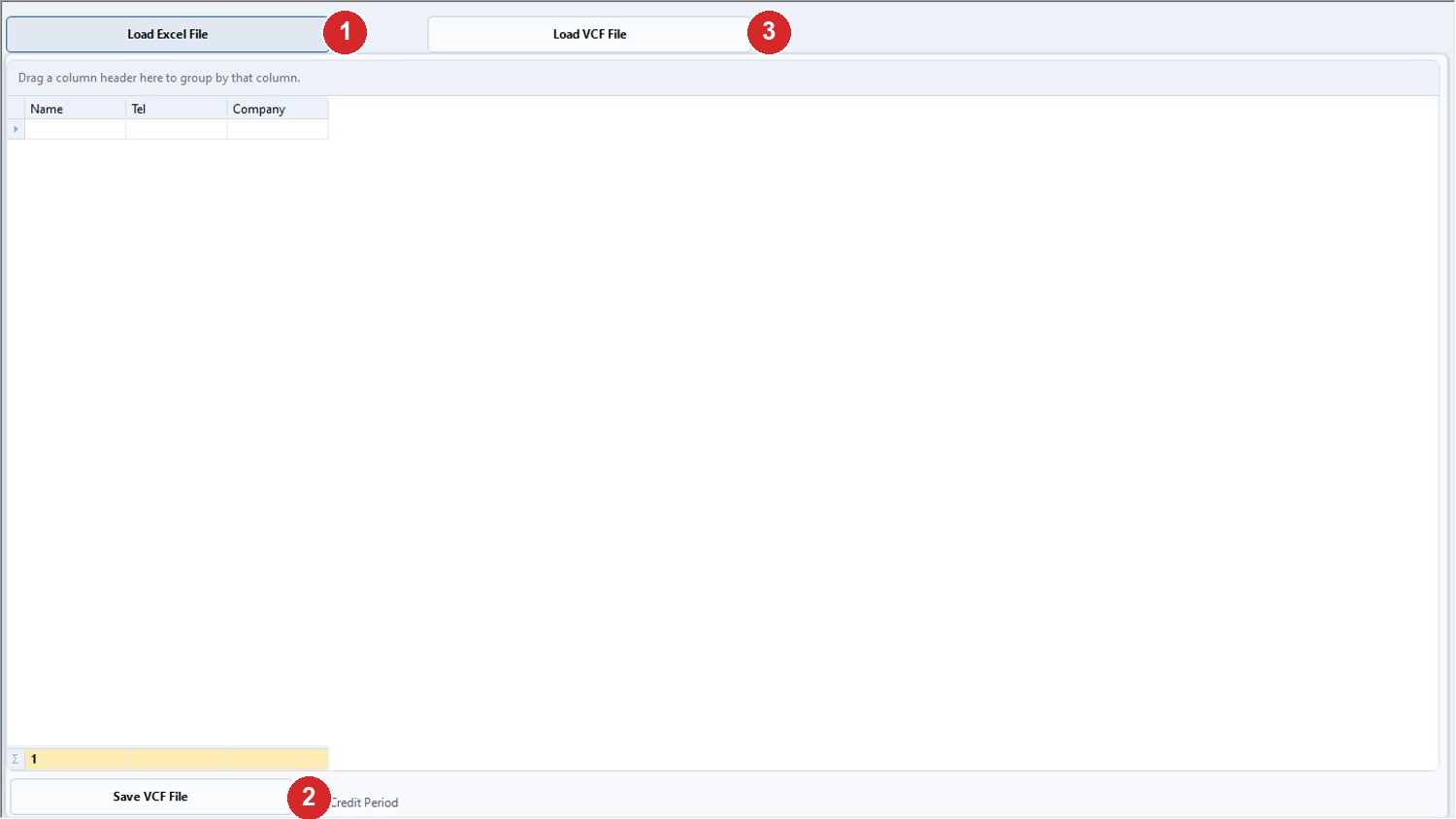
Click Load Excel File and pick an Excel (.xlsx or .xls) or CSV file. Anything already in the grid is cleared. The grid has three columns: Name, Tel and Company.
| Step | What to do |
|---|---|
| 1 | Load Excel File: pick an Excel or CSV file (the grid is cleared first). |
| 2 | Save VCF File: writes the contacts as a .vcf file and opens its folder. |
| 3 | Load VCF File reads a .vcf file back into the grid; the status shows duplicates. |
3. Open SMS Blast
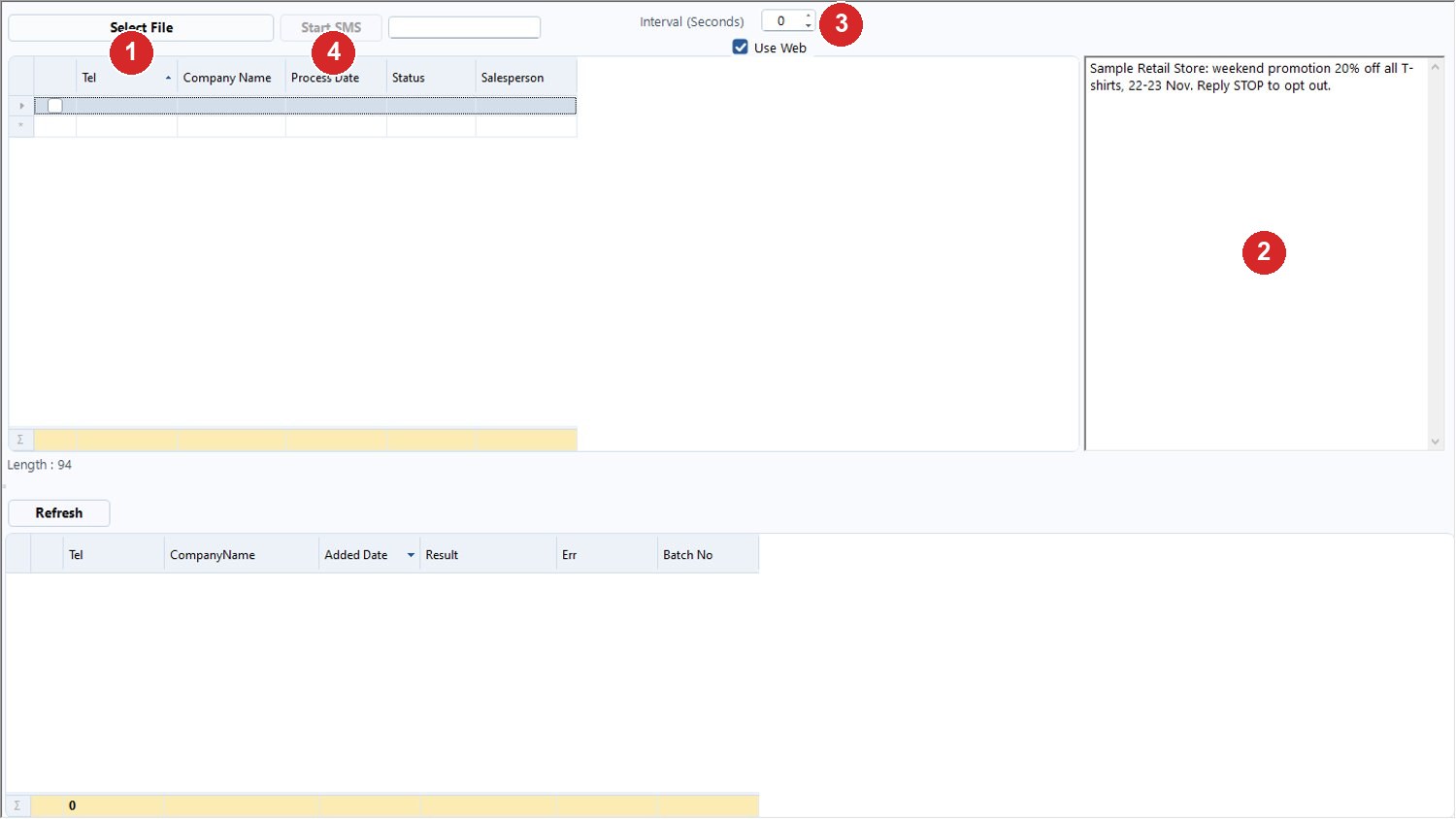
Go to Main > CRM > SMS Blast. Click Select File and choose your Excel or CSV file. The button then shows the file name and the grid fills with your contacts.
| Step | What to do |
|---|---|
| 1 | Select File: your Excel or CSV list of numbers. |
| 2 | Message: the text to send (the status shows its length). |
| 3 | Interval (Seconds) and Use Web (unticked = GSM modem / SIM). |
| 4 | Start SMS starts sending; click it again to stop. Each row shows Pending, Done, Fail or Duplicate. |
4. Check the result
Each row shows a Status: Pending is waiting, Done is sent, Fail means the send failed, and Duplicate means the number was already messaged and was skipped. Click Refresh to reload the history of numbers already messaged.
Tips
- When saving a VCF file, a row with no phone number, or with no name and no company, is left out.
- If a Tel cell holds several numbers separated by /, only the first one is used.
- Numbers are cleaned up: spaces and dashes are removed and the prefixes 0, 6 and + are added where needed. A number like 123456789 becomes +60123456789.
- When a VCF file is loaded, a contact with no phone number is skipped, and only one number per contact is read.
- The minimum Interval (Seconds) is 5 seconds for GSM and 3 seconds for web. A lower value is raised to the minimum.
- The file name is used as the batch name. If it was used in an earlier blast, you are asked Batch No. [name] already exists. Do you want to continue? Yes sends again, No cancels.
- Web sending needs an internet connection and a working account with the SMS provider.
Common problems
The grid is empty after loading an Excel or CSV file.
The file had no data rows, or you cancelled the file picker. The old grid contents are cleared either way.
Some contacts are missing from the VCF file.
Rows with no phone number, or with no name and no company, are skipped.
I cannot find the VCF file.
It is saved on drive D with a date-and-time name. The folder should open automatically after saving.
Everything shows Duplicate in SMS Blast.
Those numbers are already in the history. Choose a new file, or check the earlier batch.
The Phone column is not picked up in SMS Blast.
Rename your column heading to Phone or Tel.
Start SMS is greyed out.
Contact Synergy. Tell them which screen you are on and what you see.
Every row shows Fail with Use Web ticked.
The web service may be unreachable. Check your internet connection, then contact Synergy if it continues.