
This guide shows how to check whether a phone number is already on file, record a CRM contact, record an activity for a customer or prospect, and search the activities you have recorded.
Before you start
- Have the company name, contact name and phone number ready.
- The Business Type and Source you need must already exist in their lists. You can only pick values that already exist.
Steps
1. Check a phone number first
Go to Main > CRM > Prospect List. Type the phone number in the Tel box. A green OK means the number is not on your list yet. A red Duplicate Tel Number means it is already on file. For the check to work reliably, type the number starting with 60. This screen only checks the number. Save only refreshes the list and does not create a record.
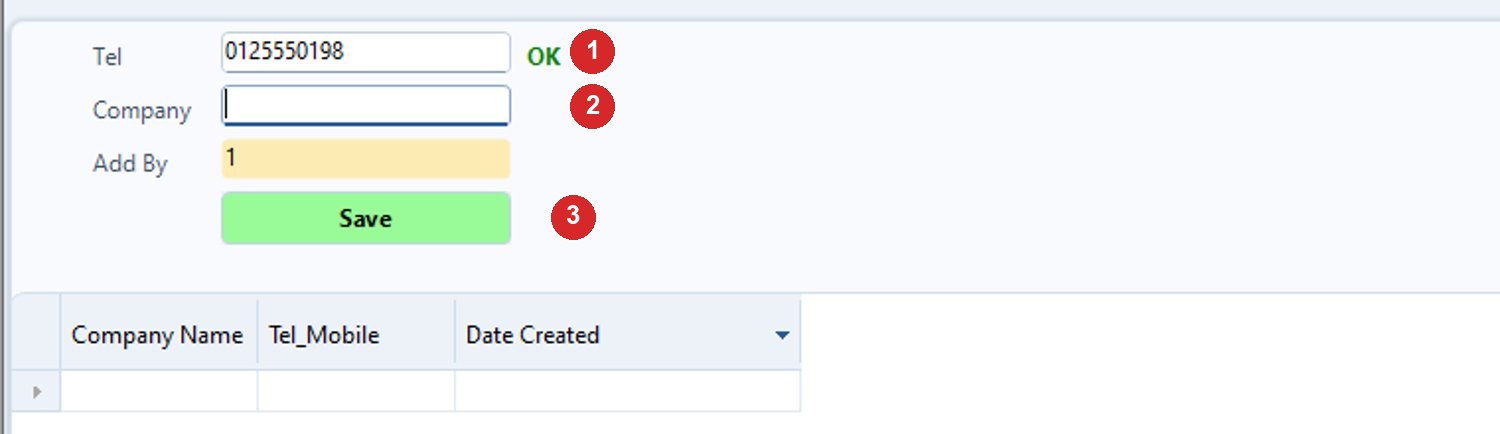
| Step | What to do |
|---|---|
| 1 | Tel: type the number. A green OK means it is not on your list yet. |
| 2 | Company, if you are adding the prospect here. |
| 3 | Save adds it to the list below (Company Name, Tel_Mobile, Date Created). |
2. Fill in the required details
Open the CRM Contact screen (Main > CRM > Contact (CRM)). Here Sample Prospect Sdn Bhd.
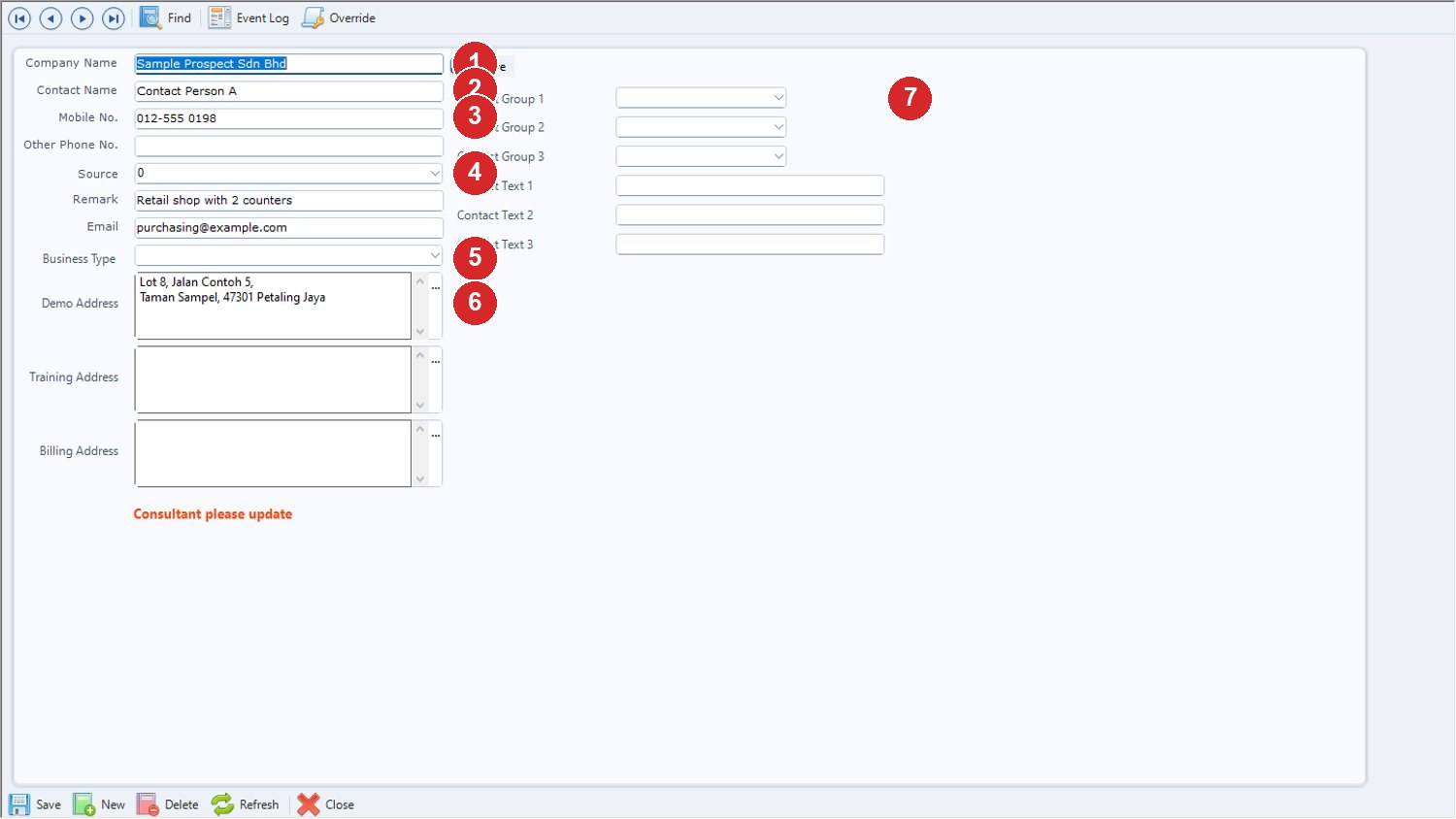
| Step | What to do |
|---|---|
| 1 | Company Name (required); keep Active ticked. |
| 2 | Contact Name (required). |
| 3 | Mobile No. and Other Phone No. |
| 4 | Source (and Remark, Email). |
| 5 | Business Type: click its caption to add a type to the list. |
| 6 | Demo, Training and Billing Address; the small button copies an address. Save. |
| 7 | Contact Group 1 to 3 and Contact Text 1 to 3 for your own grouping. |
3. Record an activity
Go to Main > CRM > Activity. Here activity 27: an on-site product demo for Sample Prospect Sdn Bhd on 18 Nov at 10:00.
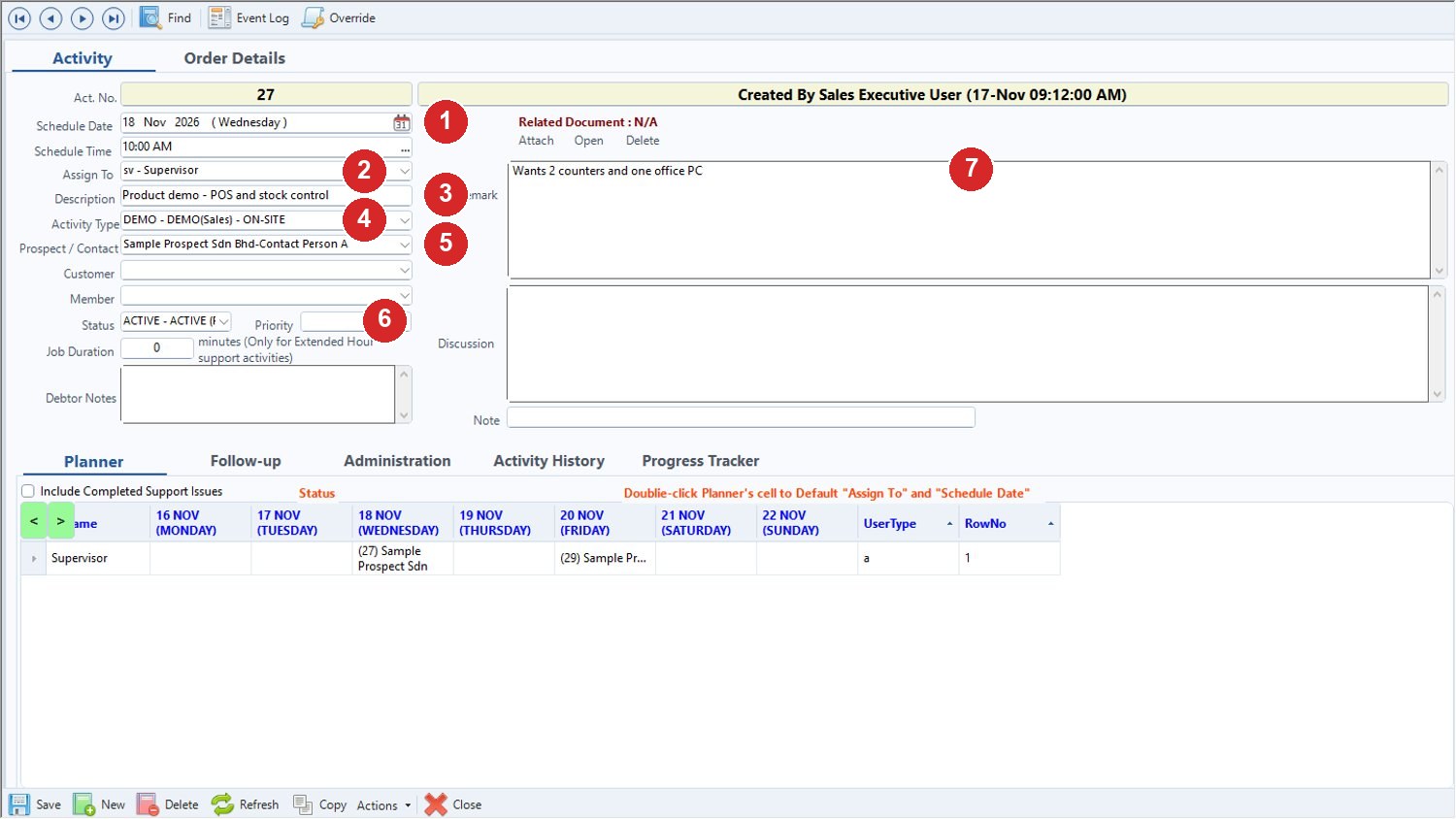
| Step | What to do |
|---|---|
| 1 | Schedule Date and Schedule Time (the … button fills in the current time). |
| 2 | Assign To: the staff member. |
| 3 | Description. |
| 4 | Activity Type. |
| 5 | Prospect / Contact, or Customer / Member. |
| 6 | Status and Priority. |
| 7 | Remark, Discussion and Note. |
4. Add the next follow-up and save
On the Follow-up tab, set the Next Follow-up Date and the Stage. A Stage is required once a Next Follow-up Date is entered. Save the record.
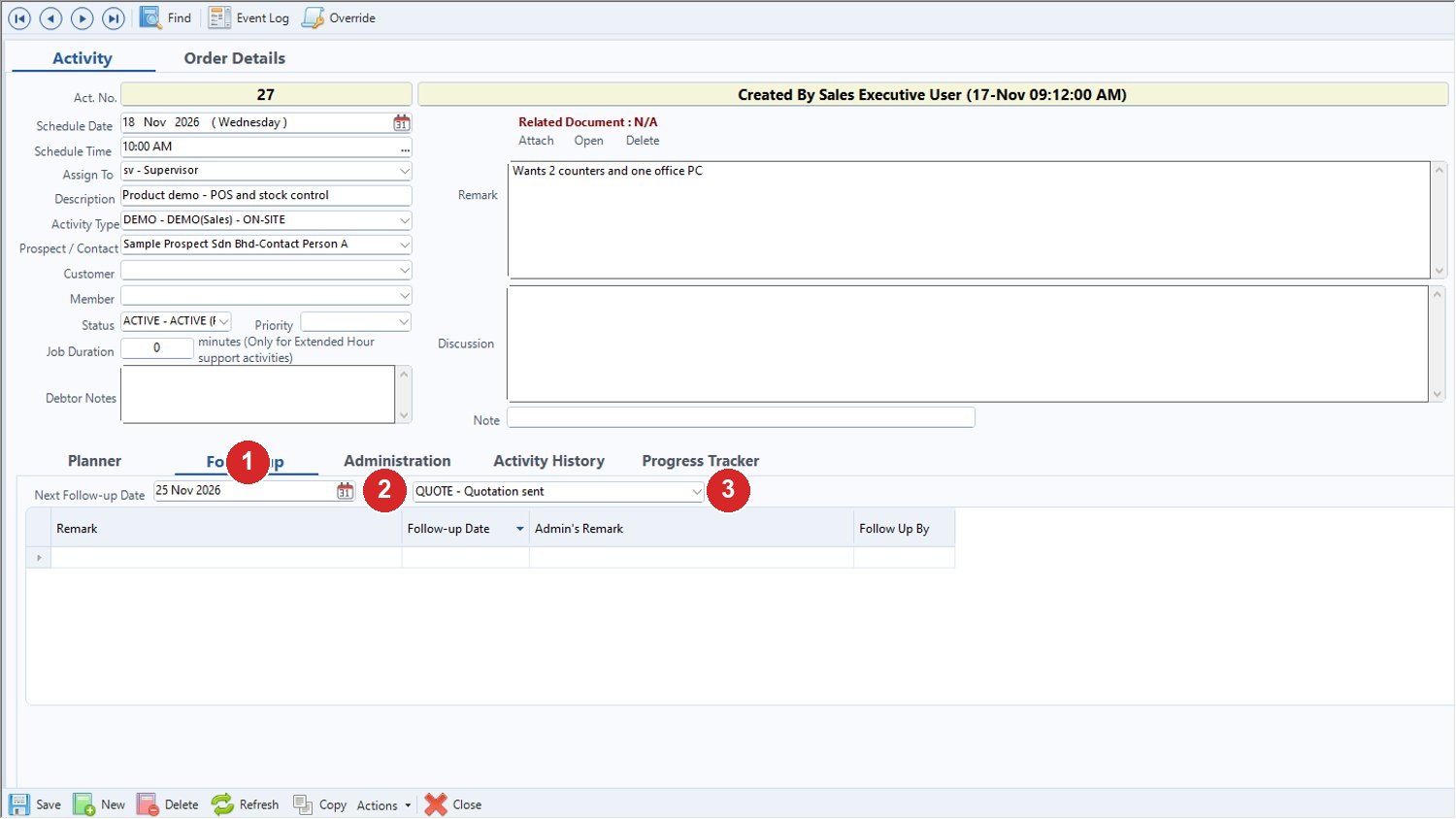
| Step | What to do |
|---|---|
| 1 | Follow-up tab. |
| 2 | Next Follow-up Date (here 25 Nov 2026). |
| 3 | Stage (required once a follow-up date is set; here QUOTE – Quotation sent). Save. |
5. Search the activities
Go to Main > CRM > Activities Query. Double-click a row to open the activity.
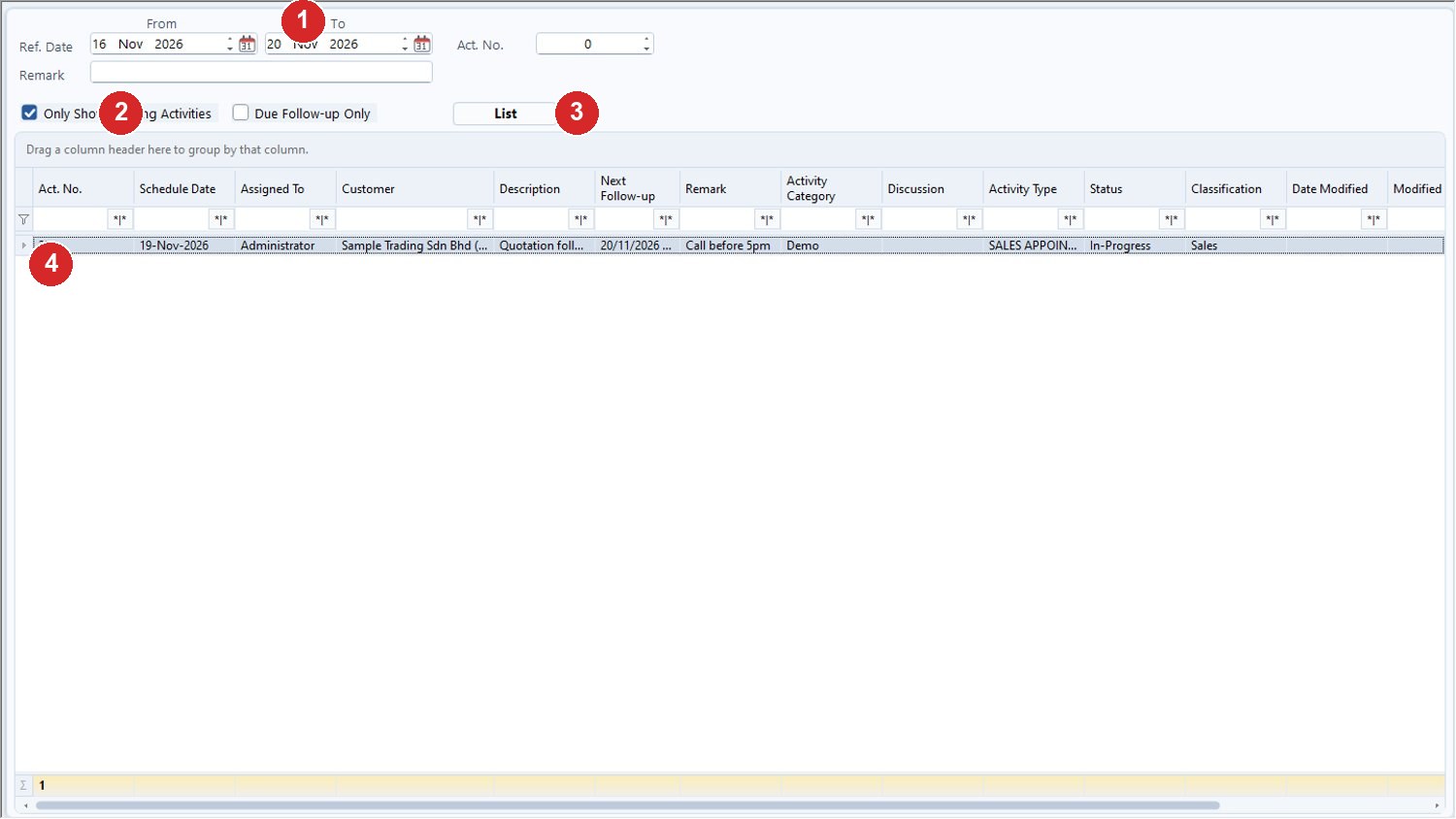
| Step | What to do |
|---|---|
| 1 | Ref. Date From and To, Act. No. or Remark. |
| 2 | Only Show Pending Activities and Due Follow-up Only. |
| 3 | Click List. |
| 4 | Double-click a row to open the activity. |
Tips
- The Tel check only covers contacts that have a mobile number. If you are not an administrator, it only covers contacts you added yourself.
- The Tel box tidies the number: hyphens, spaces and plus signs are removed, and a 0 is put in front if it does not start with 0 or 6.
- Activity Type changes which Status values you can pick. If your current status no longer fits, it is cleared, so change the Activity Type first and then pick the status.
- Progress Tracker tab: Start Progress starts a timer once the record has been saved. Changes made there are saved instantly.
- The Planner tab inside an activity shows a week of work. Double-click a day cell to fill in Assign To and Schedule Date automatically.
- Activities Query starts with From and To both set to today, so older activities do not appear until you widen the dates.
Common problems
It said OK, but the number already exists.
You may not be an administrator and the other contact was added by someone else, the contact may have no mobile number, or the list was loaded before it was added. Type the number starting with 60 and reopen the screen.
I cannot save the contact.
Check that both Company Name and Contact Name are filled in. The messages [Company Name] is required. and [Contact Name] is required. tell you which one is missing.
The address copy choices are missing.
A choice is hidden when the address it would copy from is empty. Fill in the other address first.
The Business Type or Source I need is not in the list.
It has to be added to that list first. For Business Type, click the caption to open its list.
[Stage] is required, or [Contact] / [Customer] / [Member] is required.
Fill in the field named in the message before saving.
Invalid [Status] selected
Pick a status that suits the Activity Type.
After Training New Customer, You must make Follow-Up call to customer before closing issue…
A Training activity cannot be set to Done until at least one follow-up is recorded on the Follow-up tab.
Please save record first.
Save the record before you print it or click Start Progress.
The Activities Query list is empty.
Widen the From and To dates, untick Only Show Pending Activities and Due Follow-up Only, and clear the Remark box. Click List again.