
This guide shows how to see which sales and referral follow-ups are due, plan activities on the weekly Planner, and watch the team on the Operation Dashboard.
Before you start
- Rows in the follow-up lists are colour-coded by how many days the follow-up is due, so late items stand out.
Steps
1. Open Sales Follow-Up
Go to Main > CRM > Sales Follow-up.
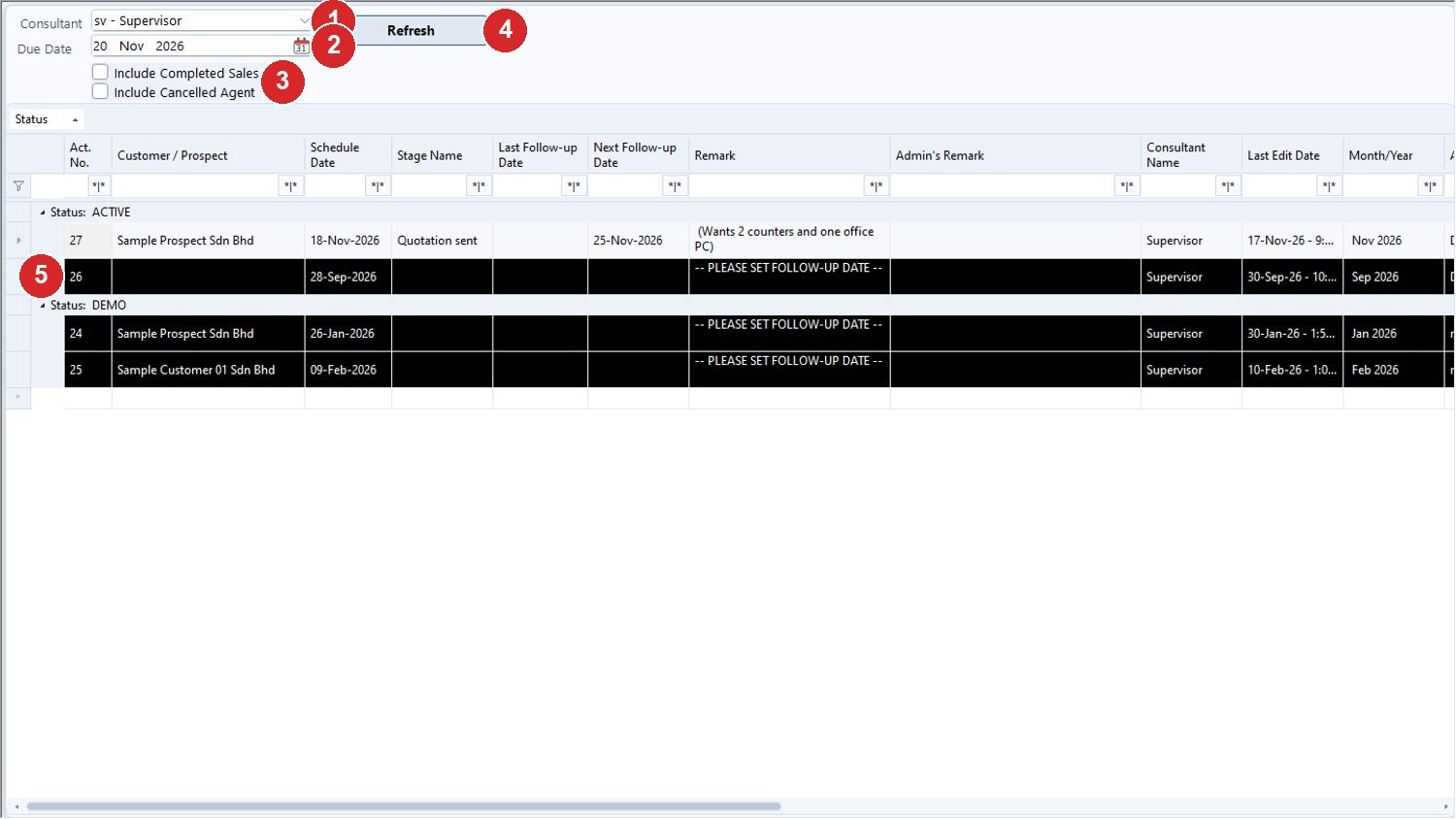
| Step | What to do |
|---|---|
| 1 | Consultant: one person’s follow-ups (here sv – Supervisor). |
| 2 | Due Date (today). |
| 3 | Include Completed Sales / Include Cancelled Agent. |
| 4 | Click Refresh. |
| 5 | A black row means no follow-up date is set yet (– PLEASE SET FOLLOW-UP DATE –). Rows are grouped by status. |
2. Open Referral Follow-Up
Go to Main > CRM > Referral Follow-up. Due Date is today and Consultant is the user who is logged in. Change the Consultant to see another person’s referrals, and click Refresh. Tick Include Inactive Agent and click Refresh to include inactive agents.
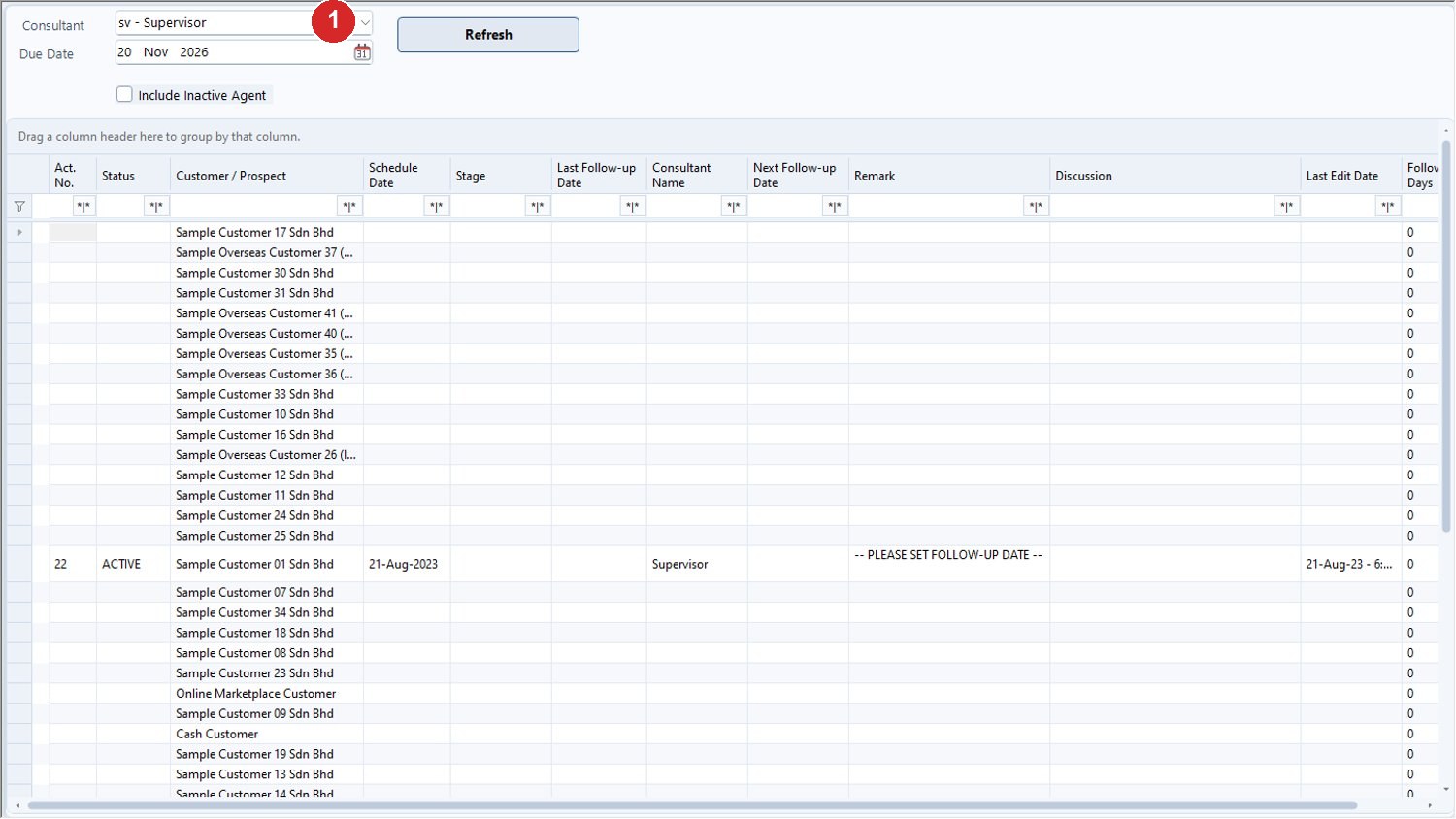
| Step | What to do |
|---|---|
| 1 | Consultant (starts as you), Due Date, then Refresh. Double-click a main row to open or start its activity. |
3. Open the Planner
Go to Main > CRM > Planner. It shows one week, Monday to Sunday, one row per staff member.
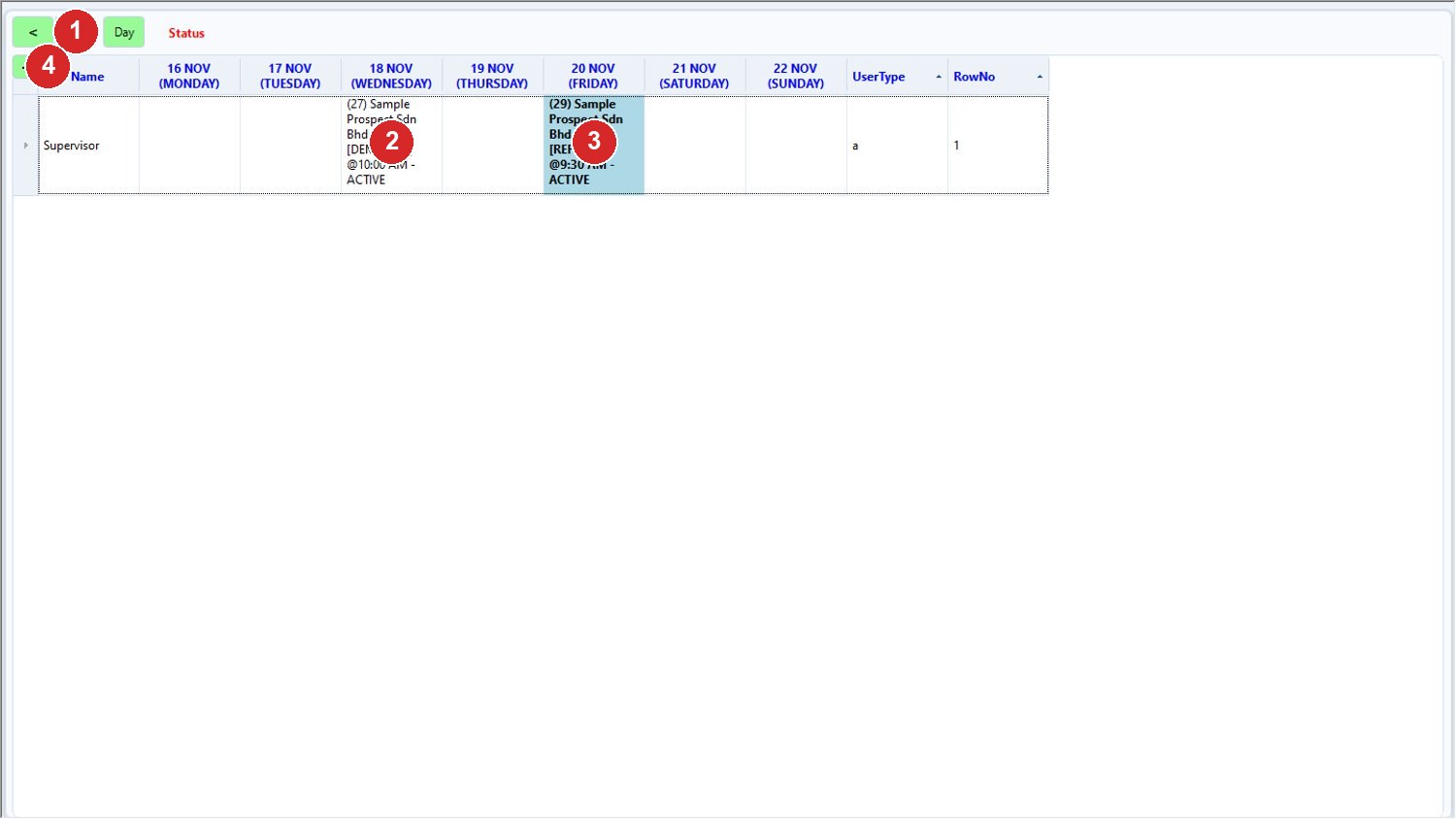
| Step | What to do |
|---|---|
| 1 | < and > move a week; Day shows only one weekday. |
| 2 | Each cell lists the activities of that staff member and day (here 27, the demo on Wednesday). |
| 3 | Double-click an activity to open it, or an empty cell to start a new one for that person and day (here 29, the referral today). |
| 4 | – and + make the day columns narrower or wider. |
4. Open the Operation Dashboard
Go to Main > CRM > Operation Dashboard. Date is today. Click Refresh to load the four panels: Chat Server User, Pending Task, Unhandled Issues and Progress. After the first Refresh, it refreshes itself every 3 minutes.
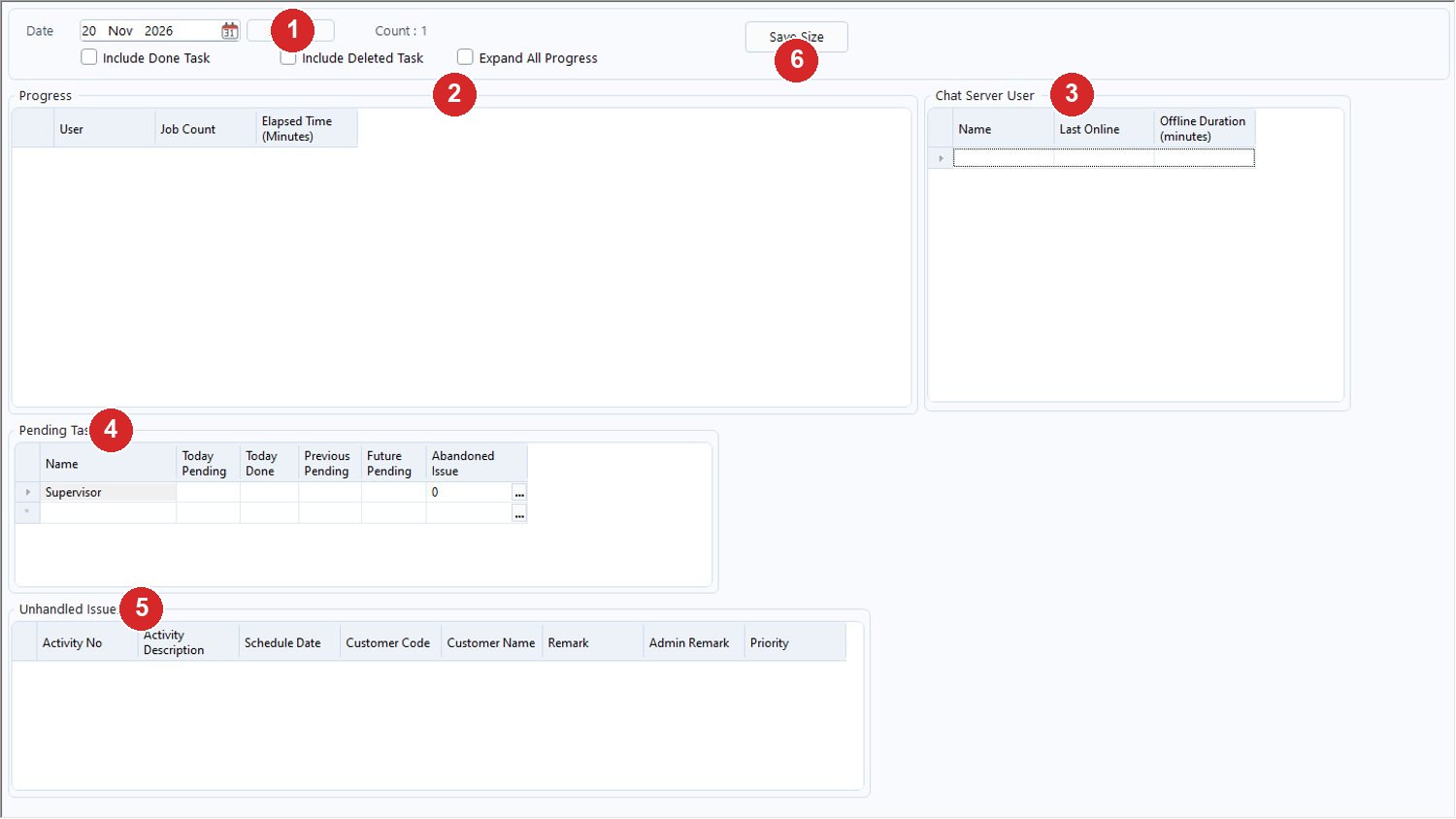
| Step | What to do |
|---|---|
| 1 | Date, then Refresh. |
| 2 | Progress: jobs and elapsed time per user. |
| 3 | Chat Server User. |
| 4 | Pending Task: today pending/done, previous and future pending, abandoned issues. |
| 5 | Unhandled Issues. |
| 6 | Include Done Task / Include Deleted Task / Expand All Progress; Save Size keeps the panel sizes. |
Tips
- On the Referral Follow-Up screen, the list also reloads by itself when you leave the Consultant box after choosing a different valid consultant.
- Planner entries containing [MC], [AL] or [PH( are shown in grey and bold, entries containing Demo in beige and bold, and N-Training entries in pale green and bold.
- The Planner updates itself when another user adds or changes an activity. The Status label then shows Updated.
- On the Operation Dashboard, a Chat Server User row turns red when that user has been idle for more than 10 minutes.
- Panel sizes saved with Save Size are kept for each user, so everyone has their own layout.
- The Planner colours come from the word-and-colour list in the CRM system settings.
Common problems
The follow-up list is empty.
Click Refresh. Check the Consultant, the Due Date and the Include boxes.
A Group or Text Field column is missing in Sales Follow-Up.
That column has no custom name set for contacts in your company, so it is hidden.
[Consultant] is required.
Pick a consultant from the list, then click Refresh.
Drill-down not allowed on sub-row. Please double-click on Master row.
Double-click the main referral row instead of the lines nested under it.
Double-clicking does nothing.
Make sure you clicked a data row, not a header or group row. In the Planner, double-clicking only works in the day columns. An entry containing Demo may not open if your user is restricted from opening Demo entries.
Only one day is showing in the Planner.
Click Day and close the list without choosing a day to show all seven.
The Planner week looks empty or does not refresh.
Close and reopen the Planner.
The Operation Dashboard data looks old.
It updates only when you click Refresh or when the 3-minute timer runs. The timer does not start until you click Refresh once.
My panel layout was lost.
Click Save Size after resizing. Resizing alone is not saved.