
This guide shows how to keep a list of holiday dates for CRM, and how to set the planner colours and the ready-made reply and ticket texts in the CRM System Setting screen.
Before you start
- Holidays are kept one year at a time. Choose the year before you add a holiday.
- Nothing is saved until you click Save.
Steps
1. Open the Holiday screen
Go to Main > CRM > Sub Masterfile > Holiday Setup. The screen starts on the current year and lists the holidays already saved for that year.
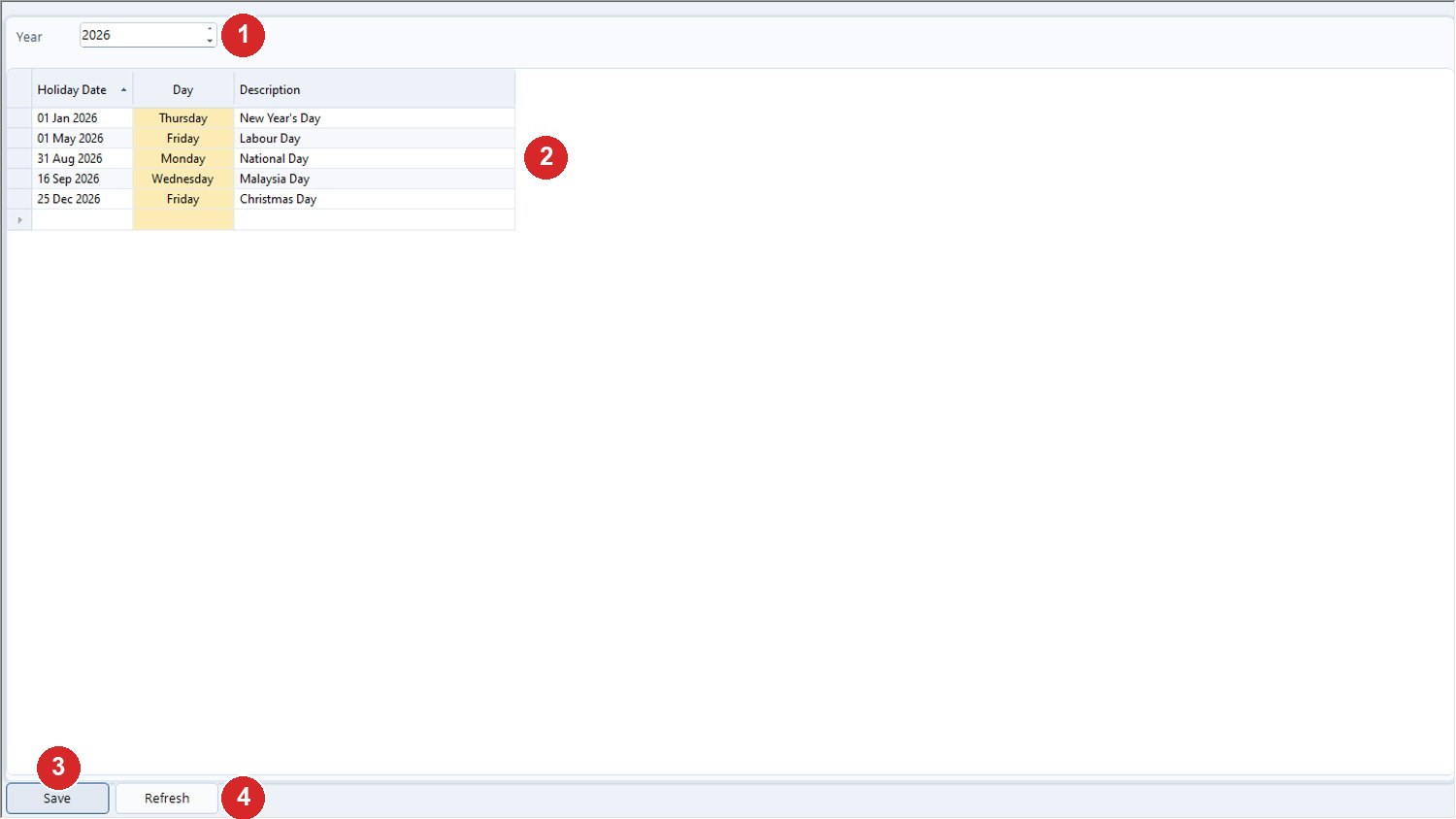
| Step | What to do |
|---|---|
| 1 | Year: changing it reloads the list (save first). |
| 2 | One row per holiday: Holiday Date and Description (Day fills in). Delete a row to remove it. |
| 3 | Click Save; a message tells how many rows were saved. |
| 4 | Refresh reloads the list. |
2. Open CRM System Setting
Go to Main > CRM > System Settings (CRM). The saved settings load automatically. The three tabs are Planner Color, Support Message and Internal Support Ticket.
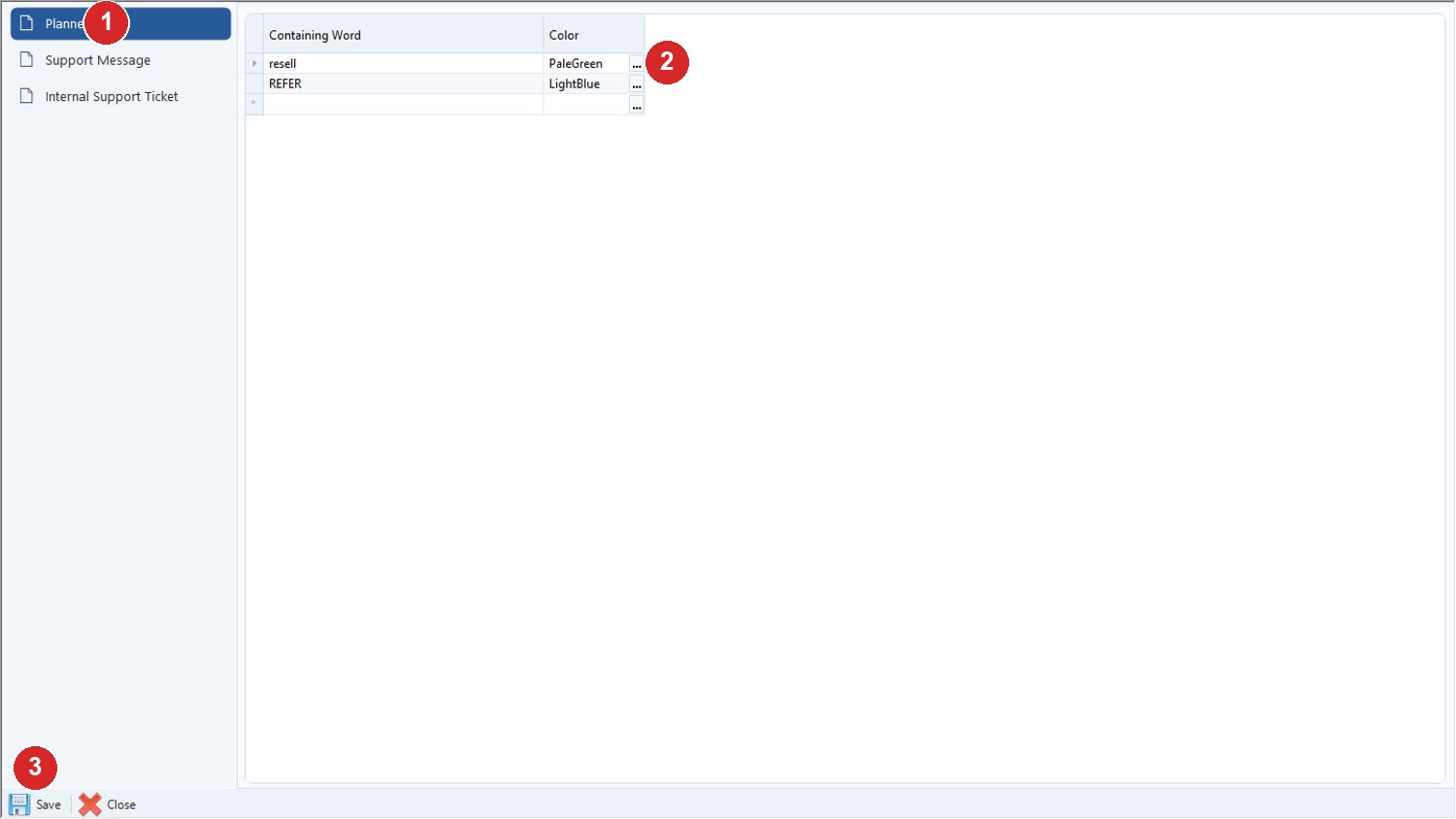
| Step | What to do |
|---|---|
| 1 | Tabs: Planner Color, Support Message and Internal Support Ticket. |
| 2 | Planner Color: a planner cell containing the word is shown in that colour (here resell = PaleGreen, REFER = LightBlue). |
| 3 | Save: all three tabs are saved together (Settings saved.). |
3. Set the reply and ticket texts
On the Support Message tab, type the text that the Generate Customer Reply Text button copies on the CRM Activity screen. On the Internal Support Ticket tab, type the text for the Generate Support Ticket Text button. You can use
Tips
- When you type a date in a holiday row, its year is changed to the year in the Year box (for years 2001 to 2999). The month and day stay the same.
- Rows with no date are skipped when you save, with no message.
- If a text box is empty, a standard message is copied instead when you use the button on the Activity screen.
- Colour rows need both a word and a colour. A row with one of them blank is dropped when you save.
Common problems
I typed a date in 2025 but it saved as 2024.
The year of the date follows the Year box. Change Year first, then add the holiday.
My new holiday disappeared after I changed the year.
Changing the year reloads the saved list. Click Save before you change the year.
I see No changes made when I click Save.
No row was added, changed or deleted. Make your change, then click Save.
A colour row disappeared after saving.
It had an empty word or an empty colour. Fill in both.
I cleared a text box and the old text came back.
Click Save after clearing. Moving between tabs does not save anything on its own.