
This guide shows how to key decimal quantities such as 0.5 or 9.7 kg, sell by weight, and control how many decimals show for quantity and unit price. Decimals are controlled in more than one place, so check each one.
Before you start
- Know which items are sold by weight or measure.
- If you use a weighing scale, know the scale brand and model.
- Know the item code on your scale, as it must match the Synergy item code (up to 5 digits).
Steps
1. Enable decimals in General Setting
In General Setting, enable decimals. You can choose 1 or 2 decimals.
2. Set the decimals for the whole system
Go to Inventory Management > Settings > System Settings (Inventory Management).
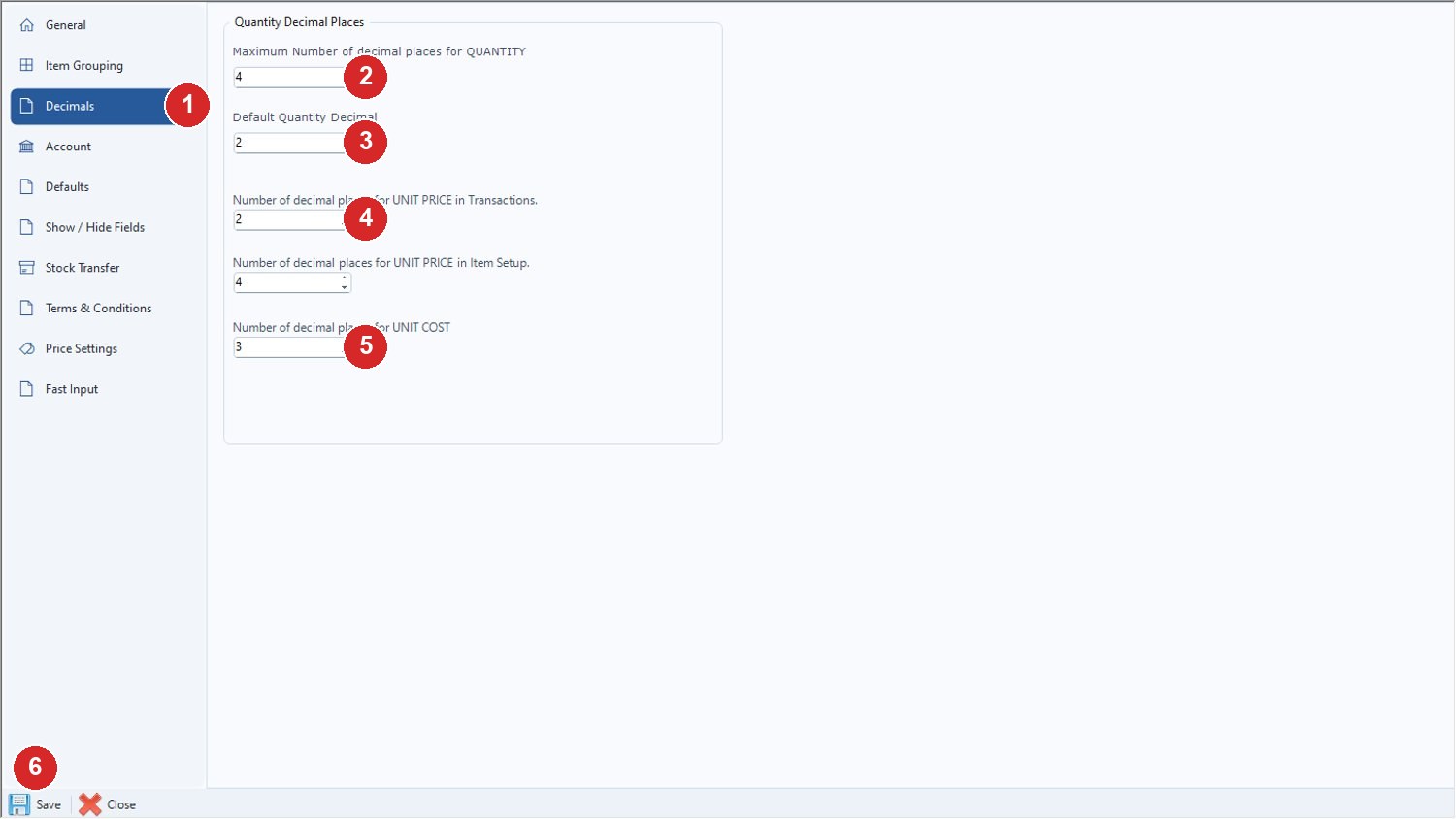
| Step | What to do |
|---|---|
| 1 | Open the Decimals tab. |
| 2 | Maximum Number of decimal places for QUANTITY (here 4). |
| 3 | Default Quantity Decimal for new items (here 2). |
| 4 | Decimal places for UNIT PRICE in Transactions and in Item Setup, if you need to change them. |
| 5 | Number of decimal places for UNIT COST. |
| 6 | Click Save. |
3. Set decimals on each item
Open the Item Masterfile and do this item by item for the affected items.
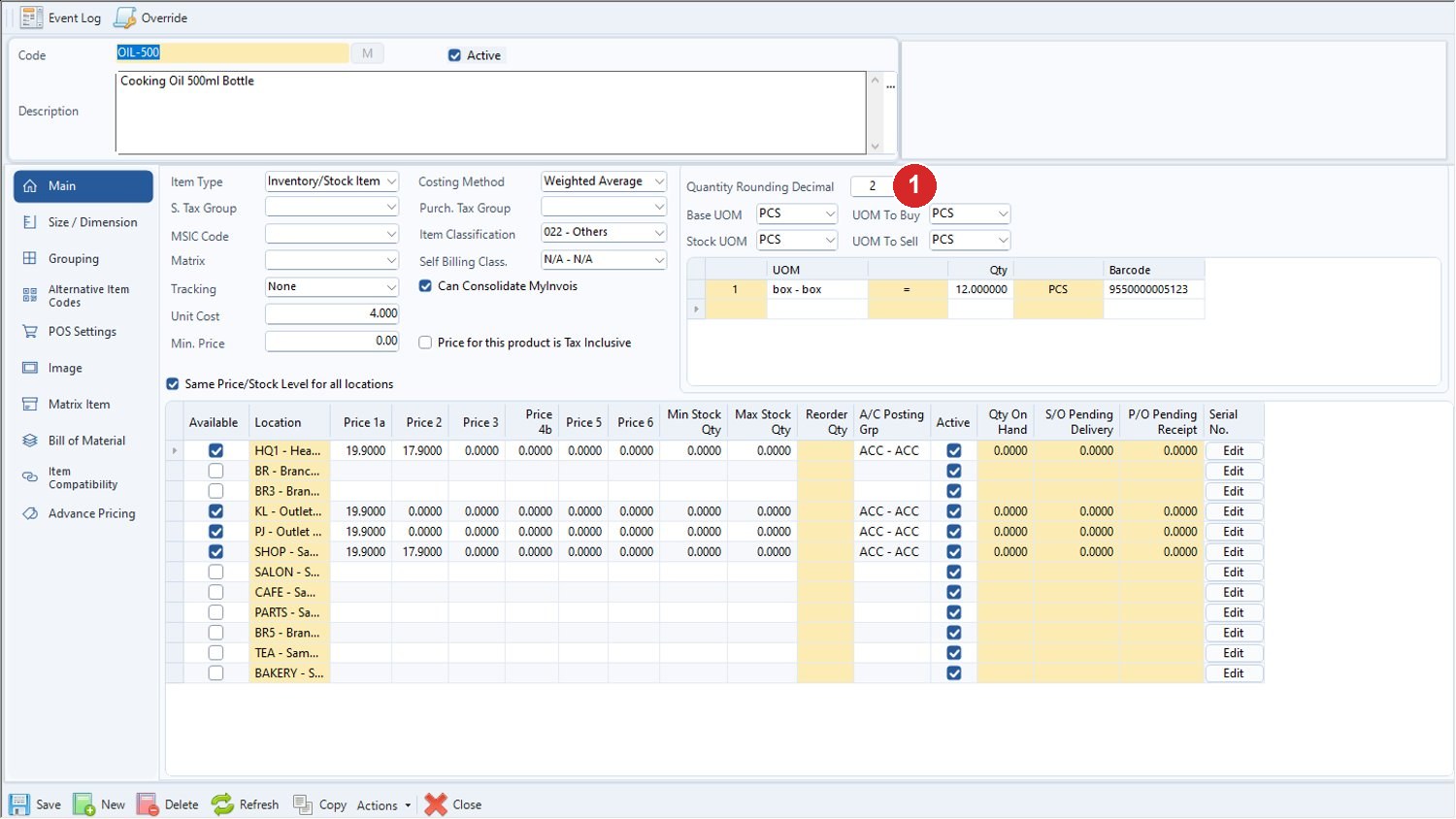
| Step | What to do |
|---|---|
| 1 | Quantity Rounding Decimal: how many decimals this item’s quantity may have (for an item sold by weight, 3). |
4. Set up selling by weight
Create a service item priced per KG, with quantity decimals set to 3. When selling, key the weight as the quantity, for example 1.234.
5. Match your scale item codes
If you use a weighing scale, the scale item code must match the Synergy item code (up to 5 digits). The scale barcode carries the code and price. POS works out the quantity and deducts stock.
6. Get help with your scale
For a Rongta scale, contact Synergy support. They send a PLU guide and template and install the PLU software on your Synergy PC. For other scale brands, please also ask Synergy support.
Tips
- Decimals must be set in both places: the system setting and on each item.
- The unit price decimal setting applies to all items.
- A price with 3 decimals for one item only (such as 0.035) was said not to be possible.
- The final amount stays at 2 decimals.
- If a scale code differs from the Synergy item code, the scale will not work correctly.
Common problems
Quantity 9.7 becomes 97, or decimals are rejected for kg items.
Check that decimals are enabled in General Setting and in the Decimals tab. Then open the Item Masterfile and set Quantity Rounding Decimal for that item.
Cannot key 0.5 as a quantity.
Enable decimals in General Setting and also allow decimals on the item. Both must be set.
Unit price shows 4 decimals instead of 2.
Go to the Decimals tab in System Settings (Inventory Management) and change the unit price decimals.
Scale barcode does not work.
Check that the scale item code matches the Synergy item code. If it still fails, contact Synergy support with your scale model ready.