
This guide shows how to give a discount or record FOC goods on an invoice, set special prices for members, stop selling below the minimum price, check a discount given by staff, and understand the Error column when importing advance pricing from Excel.
Before you start
- Know which document you are working on (sales invoice or purchase invoice).
- Know whether the discount is on one line or on the whole document.
- For member prices, have the item and member ID ready.
- To check a staff discount, know the date and roughly what time the sale happened.
- Before importing a large price file, take a backup of the database.
Steps
1. Give a discount on a document
Use the discount boxes at the bottom of the document (here invoice SA2-2610-002), not a discount on every row. The discount is spread over all the item lines.
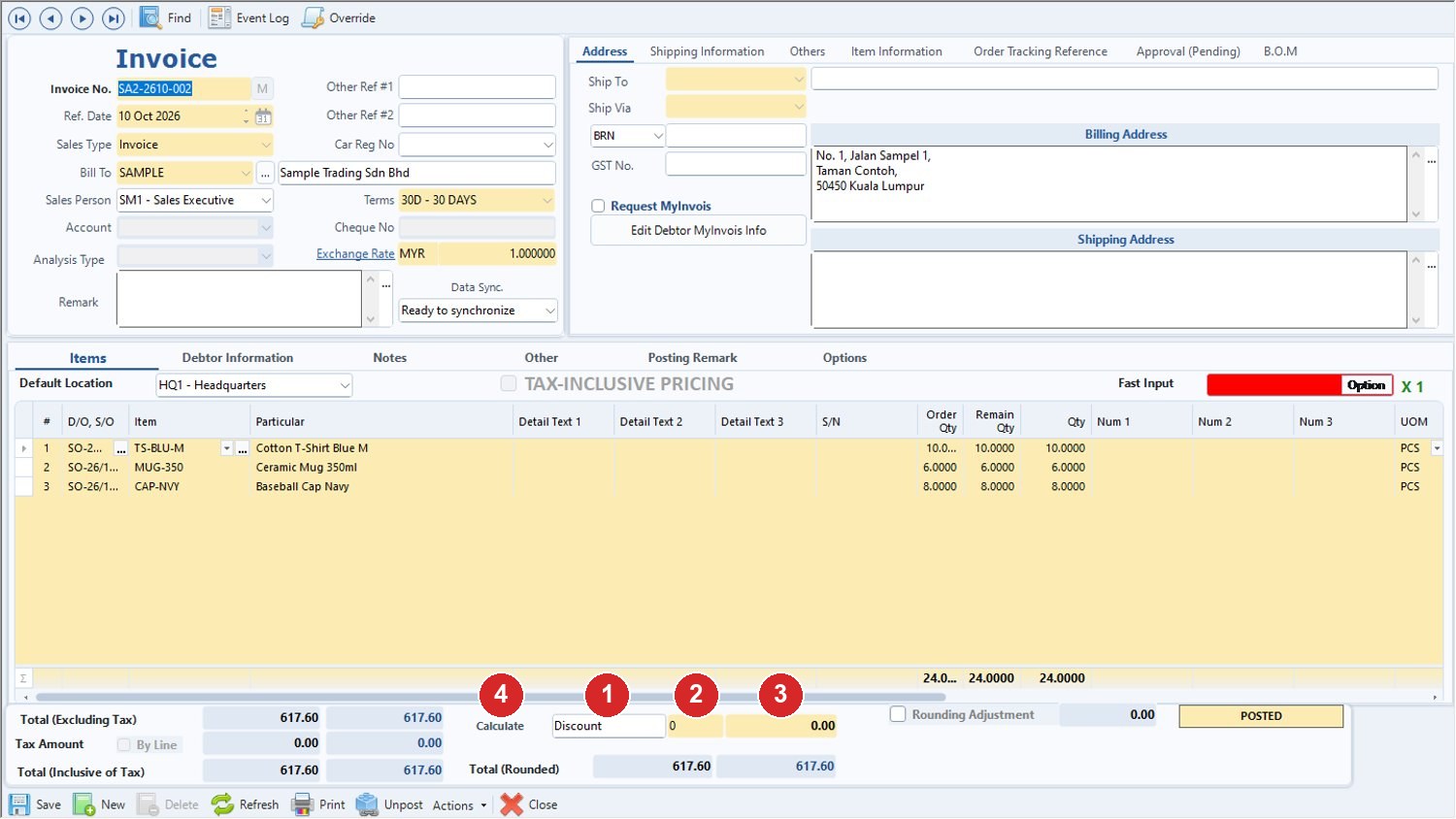
| Step | What to do |
|---|---|
| 1 | The description printed for the discount (Discount). |
| 2 | Discount %, or |
| 3 | the discount amount. The other box is worked out for you. |
| 4 | Click Calculate to spread it over the items again after you change the lines. |
2. Give an overall fixed discount
Create an item named DISCOUNT. Add it to the invoice with a negative amount. This gives an overall discount without changing item prices.
3. Record FOC on a Purchase Invoice
Choose the item and the quantity. Put the total amount as 0.00 and write FOC as the remark. The cost posting then lowers the average cost.
4. Delete a row
Press ESC, select the row, then press DEL.
5. Set prices in the Item Masterfile
Prices are set in the Item Masterfile (here TS-BLU-M, Cotton T-Shirt Blue M).
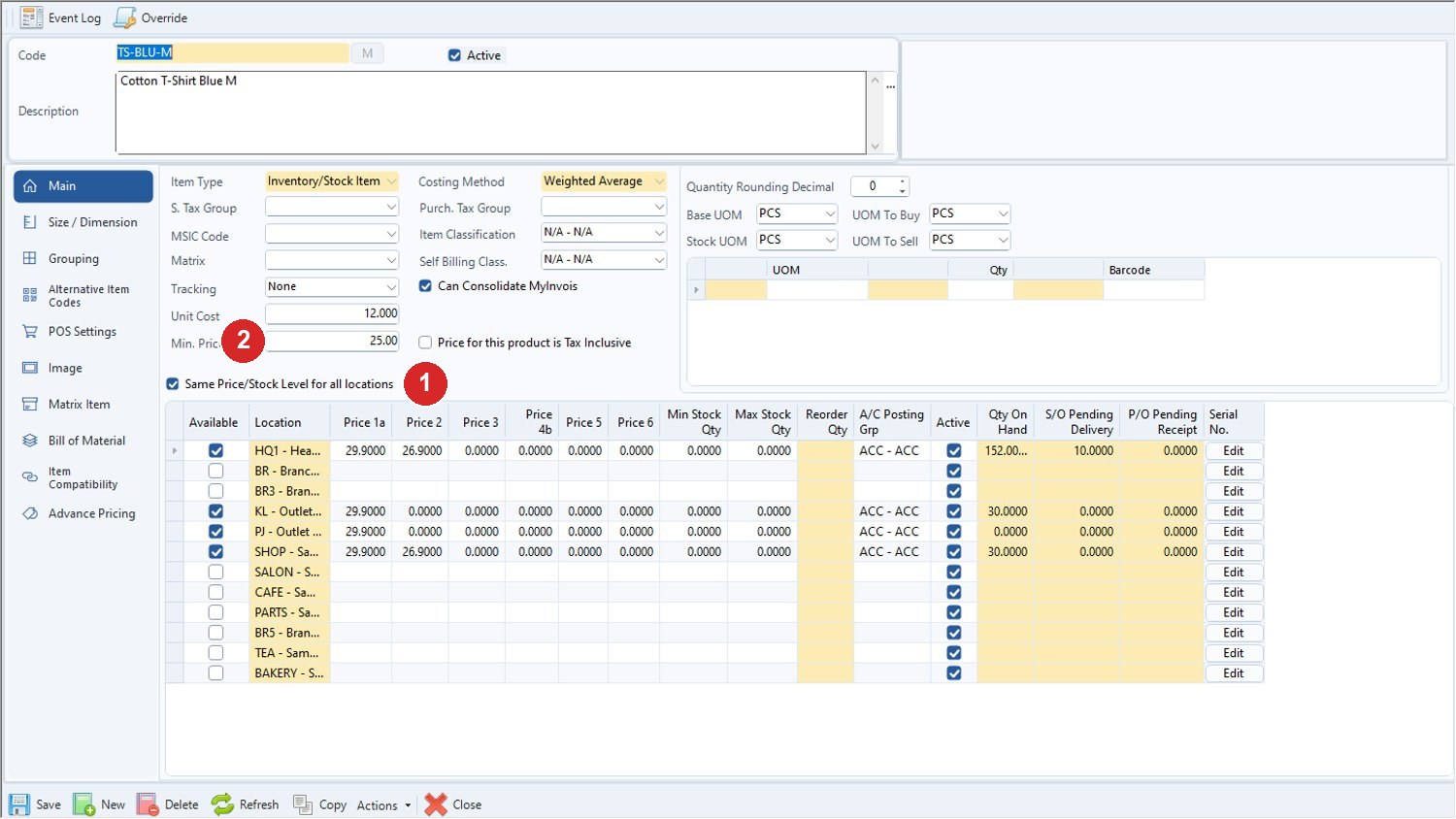
| Step | What to do |
|---|---|
| 1 | Set Price 1 to 6 for each location (here 29.90 and 26.90). Your company may have renamed these columns. |
| 2 | Set Min. Price if needed (here 25.00). This is the lowest price allowed. Click Save. |
6. Set the member price group
Set the basic price group for each member or group. The Member ID can be the phone number.
7. Run a promotion for one member type only
Set the same Advance Price Type on the Member and in Promotion Pricing. Only members with that type get the price.
8. Stop selling below the minimum price
Go to Point of Sale > Point of Sale Setup > Point of Sale Settings and open the Permission tab. Set Sell Below Min Price to Allowed, Not Allowed or Allowed With Permission.
9. Check a discount given by staff
Go to Point of Sale > Query > Daily Sales (Detail). Enter the date. Check the time of the sale to find the sale concerned.
10. Prepare the Excel file for advance pricing import
Leave the Error column empty in the Excel file you prepare. The system fills it in only when a row has a problem.
11. Fix problem rows before importing
Read the message in the Error column and correct that row. Fix every red row first, then select the corrected Excel file again.
12. Press Import
Press Import only when no red rows are left. Import writes the prices into your items.
Tips
- Discounts are not automatic. Enter them in the discount field or use the DISCOUNT item.
- If a member does not get the promotion price, check that the Member and Promotion Pricing use the same Advance Price Type.
- Also check that the item’s price levels are filled in and the member’s price group is set.
- Import always says “Data import completed”, even if some rows failed. That is why you must fix red rows first.
- There is no undo button for imported prices. They can only be changed or deleted afterwards in the batch list.
- Take a backup of the database before importing a large price file.
Common problems
A member does not get the special price.
Check that the item has its price levels filled in, the member’s price group is set, and the Member and Promotion Pricing use the same Advance Price Type.
The Error column has a message after I choose my Excel file.
That row has a problem. Read the message, correct the row in Excel, and select the file again. Do not press Import until no red rows are left.
Discount is not automatic or you need help with a client discount.
Contact Synergy support. Have the document number ready.
Questions about membership or member-ID readers.
Contact Synergy support. Have the item and member ID ready.
You cannot find the sale where staff gave a discount.
Contact Synergy support. Note the date and the item concerned.
The Excel import error will not clear.
Contact Synergy support. Have the Excel file and a screenshot of the error ready.