
This guide shows how to decide what happens when a sales document breaks a stock or credit rule, whether larger quantities than the earlier document are allowed, and how many approvals each document needs.
Before you start
- You need permission to open the sales and purchases System Settings.
- Decide for each rule whether you want No Action, a warning, or a block.
Steps
1. Open Misc. Control Settings
Go to Sales and Purchases > Settings > System Settings.
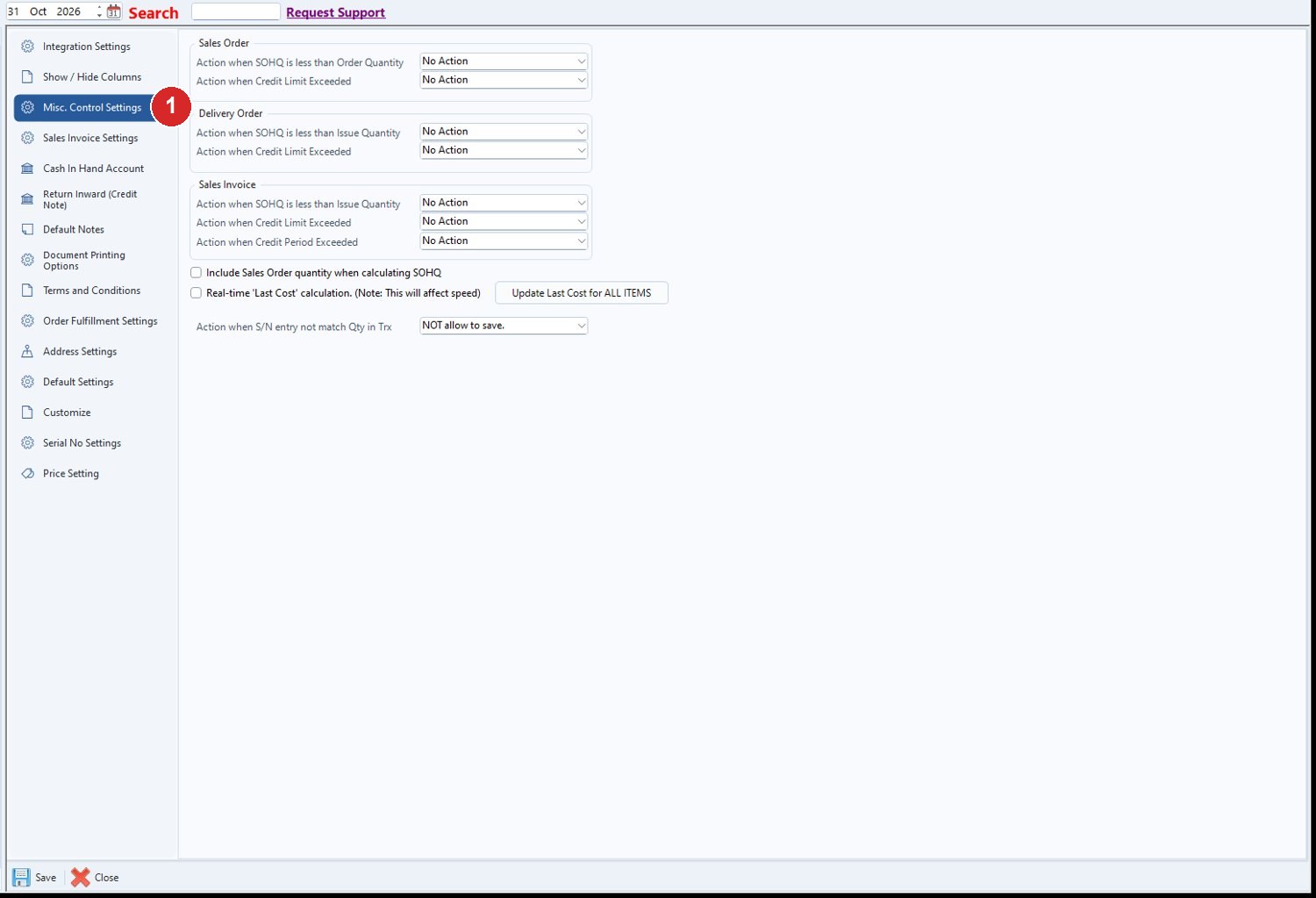
| Step | What to do |
|---|---|
| 1 | Open the Misc. Control Settings tab. |
2. Set the Sales Order rules
In the Sales Order group, choose the action for Action when SOHQ is less than Order Quantity and Action when Credit Limit Exceeded.
3. Set the Delivery Order rules
In the Delivery Order group, choose the action for Action when SOHQ is less than Issue Quantity and Action when Credit Limit Exceeded.
4. Set the Sales Invoice rules
In the Sales Invoice group, choose the action for Action when SOHQ is less than Issue Quantity, Action when Credit Limit Exceeded and Action when Credit Period Exceeded. Each box offers No Action, Warn but allow to save. or NOT allow to save.
5. Set the other options
Tick Include Sales Order quantity when calculating SOHQ if pending sales orders should count in stock on hand. Choose Action when S/N entry not match Qty in Trx. Then click Save.
6. Open Order Fulfillment Settings
In System Settings.
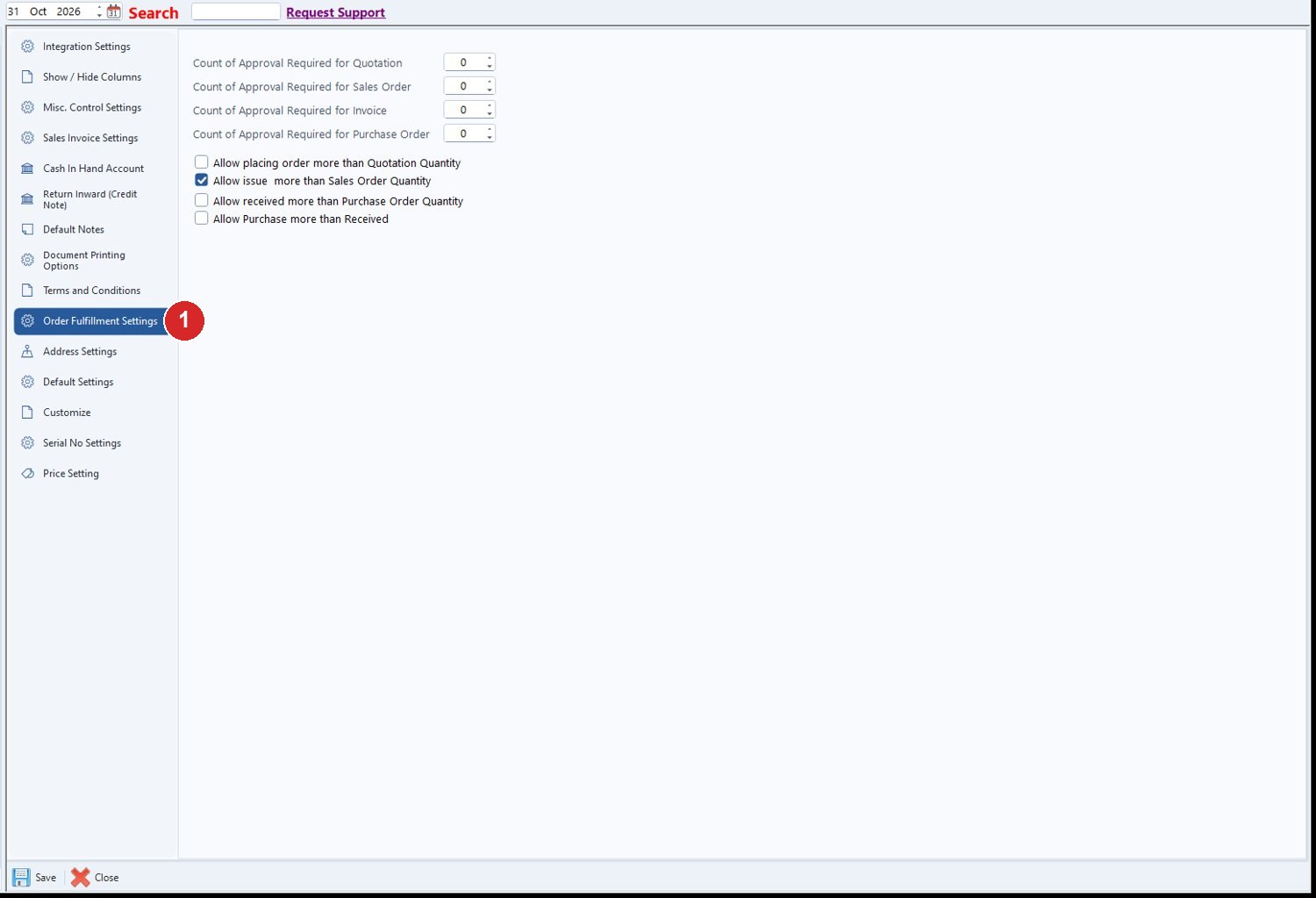
| Step | What to do |
|---|---|
| 1 | Open the Order Fulfillment Settings tab. |
7. Allow larger quantities if you want
Tick the cases you allow: Allow received more than Purchase Order Quantity, Allow issue more than Sales Order Quantity, Allow placing order more than Quotation Quantity, Allow Purchase more than Received.
8. Set the approval counts
Enter Count of Approval Required for Quotation, Invoice, Purchase Order and Sales Order. Leave 0 for a document that needs no approval.
9. Save the settings
Click Save.
Tips
- If nothing has been saved: Sales Order = stock rule No Action and credit limit Warn; Delivery Order = stock rule Warn and credit limit No Action; Sales Invoice = all three Warn; S/N check = Warn. All Order Fulfillment tick boxes are unticked and the approval counts are 0.
- Real-time ‘Last Cost’ calculation. (Note: This will affect speed) slows the program down, so tick it only if you need it.
- The button Update Last Cost for ALL ITEMS shows Processing… while it works and the message Done. when it finishes.
- To see what these settings do on an invoice, see the guide Sales Invoice: Items Tab and Item Info.
Common problems
A document cannot be saved because of a stock or credit rule
The action for that rule is set to NOT allow to save. Ask the person who manages your settings to change it to Warn but allow to save., or fix the quantity or credit problem.
The stock on hand figure ignores pending sales orders
Tick Include Sales Order quantity when calculating SOHQ and save.