
This guide shows how to add your own tick box to the print options window of the sales and purchase documents, and how to choose which documents post automatically to the ledgers.
Before you start
- You need permission to open the sales and purchases System Settings.
- For the tick box, know the exact name of the formula in the report layout.
Steps
1. Set the custom print tick box
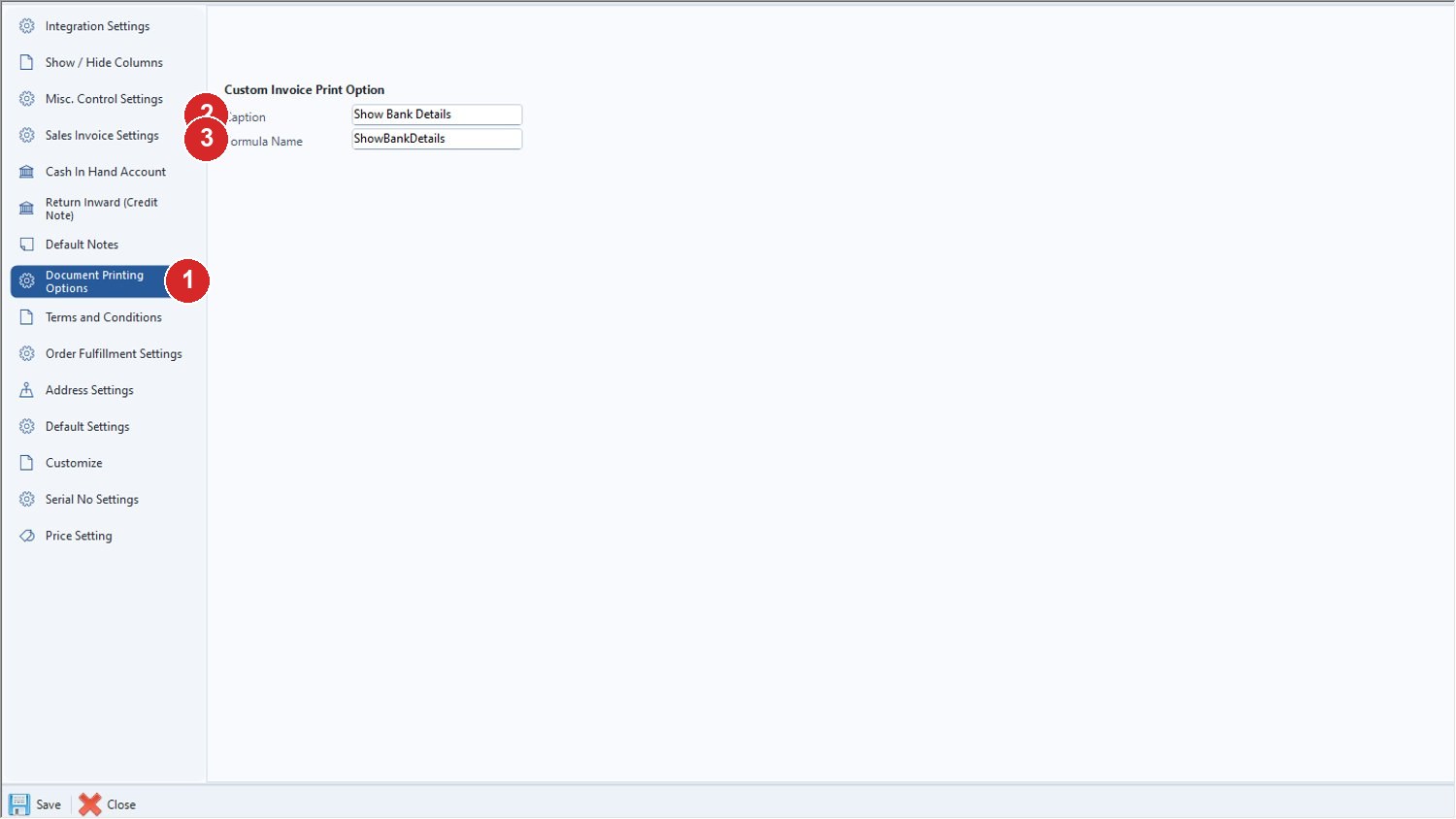
Go to Sales and Purchases > Settings > System Settings. If Caption is empty, no tick box is shown.
| Step | What to do |
|---|---|
| 1 | Open the Document Printing Options tab. |
| 2 | Caption: the text users see next to the tick box (here Show Bank Details). |
| 3 | Formula Name: type it exactly as it exists in the report layout (here ShowBankDetails). When the box is ticked, Y is passed to that formula; unticked passes N. |
2. Save and test
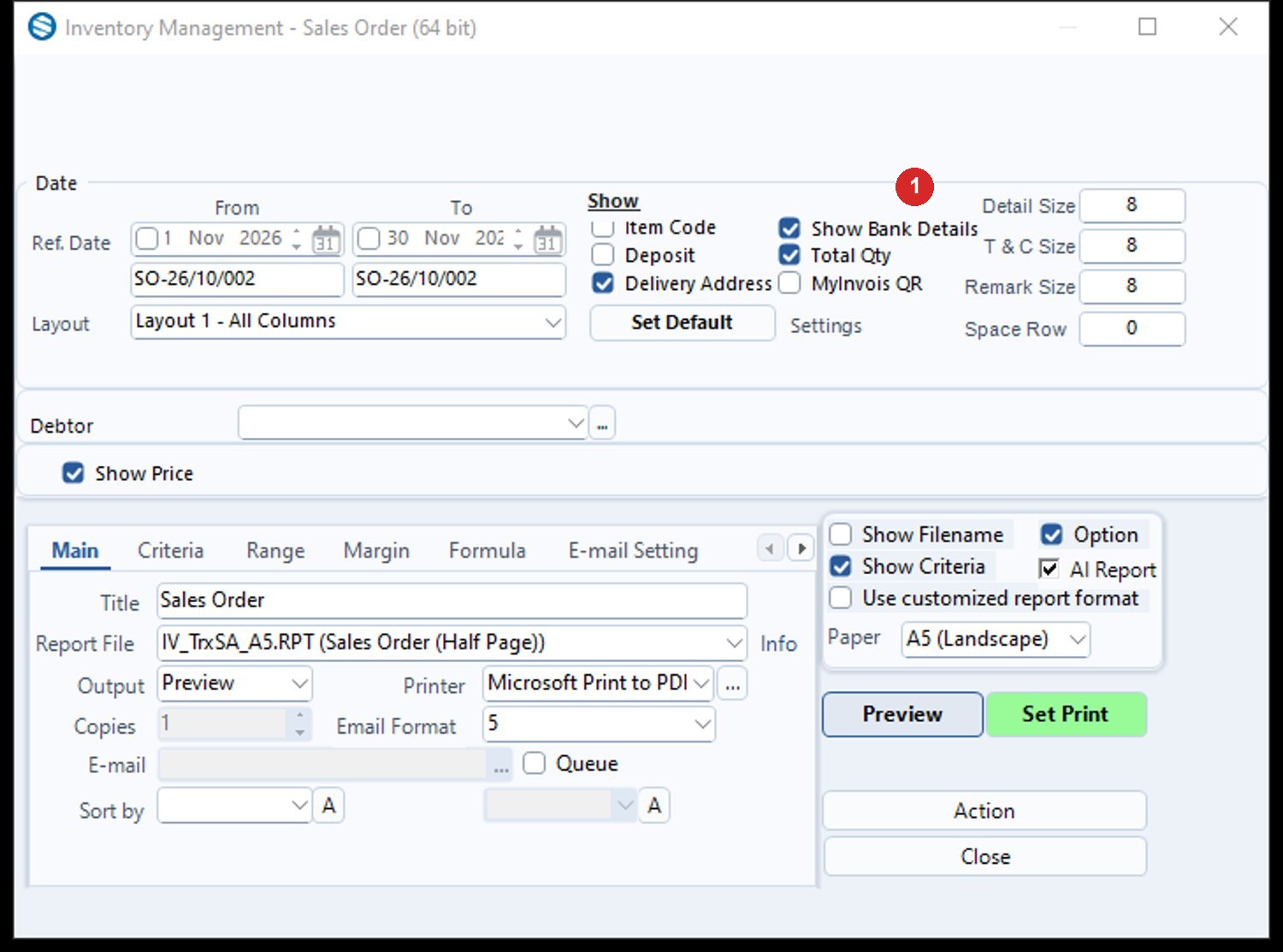
Click Save. Then open a sales or purchase document and click Print. The print options window shows the tick box with your caption (here on Sales Order SO-26/10/002).
| Step | What to do |
|---|---|
| 1 | Show Bank Details: tick it to print the extra part, untick it to leave it out. The choice is remembered for next time. |
3. Turn on automatic posting
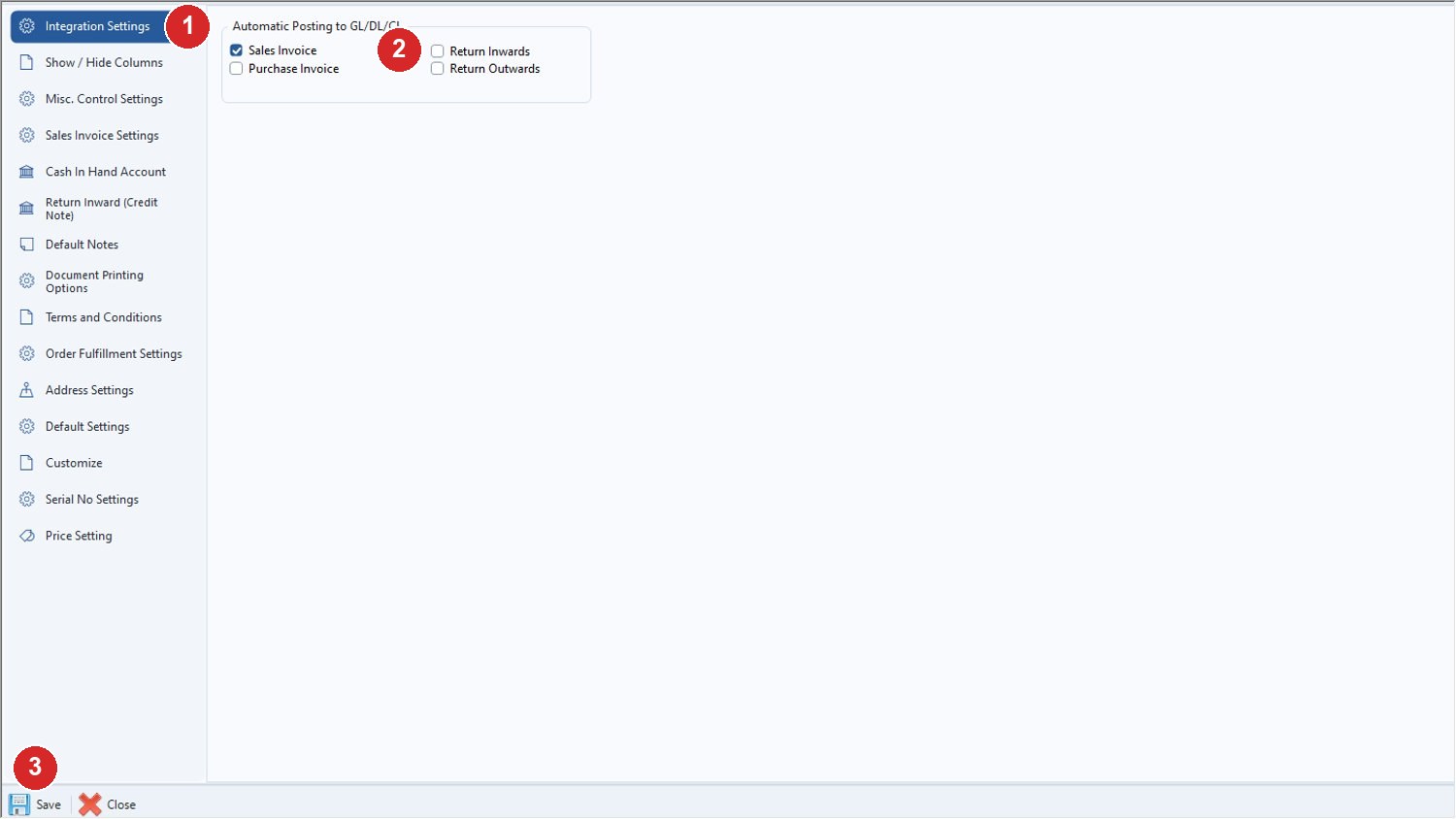
In the same System Settings, open the Integration Settings tab. Leave a document unticked if you do not want automatic posting for it; then it is posted with Transaction Posting.
| Step | What to do |
|---|---|
| 1 | Open the Integration Settings tab. |
| 2 | Automatic Posting to GL/DL/CL: tick Sales Invoice, Purchase Invoice, Return Inwards or Return Outwards (here Sales Invoice). |
| 3 | Click Save. |
Tips
- The formula is passed to the report with the value Y or N. If the report layout has no formula with that name, ticking the box changes nothing visible.
- To change the report layout see the guide Fixing a Printed Layout. To send or print documents see E-mail, WhatsApp and SMS for Documents.
Common problems
The tick box does not appear in the print options window
The Caption is empty. Type a Caption and save.
Ticking the box does nothing
Check that the Formula Name matches the name of the formula in the report layout.