
This guide shows how to set the terms and conditions and the extra text printed on your quotation, sales order, delivery order, sales invoice, debit note, return inward, purchase order, goods received note (GRN) and return outward.
Before you start
- Decide the wording you want on each document.
- You need permission to open the sales and purchases System Settings.
Steps
1. Open the settings
Go to Sales and Purchases > Settings > System Settings and open the Terms and Conditions tab.
2. Choose the document
Inside it.
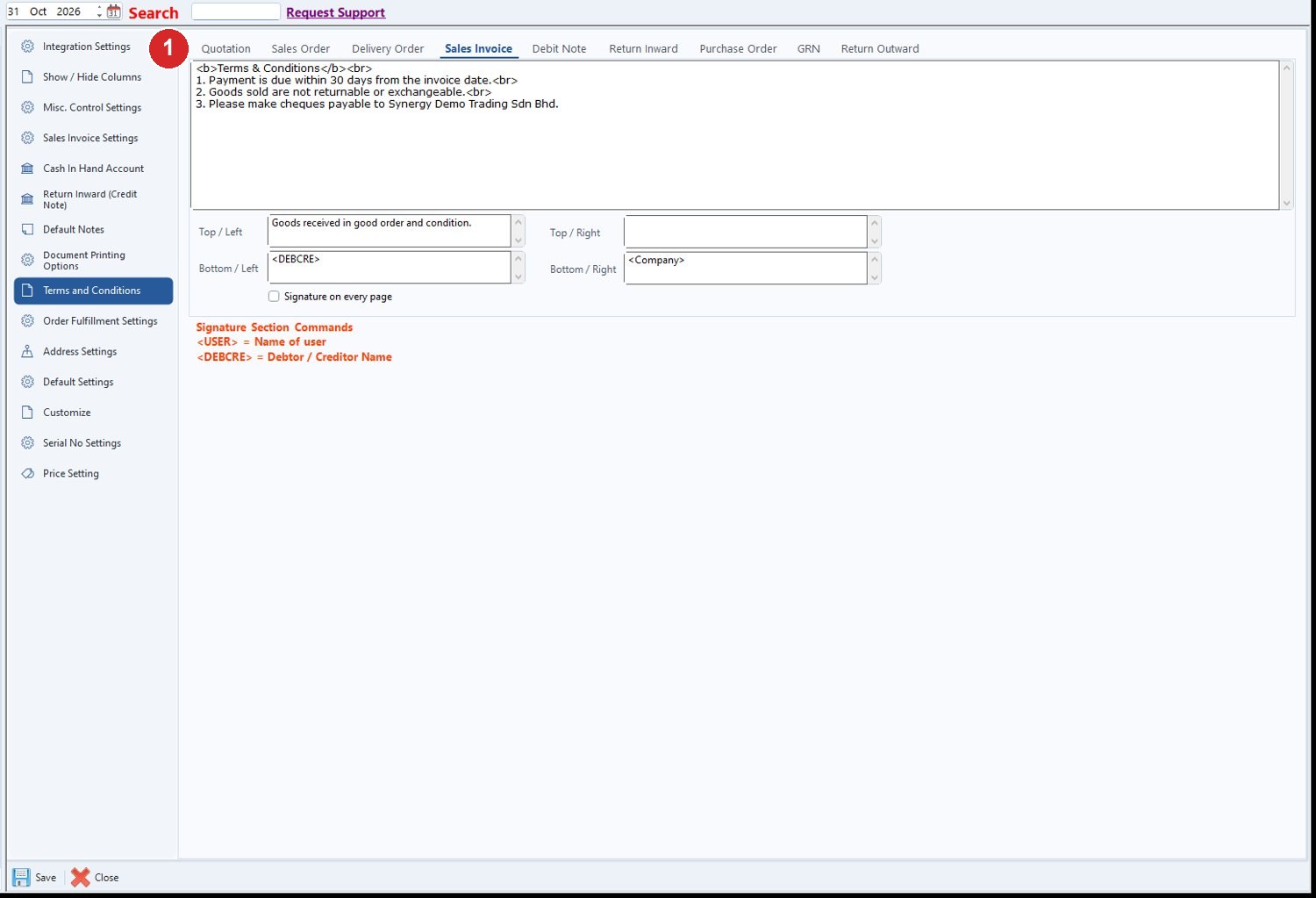
| Step | What to do |
|---|---|
| 1 | Choose the tab of the document: Quotation, Sales Order, Delivery Order, Sales Invoice, Debit Note, Return Inward, Purchase Order, GRN or Return Outward. |
3. Type the terms
Type the terms and conditions in the large Terms and Conditions box.
4. Type the corner texts
Type any text you want in the four boxes Top / Left, Top / Right, Bottom / Left and Bottom / Right. Clear a box if you do not want text in that position.
5. Sales Order only: set the title
If it has never been saved it starts as Sales Order.
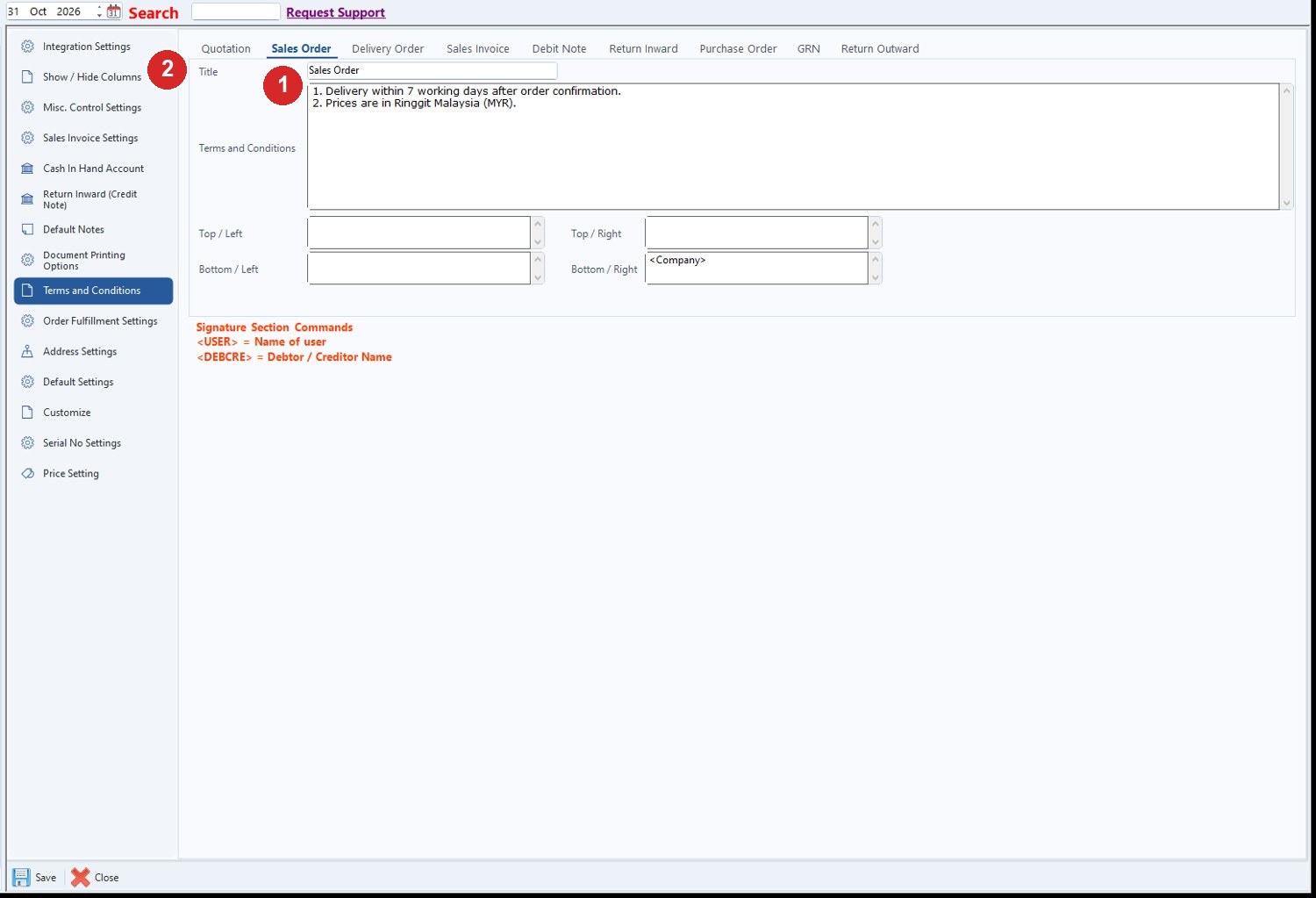
| Step | What to do |
|---|---|
| 1 | Open the Sales Order tab. |
| 2 | Check the Title. |
6. Choose where the signature appears
On the Delivery Order, Sales Invoice and Debit Note tabs, tick Signature on every page if the signature should appear on every printed page.
7. Save the settings
Click Save. Setting Saved. is shown briefly.
Tips
- The red note Signature Section Commands lists two words you can type in these boxes:
= Name of user, and = Debtor / Creditor Name. - If nothing has ever been saved: on Sales Invoice, Bottom / Left starts as Company’s Stamp & Authorised Signature and Bottom / Right as
. On Delivery Order, Bottom / Left starts as Goods received and checked by. On the other tabs Bottom / Right starts as . Other boxes start empty. - The tabs with the same names under Default Notes, and the main tabs Sales Invoice Settings and Return Inward (Credit Note), are different tabs.
- To remove the company text or signature from a purchase order, clear the box on the Purchase Order tab here and save.
- To change the printed layout itself, see the guide Fixing a Printed Layout.
Common problems
The wording on a printed document is wrong
Open the tab of that document here, edit the boxes and save again.
[Rounding A/C] is required.
This appears on save when Automatic Rounding for Sales Invoice amount to nearest 5 cent. is ticked but no Sales Rounding Account is chosen. Choose one on the Sales Invoice Settings tab, then save. See the guide Document Settings: Sales Invoice Options.