
This guide shows how to change the company address, phone number, registration number, bank details and terms on your documents, and explains which changes need help from Synergy support.
Before you start
- Know which document you want to change (invoice, quotation, statement of account or receipt).
- Know whether you are on the head office (HQ) PC or a branch PC.
- For a logo or watermark: have a clear picture file ready.
- For help from support: have a screenshot of the printed document ready.
Steps
1. Open Company Information
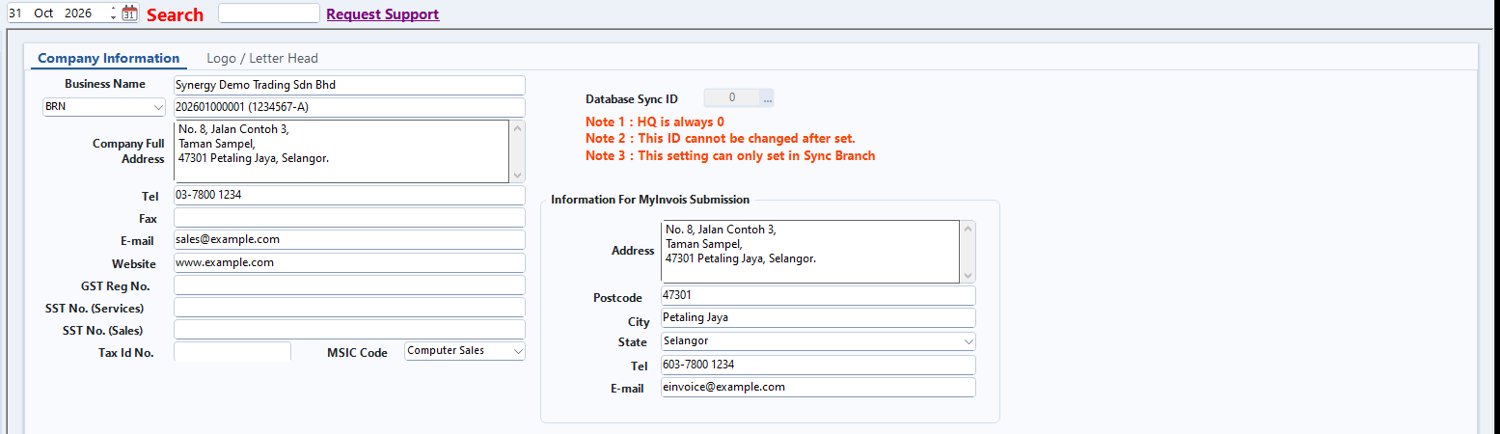
Go to Main > Shared Masterfile > Company Information. Your company name, registration number, address and email are kept here and apply to all documents (invoice and quotation).
2. Change the address or phone number
Edit the Company Address or the Tel number, then save.
3. Shorten a long address
If the address is too long for the receipt or print, split it into two lines, then save.
4. Add bank details or registration number to the invoice
Type the text under the Terms and Conditions setting and save. Bold text is not possible there.
5. Add terms and conditions to the POS receipt
Go to Point of Sale Setting > POS Hardware > Setting 1. Type your text into the Terms and Condition field, then save the setting. These steps are for POS receipts only, not Sales & Purchase invoices.
6. Set up a branch
On the branch PC, set the branch’s own company name, location name and letterhead logo.
7. Fix an old address after a DO conversion
If an invoice prints an old address after a DO conversion, key the new address directly on the invoice and save. Then redo the conversion.
8. Change a Proforma Invoice title
To print a Proforma Invoice, change the title in the print formula.
9. E-mail one customer’s e-invoices
Clear the ref no and select the date range. Choose Generate E-invoice for email, enter the debtor name, then click OK.
Tips
- Company Information changes can be done by you. Logo, watermark and cut-off fields need Synergy support to update the layout.
- The logo is set as letterhead from a picture file. A watermark picture needs reduced opacity. A program update may be needed.
- The registration number on the Statement of Account is switched on by Synergy support.
- Customer-specific item names are not supported. Change the description on the invoice each time.
- Terms are tied to the creditor only, so Cash Purchase will not switch to COD.
- Showing branch name or beneficiary automatically on reports, where no option exists, is a chargeable customisation. Please speak to sales.
Common problems
The logo or watermark needs to be added or changed.
Contact Synergy support and send the picture file and a screenshot of the printed document. Have remote access ready.
A field on the document is cut off.
The layout may be too small for the text. Contact Synergy support with a screenshot of the printed document.
The registration number does not show on the Statement of Account.
Contact Synergy support to switch this on.
The Proforma title does not show for a branch.
Check that the title was changed in the print formula, and note which branch. If it still does not work, contact Synergy support with a screenshot.
You need a paid indicator on the Purchase Invoice for Cash Purchase.
Ask Synergy support to add an indicator row to the layout. Send a screenshot and have remote access ready.
The POS receipt terms do not print.
Contact Synergy support with a screenshot of the setting screen and a sample printout.