
Use this guide when an invoice, delivery order, quotation, statement or report prints with text that is too small, a column too narrow, text cut off or overlapping, or a format that changed after an update. Work down the checks in order. For printer and paper-size problems, read “Synergy Acc2026 – Fixing a Printed Layout” instead.
Before you start
- Know which document it is: invoice, delivery order, quotation, statement of account or a report.
- Know which layout number is selected before you click Preview.
- Know whether the format changed after a software update.
- Keep a screenshot of the printed page ready.
Steps
1. Try another layout first
Choose another layout before you click Preview. Layout 3 has more room for the item description than Layout 1.
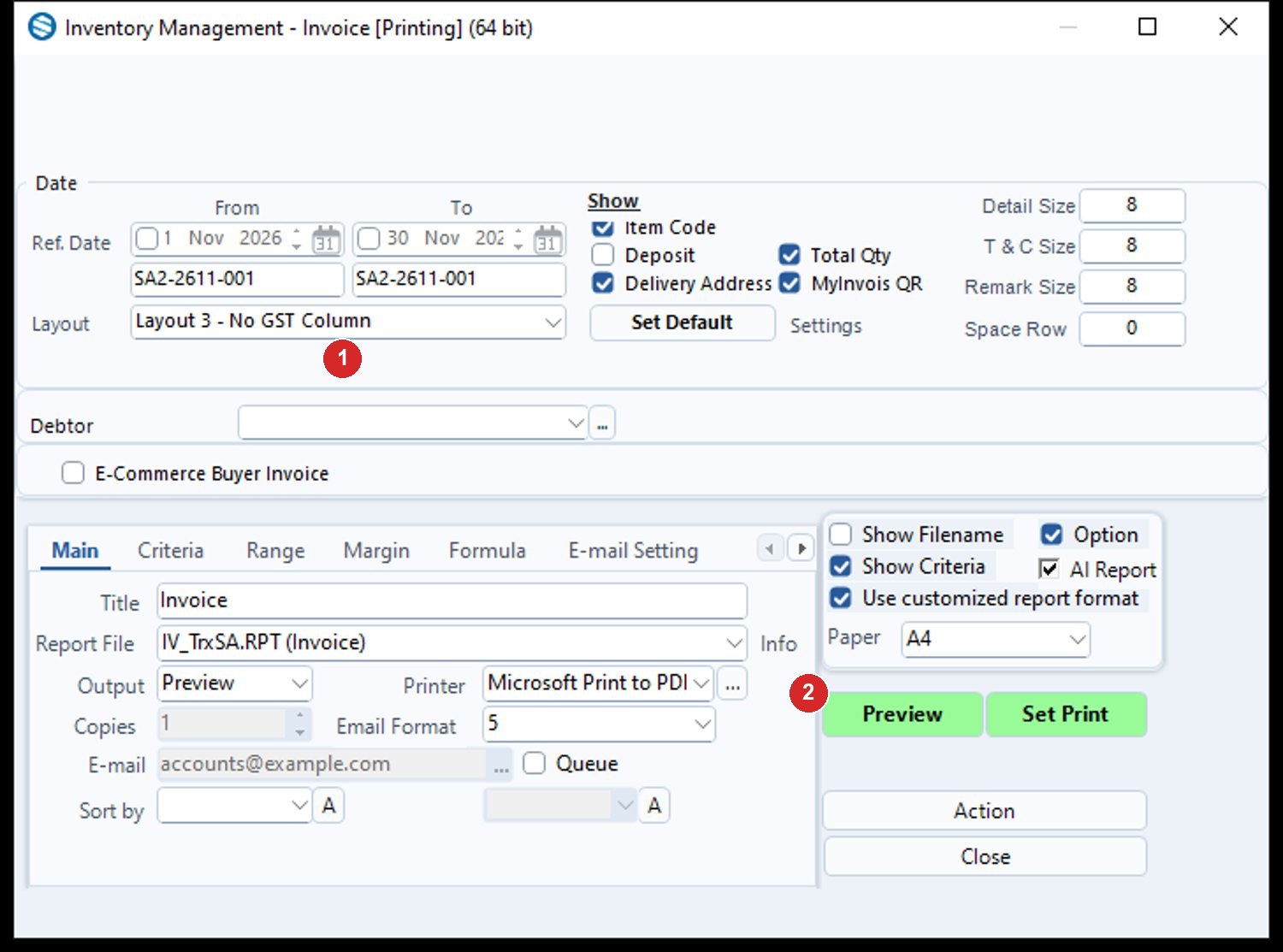
| Step | What to do |
|---|---|
| 1 | Open the Layout list and choose another layout, for example Layout 3. |
| 2 | Click Preview. |
2. The text is too small or you want it bigger
The reference and description fonts are fixed, and you cannot change them. The address font size can be adjusted by Synergy support in a remote session. Showing more characters in a field is a chargeable customisation that goes to the developer.
3. You want bold words in a description
Wrap the words with the bold tags as Synergy support shows you, for example
text
. A font size change applies to all the words, not to single words.4. A column or box is too narrow
Ask Synergy support. They can add or widen a field, or show you how to enable the splitter and drag the box wider.
5. Long descriptions overlap, or the printing starts on page 2
Keep one line per part in the item description, because too many lines push the content to the next page. Check that the debtor address has no extra spaces or blank lines.
6. Long Terms and Conditions sit too close to the signature area
Ask Synergy support. They can put the letter N so the Terms and Conditions move up.
7. The format changed after an update, or support changed it
After Synergy support updates a layout, close the software on every PC and reopen it, then Preview again.
8. Use the same format in another company database
Choose the same layout there, for example Layout 3.
9. A description is not centred
A description cannot be centred. This is how the layout works.
Tips
- Fixed fonts and a limited designer are the usual reason a layout cannot be changed by you.
- Support can also update the report or set the row spacing in a remote session.
Common problems
The layout still does not look right.
Contact Synergy support. Have a screenshot of the printed page, the document type and the layout number ready.