
This guide shows how to key in the buyer details and submit an e-invoice when a customer asks for one after the bill was issued, usually a cash sale.
Before you start
- The invoice the customer asked for (have the invoice number ready).
- The buyer’s Name, BRN/NRIC (or NA if none), TIN, phone number, address, country, state, city, postcode and e-mail.
- For an individual, their personal TIN (it starts with IG).
- Check that the cash debtor has Is Walk In Customer ticked.
Steps
1. Open the invoice
Open the invoice the customer asked for.
2. Request MyInvois
Click the Edit MyInvois Info (Info) button and tick Request MyInvois.
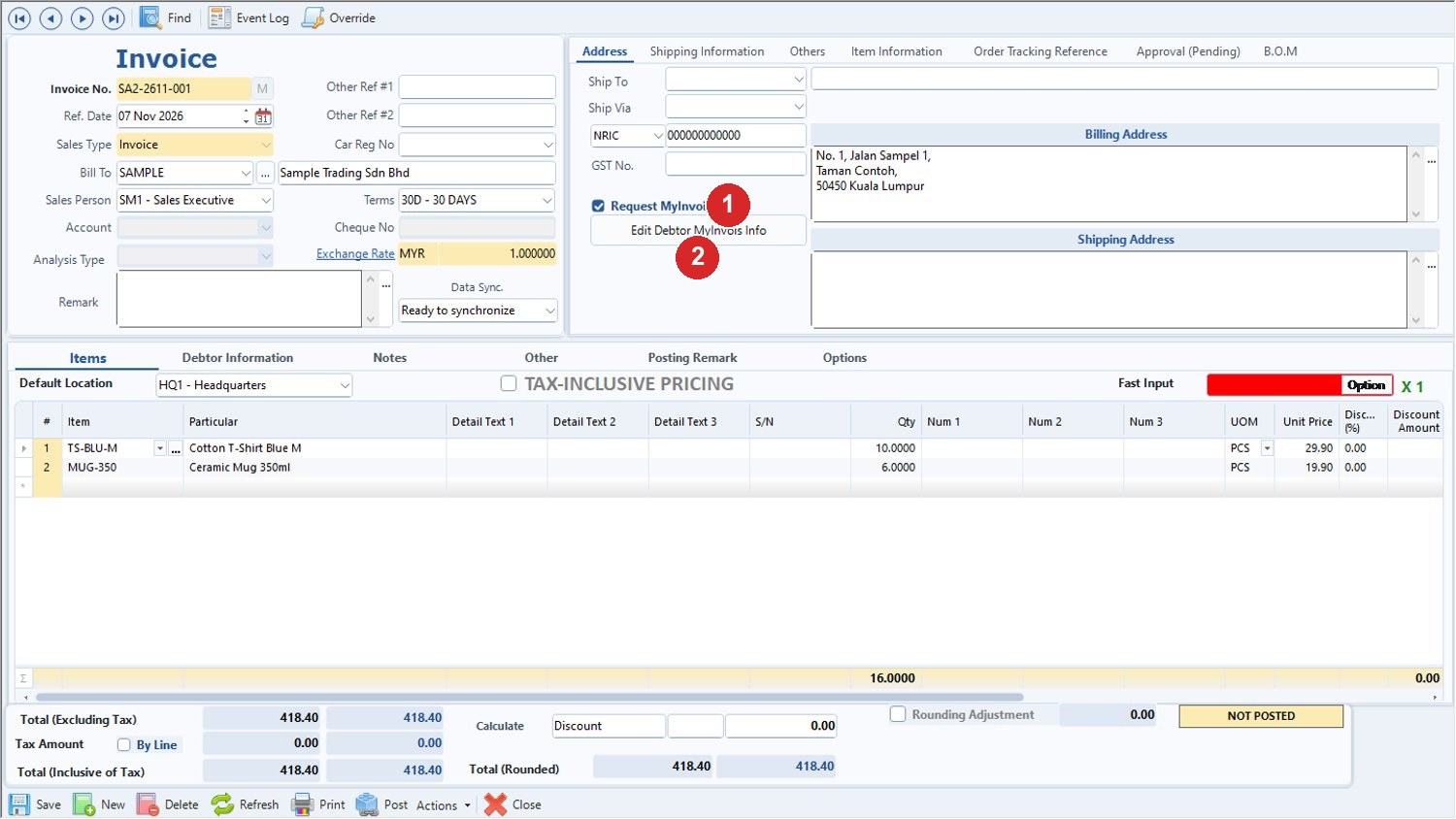
| Step | What to do |
|---|---|
| 1 | Request MyInvois: tick it on the invoice (here SA2-2611-001). |
| 2 | Edit Debtor MyInvois Info opens the buyer details. |
3. Fill in the buyer details
Fill in Name, BRN/NRIC (or NA if none), TIN, MyInvois Phone, MyInvois Address, Country, State, City and Postcode. These are all mandatory. Also fill in the e-mail and check the @ is correct.
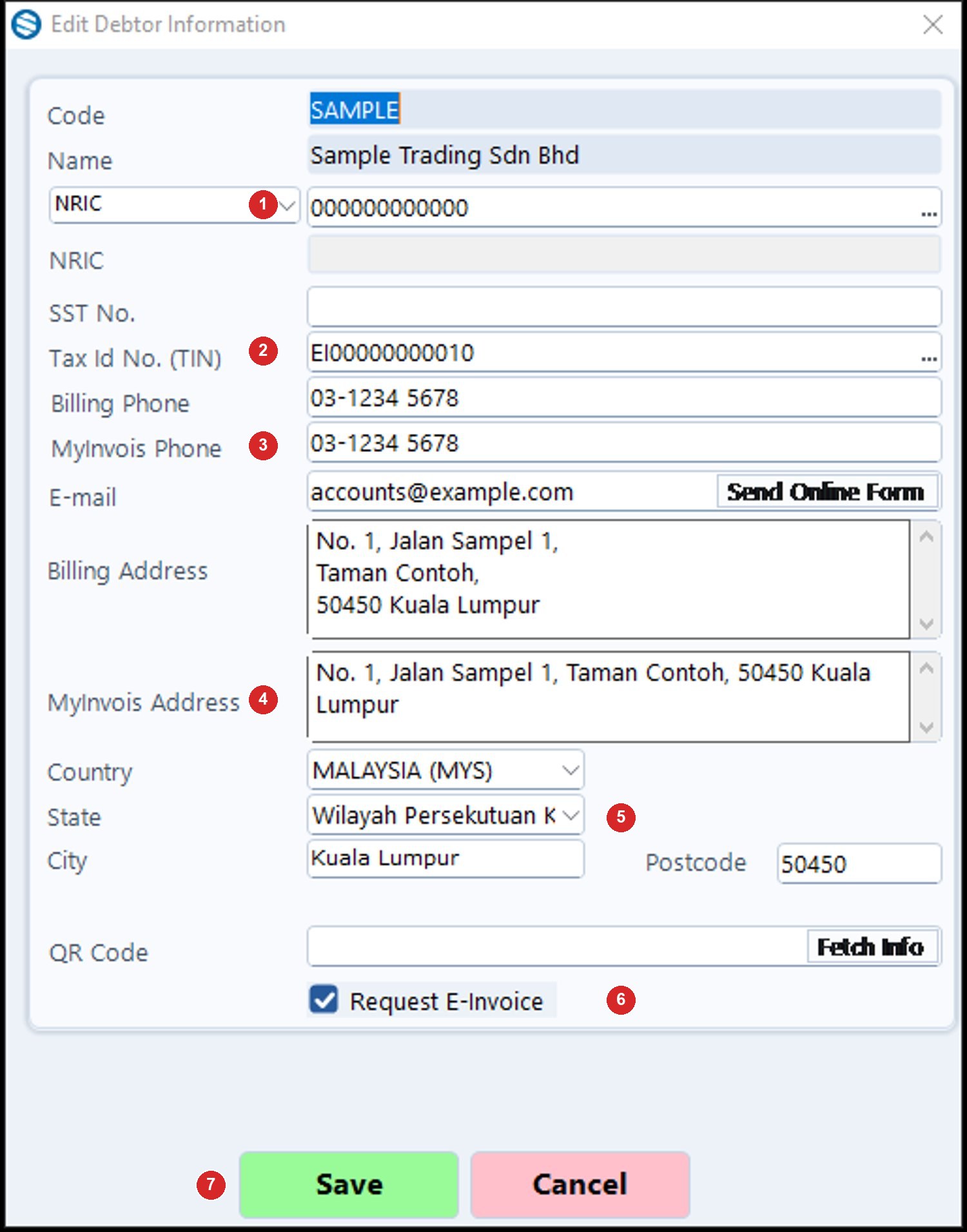
| Step | What to do |
|---|---|
| 1 | BRN/NRIC type and number (NA if none). |
| 2 | Tax Id No. (TIN). The … button looks it up. |
| 3 | MyInvois Phone and E-mail (Send Online Form e-mails the buyer a form to fill in). |
| 4 | MyInvois Address. |
| 5 | Country, State, City and Postcode. |
| 6 | Request E-Invoice stays ticked. |
| 7 | Click Save. |
4. Individual buyers
For an individual, use the personal TIN (starts with IG) and put the person’s name in the company name field.
5. Check the buyer name
The buyer is the customer named on the sales invoice, not the person who pays.
6. Check Is Walk In Customer
Make sure the cash debtor has Is Walk In Customer ticked. If not, the buyer details can carry over to other cash sales.
7. Choose the month and type
Go to Main > MyInvois / E-Invoice > MyInvois / E-Invoice Submission. On Step 1 – Posting, choose the Submission Month / Year and select Only Requested E-Invoice as the Submission Type, then click List.
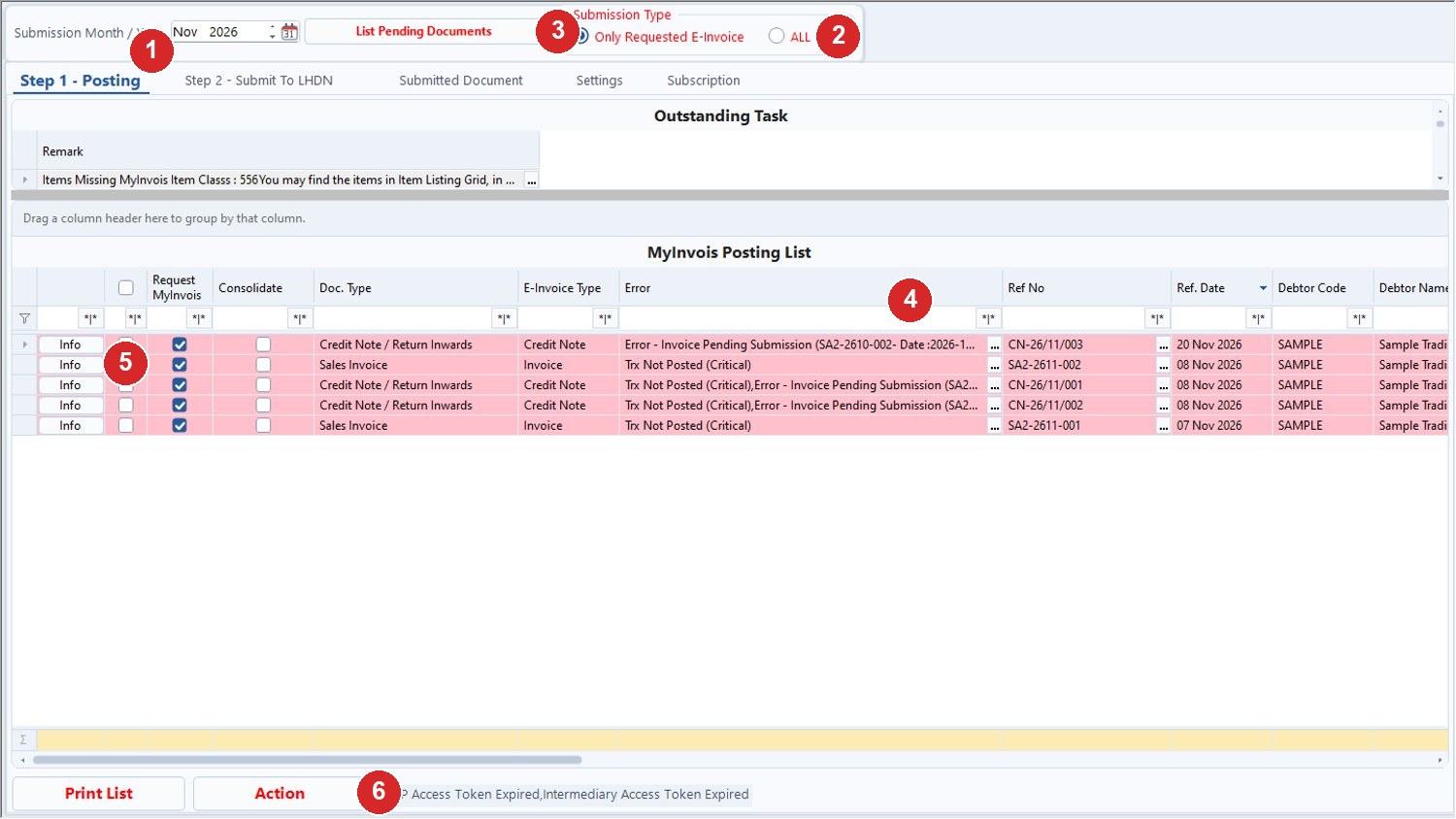
| Step | What to do |
|---|---|
| 1 | Submission Month / Year. |
| 2 | Submission Type: ALL or Only Requested E-Invoice. |
| 3 | Click List Pending Documents. Outstanding Task at the top lists data to fix first (here items missing a MyInvois item class). |
| 4 | Error column: what is wrong with each document (pink rows), for example Trx Not Posted (Critical). |
| 5 | Tick the documents to post. |
| 6 | Action: post the selected documents (or post and submit in one go). |
8. Post and submit
Check the documents listed. Use Action to post and submit the selected documents. Fix any problems the list reports first.
9. Check the status
Open the Submitted Document tab and check the status. Once it is Valid, the e-invoice appears in the customer’s MyInvois.
10. If the status is Invalid
Read the message, fix the field (for example, remove a space) and submit again.
Tips
- With Self Service QR, the customer scans the QR and fills in their own details. Without it, you key the details in.
- The QR on the receipt works only within the same calendar month as the receipt, so ask customers to scan within a few days.
- The QR code differs per reference or debtor. For walk-in customers, the documents are submitted as consolidated.
- You receive an e-mail when the customer submits their information.
- The QR prints only if the member or debtor on the bill has an e-mail address. If the customer gives none, use the Walk-In Customer.
Common problems
The sale was already sent in a consolidated e-invoice.
It cannot be sent individually. A late request for a previous month’s sale falls under the consolidated e-invoice and cannot be changed after the half-month period.
The status shows Invalid.
Read the message, correct the field (for example, remove spaces or fix the format) and submit again.
The self-service QR does not print on the receipt.
Check that the debtor has an e-mail or is the Walk-In Customer. Also check the self-service QR has not expired for both the HQ and branch licences; if it has, ask your admin to renew both and scan the QR again. If it is still missing, restart the software and contact Synergy support.
The customer scanned the QR but cannot get the e-invoice.
Check what the scan screen shows and whether the receipt was issued in the current month. If you need help, contact Synergy support with the receipt number and date and the exact message shown.
Documents will not submit.
Read the red-flag messages in the list and fix the customer or item data.
A token warning shows, such as Intermediary Access Token Expired.
On the Settings tab, use Action and choose Renew Access Token.
You still need help with an e-invoice.
Contact Synergy support and have the invoice number ready.