
Use this when you must issue an e-invoice to a buyer outside Malaysia, or to a buyer who has no TIN or will not give it. Follow the steps for the kind of buyer you have. Each step names the full guide to read next.
Before you start
- Whether the buyer is a local walk-in customer, a local buyer who asked for an e-invoice, or a foreign buyer.
- The buyer’s name, country, address, phone and e-mail, and the TIN or registration number if the buyer has one.
- The invoice number, and whether the sale was already sent in a consolidated e-invoice.
Steps
1. A walk-in customer without a TIN who does not need an e-invoice
Walk-in customers without a TIN need no e-invoice fields. Their sales go out in the monthly consolidated e-invoice as General. Entering the general TIN is optional, and the program uses EI00000000010 when a local buyer has no TIN. Post your invoices first and submit the consolidated e-invoice in the first 7 days of the next month. Full guide: Synergy Acc2026 – Monthly Consolidated E-Invoice
2. A local buyer asks for an individual e-invoice but has no TIN
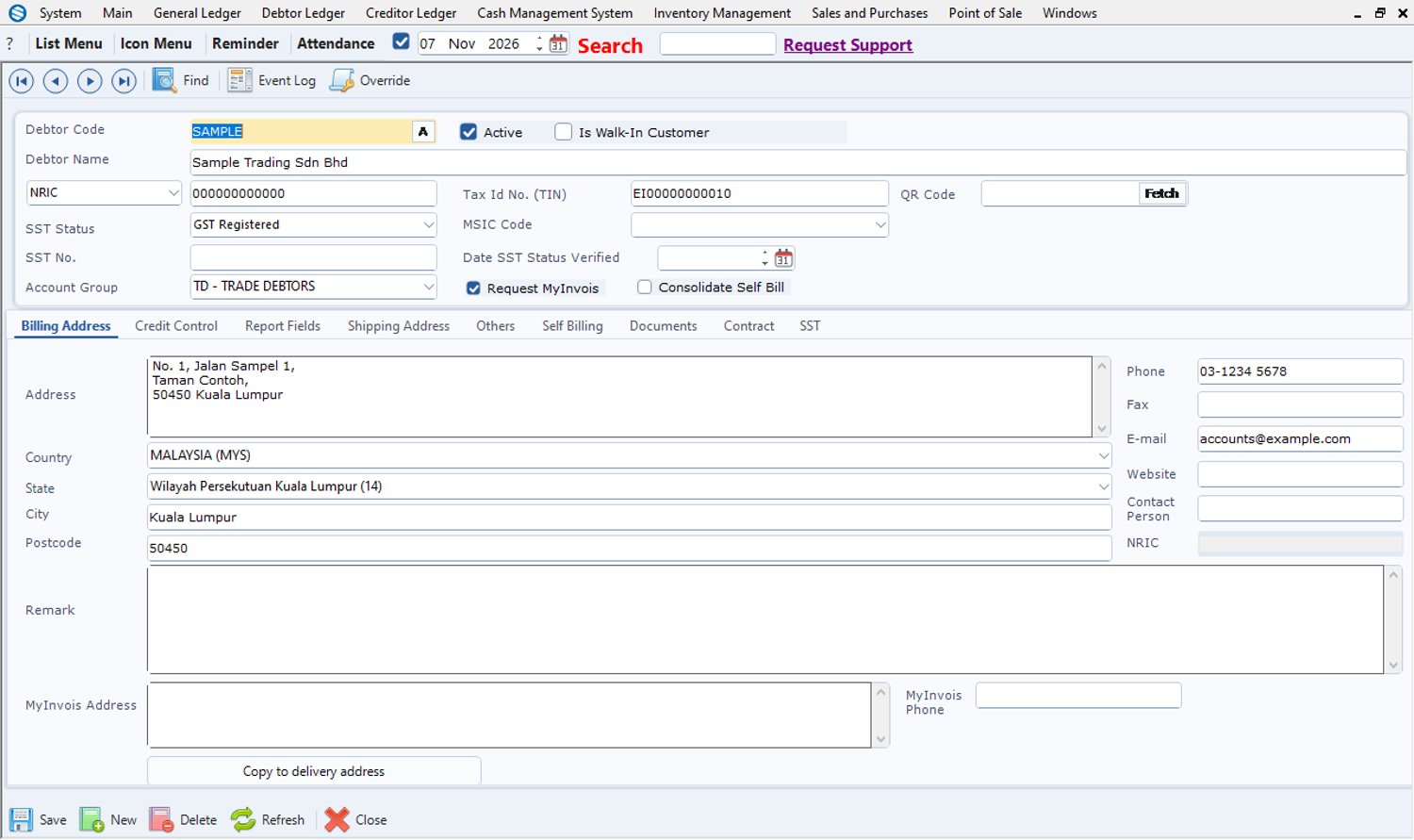
Open the invoice, click Edit MyInvois Info (Info) and tick Request MyInvois. Click the button on the Tax Id No. (TIN) box to pick from the list, and choose EI00000000010 (Local Buyer Without TIN). The other buyer details are still mandatory: Name, BRN/NRIC (or NA if none), MyInvois Phone, MyInvois Address, Country, State, City and Postcode. Full guide: Synergy Acc2026 – A Customer Asks for an E-Invoice
3. A buyer outside Malaysia
On the same Info screen, set the Country to the buyer’s country. The Country and State labels are links, so click one to add a missing country or state. Click the button on the Tax Id No. (TIN) box and choose EI00000000020 (Foreign Buyer). For an individual e-invoice, the program also uses EI00000000020 by itself when the buyer’s country is not Malaysia. Full guide: Synergy Acc2026 – Sales Invoice: Address Tab and E-Invoice (MyInvois) Details
4. The buyer gave you a TIN and you want to be sure it is right
Click the button beside the registration number and choose Verify Online. It checks the registration type, the TIN and the registration number together. TIN Verified OK means they match. Invalid BRN Type/TIN/Reg. No means you should check all three. The system cannot search a TIN for you, so ask the buyer, or use the MyTax portal and its TIN search. Full guide: Synergy Acc2026 – E-Invoice Rejected or Invalid: What to Check
5. The buyer is the Government or you are buying from a foreign seller
The TIN list also offers EI00000000040 (Government) and EI00000000030 (Foreign Seller). For a purchase from an overseas supplier, key an Invoice Received and tick Self-Billed E-Invoice, and get the TIN with the foreign seller button. Full guide: Synergy Acc2026 – Self-Billed E-Invoice for Suppliers
6. Check the cash debtor before you save
Make sure the cash debtor has Is Walk In Customer ticked, so these buyer details stay with this one bill and do not carry over to other cash sales. The buyer is the customer named on the sales invoice, not the person who pays. Full guide: Synergy Acc2026 – A Customer Asks for an E-Invoice
7. Is the bill over RM10,000?
Bills over RM10,000 must be issued as a Requested e-invoice, and you cannot switch this off. If you see Invoice Total over Rm10,000 is required to Issue E-Invoice, tick Request MyInvois on the invoice and fill in the buyer details. Full guide: Synergy Acc2026 – Sales Invoice: Address Tab and E-Invoice (MyInvois) Details
8. Post and submit the requested e-invoice
Go to Main > MyInvois / E-Invoice > MyInvois / E-Invoice Submission. On Step 1 – Posting, choose the Submission Month / Year and set the Submission Type to Only Requested E-Invoice, then click List. Fix any problem in the Error column, then post and submit the selected documents. Check the status on the Submitted Document tab. Full guide: Synergy Acc2026 – Submitting E-Invoices (Step 1 and Step 2)
9. The buyer asks for an e-invoice for a past month’s sale
If the sale was already sent in a consolidated e-invoice, it cannot be sent individually, and a month already submitted as consolidated cannot be changed. A late request for a previous month’s sale falls under the consolidated e-invoice. Full guide: Synergy Acc2026 – Monthly Consolidated E-Invoice
10. The e-invoice shows Invalid
Open Submitted Document and read the Validation Message. Remove any extra space in a field, correct the TIN or registration number on the Info screen, save, and submit again at Step 2. If the status is still Submitted, use Validate All Documents and wait. Full guide: Synergy Acc2026 – E-Invoice Rejected or Invalid: What to Check
Tips
- The TIN list offers four general codes: EI00000000010 (Local Buyer Without TIN), EI00000000020 (Foreign Buyer), EI00000000030 (Foreign Seller) and EI00000000040 (Government).
- If a requested e-invoice was issued by mistake, the tax authority allows cancelling within 72 hours. See the guide Synergy Acc2026 – Changing or Cancelling an E-Invoice.
- For an individual who has a TIN, use the personal TIN, which starts with IG, and put the person’s name in the company name field.
Common problems
You cannot save because MyInvois details are missing.
Tick Request MyInvois and complete Edit MyInvois Info, then save.
The State or Country you need is not in the list.
Click the Country or State label to add it in its maintenance screen.
The submission is Invalid after you corrected a field.
Remove extra spaces, save, and submit again at Step 2, then use Validate All Documents.
You are not sure which e-invoice rules apply to this buyer.
Contact Synergy support. Have ready the invoice number, the buyer’s country and the exact message shown.