
Use this guide when you buy from a supplier who does not issue an e-invoice, such as an overseas seller or an individual, and you need to issue a self-billed e-invoice yourself. It also covers what to do if a self-billed document is invalid.
Before you start
- The supplier’s TIN or IC, if you have it
- The supplier’s MSIC code
- For a foreign supplier: the country’s LHDN code (for example CHN) and the owner’s e-mail if the supplier has none
- If the document is invalid: the Validation Message and the month it belongs to
Steps
1. Key in the Invoice Received
Key an Invoice Received and tick Self-Billed E-Invoice. For an expense that is not stock, use a Purchase Invoice and tick Self-Billed E-Invoice there as well.
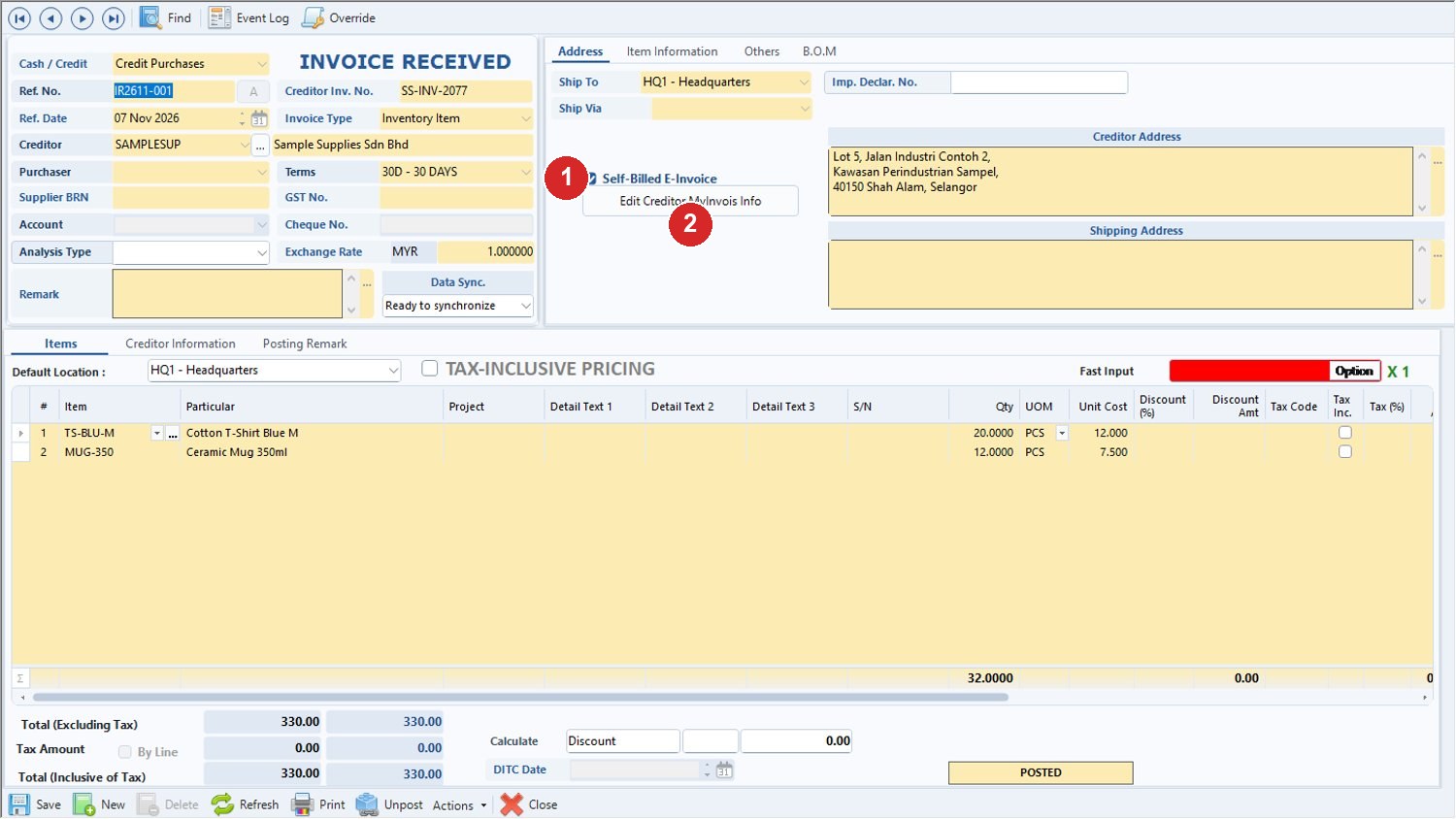
| Step | What to do |
|---|---|
| 1 | Self-Billed E-Invoice: tick it on the Invoice Received (here IR2611-001 from Sample Supplies Sdn Bhd). |
| 2 | Edit Creditor MyInvois Info opens the supplier details. |
2. Check the supplier details
Click Info on the creditor. Make sure Tax Id No. (TIN) and MSIC Code are filled in. The TIN is the supplier’s TIN.
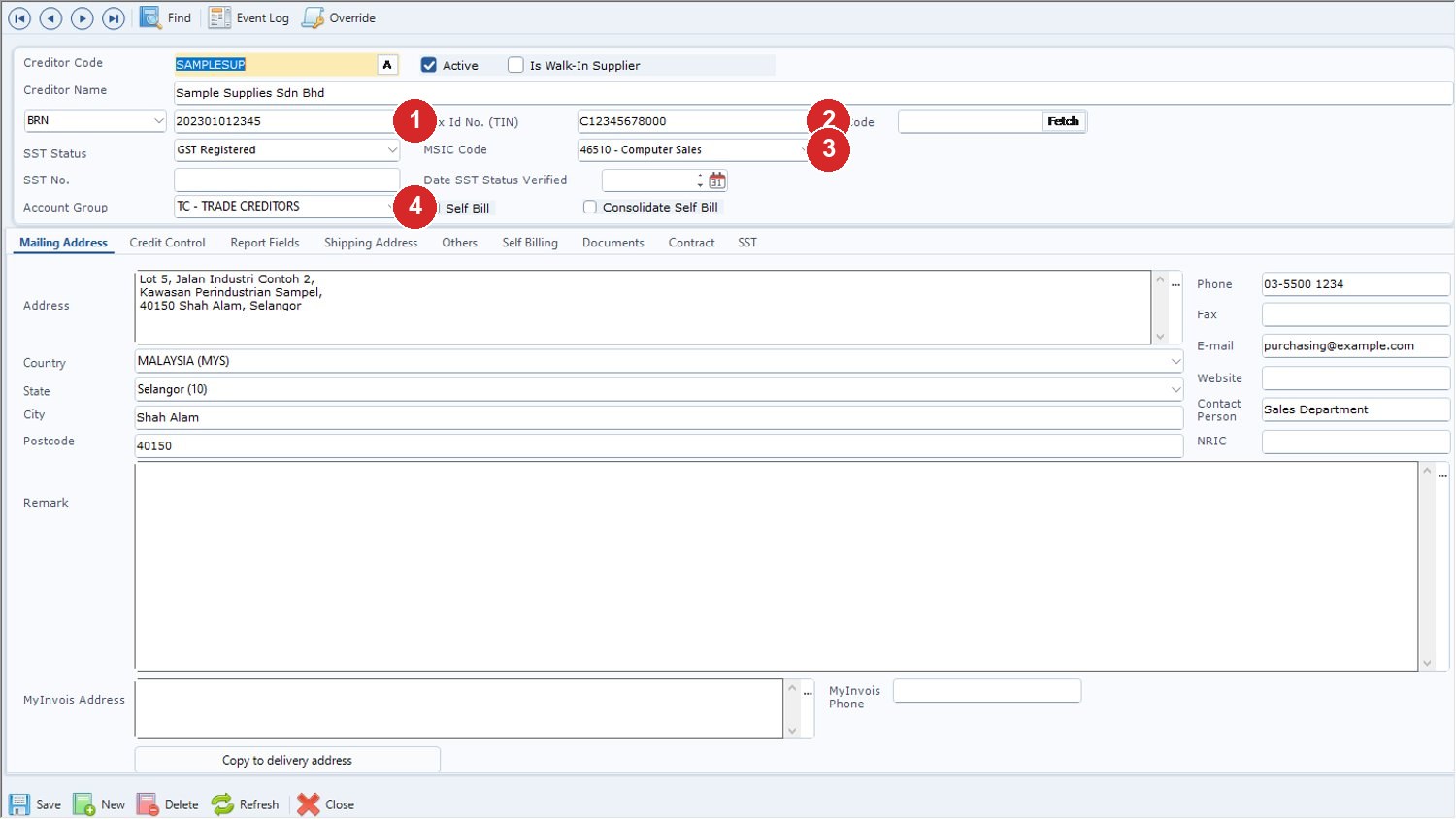
| Step | What to do |
|---|---|
| 1 | BRN type and number. |
| 2 | Tax Id No. (TIN): the supplier’s TIN. |
| 3 | MSIC Code. |
| 4 | Self Bill: tick it on suppliers you always self-bill. |
3. If you only know the IC or the TIN
If only the IC is known, use the general TIN with the IC. If only the TIN is known, use the general NRIC.
4. Set up a foreign supplier
Create the country with its LHDN code (for example CHN). Under that country, create state code 17 with the description NOT APPLICABLE. Use MSIC 00000 and BRN NA. If the supplier has no e-mail, use the owner’s e-mail. Get the TIN with the foreign seller button. The postcode must be 5 digits, so use the first 5.
5. Submit the e-invoice
Submit it like a normal e-invoice. A document with Self Bill ticked is not consolidated.
6. If you missed the self-bill
Open the invoice and untick Self Bill. Then follow the Step for Consolidate Invoice guide to submit it as consolidated.
7. If a self-billed document is invalid
Check Submitted Document > Validation Message and the item classification. If the TIN was wrong, correct it in the creditor and save. Then use Step 2 > Resubmit.
8. If the month is overdue
On E-Invoice Submission, go to Settings > Others and tick “Allow Submit E-Invoice which already overdued.” Tick the document, click Save, then submit.
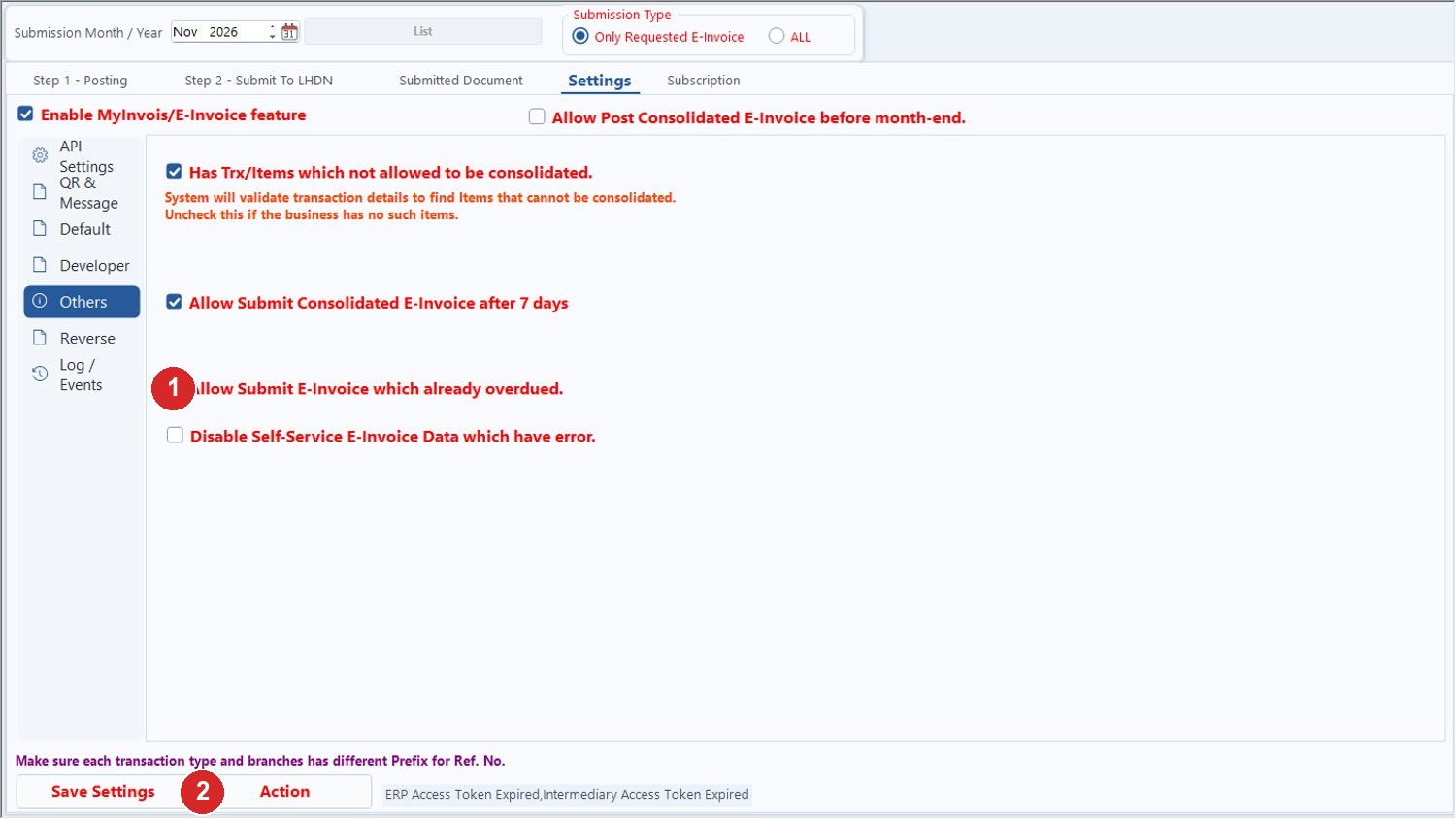
| Step | What to do |
|---|---|
| 1 | Allow Submit E-Invoice which already overdued. (Settings > Others). |
| 2 | Save Settings, then submit. |
Tips
- The TIN is the supplier’s TIN, not yours.
- Check the TIN has no missing digit or zero.
- Check the MSIC code is filled in the creditor Info.
- Self-billed documents are not consolidated.
- LHDN self-bill rules are complex, so check the Validation Message first if something is rejected.
Common problems
The self-billed document is invalid
Read the Validation Message under Submitted Document and check the item classification. If the TIN was wrong, correct it in the creditor, save, then use Step 2 > Resubmit.
The seller will not give an IC or TIN
If you only have one of them, use the general TIN with the IC, or the general NRIC with the TIN.
The foreign supplier’s postcode has 6 digits
The postcode must be 5 digits. Use the first 5.
An overdue month is blocked
On E-Invoice Submission, go to Settings > Others, tick “Allow Submit E-Invoice which already overdued.”, tick the document, Save, then submit.
It still does not work
Contact Synergy support. Have ready the Validation Message, the supplier details you hold (IC or TIN) and the month.