
This guide shows how to get ready for e-invoicing, and then how to post and submit your sales documents to LHDN’s MyInvois system in Synergy Acc2026.
Before you start
- Finish your MyTax and MyInvois registration.
- In the MyInvois portal, set up the business owner and register the ERP as intermediary. Use the company name, not a personal name. Follow the portal setting manual (a sole proprietor / partnership manual exists).
- Prepare your ERP Client ID and Secret (see the e-invoice guide, pages 10-14).
- Each different company must register its own ERP.
- For a new branch, have remote access ready for the HQ and branch PCs, and the location codes of any branches to exclude from HQ’s submission.
Steps
1. Give your details to Synergy support
Send your ERP Client ID and Secret to Synergy support. They set up the e-invoice setting, update the software and run online training (about 30-60 minutes).
2. Do not change Company Information
After the setup is done, do not change Company Information.
3. Open E-Invoice Submission
From the menu, go to Main > MyInvois / E-Invoice > MyInvois / E-Invoice Submission.
4. Check the Settings tab
Open the Settings tab. Tick Enable MyInvois/E-Invoice feature and check the API Settings tab. Then click Save Settings.
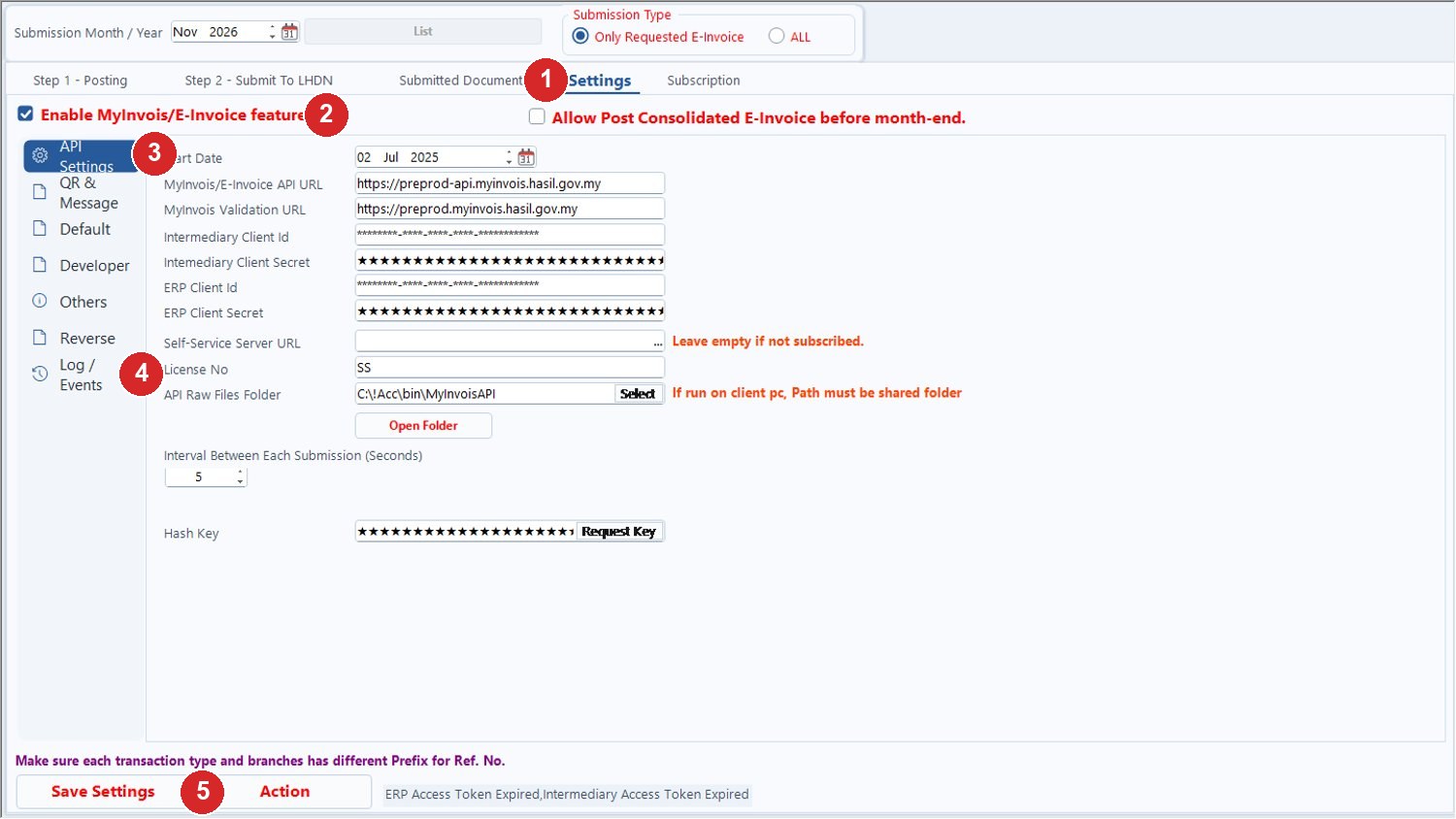
| Step | What to do |
|---|---|
| 1 | Settings tab. |
| 2 | Enable MyInvois/E-Invoice feature. |
| 3 | API Settings: the client IDs and secrets Synergy support set up (hidden here). |
| 4 | Log / Events: the history of what was sent. |
| 5 | Click Save Settings. |
5. Choose the month and type on Step 1 – Posting
On the Step 1 – Posting tab, choose the Submission Month / Year. Then choose the Submission Type: ALL or Only Requested E-Invoice.
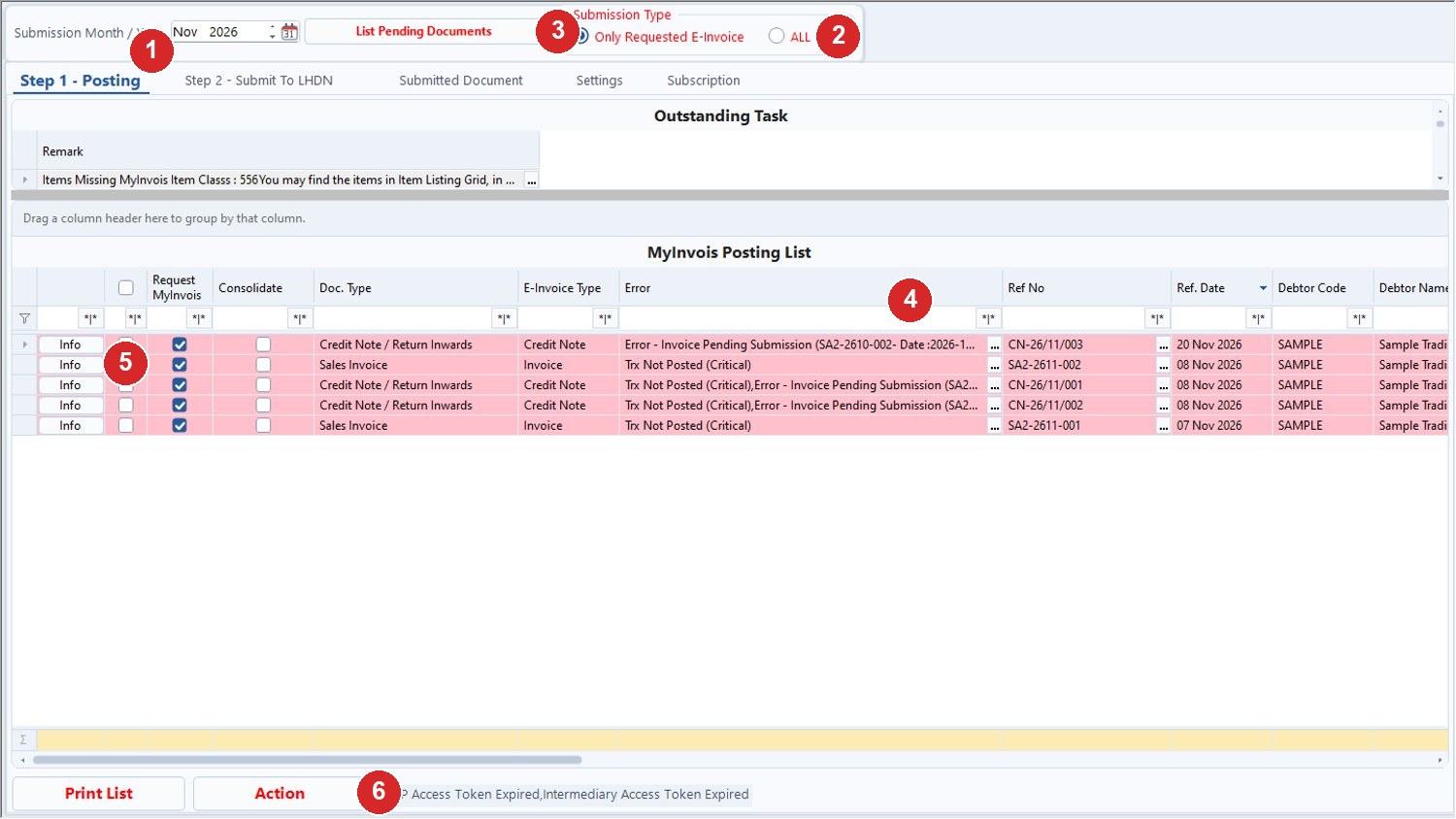
| Step | What to do |
|---|---|
| 1 | Submission Month / Year. |
| 2 | Submission Type: ALL or Only Requested E-Invoice. |
| 3 | Click List Pending Documents. Outstanding Task at the top lists data to fix first (here items missing a MyInvois item class). |
| 4 | Error column: what is wrong with each document (pink rows), for example Trx Not Posted (Critical). |
| 5 | Tick the documents to post. |
| 6 | Action: post the selected documents (or post and submit in one go). |
6. Fix any problems reported
Read the messages in the list and fix the customer or item data that is incomplete, then list again.
7. Submit to LHDN
Open the Step 2 – Submit To LHDN tab and list the documents. Click Action, then Submit Selected Documents. If some documents are overdue, you are asked whether to submit them under the Special Voluntary Disclosure Programme (SVDP).
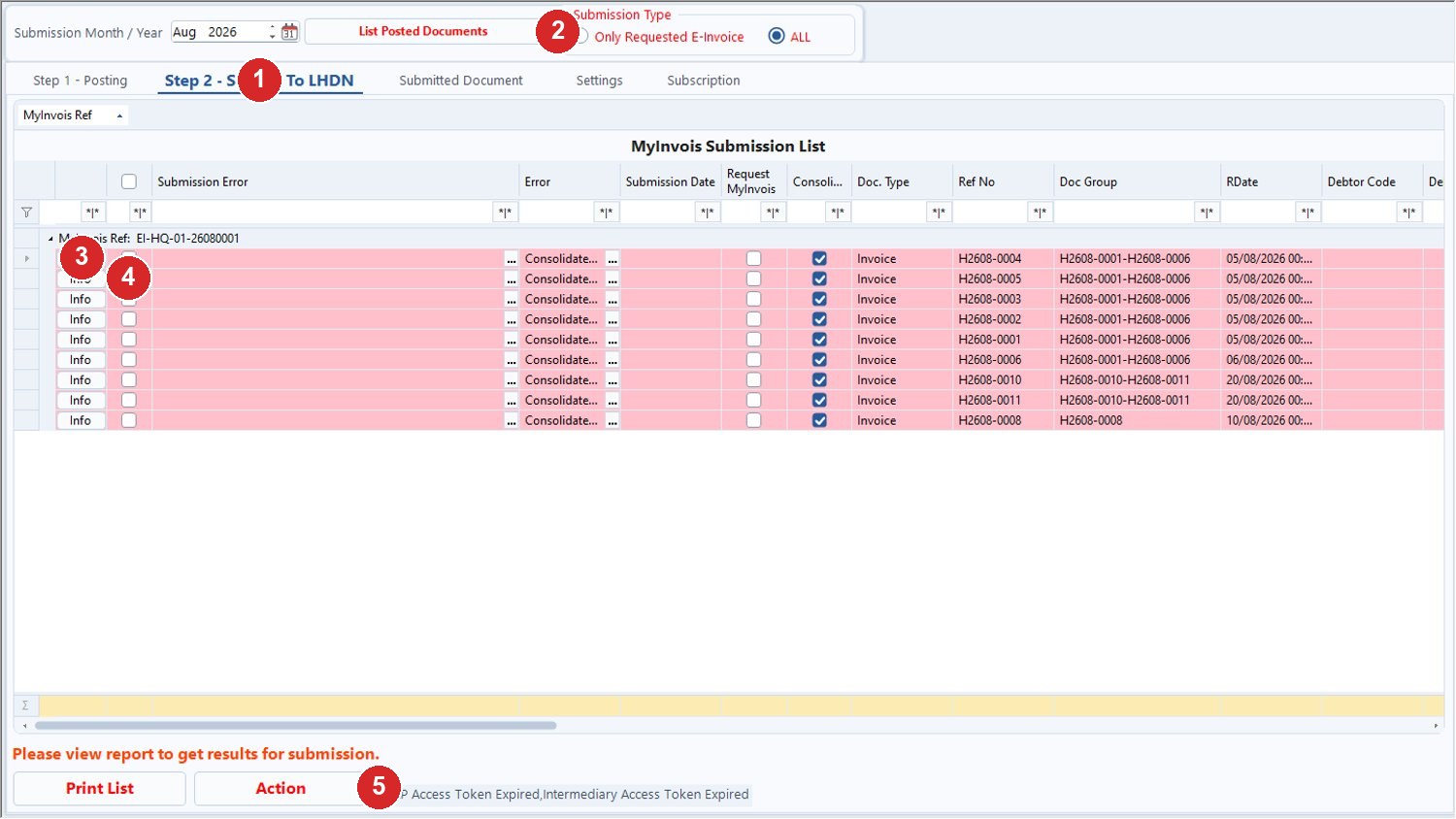
| Step | What to do |
|---|---|
| 1 | Step 2 – Submit To LHDN tab. |
| 2 | Click List Posted Documents. Consolidated bills are grouped under their MyInvois Ref (here EI-HQ-01-26080001). |
| 3 | Info opens the document’s buyer details to read or fix. |
| 4 | Tick the documents to send. |
| 5 | Action > Submit Selected Documents (Reverse Posting is also here). |
8. Review what was sent
Open the Submitted Document tab to review what was sent. For the history, use the Log / Events tab inside Settings.
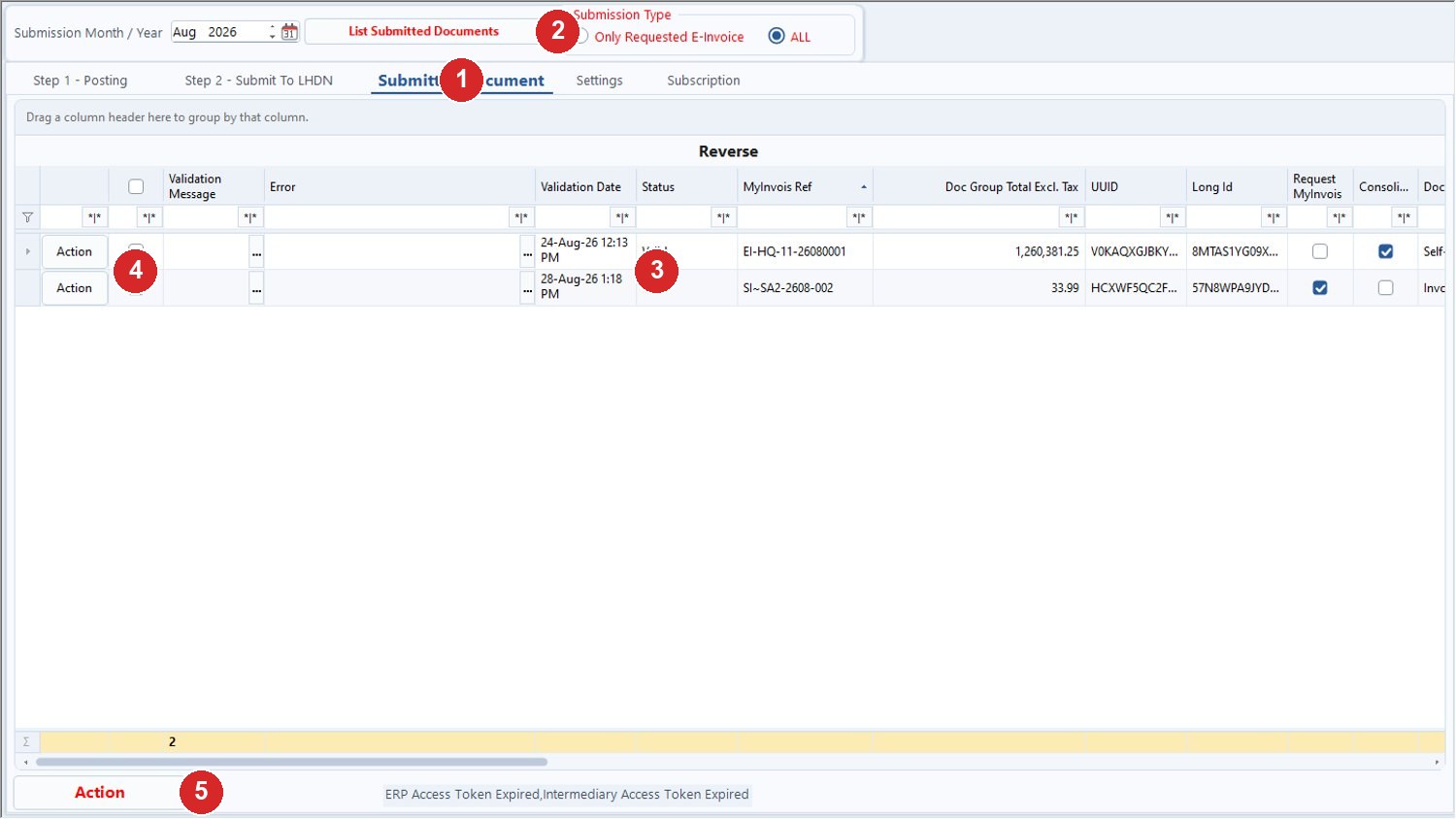
| Step | What to do |
|---|---|
| 1 | Submitted Document tab. |
| 2 | Click List Submitted Documents. |
| 3 | Status: Valid means done (here two Valid documents in Aug 2026). Validation Message and Error explain an Invalid one. |
| 4 | Tick a document to work on it. |
| 5 | Action: Validate Submitted Document(s), Cancel Selected Document, and so on. |
Tips
- You do not need to renew the token yourself. Just submit in Step 1 or Step 2 and it renews automatically. An access token expired message can be ignored.
- Shops under the same registration may use the same Client ID and Secret. Give each shop a different reference number prefix to avoid duplicate numbers.
- Outlet names may differ if all data belongs to the same company. The company name on documents stays the same.
- To exclude branches from HQ’s submission, or to change the shop name on the receipt, ask Synergy support.
- Branch data upload and download must be done on the main PC, not client PCs, because the data is large.
- Email sending supports only Gmail with Gmail settings.
- To switch company: log out, log in, and choose the company in the dropdown at login. To use two companies together, open the program again from the taskbar.
- The warning about 7 days for consolidated e-invoices appears when the submission is late.
Common problems
I cannot submit the first e-invoice and get an error
Check that your MyTax / MyInvois registration is finished, the business owner and intermediary are set up in the portal, and the ERP is registered under the company name. If it still fails, contact Synergy support and have ready: remote access to the PC (and HQ/branch PCs), your ERP Client ID and Secret, and the error text.
Documents will not submit
Read the messages in the list and fix the data. Missing TIN, address, city, postcode, state, phone, email or MSIC code means the customer or item data is incomplete. Trx Not Posted means the document must be posted first.
Company Name in License and Database is different
Open Company Information and click Save. Otherwise submission uses the wrong name.
Settings error when saving the e-invoice setting
A misc flag is shown when saving. Copy it, paste it into the e-invoice setting field and save. Also check the API Settings and the company TIN (Company Information) against the MyInvois portal.
Token warning such as Intermediary Access Token Expired or Expiring in …
Submit in Step 1 or Step 2 and the token renews automatically. You can also use Renew Access Token in the Action menu on the Settings tab.
Submission still fails, or a branch needs to be set up
Contact Synergy support. Have ready the message text, the PC name and the step (1 or 2), plus the location codes and registration details for branches.