
Submitted only means the e-invoice was sent to LHDN. Valid means LHDN accepted it. Use this guide when a document, or your consolidated e-invoice, stays on Submitted, or a message stays on screen after you submit. Work through the checks in order.
Before you start
- The document number and the month it belongs to.
- Use the main PC.
- Your software version.
Steps
1. Know what Submitted means
E-invoice is a two-stage process: first you submit, then LHDN validates. The target status is Valid. Submitted means the document was sent but not yet accepted.
2. Open the list of submitted documents
Go to Main > MyInvois / E-Invoice > MyInvois / E-Invoice Submission.
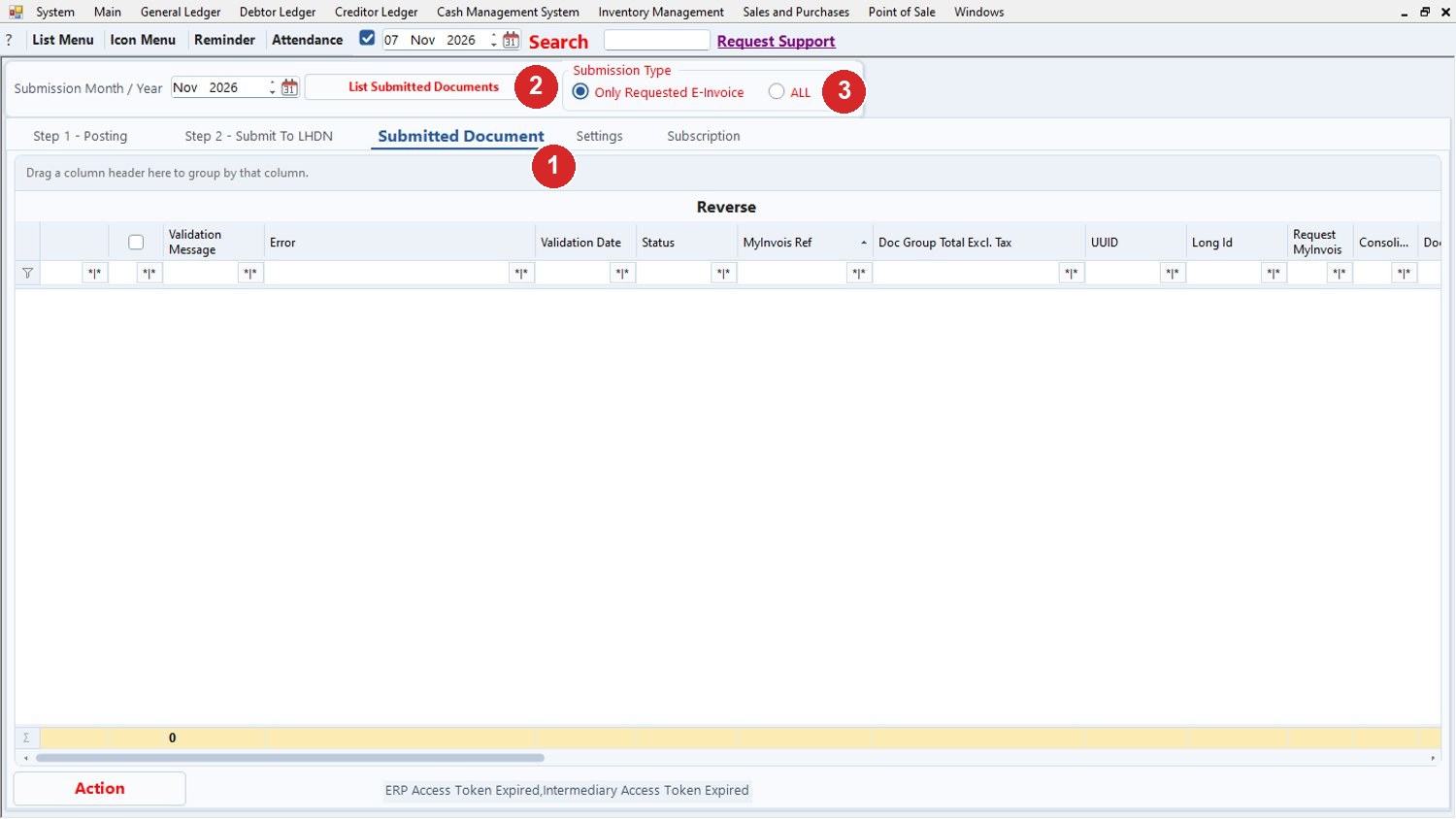
| Step | What to do |
|---|---|
| 1 | Open the Submitted Document tab. |
| 2 | Click List Submitted Documents. |
| 3 | Set Submission Type to ALL. |
3. Validate the documents
Tick the submitted documents, then click Action > Validate Submitted Document(s), or Validate All Documents. Tick every row: documents stay Submitted if some rows were not ticked.
4. Wait and validate again if LHDN is slow
If it is still Submitted after you validate, LHDN may be delayed or busy. Try again a little later.
5. Look for old pending documents
In the Submitted Document list, check month by month until you find the pending document, then validate it.
6. Check Step 1 and Step 2 for leftovers
With Submission Type set to ALL, the Step 1 – Posting list and the Step 2 – Submit To LHDN list must both be empty. An empty Step 2 list means everything has been submitted. An invoice that was not posted stays out of the lists.
7. Do not mix up requested and consolidated
Requested e-invoices are submitted within the same month. Consolidated e-invoices are submitted in the next month. A document submitted as consolidated cannot be listed as requested.
8. After Post and Submit
Post and Submit already does both Step 1 and Step 2, so Step 2 may look empty. Check the Submitted Document list for the result. If you used only Post, you must still do Step 2 yourself. If a document shows Invalid, update the software and open Company Information to check your own TIN is complete, including the IG, C or D ending.
Tips
- A token-expired message during submission is harmless if the lists end up empty and the documents are Valid.
- There is no single screen that says everything is done. Check Step 1, Step 2 and Submitted Document.
- Always submit from the main PC.
Common problems
A message stays on screen after I submit.
Check that Step 1 and Step 2 are empty and that every row in Submitted Document is Valid. If they are, the message can be ignored.
I retried many times and it is still Submitted.
LHDN delays can happen. Tick all the rows and validate again later.
The document shows as posted but not submitted on a new PC.
Check the MyInvois portal. If it is already submitted there, ignore the message.
The document is too late to submit.
Read the guide “Synergy Acc2026 – Late, Overdue or Back-Dated E-Invoices”.
It still stays Submitted.
Contact Synergy support. Have ready the document number, the month, a screenshot of the list and your software version, and keep the main PC ready.