
This guide shows how to post your sales documents and submit them to LHDN’s MyInvois system, then check that everything is Valid. Submission is done in two steps: Step 1 – Posting, then Step 2 – Submit To LHDN.
Before you start
- Make sure your sales invoices are posted. An unposted invoice stays out of the lists.
- Use the main PC to submit.
- Set up the MyInvois settings first: on the Settings tab, tick Enable MyInvois/E-Invoice feature, fill in the API Settings tab and click Save Settings.
Steps
1. Open the screen
From the menu, go to Main > MyInvois / E-Invoice > MyInvois / E-Invoice Submission.
2. Choose the month and type
On the Step 1 – Posting tab, choose the Submission Month / Year. Then choose the Submission Type: ALL or Only Requested E-Invoice.
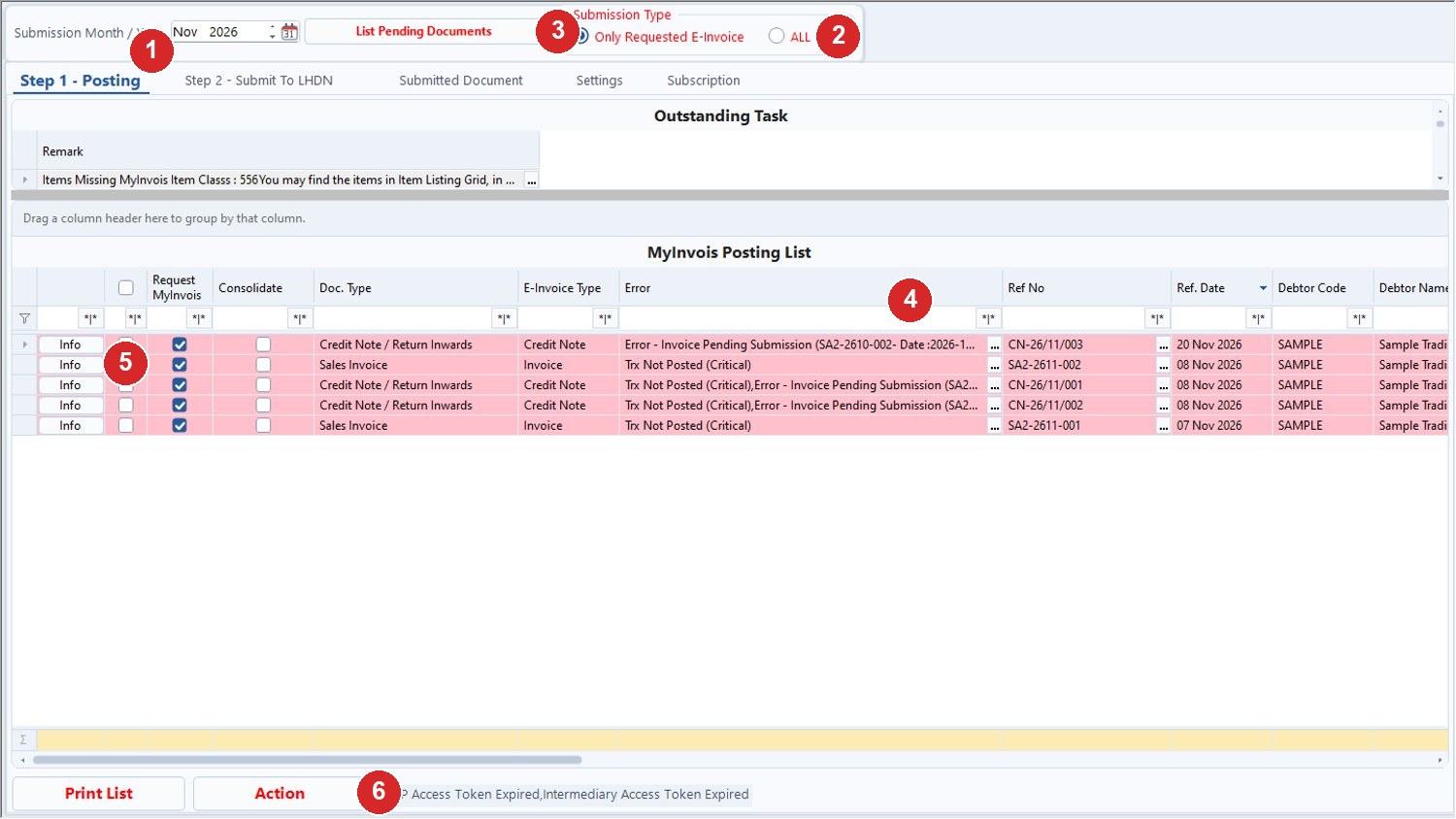
| Step | What to do |
|---|---|
| 1 | Submission Month / Year. |
| 2 | Submission Type: ALL or Only Requested E-Invoice. |
| 3 | Click List Pending Documents. Outstanding Task at the top lists data to fix first (here items missing a MyInvois item class). |
| 4 | Error column: what is wrong with each document (pink rows), for example Trx Not Posted (Critical). |
| 5 | Tick the documents to post. |
| 6 | Action: post the selected documents (or post and submit in one go). |
3. Confirm outstanding tasks
If the list shows outstanding tasks, you will be asked to confirm that you have checked your transactions first.
4. Fix any problems
Read the messages in the list and correct the customer or item details they point to.
5. Go to Step 2
Open the Step 2 – Submit To LHDN tab and list the documents.
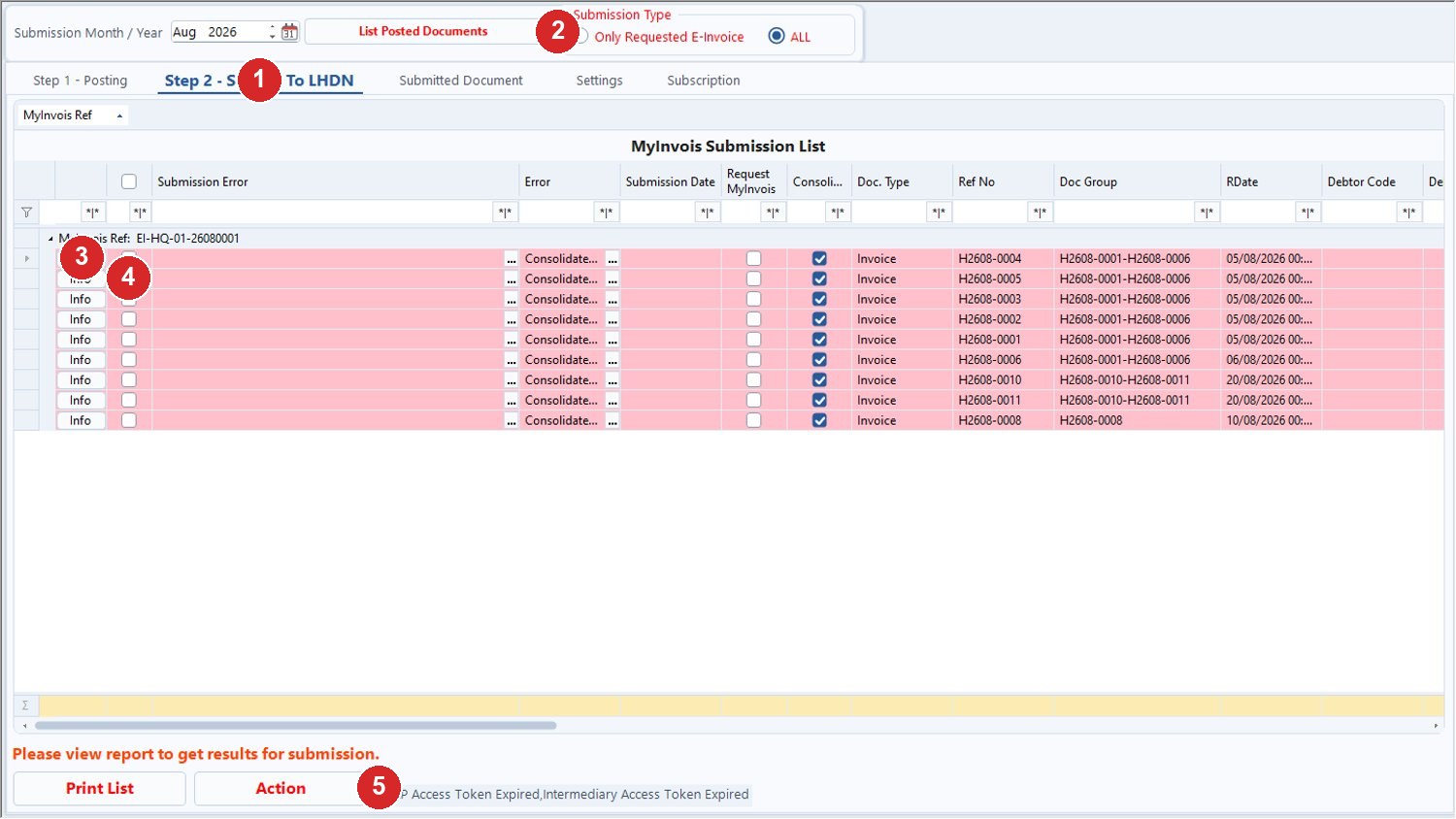
| Step | What to do |
|---|---|
| 1 | Step 2 – Submit To LHDN tab. |
| 2 | Click List Posted Documents. Consolidated bills are grouped under their MyInvois Ref (here EI-HQ-01-26080001). |
| 3 | Info opens the document’s buyer details to read or fix. |
| 4 | Tick the documents to send. |
| 5 | Action > Submit Selected Documents (Reverse Posting is also here). |
6. Submit to LHDN
Tick the documents, click Action and choose Submit Selected Documents. If some documents are overdue, you will be asked whether to submit them under the Special Voluntary Disclosure Programme (SVDP).
7. Check the results
Open the Submitted Document tab. All rows should show Status Valid. If a row still shows Submitted, tick it, click Action and choose Validate Submitted Document(s) or Validate All Documents.
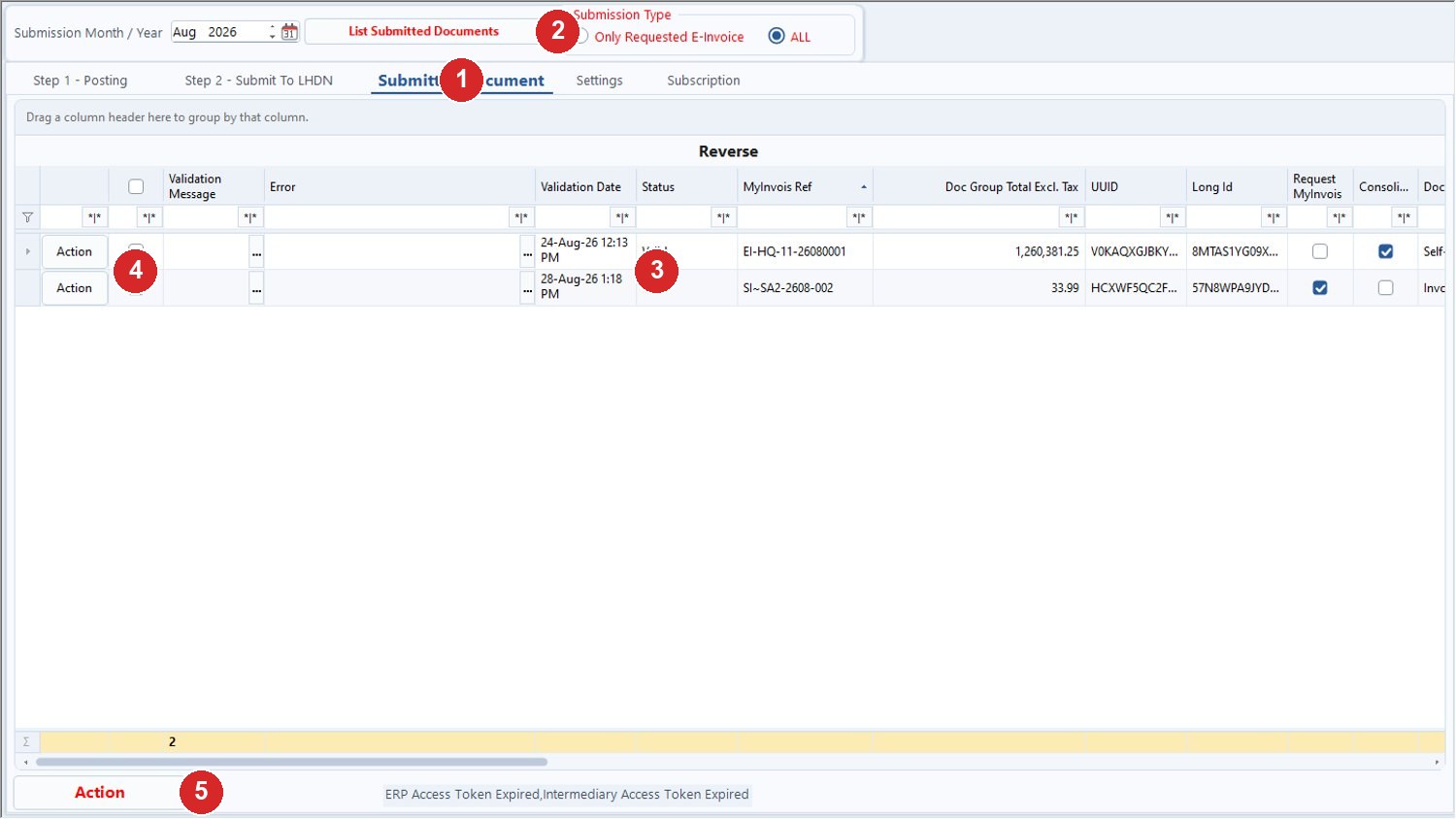
| Step | What to do |
|---|---|
| 1 | Submitted Document tab. |
| 2 | Click List Submitted Documents. |
| 3 | Status: Valid means done (here two Valid documents in Aug 2026). Validation Message and Error explain an Invalid one. |
| 4 | Tick a document to work on it. |
| 5 | Action: Validate Submitted Document(s), Cancel Selected Document, and so on. |
8. Confirm everything is done
With Submission Type set to ALL, the Step 1 list and the Step 2 list should both be empty, and all rows in Submitted Document should be Valid.
Tips
- Requested e-invoices are submitted within the same month. Consolidated e-invoices are submitted in the next month.
- A document submitted as consolidated cannot be listed as requested.
- Submitted only means the document was sent. Valid means it was accepted. LHDN can sometimes be slow.
- A token-expired message during submission is harmless if the lists end up empty and the documents are Valid.
- If you see a token warning such as Intermediary Access Token Expired, go to the Settings tab, open the Action menu and click Renew Access Token.
- To find old pending documents, check month by month in Submitted Document, then validate them.
- Late submission options are on Settings > Others. Do not rely on them regularly, because LHDN may impose a penalty.
- Credit notes to customers must also be submitted and validated.
Common problems
Step 2 is empty
An empty Step 2 list means everything has been submitted. Also check that Step 1 is empty, that Submission Type is ALL and that the invoice was posted.
Documents will not submit
Read the red-flag messages in the list and fix the customer or item details, such as TIN, address, city, postcode, state, phone number, email or MSIC Code.
Message: Company Name in License and Database is different
Open Company Information and click Save. Otherwise submission uses the wrong name.
A document is too late (Exceeded 7 days or 72 hours window)
Go to Settings > Others and tick Allow Submit E-Invoice which already overdued. for requested e-invoices, or Allow Submit Consolidated E-Invoice after 7 days for consolidated ones. You need a confirmation code to save.
Status stays Submitted
Tick all the documents, then use Action > Validate Submitted Document(s). Also check Step 2 for leftover transactions.
Still not working
Contact Synergy support. Have ready: the document number and month, a screenshot of the error or lists, your software version, and the main PC ready for a remote session.