
Use this guide when a message such as ERP Access Token Expired appears, when saving the e-invoice setting gives an error, or when you run e-invoice for branches or several shops under one company.
Before you start
- The exact message text.
- Whether you are on the main PC or a client PC.
- For branches: the registration details and the location codes involved.
Steps
1. Read the token message calmly
A message such as ERP Access Token Expired or Intermediary Access Token Expired looks alarming but is harmless. You do not need to renew the token yourself. Just submit in Step 1 or Step 2 and it renews automatically, so you can continue submitting.
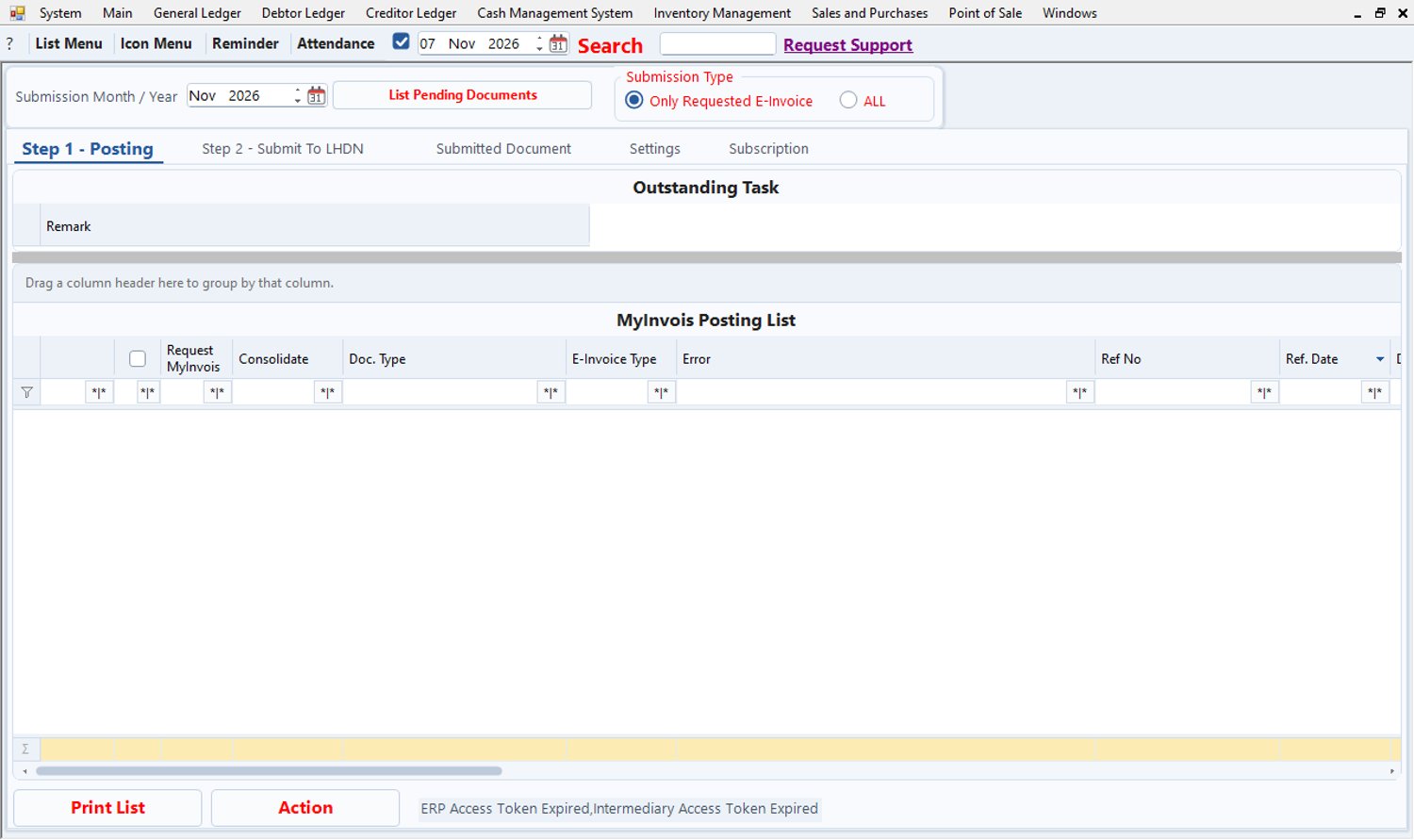
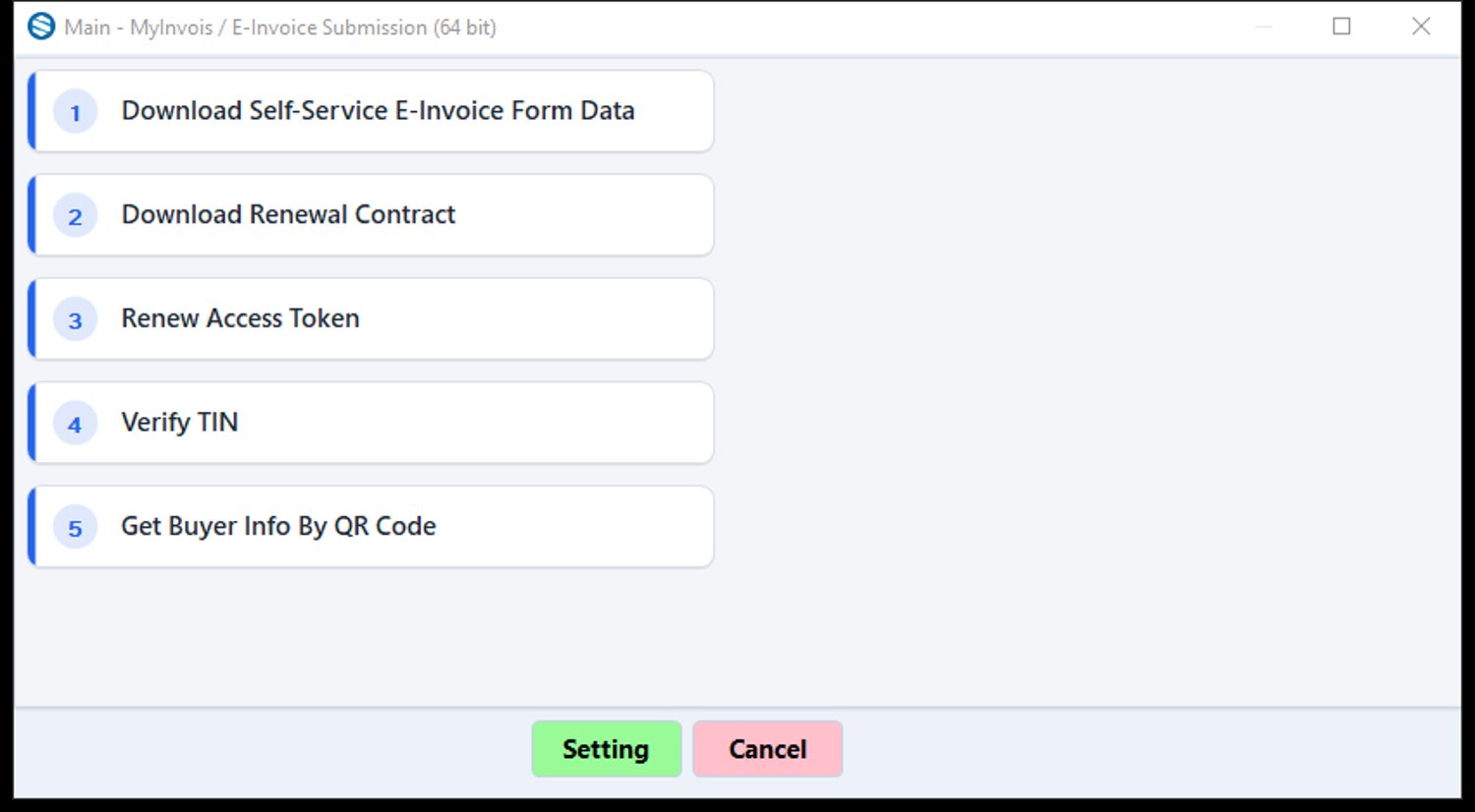
2. Renew the token by hand if you prefer
On the Settings tab, open the Action menu and click Renew Access Token.
3. Check the API settings and the company TIN
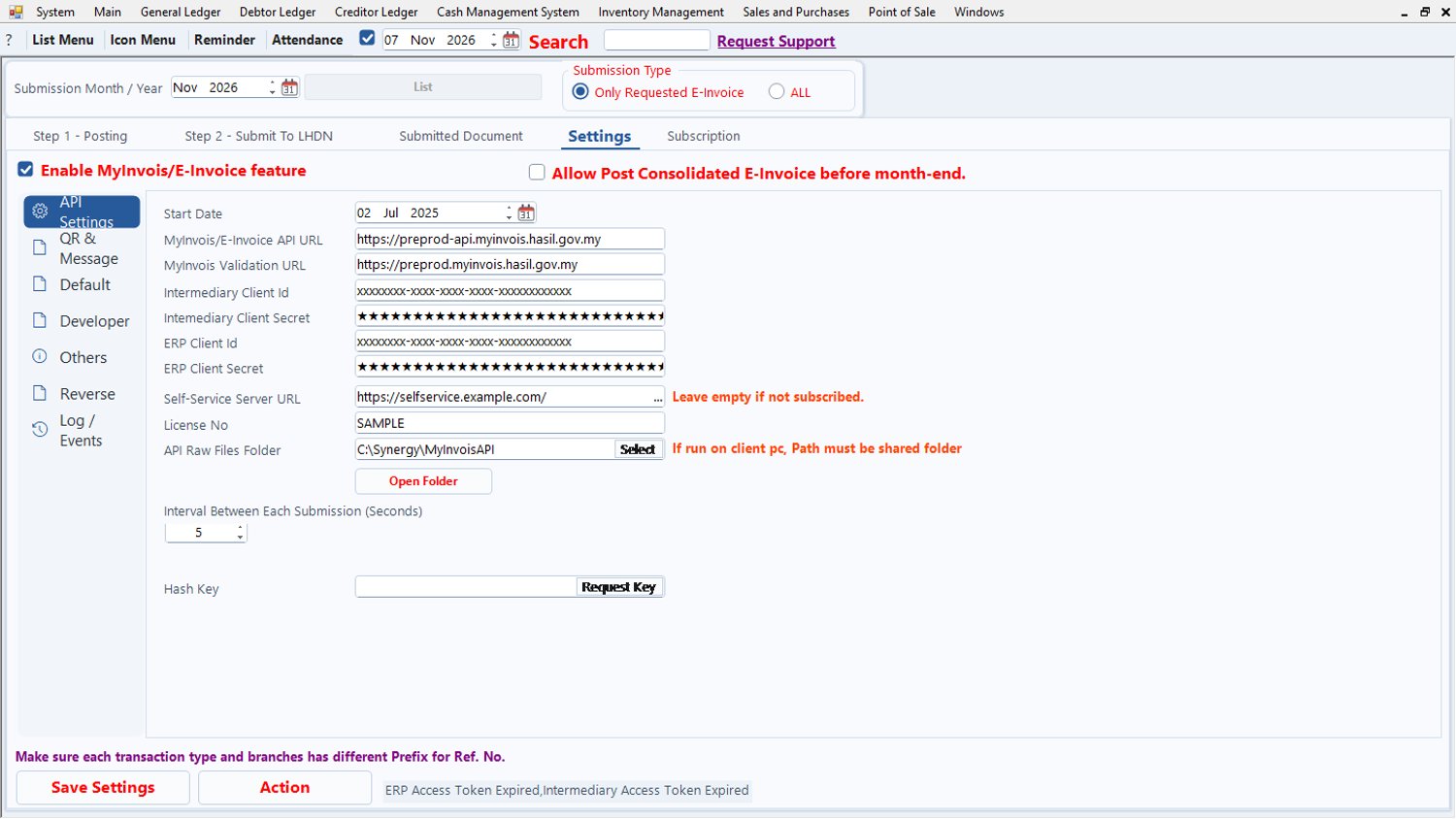
Go to Main > MyInvois / E-Invoice > MyInvois / E-Invoice Submission > Settings > API Settings and compare the settings with the MyInvois portal. Also check the company TIN in Company Information against the portal. After the e-invoice set-up is done, do not change Company Information.
4. If saving the e-invoice setting shows a misc flag
When you save the setting, a misc flag is shown. Copy it, paste it into the e-invoice setting field and save again.
5. The 7-day warning for consolidated
The warning about 7 days for consolidated e-invoices appears when the submission is late. Read the guide “Synergy Acc2026 – Late, Overdue or Back-Dated E-Invoices”.
6. Do branch upload and download on the main PC
Branch data upload and download must be done on the main PC, not on client PCs, because the data is large. If the download keeps showing not responding, check that you are on the main PC.
7. Shops under the same registration
Shops under the same registration may use the same Client ID and Secret. Give each shop a different reference number prefix to avoid duplicate numbers: click New, key the new prefix (maximum 10 characters) and Save. Outlet names may differ if all the data belongs to the same company; the company name on documents stays the same.
8. Branch sales go under HQ, or the shop name on the receipt is wrong
To exclude branches from HQ’s submission, or to change the shop name on the receipt, contact Synergy support. They set it remotely using the location codes. Have the location codes and the registration details ready.
Tips
- Each different company must register its own ERP.
- Sending e-mail supports only Gmail with Gmail settings.
- To switch company: log out, log in, and choose the company in the dropdown at login. To use two companies together, open the program again from the taskbar.
Common problems
The token message appears although I paid last month.
The message is harmless. Submit in Step 1 or Step 2 and the token renews itself.
Submission itself fails.
Contact Synergy support. Have ready the message text, the PC name and whether you were in Step 1 or Step 2. Keep the main PC on, because the fix is done on the main PC.
The program says the licence or contract has ended.
Read the guide “Synergy Acc2026 – What To Do When You Cannot Send an E-Invoice”.