
Use this guide when Synergy cannot send e-mail, when you see “The SMTP server requires a secure connection or the client was not authenticated”, or when you want the POS closing report e-mailed to you at the end of every shift. It sets up the company e-mail account (with a Gmail App Password), an optional sender for each user, the closing report, and statements by e-mail. For sending other documents, see “Synergy Acc2026 – E-mail, WhatsApp and SMS for Documents”. If e-mails were working and then stopped, see “Synergy Acc2026 – When the Nightly E-mail Report or a Statement Does Not Arrive”.
Before you start
- The e-mail address that will send the e-mails, and its owner (for Gmail you need to sign in to the Google Account and may need the phone used for 2-Step Verification).
- Do the setup on the main PC. E-mails that wait in the queue are sent by the Synergy e-mail service on the main PC.
- The e-mail address(es) that should receive the closing report.
- A Microsoft 365 business mailbox needs extra setup: contact Synergy support for it.
Steps
1. Gmail only: create an App Password
Gmail refuses your normal Gmail password from Synergy. In your Google Account, turn on 2-Step Verification. Then go to Google Account > Security > 2-Step Verification > App passwords and create an App Password. Google shows a 16-letter password: copy it. You type this App Password in Synergy, not your normal Gmail password.
2. Enter the company e-mail account
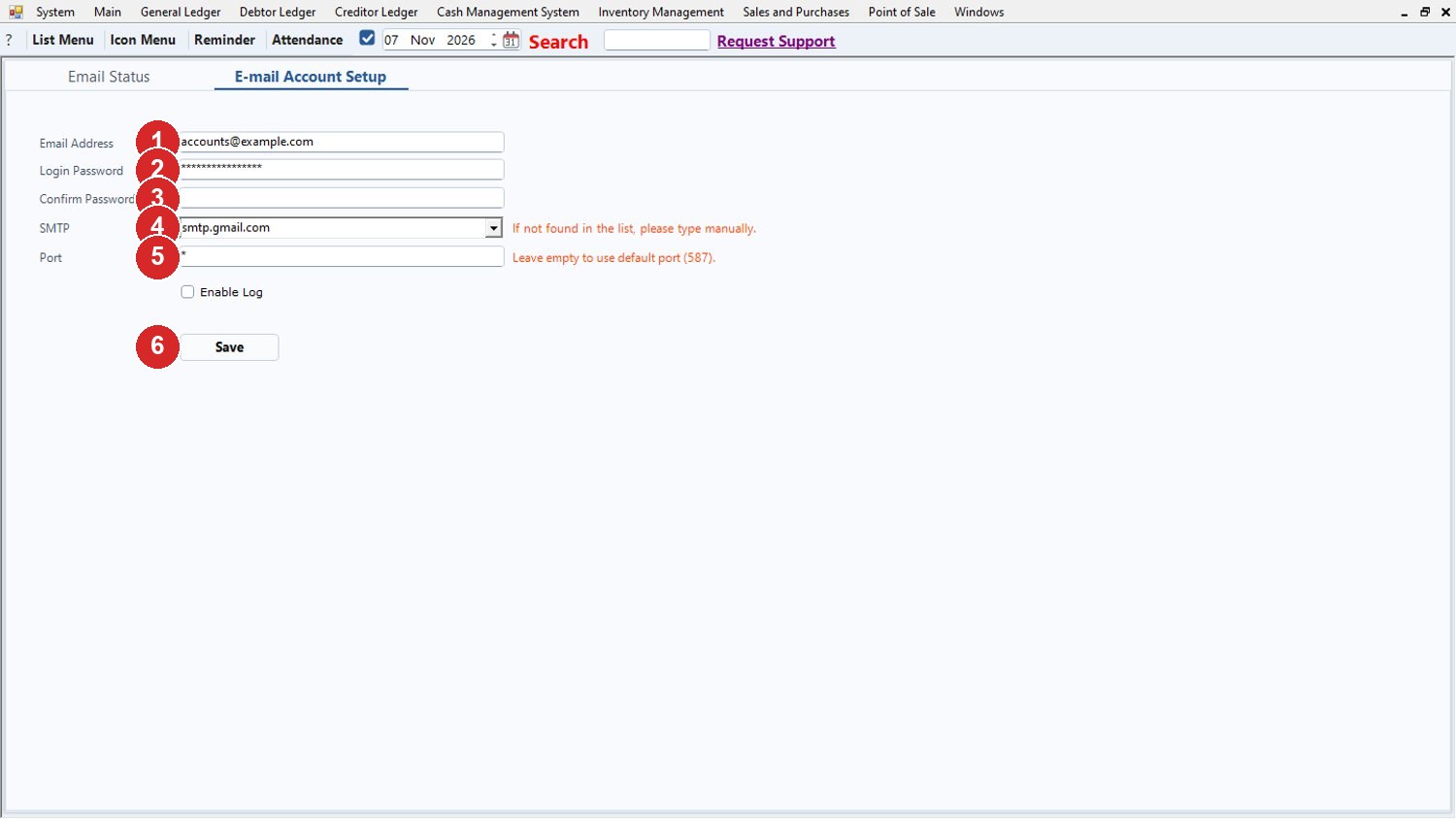
Go to Main > System > View Pending Email / Email Setup and open the E-mail Account Setup tab. This account is used for all users who do not have their own sender. For Gmail, use the App Password from step 1 as the password. Port 465 does not work with Synergy: use 587. Saving shows “Email Settings Saved. Email Service must be restarted to take effect.” There is no test button on this screen: test it in step 4.
| Step | What to do |
|---|---|
| 1 | Email Address: type the sender e-mail address. |
| 2 | Login Password: type the password (for Gmail, the App Password). |
| 3 | Confirm Password: type the same password again. |
| 4 | SMTP: choose the mail server from the list (for example smtp.gmail.com, smtp.mail.yahoo.com, smtp-mail.outlook.com or smtp.live.com). If yours is not in the list, type it. |
| 5 | Port: leave empty to use the default port 587, or type 587. |
| 6 | Click Save. |
3. Restart the e-mail service
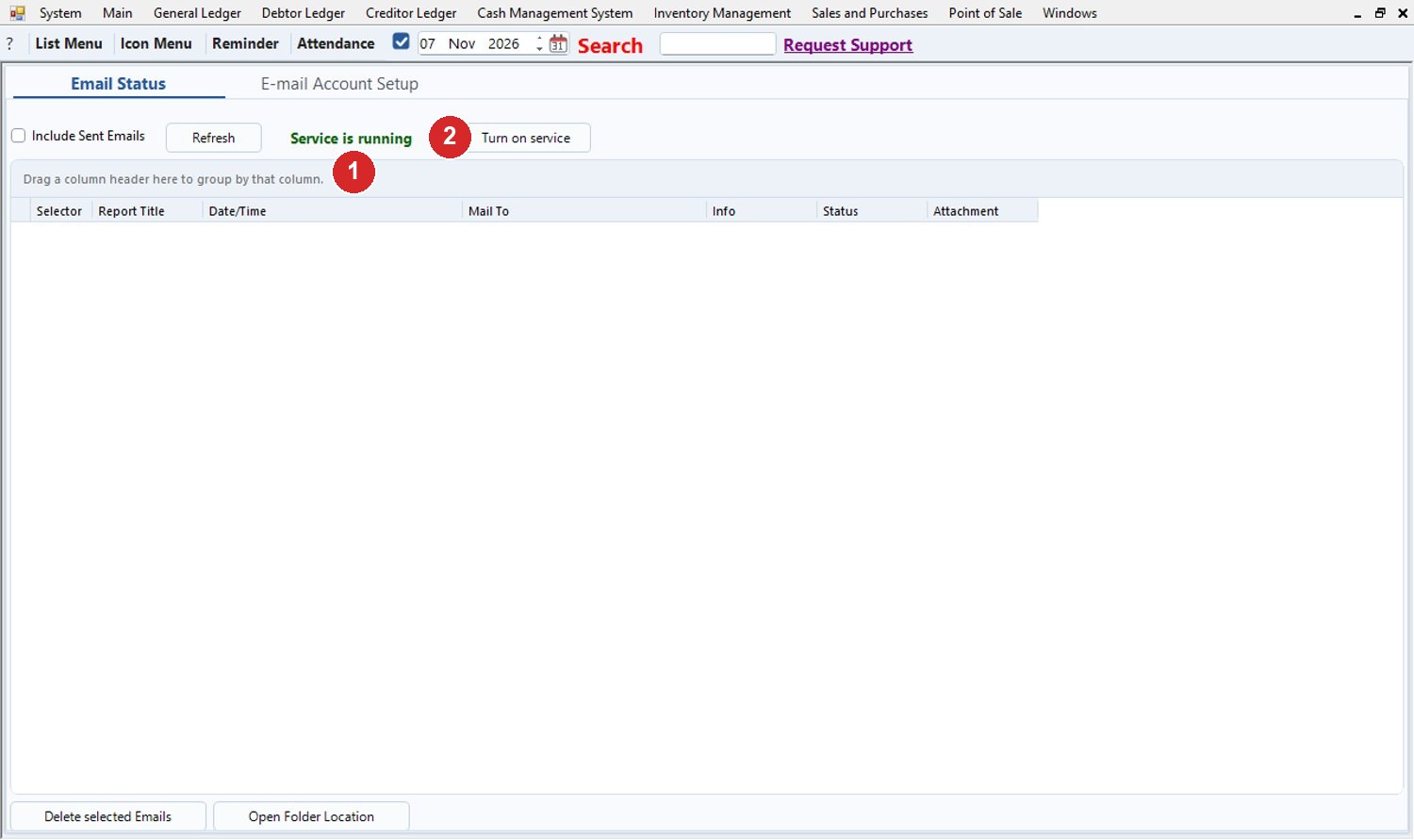
The new settings are used only after the Synergy e-mail service is restarted on the main PC. If you are not sure how to restart it, contact Synergy support.
| Step | What to do |
|---|---|
| 1 | On the Email Status tab, check that it says Service is running. |
| 2 | If it says Service not running, click Turn on service. Windows may ask you to allow it. |
4. Test the account
Go to Main > Application Security > User and open your own user. On the E-Mail Account tab, type the same E-mail, E-Mail Password, SMTP and Port, then click Test Send E-Mail. Synergy sends an e-mail with the word “Testing” to that same address. You see “E-Mail Sent.” or the error message. Check the inbox. The test uses what you typed, so you do not need to save the user first. If the user should not send from their own account (step 5), clear those boxes again before you save.
5. Optional: a separate sender for each user
A user can send from their own e-mail address. On that user’s E-Mail Account tab, fill in E-mail, E-Mail Password, SMTP and Port (empty = 587), test with Test Send E-Mail, then save. The user’s own account is used only when E-mail, E-Mail Password and SMTP are all filled in. If any of them is empty, the company account from step 2 is used.
6. Set the closing report e-mail
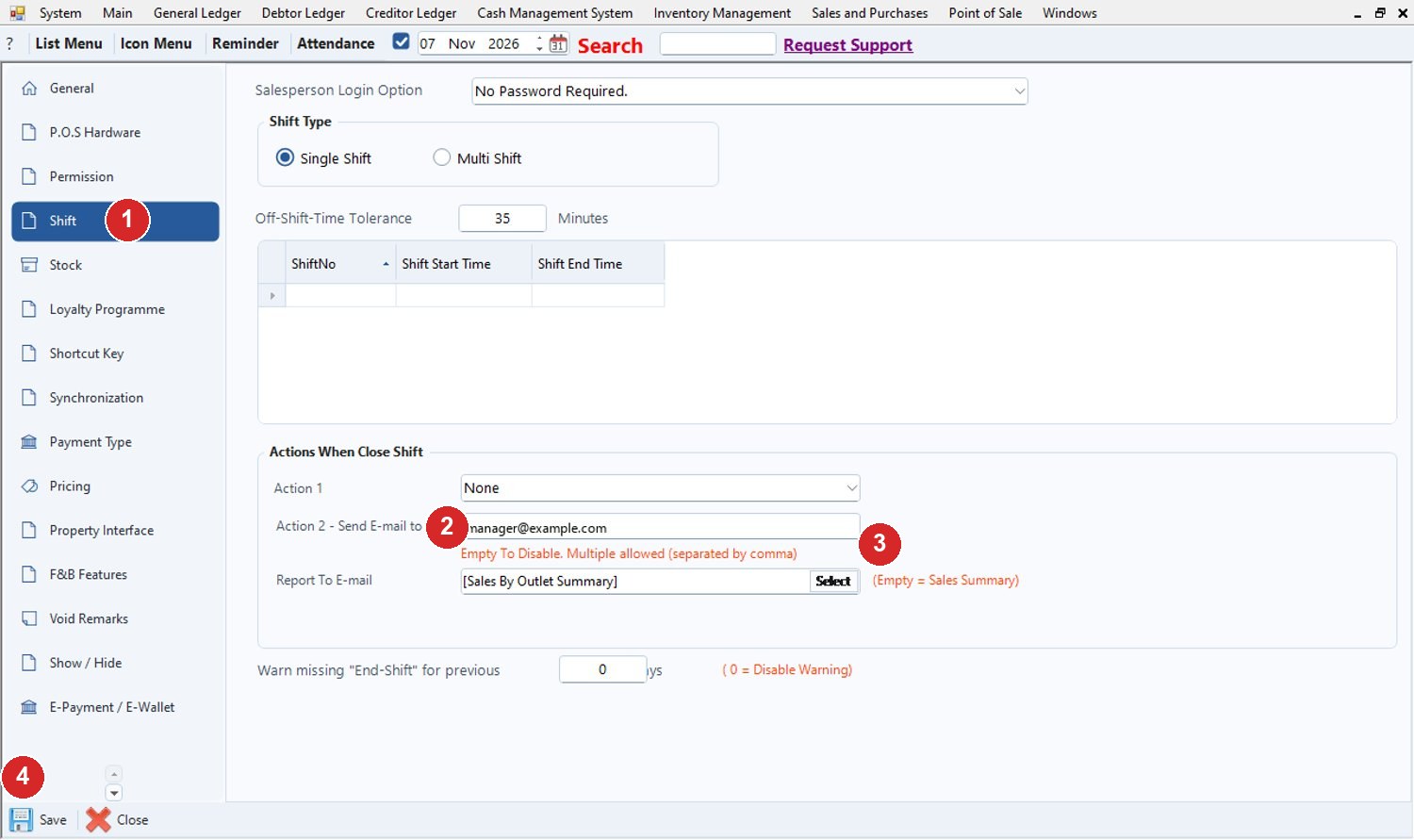
Go to Point of Sale > Point of Sale Setup > Point of Sale Settings and choose Shift. Use the Actions When Close Shift box.
| Step | What to do |
|---|---|
| 1 | Click Shift. |
| 2 | Action 2 – Send E-mail to: type the address that should get the report. Separate several addresses with commas. Leave it empty to stop the e-mail. |
| 3 | Report To E-mail: click Select and tick the reports to send: Sales Summary, Sales By Outlet (Grouping), Sales Cost Analysis, Transaction Detail Listing or Sales By Outlet Summary. Empty = Sales Summary. |
| 4 | Click Save. |
7. What happens when the cashier ends the shift
When the shift is closed with the closing balance, the report is sent at once if the PC has internet. Without internet the cashier sees “Internet Connection Is Unavailable. Do you want to proceed without sending E-mail?”. Yes closes the shift and puts the report in the e-mail queue, to be sent later by the e-mail service on the main PC. No keeps the shift open (“Please connect to internet and try again.”). If sending fails, the cashier sees the error once and the shift still closes, but the report is not sent. So test the e-mail account (step 4) before you rely on it.
8. Send statements to debtors by e-mail
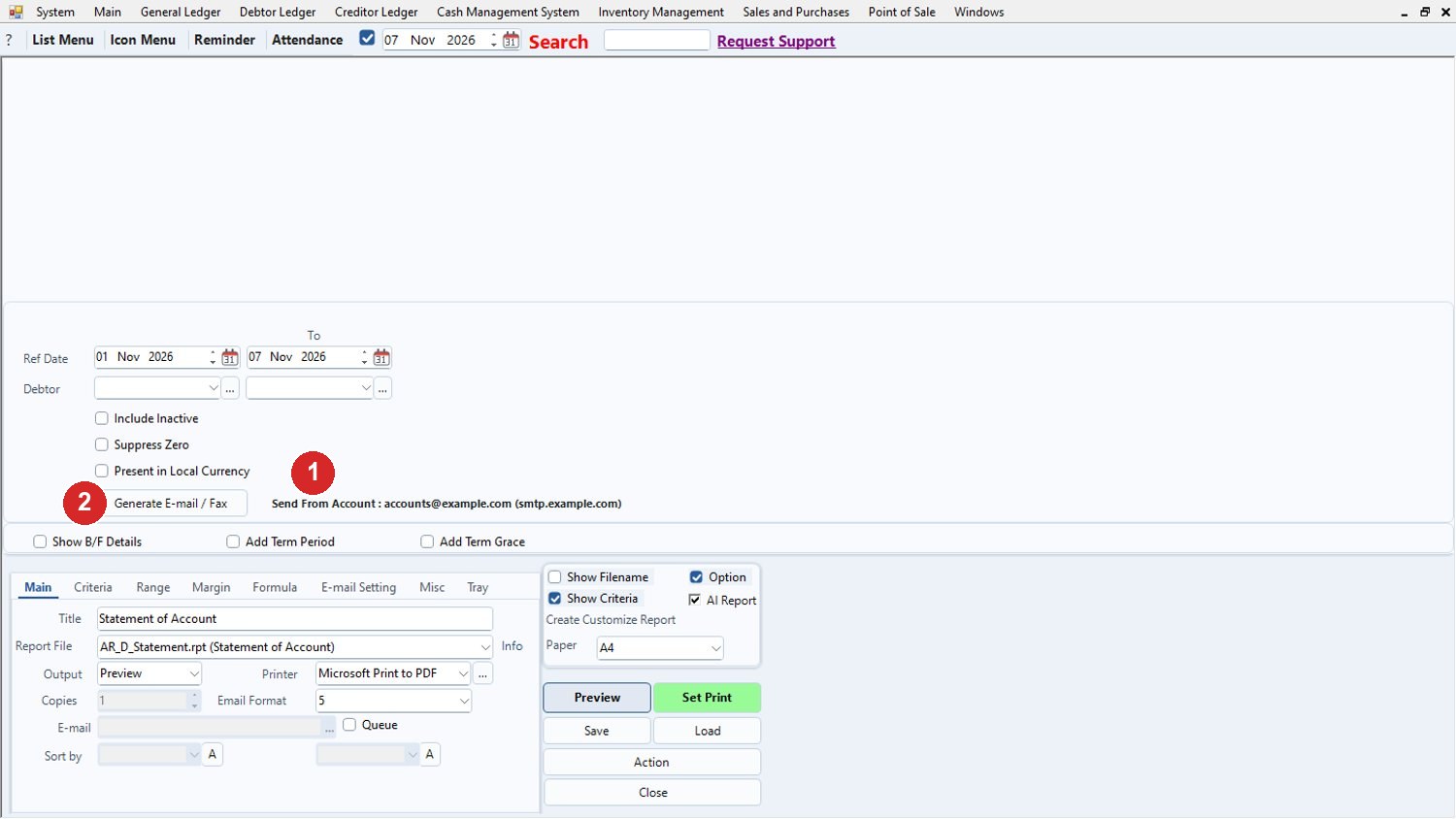
The statements go to each debtor’s e-mail address through the e-mail queue. The full steps are in “Synergy Acc2026 – Statement of Account: Printing and Wrong Balances”. When you see “Emails have been sent to the queue.”, the statements are queued, not yet delivered. The e-mail service on the main PC must be running to send them.
| Step | What to do |
|---|---|
| 1 | Check the line beside the button: it shows Send From Account with the sender address. If it shows [Sender E-mail Account] not configured., do step 2 first. |
| 2 | Click Generate E-mail / Fax, select the debtors and confirm. |
9. Check what is queued and what is sent
Go to Main > System > View Pending Email / Email Setup, Email Status tab. Queued means waiting to send. Tick Include Sent Emails and click Refresh to also see the Sent ones. If e-mails stay Queued, check that the service is running (step 3) and see “Synergy Acc2026 – When the Nightly E-mail Report or a Statement Does Not Arrive”.
Tips
- The default port is 587. Port 465 does not work with Synergy.
- For Gmail, always use an App Password. Your normal Gmail password is refused.
- After changing the company e-mail account, restart the e-mail service on the main PC, or the old settings are still used.
- The Email Setup screen has no test button. Use Test Send E-Mail on the User screen.
- A user’s own sender is used only when E-mail, E-Mail Password and SMTP are all filled in. Otherwise the company account sends.
- The closing report can go to several addresses: separate them with commas.
- If you leave Report To E-mail empty, the Sales Summary is sent.
- If the closing report fails, the shift still closes, but that report is not sent.
Common problems
Cannot send e-mail: “The SMTP server requires a secure connection or the client was not authenticated” (often with 5.7.0)
The mail server refused the login. For Gmail this means the normal password was used: turn on 2-Step Verification, create an App Password (step 1) and type it as the password in step 2 (or in the user’s E-Mail Account tab if that user has their own sender). Make sure the port is 587, then restart the e-mail service and test again.
Self-service QR or another screen shows the SMTP secure connection error
It is the same e-mail login problem. Fix the e-mail account as in the problem above, then test with Test Send E-Mail.
The message says “Email Account not set up.”
The e-mail address, password or SMTP is empty. Fill in all of them in step 2 (or for the user in step 5) and save.
It does not work with port 465
Change the port to 587, or leave Port empty to use 587. Save and restart the e-mail service.
“Confirmation password does not match.” when saving
Type the same password in Login Password and Confirm Password.
“Please enter the SMTP” when saving
Choose the mail server in SMTP, or type it if it is not in the list.
The Statement screen shows [Sender E-mail Account] not configured.
No sender account is set up. Do step 2, restart the e-mail service, then generate the statements again.
The closing report did not arrive
Check the address in Action 2 – Send E-mail to. Test the e-mail account (step 4): if sending failed at the end of the shift, the shift closed without sending. If the PC had no internet and the cashier chose to continue, the report is in the queue: check View Pending Email and that the service is running. For missed days, see “Synergy Acc2026 – When the Nightly E-mail Report or a Statement Does Not Arrive”.
E-mails stay Queued in View Pending Email
On the Email Status tab, check Service is running. If it says Service not running, click Turn on service on the main PC.
One user’s e-mails go out from a different address
If that user has E-mail, E-Mail Password and SMTP filled in on the E-Mail Account tab, their own address is used. Clear those boxes to use the company account, or fill in all of them to use their own.
We use a Microsoft 365 business mailbox
This needs extra setup. Contact Synergy support and have the mailbox address and its owner ready.